Enable and Use AI Tags
This article helps admins and community managers enable and use Tag Assist in Gainsight Customer Communities.
Overview
Tag Assist uses AI to suggest relevant tags as community members create posts, helping them categorize content accurately without needing to know your full tag library. Suggestions are drawn primarily from the topic title and description. Tag Assist can also suggest and create new public tags when it identifies a relevant topic your library does not yet cover - including when "Allow end users to add new public tags" is turned off.
Note: Tag Assist manages its own tag suggestions independently of the "Allow end users to add new public tags" setting. If a suggested tag does not already exist, accepting it adds a new public tag to your taxonomy.
Use Tag Assist to:
-
Reduce tagging inconsistency caused by members using different terms for the same topic
-
Lower the effort required for members to tag their content correctly
-
Improve search relevance by ensuring posts carry accurate, consistent tags
Enable Tag Assist
To use the AI tags, you need to enable Tag Assist from the control.
To enable Tag Assist:
- Log in to Control.
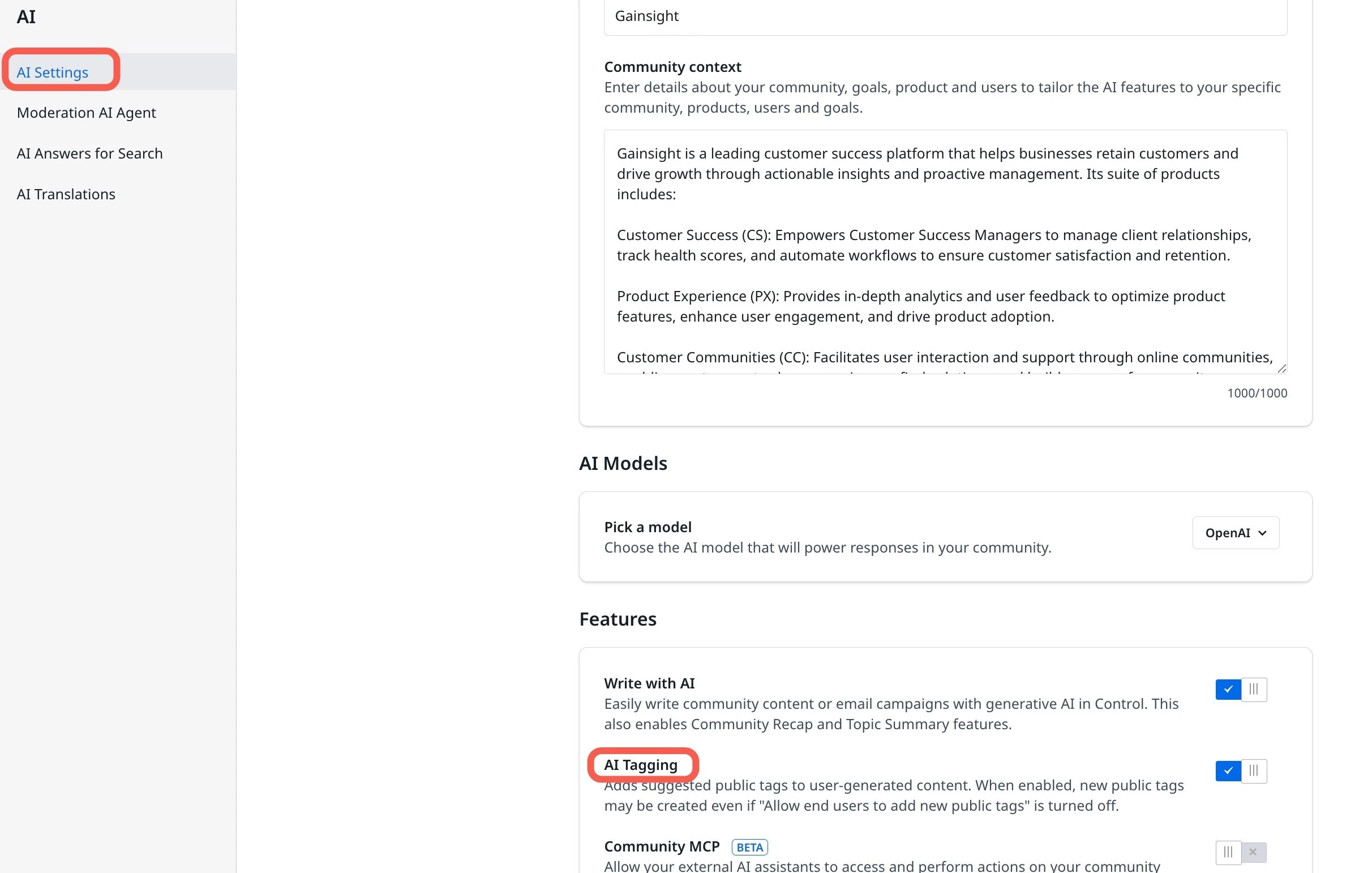
- Navigate to AI Settings > AI Settings. The AI Settings page appears.
- Scroll down to the Features section and turn on the AI Tagging toggle.
Use AI Tagging
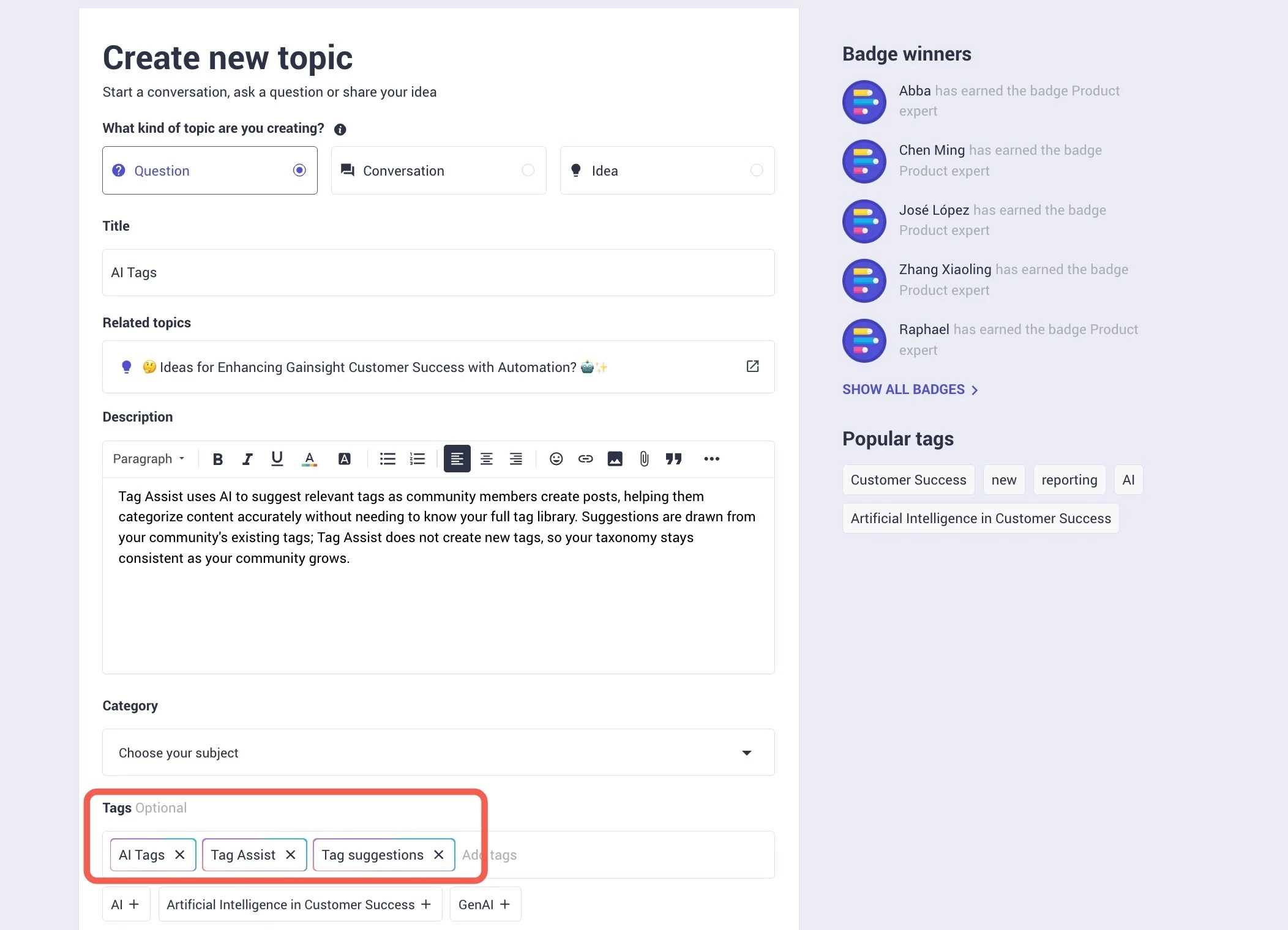
After AI Tagging is enabled, members see AI-suggested tags when they create a post. The suggestions appear automatically as the member types, based on the content they enter.
To use Tag Assist when creating a post:
- Log in to Destination.
- Click + Create new Topic. The Create new topic page appears.
- In the Description text field, enter the content. The AI-suggested tags are now shown in the Tags field.
- Click the Tags text field to expand for more AI-suggested tags.