Sudhanshu
Gainsight Product Manager
January 12, 2022

Configure the community overview page

  • January 12, 2022
  • 18 replies
  • 1166 views

Note: if your instance was created after 2 February 2022, the Community Overview will already be enabled by default.

By enabling the Community Overview page, this will allow you to build a dedicated homepage as a launch pad for your success content, while also offering your customers a focused and engaging community overview and feed. 

Here is how to configure this page: 


1. Customize the Community overview page


You can customize the new page without it being visible to end users. 

  1. Access the page by either:
  • Going in Control Platform> Community. You can click the button "Customize"
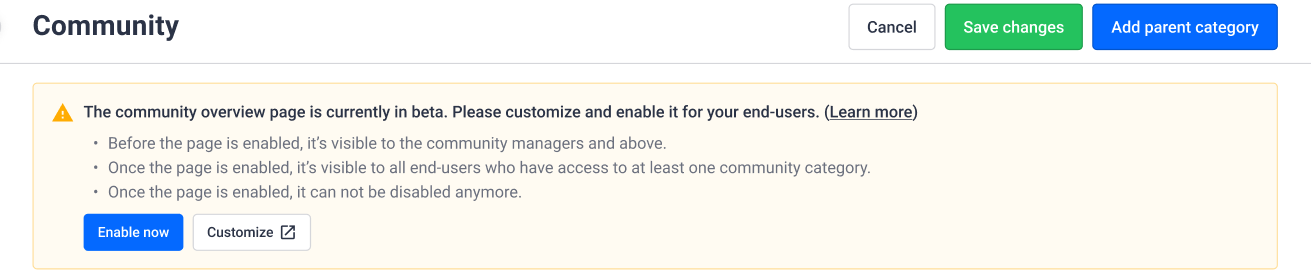
  1. You can now customize the page. Make sure to add a visual and a title to your hero banner 
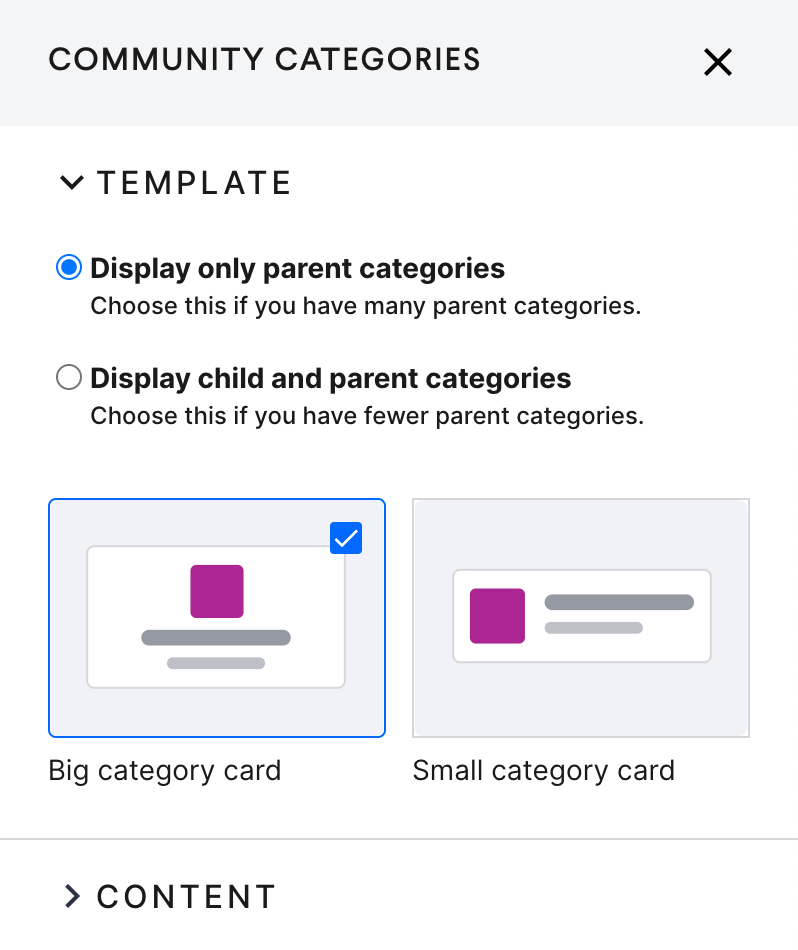
  2. You can configure your Community category widget to show only parents categories OR parent and child categories. That second option is particularly interesting if you have a limited number of parent categories.
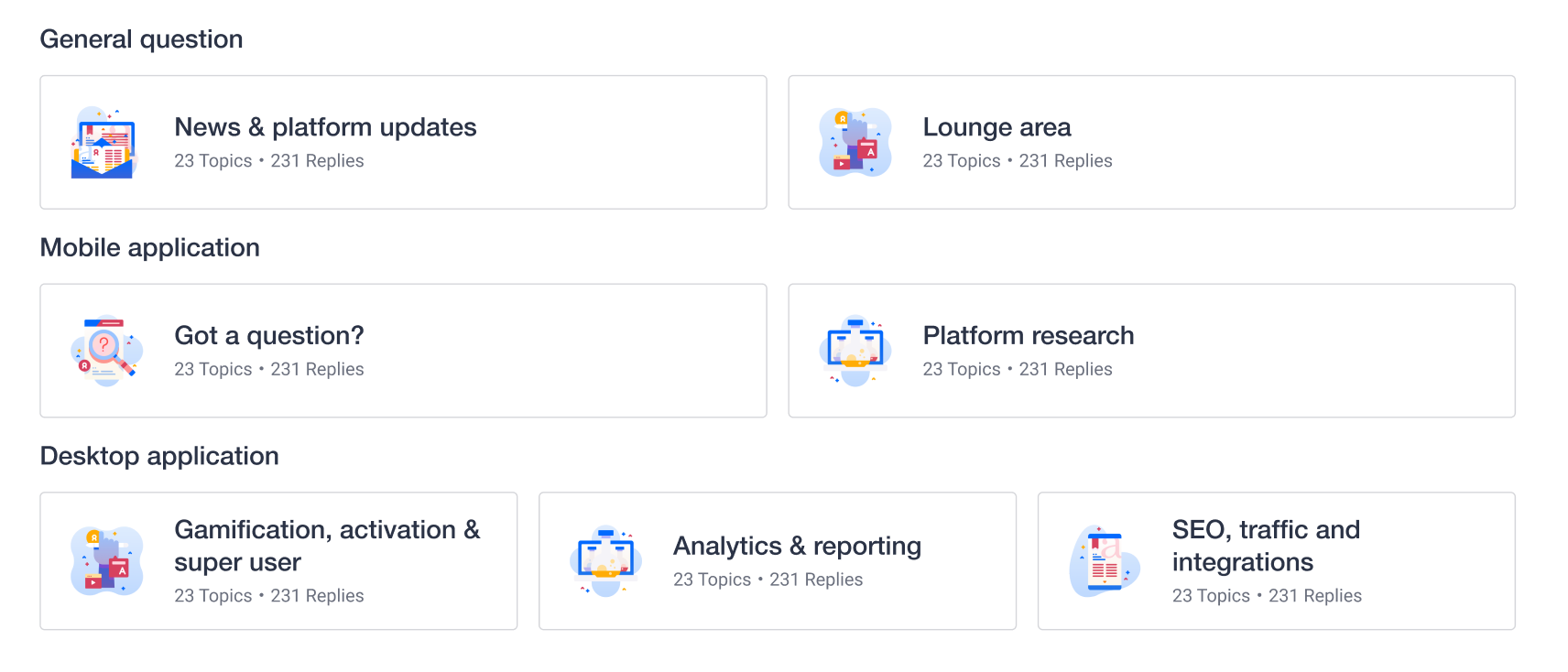
Widget displaying all the child categories grouped per parent category

You can access this setting in the configuration side panel of the community categories widget.
Check out this article that share best practices on how to configure the Community overview based on your use case:


2. Configure the navigation


We made a few changes to the navigation.

  • With the introduction of the new Community overview page, we removed the link to the "Home" from the community dropdown. From now only the link to the community overview can be found in the Community dropdown. Users can still click on the icon to navigate to the homepage which is a very common pattern.
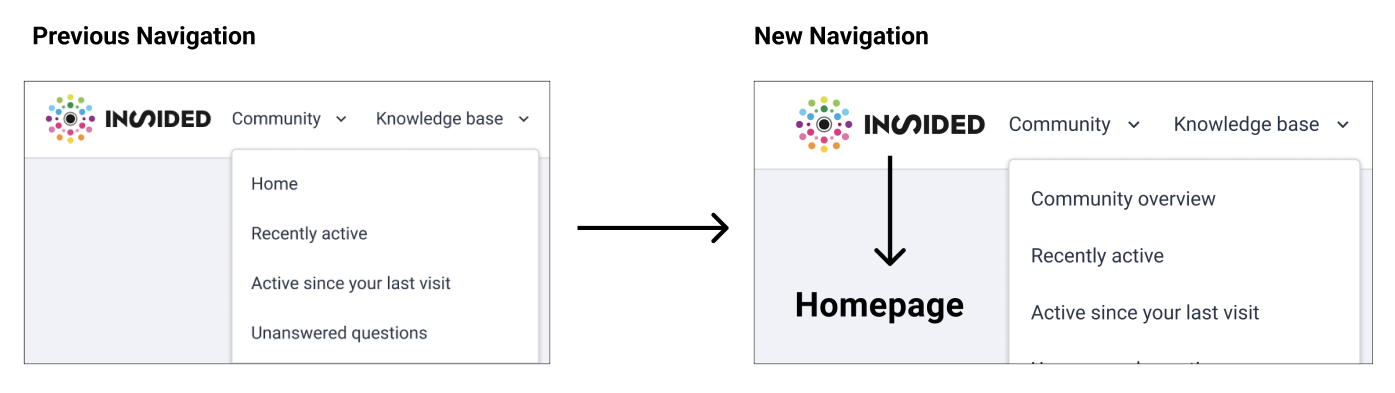
Changes in Mega Menu navigation
  • We also renamed the breadcrumb to say "Home" instead of "Community" when referring to the homepage. This is of course for consistency purposes. If you had previously edited those phrases, you will not be impacted by the change.
    Of course the new Community overview page will appear in the breadcrumb from now on. 

 

What you need to do (optional) : 

You can update the name of the page in the breadcrumb using phrases if you prefer calling it something else than "Community overview"

If you change the phrase in the breadcrumb, the changes will also be applied in the Mega Menu. 

Once you enable the page for end users, the page will be accessible from the Mega Menu.  You can also update the phrase from the Mega Menu as well.
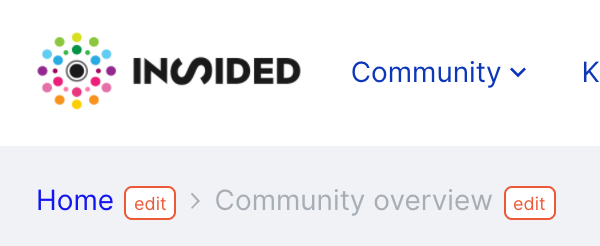
Editing the phrase from the breadcrumb
Editing the phrase from the Mega Menu


If you are using the old navigation menu. We are not investing in building new features in the old navigation menu. We strongly recommend using the new Mega Menu to make the best use of the community overview page. ​​


3. Make the page visible to you end users


Once your page is configured, go to  Control in Platform> Community. Click the button “Enable now”.
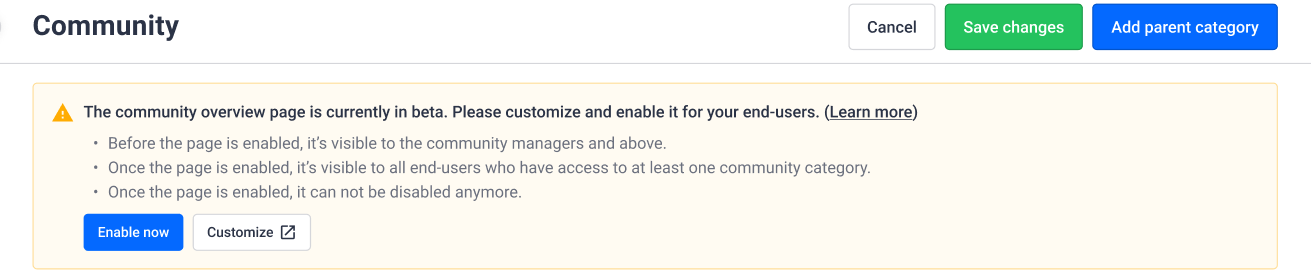
 

By clicking this button, the Community overview page will be accessible to all users who have access to at least one Community category.  The link to the Community overview page will also appear in the Mega Menu.

Of course the permissions settings at the level of the Community categories still apply. On the Community overview page, end users will only see link to the categories they have access to. This is the same behavior that we currently have on the homepage.


Next steps


Now that you have a dedicated community overview page, this means that you can rethink your homepage to turn it more into a launch pad for your customers, towards your different customer success resources (eg. Community, Knowledge Base, Events, Product Updates, etc.).

    18 replies

    SmartlyGreg
    Helper ⭐️⭐️⭐️
    January 31, 2022

    I’d like to test this please @Marion Frecaut ! Thanks!

    Blastoise186
    Helper ⭐️⭐️⭐️
    January 31, 2022

    You up for this @timcavey ? It seems useful, but I need your consent to request beta activations!

    Bug blasting absolutely everything... The Blastoise Way
    timcavey
    Helper ⭐️⭐️
    January 31, 2022

    Just to double check whilst we consider if we want to be involved in this beta, @Marion Frecaut we can have it enabled and configure this prior to it being visible or having an effect to the UI for our users? 


    Third step: Make the page visible to you end users


    1. Once your page is configured, go to  Control in Platform> Community. Click the button “Enable now”.


    By clicking this button, the Community overview page will be accessible to all users who have access to at least one Community category.  The link to the Community overview page will also appear in the Mega Menu.

    Of course the permissions settings at the level of the Community categories still apply. On the Community overview page, end users will only see link to the categories they have access to. This is the same behavior that we currently have on the homepage.


    learning, sharing and repeat
    Blastoise186
    Helper ⭐️⭐️⭐️
    January 31, 2022

    In your case Tim, until you hit the Enable button in the prompt, it would only be visible to you as I can’t think of anyone else on OVO or Boost with Community Manager or Administrator permissions. Gives you a chance to play with it and customise it to your liking first!

    Until then, the current one would remain active.

    Bug blasting absolutely everything... The Blastoise Way
    JKelley
    Helper ⭐️
    January 31, 2022

    Hi @Marion Frecaut we’d be interested to participate in the beta. It would also be great to join a demo or webinar on these changes if possible. cc @dandre 

    Onomatopoeia
    Helper ⭐️⭐️
    February 1, 2022

    @Marion Frecaut I’ll handraise to join in on this one too please :)

    Helper ⭐️⭐️⭐️
    February 1, 2022

    Hello @SmartlyGreg , @Onomatopoeia @Blastoise186 @timcavey @JKelley Thanks a lot for your enthusiasm to test this feature :sunglasses:

    We are about ready to launch an open beta for the Community overview in the coming days, meaning all customers will be able to test the feature. We will have more to share then in the product update as well as in a  best practices article to guide you. So I will enable the feature then for you.

    I'll keep you posted as soon as you can test thing out, it should be any day now :grinning:


    Helper ⭐️⭐️⭐️
    February 2, 2022
    '

    Hello @SmartlyGreg , @Onomatopoeia @Blastoise186 @timcavey @JKelley , the feature is now enabled for you :)

    I''m sharing below the product update to announce the beta and the best practice article by Julian:


    '
    cstrange
    Contributor ⭐️⭐️⭐️
    February 16, 2022

    Hi @Marion Frecaut

    I followed your steps, but am not seeing this functionality. I believe this feature needs to be enabled for us. I am planning on building out a Champions “landing page” and think this could work well as a workaround for us. Thanks @Julian for the suggestion!

    ~Chloe

    ~Chloe
    Julian
    Gainsight Employee ⭐️⭐️⭐️
    February 16, 2022

    Hi Chloe,

    I just checked to see if something is wrong, but I was actually able to see the community overview page when I am logged in as administrator. Where exactly do you get stuck? I could see the info box on your Community settings page. If I click on "customize” I also do get an error, but that is because I am not logged in into the frontend. Maybe that is the issue?

    If you are logged in, simply add this to your url and you should see the page: /community

    Let us know if the issue persists or if you have other questions around this!

    I follow my nose, it always knows