
Exports Overview
This article helps community managers and admins on how to export data from the community.
Overview
Exports enable admins to generate structured, analysis-ready community data directly from the CC analytics tool. The feature delivers downloadable reports on user activity, engagement, and moderation to support consistent, data-driven decision-making.
Exports align report data with the Customer Community (CC) Data Lake to ensure standardized metrics and consistent reporting across systems. This alignment allows organizations to:
- Track engagement trends over time
- Measure community performance
- Compare community data with external channels such as websites and social platforms
Admins can apply flexible timeframe filters and select from multiple export types to generate reports that meet specific business requirements. Exports deliver structured datasets that teams can immediately use for analysis, strategic planning, and performance optimization.
Note: To request a data dump of Community data, you can raise a ticket with Gainsight Support. Once the request is processed, you can securely download the data by logging in to the SFTP server using your credentials.
Variability Between Dashboard and Export Metrics
You may notice differences between metrics displayed in legacy Dashboards and data generated through Exports. These differences occur because each system updates and retrieves data at different times and through different processing methods.
Export Data
You can export community data from Control, either on demand or by scheduling exports to run at a specified time.
To export data:
- Log in to Control.
- Navigate to Analytics > Export. The Export page appears.
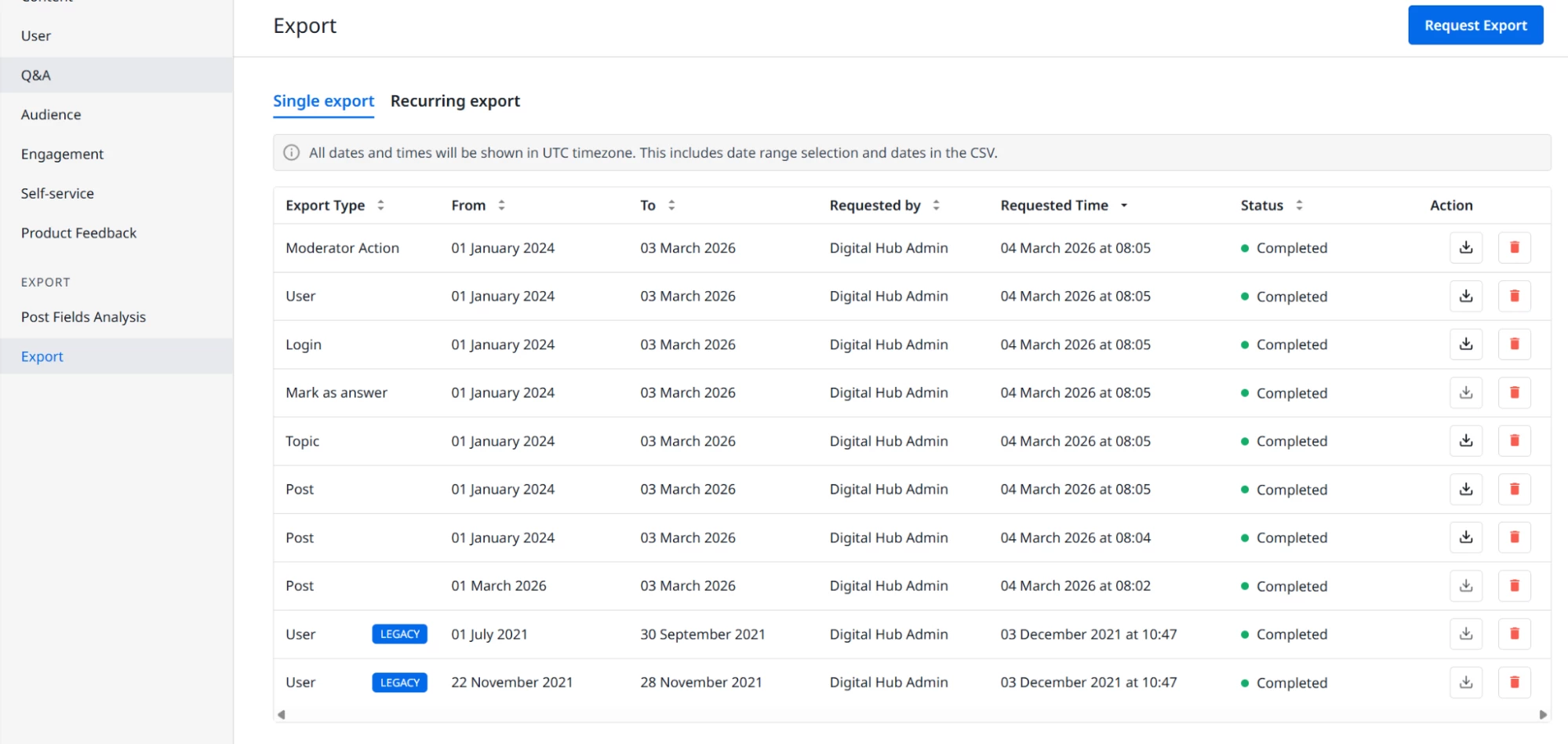
The Export page has the following two tabs:
- Single export: Export community data on demand when you need it.
- Recurring export: Schedule automatic exports of community data at defined intervals.
IMPORTANT: All dates and times are processed in UTC. This includes your date range selections and the timestamps within the generated CSV files. For each export type, the date filter is applied to one key anchor parameter (such as user join or post creation date), while all other attributes reflect cumulative counts limited to events occurring from January 2021 onwards.
Single Exports
You can download community data on demand using the Single exports tab within the Export page.
To download the data:
- Log in to Control.
- Navigate to Analytics > Export. The Export page appears.
- Click the Single export tab.
- Click Request Export. The Request a new Export dialog appears.
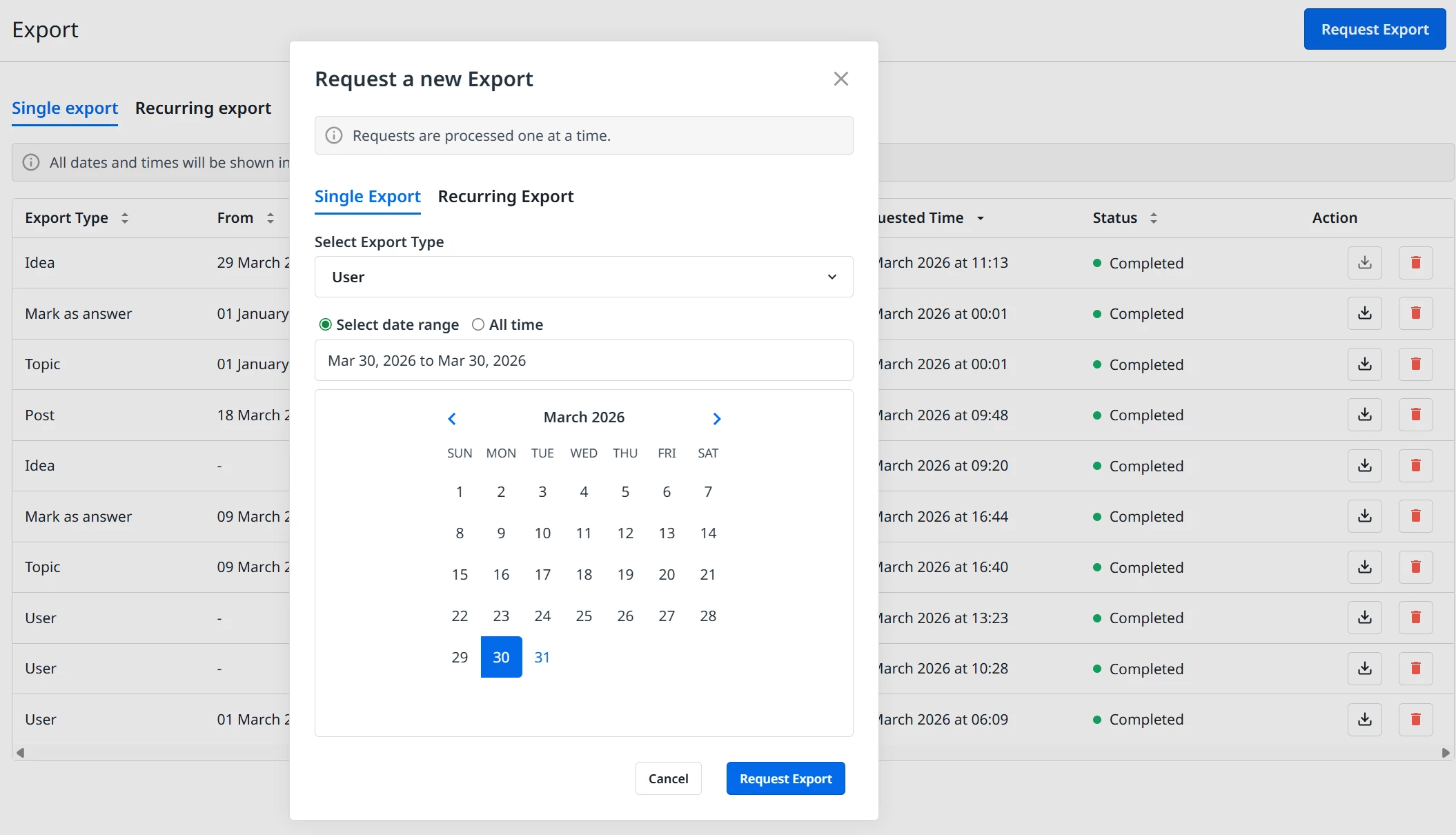
- From the Select Export Type dropdown, select any of the following type of data to be exported.
- Post
- Topic
- Mark as answer
- Login
- User
- Moderator Action
- Private Message
- Idea
- From the Select a date range calendar, select the date range.
- Click Request Export.
Recurring Exports
You can download the community at scheduled intervals based on your requirements using the Recurring export tab.
To download the data:
- Log in to Control.
- Navigate to Analytics > Export. The Export page appears.
- Click the Recurring export tab.
- Click Request Export. The Request a new Export dialog appears.
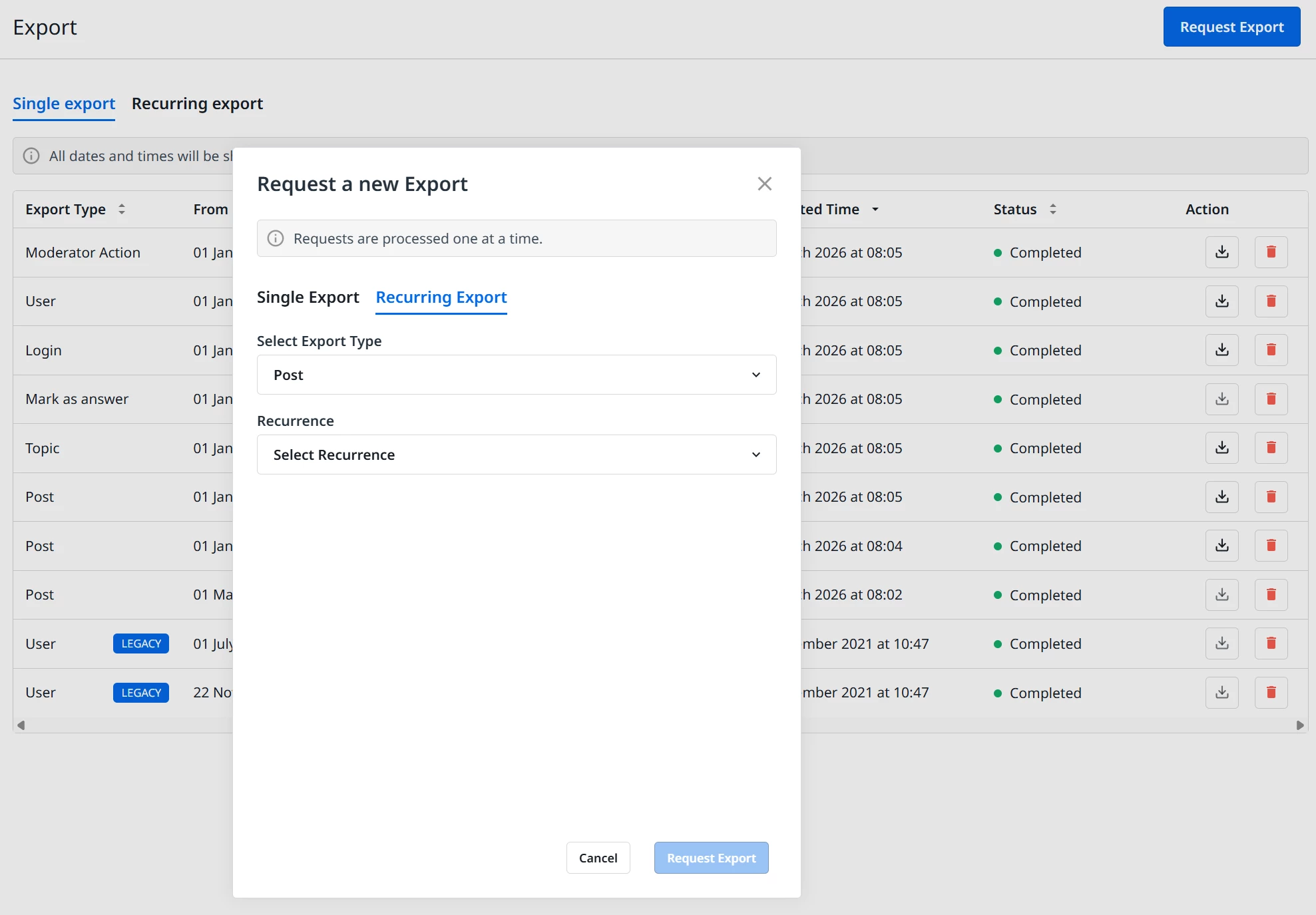
- From the Select Export Type dropdown, select any of the following types of data to be exported.
- Post
- Topic
- Mark as answer
- Login
- User
- Moderator Action
- Private Message
- Idea
- From the Recurrence dropdown, select the frequency at which the export should run.
- Weekly: Runs every week on the selected day.
- Biweekly: Runs every two weeks on the selected day.
- Monthly: Runs on the first day of every month.
- Quarterly: Runs on the first day of the calendar quarter.
- Click Request Export to schedule the export run.
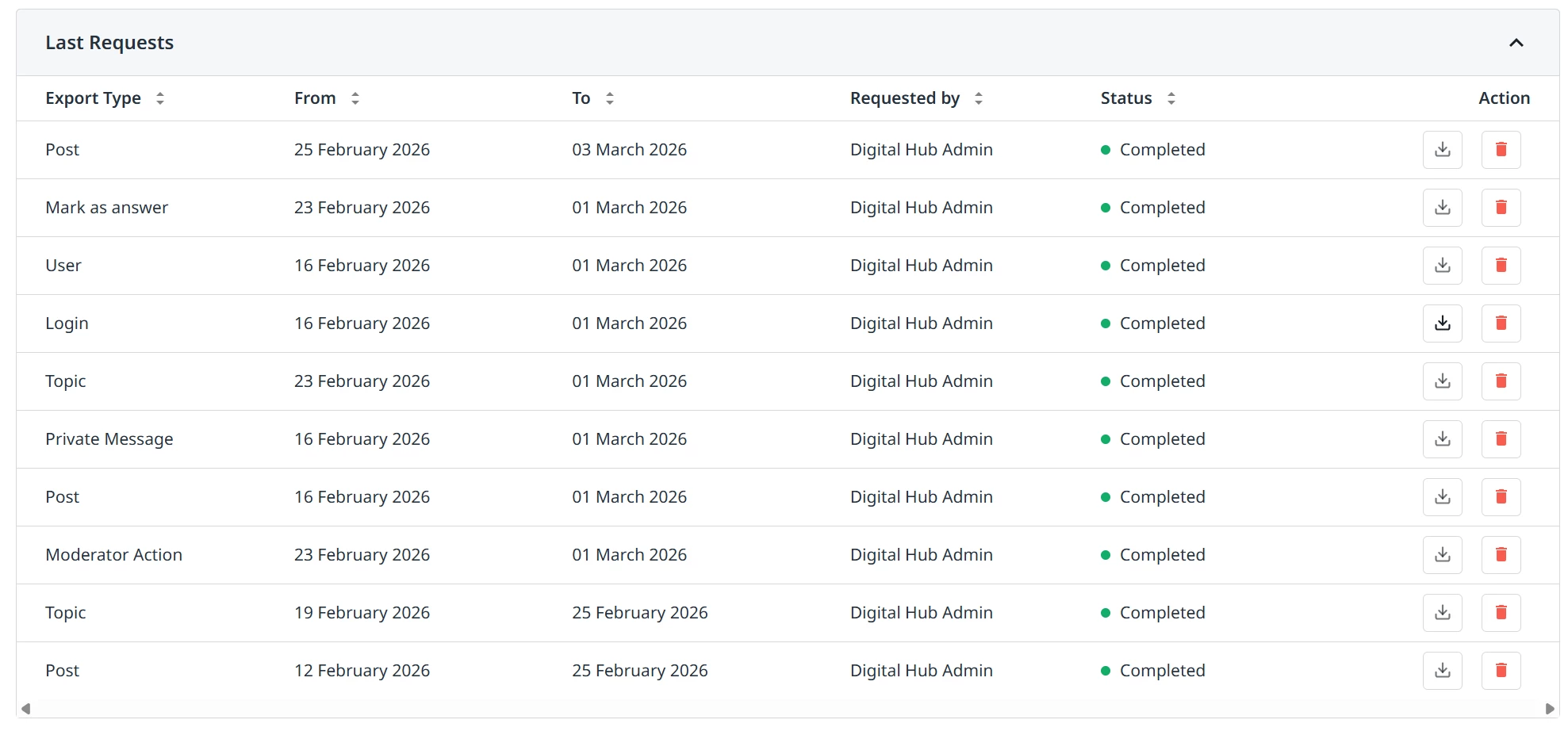
Last Requests
The Last Requests table displays the list of the requested export runs along with details such as who requested the report, and the status of each export run. You can download or delete the export request from this table.