

Sending click events to Google Analytics
Google Analytics allows you to track events so that you can analyse what your customers are doing on your platform. Events will tell you how your users are interacting on your pages. All events are displayed in the Behavior → Events section of your Google Analytics reports This article covers the anatomy of events, which events are being sent to Google Analytics and how you can use them to analyse user behavior: Note: Google Analytics should be enabled in the CC to work with events.
Anatomy of Events
An event consists of three components, the values of these components can be viewed in your Google Analytics reports.
- Event category (name to group objects to analyse. E.g. ‘Homepage’)
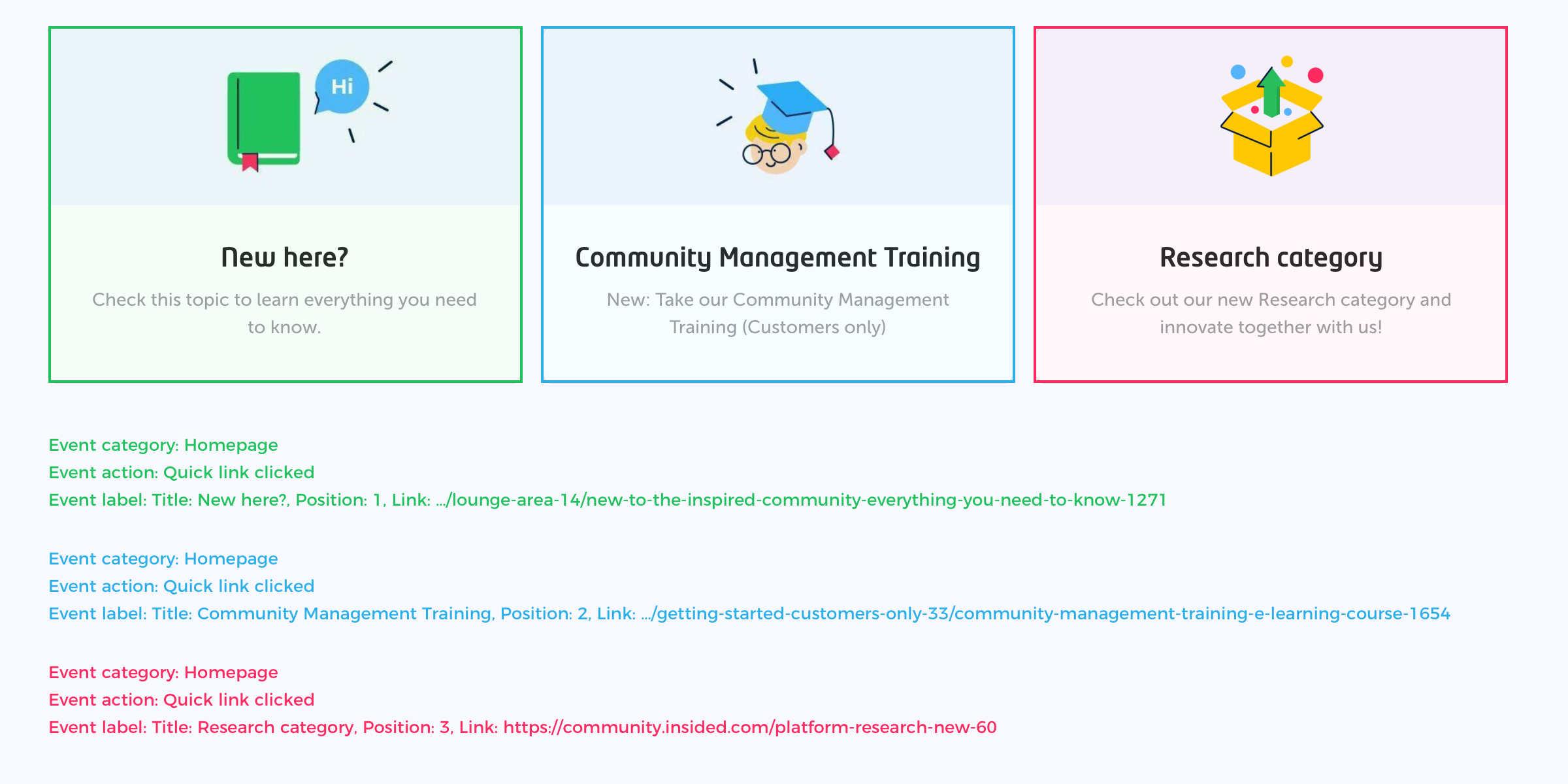
- Event action (the action a user takes that triggers the event. E.g. ‘Quick Link Clicked’)
- Event label (metadata around the event action. E.g. ‘Position: 1, Title: Getting started’)
 Which events can I find in Google Analytics
Category: Homepage events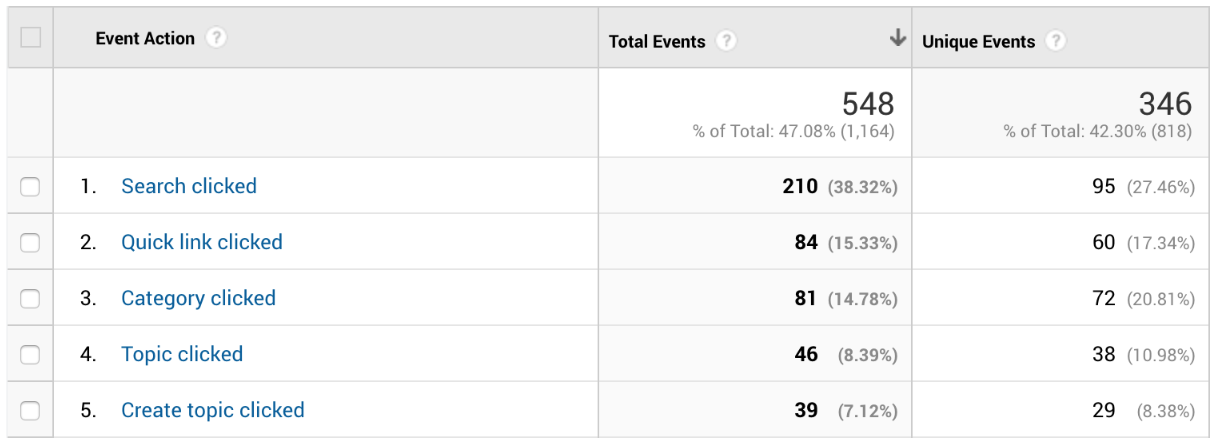 Action: Search clicked Triggered when a user clicks on the search bar
Action: Quick link clicked Triggered when a user clicks on a quick link card
- Label: Title, Position, Link
Action: Category clicked Triggered when a user clicks on any category
- Label: Title, Type, Link
Action: Topic clicked Triggered when a user clicks on any topic in the homepage. This can be done in various positions: on a featured topic card, in the recently active tab, in the help others tab or in the list with topic recommendations
- Label: Type, Position, Link
Action: Menu clicked Triggered when a user clicks on the menu/navigation dropdown
- Label: Link
Action: Widget clicked Triggered when a user clicks on a widget positioned in the general sidebar
- Label: Type
Action: Create topic clicked Triggered when a user clicks on the create topic button in the navigation bar or when he clicks on the create topic button in the introduction widget (shown below the hero image)
- Label: Position
Action: Recently active user clicked Triggered when a user clicks on one of the avatars in the list of recently online users
Action: Show more activity clicked Triggered when a user clicks on the ‘Show more activity’ button in the recently active, or help others tab
Category: Topic helpfulness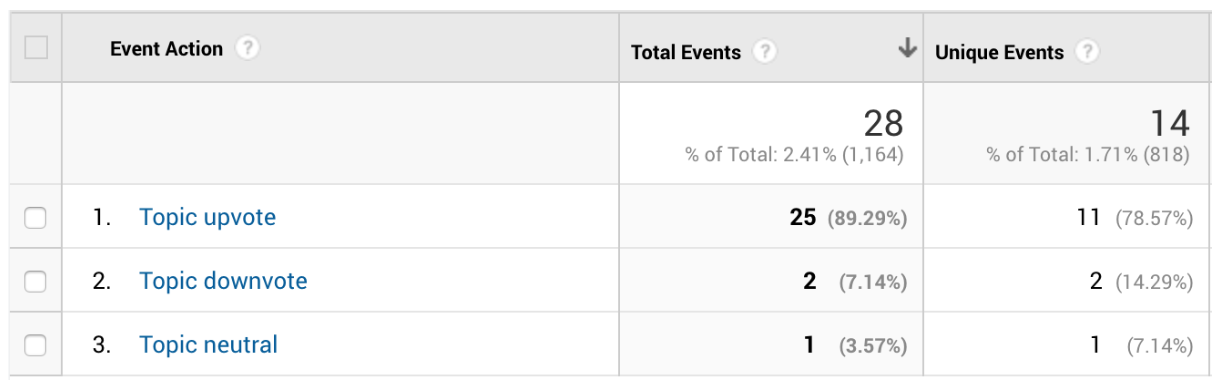 Action: Topic upvote Triggered when a user clicks on the happy emoticon in a topic page
Action: Topic neutral Triggered when a user clicks on the neutral emoticon in a topic page
Action: Topic downvote Triggered when a user clicks on the sad emoticon in a topic page
What is the difference between total events and unique events?
Total events are calculated as the total number of interactions with a triggered element. For example, if one user clicks the same category 5 times, the total number of events associated with the category is 5, and the number of unique events is 1.
Some possible use cases
How are my quick links performing?
Analyze how quick links are performing, which are popular and which are not.
- Go to Behavior → Events → Top Events
- Click on ‘Homepage’
- Click on ‘Quick link clicked’
What are popular categories?
Analyze how often categories are visited and find out which categories to promote better.
- Go to Behavior → Events → Top Events
- Click on ‘Homepage’
- Click on ‘Category clicked’
These are all the events that we cover. If you are interested in other events let us know in the comments below.