
Sebastian
Helper ⭐️⭐️⭐️
September 7, 2021
Tutorial

Invite registered users to groups using email invites

  • September 7, 2021
  • 17 replies
  • 697 views
'

What are group email invites:

Email invites are a great way to invite users to public and private groups and therefore grow the amount of group members.

Any end user receiving and accepting an email invite for a group will automatically become a member of the group without having to click "Join" (public groups) or "Request to join" (private groups). 

In the case of private groups, community managers won''t need to approve join requests.


When to use group email invites:

You should use email invites when you wish to invite a specific list of users to a group. The invitation will be valid only for the selected users and no one else. Invite links on the contrary can be used by any end user. 


How to invite registered users to groups by email

Make sure you’ve customized the ‘Join a group’ email template to your preference (see the how to below).

  1. Log in to Control as a Community Manager/Administrator.
  2. Go to Control > Platform > Groups
  3. Select the group you would like to invite users to
  4. Click "Invite members"
  5. In the field "Invite users" search and select registered users to invite
  6. (Optional) Add a custom invite message (max 500 characters)
  7. Click "Send invitations via email" and you are done

Note: This feature only allows to select registered users.

How to customize the email template for joining a Group

  1. Log into Control as a Community Manager/Administrator.
  2. Go to Control > Email > System Emails.
  3. Edit the ‘Join a group’ email template, and save your changes.

Note: it’s not possible to customize/remove the unsubscribe link at the bottom of the email.

See the following guide for a reference on the email variables for the join a group email.


How end users become member using email invites:

  • If the user is logged in

When clicking on the link in the email invite, they will be redirected to the community and be added directly to the group. A success message will inform them they are now a member.

Example of Success message
  • If the user is NOT logged in

When clicking on the link in the email invite they will be redirected to the community and see the pop up indicating that they need to log in to join the group. 

Once logged in, they will be redirected to the group page.  A success message will inform them they are now a member.
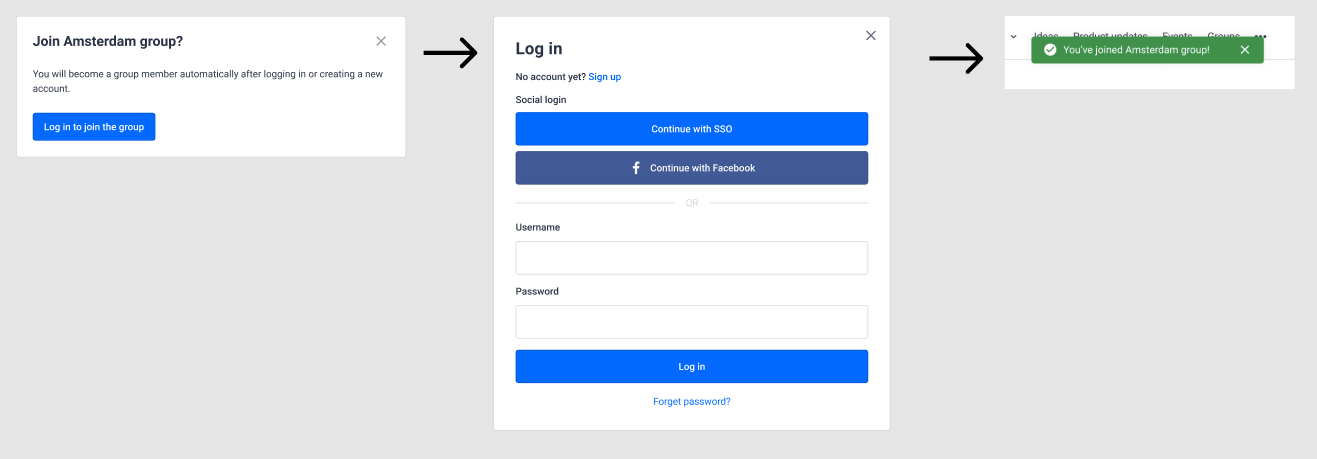
Steps when a user is not logged in


'

17 replies

JessicaMendez
Contributor ⭐️⭐️⭐️⭐️
October 9, 2023

@Sebastian Thanks for the info! I already have a csv of these 250 users’ email address, I just need to add them to the group.

Is there an option to add members to a group using the ‘invite members’ feature on the backend of a group page (see below) by adding email addresses instead of their usernames? 


MeghanM
Helper ⭐️
January 31, 2024

Hi @JessicaMendez, are those 250+ users matching specific but similar criteria? Eg. a job title, email domain, custom role, etc.? We’re considering allowing either bulk invite to Groups from the user overview, or selecting a segment to invite to a group, so if the users you want to add are the result of a set of filters, that would then be pretty easy.

Hi @Sebastian - I would love +1 the idea to bulk invite members to a group via the User Overview page. Is this something that the team is still considering? 

JKelley
Helper ⭐️
February 23, 2024

Hi @Marion Frecaut ! Is it possible to see was previously invited to a group, and re-send a group invitation to those who have not joined?

I have this question also - is there a place where I can see pending invites to a Group?

Contributor ⭐️⭐️
September 10, 2024

Hi @Sebastian ! I am struggling with these steps: 

How to customize the email template for joining a Group

  1. Log into Control as a Community Manager/Administrator.
  2. Go to Control > Email > System Emails.
  3. Edit the ‘Join a group’ email template, and save your changes.


I am unable to locate Email > System Emails and am running into an error inviting members to groups, the specific username is not populating in the email invite.. 


Thanks! 

Contributor ⭐️⭐️
September 10, 2024

Ignore me, all sorted now - apologies!!! ^^

Erik_
Contributor ⭐️⭐️⭐️⭐️⭐️
November 8, 2024

Hi @Marion Frecaut ! Is it possible to see was previously invited to a group, and re-send a group invitation to those who have not joined?

I have this question also - is there a place where I can see pending invites to a Group?

We have the same question and support let us know this is not currently a feature and suggested an idea. So, I made this


The shortest answer is doing -George Herbert
Erik_
Contributor ⭐️⭐️⭐️⭐️⭐️
November 8, 2024

Hi @JessicaMendez, are those 250+ users matching specific but similar criteria? Eg. a job title, email domain, custom role, etc.? We’re considering allowing either bulk invite to Groups from the user overview, or selecting a segment to invite to a group, so if the users you want to add are the result of a set of filters, that would then be pretty easy.

Hi @Sebastian - I would love +1 the idea to bulk invite members to a group via the User Overview page. Is this something that the team is still considering? 

Bulk invite would be extremely useful for us. We've just had to manually invite 200+ users to a group. That's not an efficient way to spend our time.

The shortest answer is doing -George Herbert