
Duplicate and Copy Widgets Across Community Pages
This article helps admins duplicate widgets and copy them to other pages in Gainsight CC.
Overview
Duplicating and copying widgets lets you reuse a configured widget instead of building a new one from scratch. As an admin, you can create a copy of a widget directly below the original on the same page, or copy a widget to a different page. Either way, every setting comes with it, including images, text, style, and personalization.
Use Duplicate when you need a version of one widget for each audience on the same page. Use Copy to another page when the same widget belongs on a different page, such as when you build or migrate several pages.
Key Benefits
Reusing a configured widget saves time and reduces setup errors in three ways:
- Faster personalization: Create a widget for each audience on one page in seconds instead of a full rebuild.
- Faster page building and migration: A configured widget carries over to new pages instead of being rebuilt.
Note: Copies are independent. Editing a copy does not change the original, and editing the original does not change the copy.
Duplicate a Widget on the Same Page
Duplicating creates an exact copy of a widget on the same page, so you can change only what should differ for another audience.
To duplicate a widget:
- Log in to Destination.
- Open the page in Edit Layout.
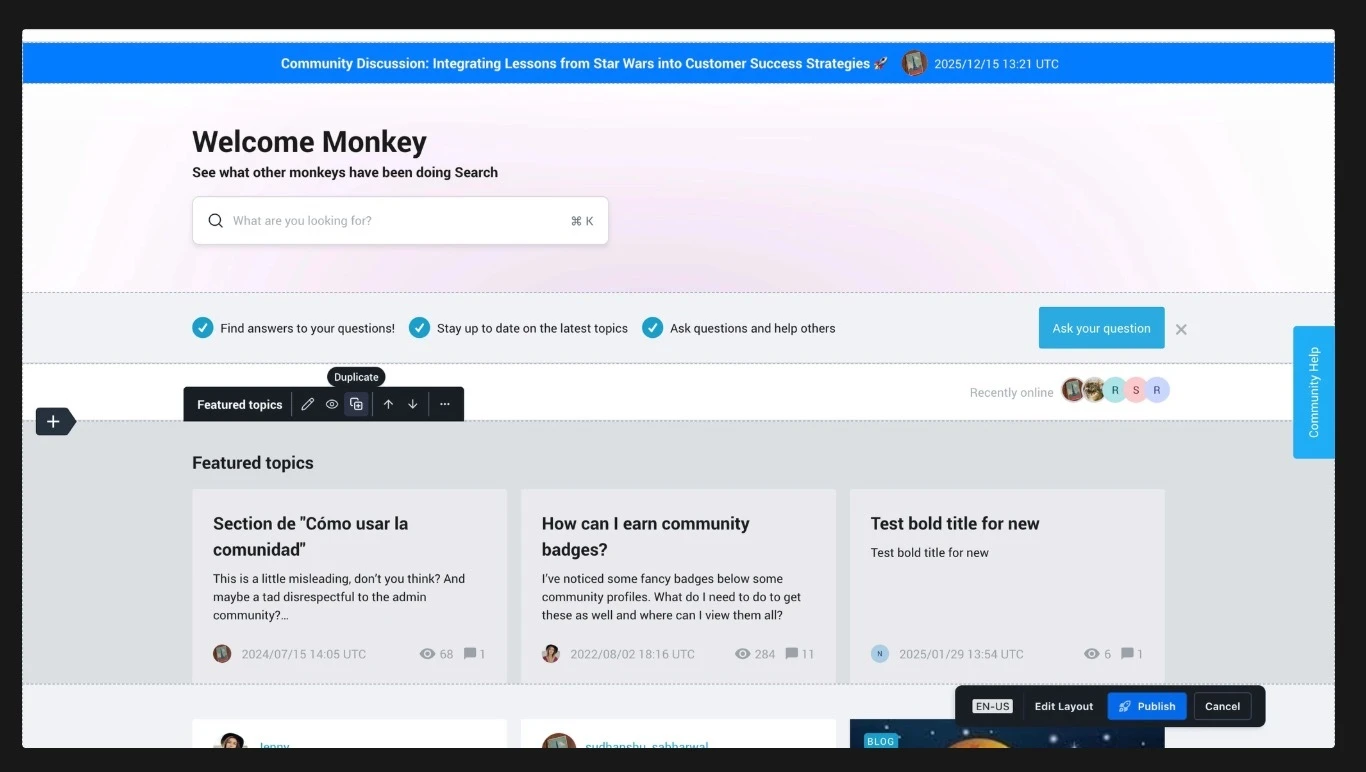
- Select the widget you want to duplicate. The widget toolbar appears and shows the widget name.
- In the widget toolbar, click Duplicate. A copy of the widget, with all of its settings, appears directly below the original.
- Edit the copy to change what should differ, such as who sees it, the image, or the text.
- Click Publish.
Note: To create a version for each audience, repeat steps 2 through 4 for each additional audience, and then publish the page.
Copy a Widget to Another Page
Copying a widget to another page takes two stages: you copy the widget on the source page, and then you paste it from the widget library on the destination page.
Copy the Widget
Start on the page that contains the configured widget.
To copy a widget:
- Log in to Destination.
- Open the source page in Edit Layout.
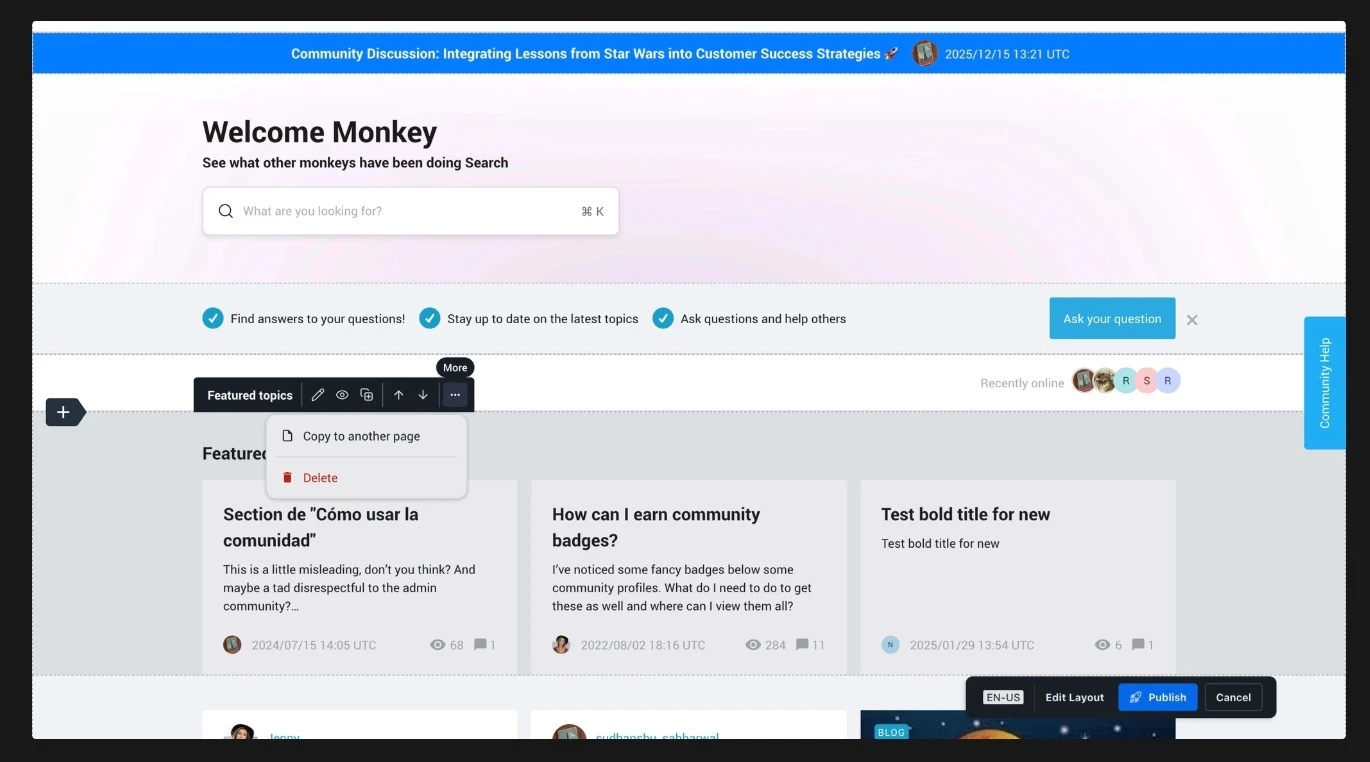
- Select the widget you want to copy. The widget toolbar appears.
- In the widget toolbar, click More. A menu with the Copy to another page and Delete options appears.
- Click Copy to another page.
- Click Publish.
Paste the Widget on Another Page
Next, go to the page where the widget should appear and paste it from the widget library.
To paste a copied widget:
- Log in to Destination.
- Open the destination page in Edit Layout.
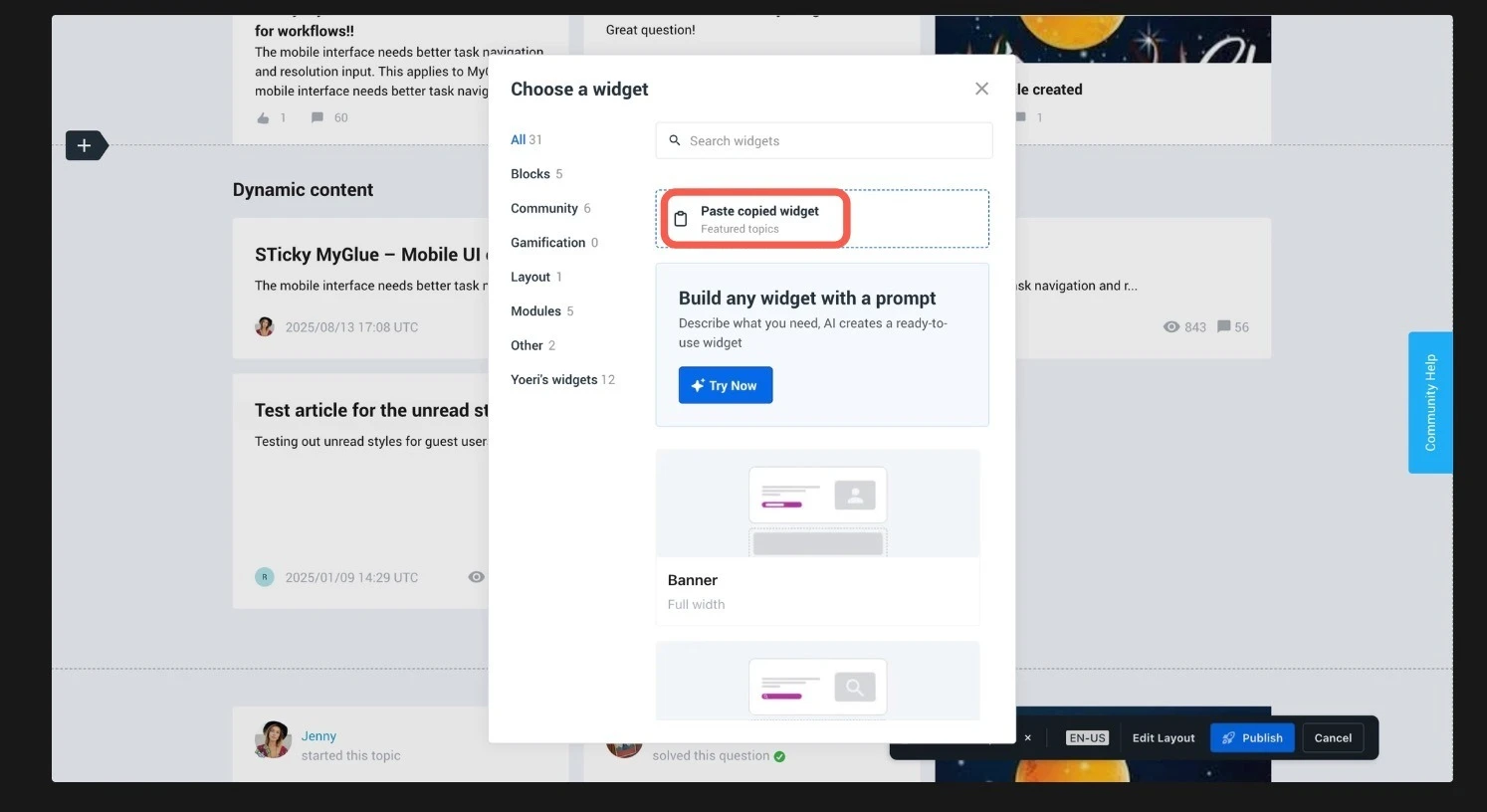
- Click the add icon (+) where you want the widget to appear. The Choose a widget dialog box appears.
- Click Paste copied widget. The widget is added to the page with its settings.
- Change the settings that should differ on this page.
- Click Publish.
Note: To paste the same widget on more pages, repeat the steps in this section for each page.