
Set up Quick Links on your Homepage
Quick links guide your users to wherever you want them to be. Everything that has an URL can be linked to, for example: an important category, a popular article, documentation in a .pdf format...the list goes on!
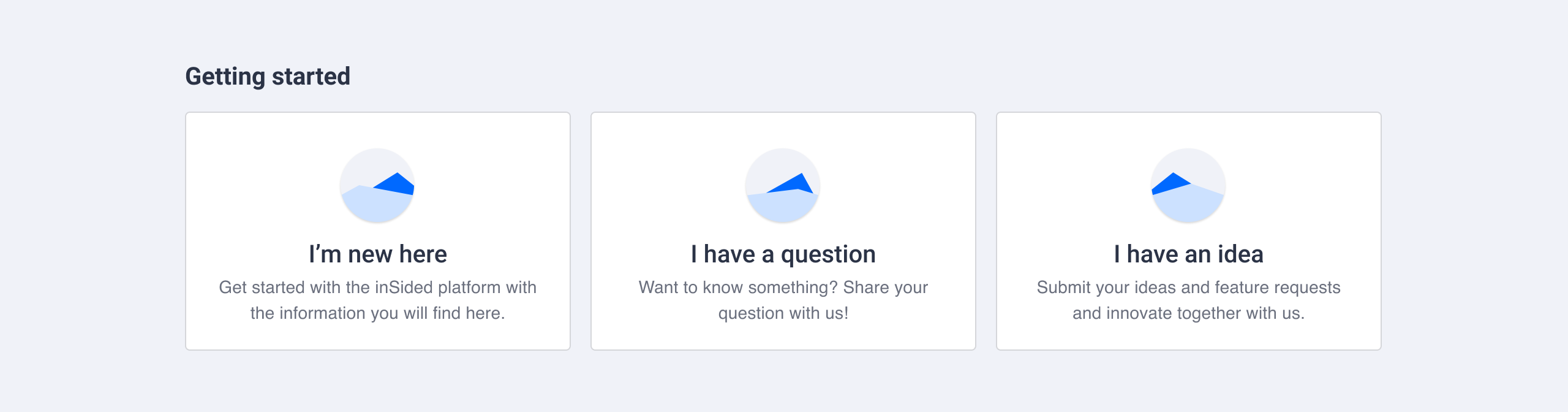
You can set up as many quick links as you like, however for navigation purposes only 6 quick links are shown by default. Visitors can see all quick links by clicking the show more button.
How To Set up Quick Links on your Homepage
-
Activate Customization mode
-
Hover over the homepage and determine where you want to add quick links. Click the plus icon (
 ) and select the Quick links widget
-
Configure a widget title (optional)
-
Configure styling of the cards with border and border radius
-
Click Add quick link button to create a new quick link
-
Select a Visual style
-
Provide a title (maximum of 30 characters is allowed)
-
Provide a description, this is not required (maximum of 80 characters allowed)
-
Provide a link (must start with https://) and select if it should open in a new tab or not
-
Click Save changes button
-
Repeat step 5 - 10 until you are satisfied with the amount of quick links
-
Click Done
-
Click Publish and you’re done: your quick links will now appear on your homepage
Note: You can change the order of your quick links simply by drag & drop. Click and drag the tile you want to reorder and drop it at the right position.
Important: Links must be secured (https://)