
Connect Gainsight PX to Your Community Hub
This article helps admins connect Gainsight PX to the Hub and manage signing keys in Gainsight Customer Communities.
Overview
Hub Connections in Gainsight Customer Communities connects your community to Gainsight Product Experience (PX) through the Digital Customer Hub (DCH) Integration. With the connection in place, In-App Hub shows community content to the people using your product, and members who are signed in to your application can access Community content without signing in to Community separately.
Limitations
The integration is subject to the following limitations:
- A Community instance connects to one PX subscription at a time.
- You cannot disconnect the integration if active In-App Hubs use DCH capabilities. Your PX admin must remove or turn off those capabilities first. Existing In-App Hub configurations are preserved after disconnection.
- The Signing Secret is displayed only once and cannot be retrieved. Rotate the key to generate a new one.
How the Connection Works
The connection relies on your application to confirm who each member is. The flow follows these stages:
- A member signs in to your application with their existing login.
- Your application server creates a signed token for that member, using the Signing Secret and Key ID from Hub Connections.
- In-App Hub passes the token along, and Community identifies the member.
Set Up the PX Connection
Setting up the connection links your PX subscription to the Hub and generates the credentials your developer needs.
- Log in to Control.
- Navigate to Settings > Super-Admin > Hub Connections. The Hub Connections page appears. Gainsight PX is listed under Product Connections with the status NOT CONFIGURED.
Note: Only Super-Admins can configure Hub Connections.
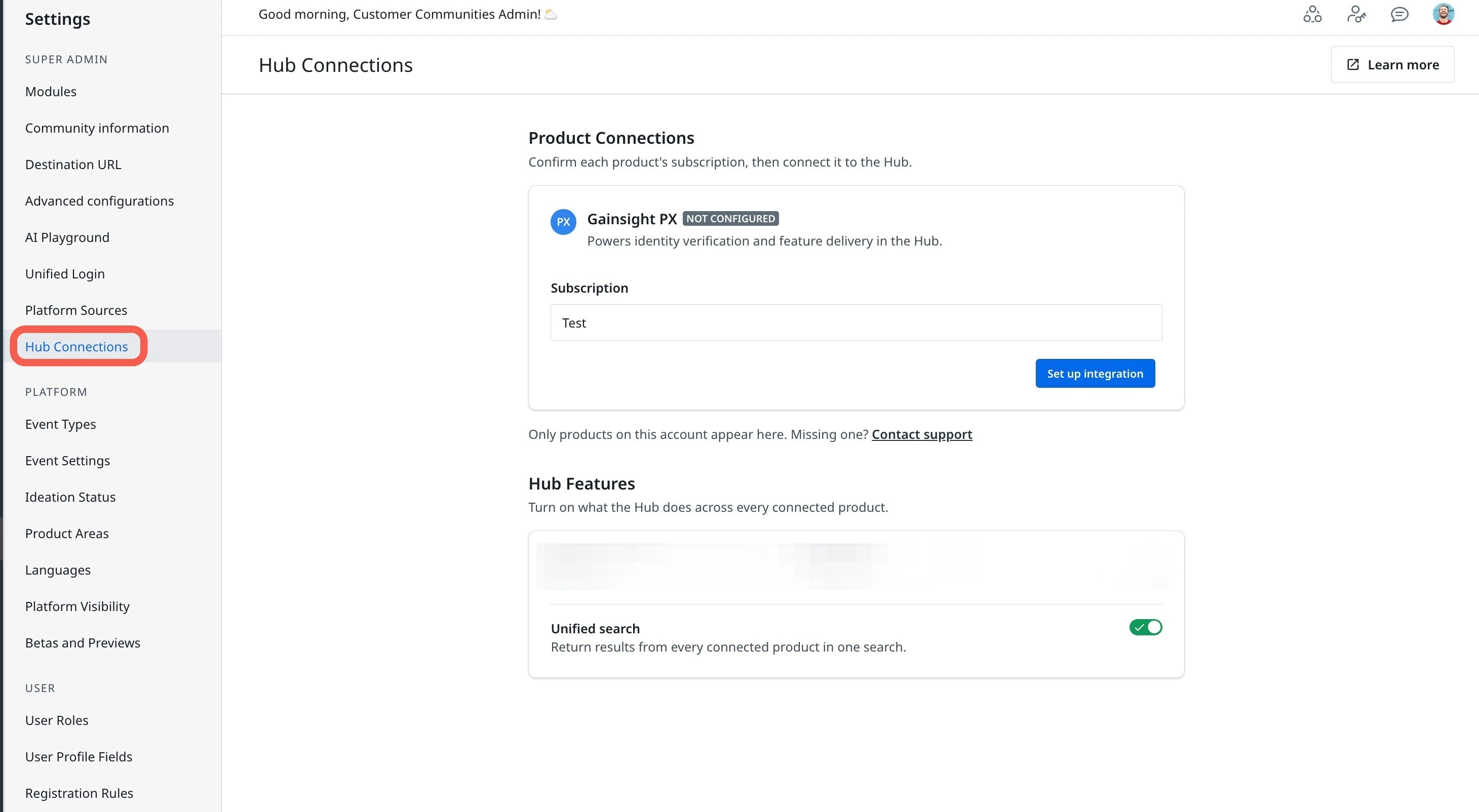
- From the Subscription dropdown, select the PX Subscription you want to connect.
Note: If your PX subscription does not appear, contact Gainsight Support.
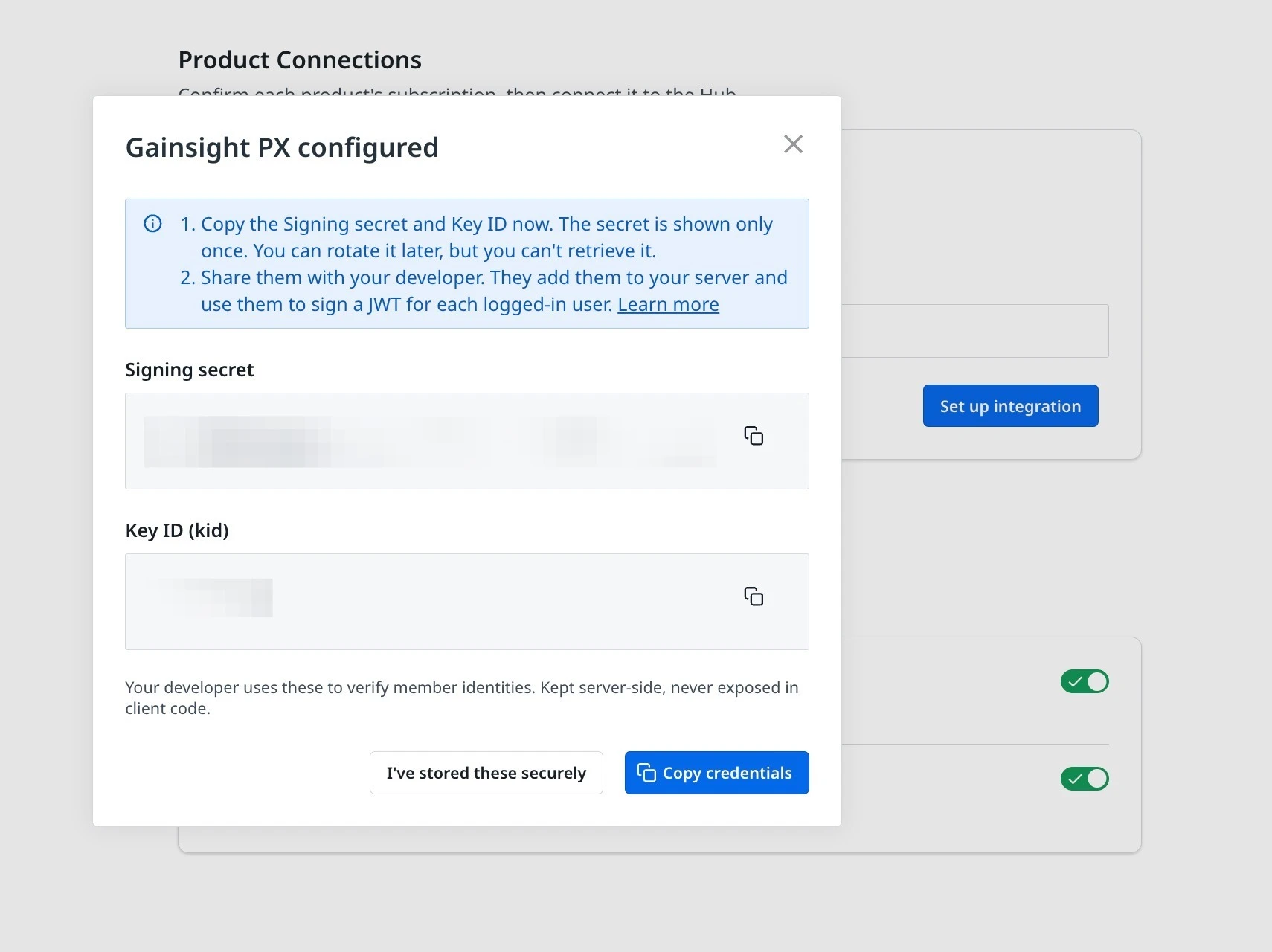
- Click Set up integration. The Gainsight PX configured dialog box appears with the Signing secret and Key ID (kid).
Copy and Share the Credentials
The dialog box that opens after setup is the only time the Signing Secret is displayed, so copy both credentials before you close it.
IMPORTANT: The Signing Secret is shown only once and cannot be retrieved later. If you close the dialog box without copying it, rotate the key to generate a new one.
- Click Copy credentials to copy the Signing secret and Key ID, or click the copy icon beside each field.
- Share the credentials with your developer. They add the credentials to your application server and use them to sign a JSON Web Token (JWT) for each logged-in user.
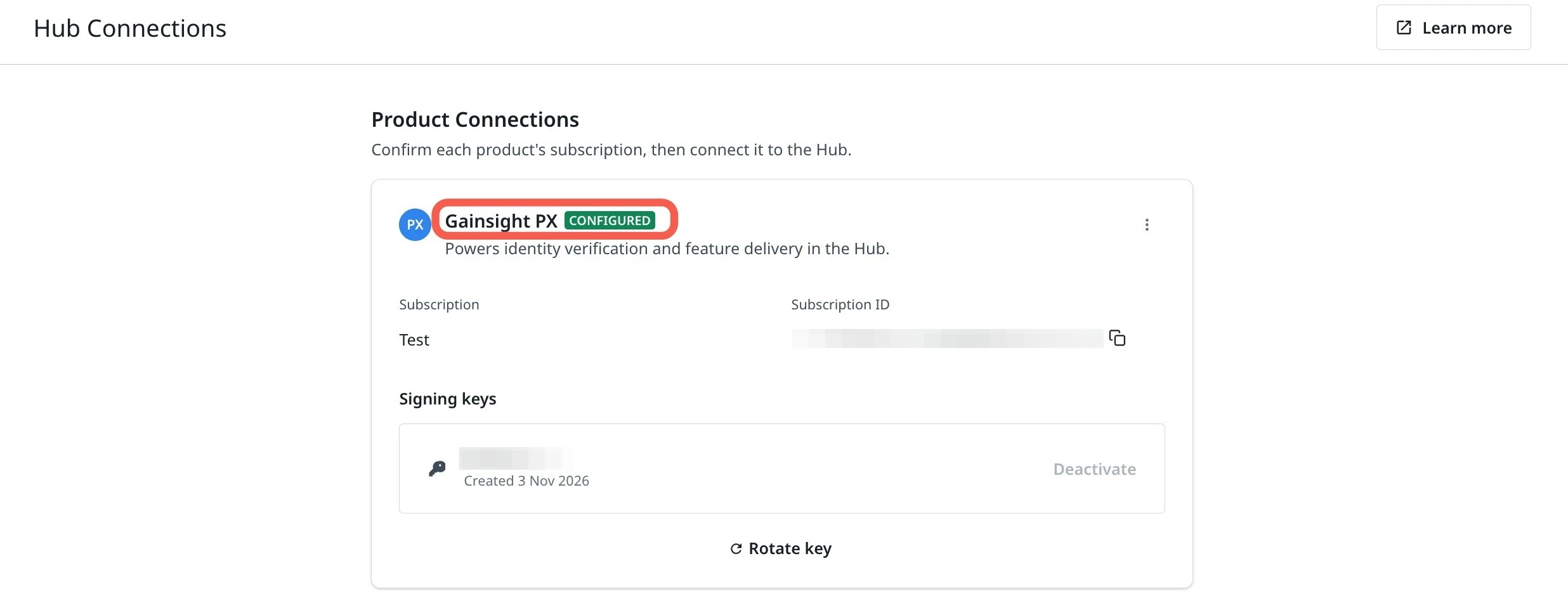
- Click I’ve stored these securely. The dialog box closes and the Gainsight PX card shows the status CONFIGURED.
Review the Gainsight PX Connection
After setup, the Gainsight PX card on the Hub Connections page summarizes the connection and lets you manage signing keys. The following table describes each element on the card:
| Element | Description |
| NOT CONFIGURED | Indicates that Gainsight PX is not connected to the Hub. |
| CONFIGURED status | Confirms that Gainsight PX is connected to the Hub. |
| Subscription | The name of the connected PX subscription. |
| Subscription ID | The ID of the connected subscription. |
| Signing keys | Lists each signing key with its creation date. |
| Deactivate | Turns off a signing key. Not available when only one key is active. |
| Rotate key | Generates a new signing key. |
| Revoke | Disconnects the existing PX Subscription. |
PX Admins can also check the connection from within PX. In Gainsight PX, the connection status appears on the DCH Integration card under Administration > Integrations.
For more information on managing the DCH integration from Gainsight PX, refer to the Gainsight PX DCH Integration article.