
Configure Category Localization for Multi-Language Communities
This article helps Admins and Community Managers configure how category titles are localized in multi-language Gainsight Communities, including how to generate AI translations for categories that are shared across languages.
Overview
A multi-language community is structured in one of two ways, and that determines how category titles are localized.
- Language-Secific Categories: A separate category per enabled language, each titled by hand. Members see only the categories, and the content, for the language they have selected. Nothing needs translating, but you maintain a category structure per language.
- Shared Categories: One set of categories for every language. Everyone sees the same categories and content, and interface elements like buttons and section headings switch to the member's language. Category titles do not: they are typed once in category settings, so they stay in their original language after a member switches.
With shared categories, you can generate an AI translation of a category title for each enabled language. It saves as a phrase, so it appears everywhere that category name shows in the Destination, including navigation, breadcrumbs, lists, and search, and you can edit any language before saving. Translation is on by default and applies per language: where you have created language-specific categories, those hand-written titles take precedence.
To know which language community you have, switch the community to a second language and open your category list. A different set of categories means language-specific categories. The same categories with the same titles means shared categories.
Configure Category Localization
When a community uses shared categories, you can generate an AI translation for a category title in each enabled language.
To configure a category localization:
- Log in to Control.
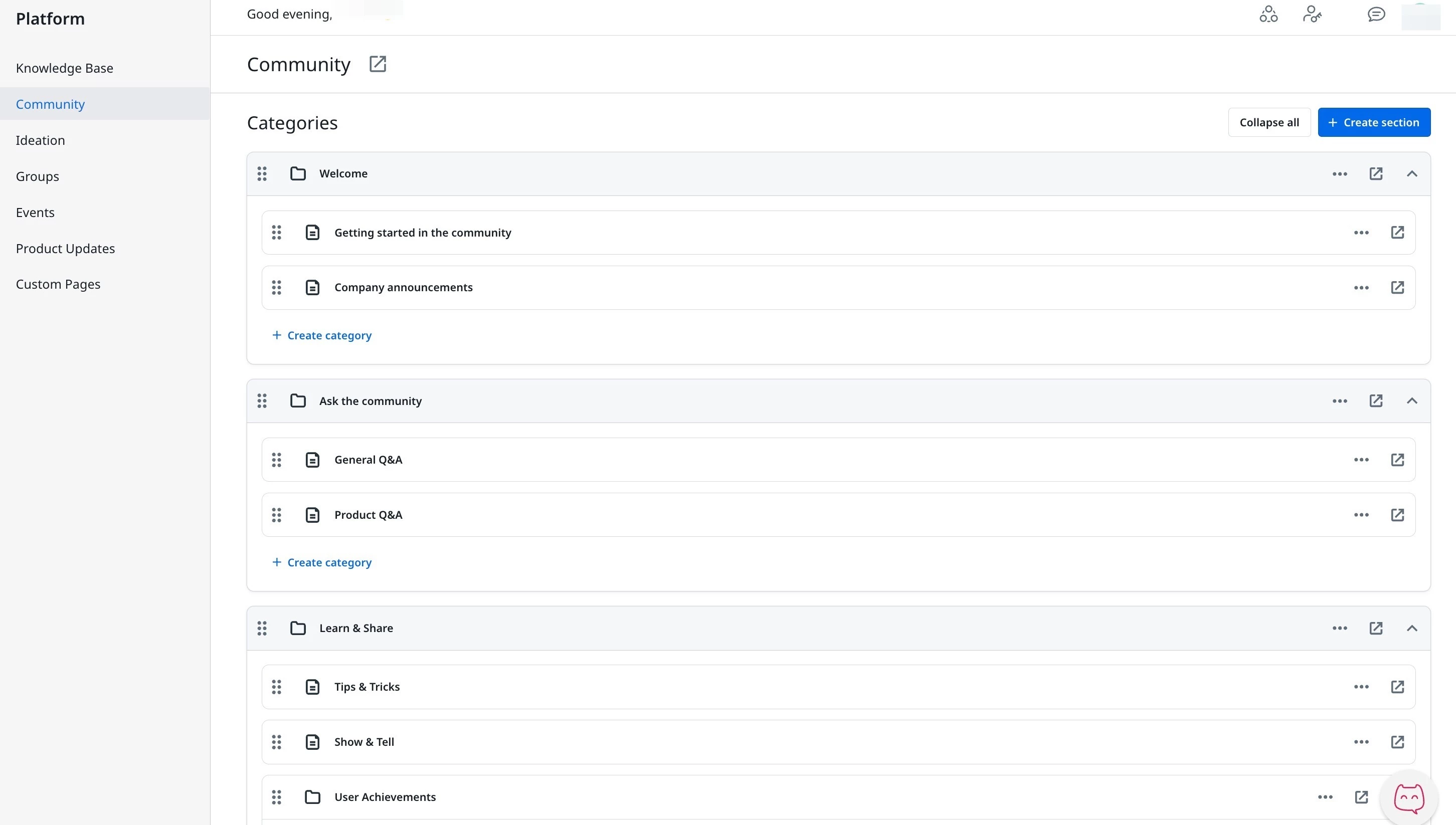
- Navigate to Platform.
- Select a Platform to configure localization for categories. The Edit Section page appears.
-
In the Section Details, click Translate to translate the section title into each enabled language.
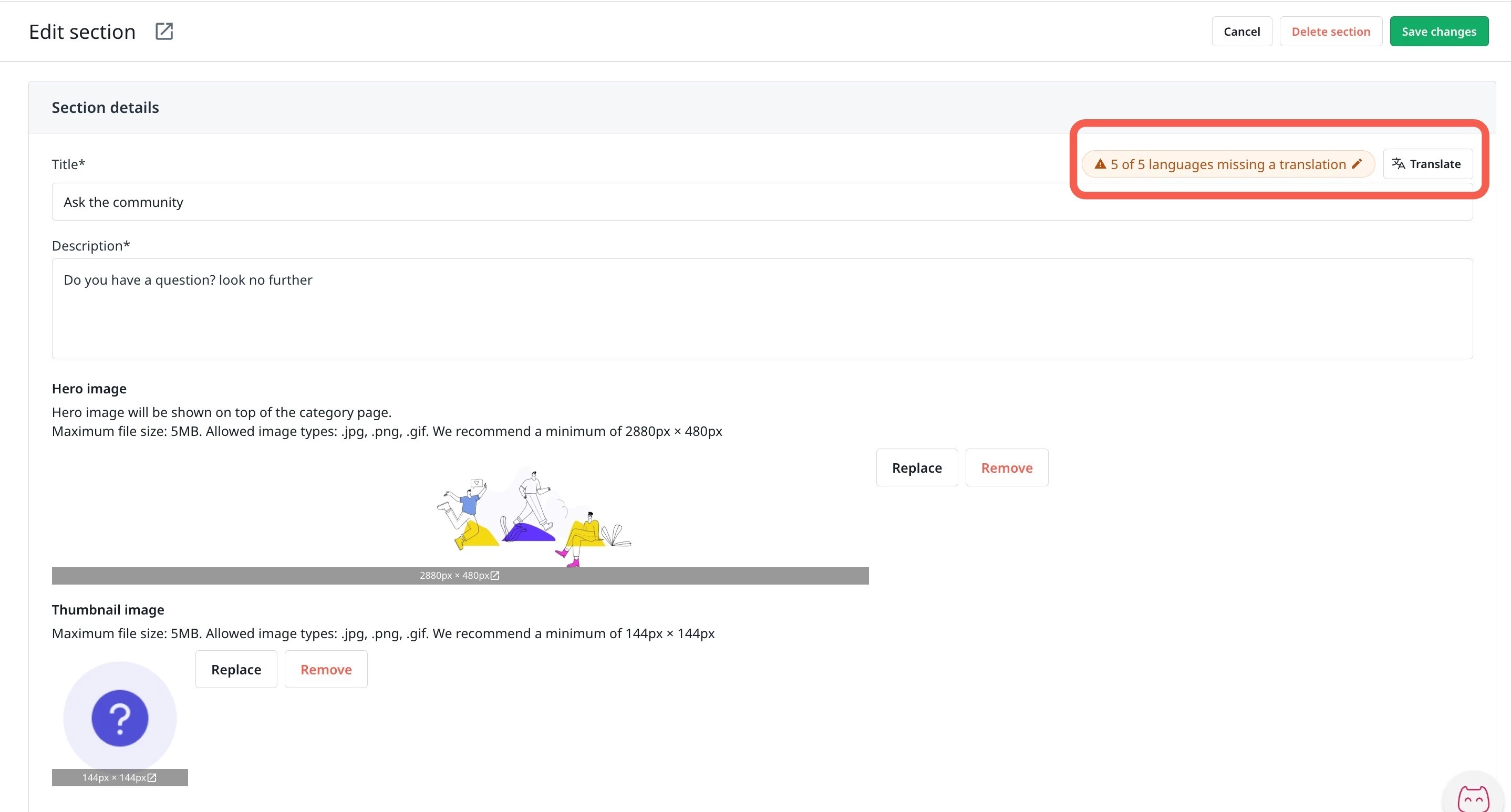
- Click Save Changes.