

This article helps moderators on how to add, edit, remove, or merge Public tags in the community.
Last Updated On: December 11, 2025
Overview
Public Tags enable you to group topics in order to organise content in a way that is transparent to all members of your community. They differ from Moderator Tags as any member can see them in your community.
Access Public Tags
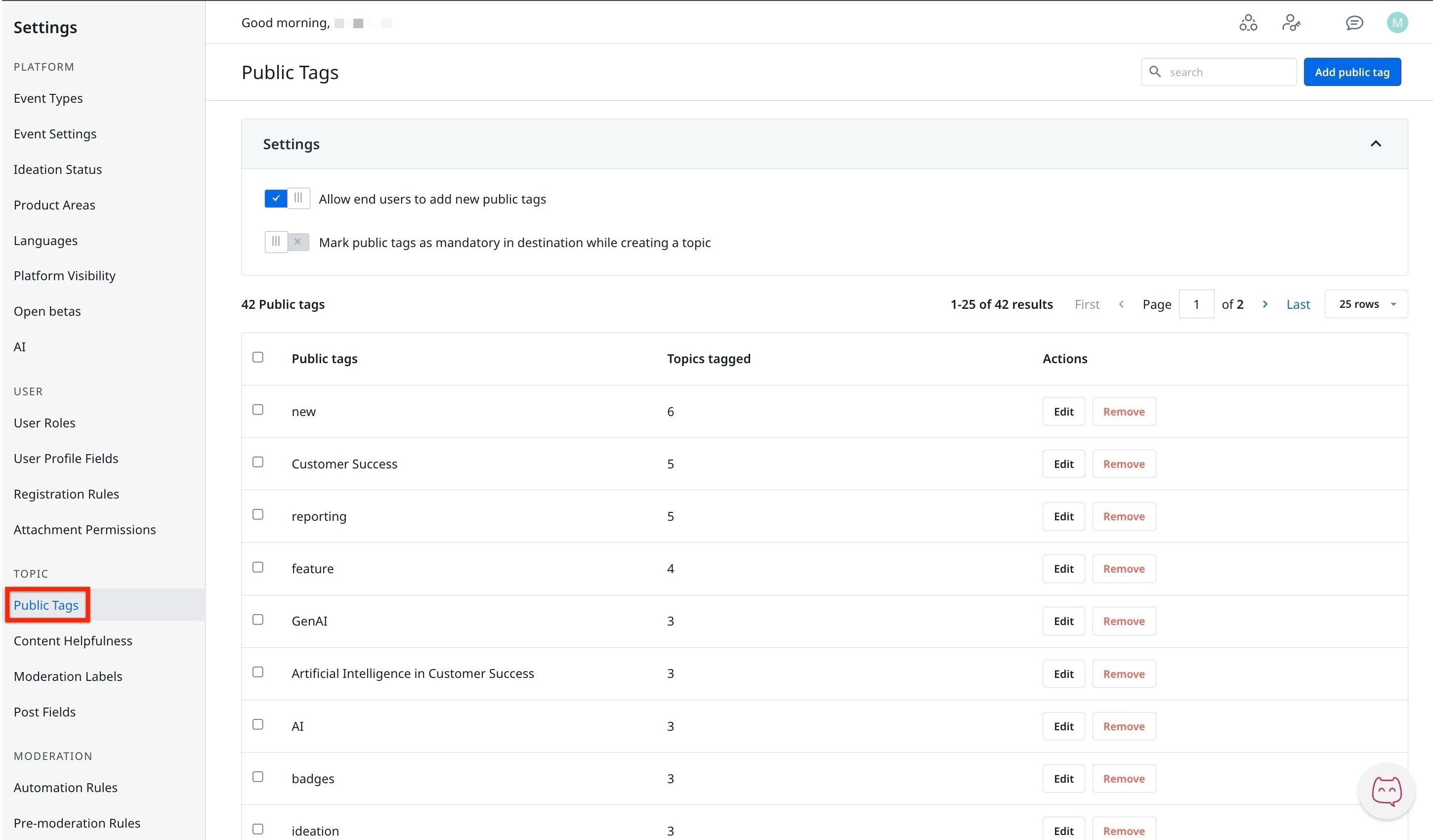
Moderators can add, delete, edit, or merge tags from the settings page in control.
To access public tags:
- Log in to Control.
- Navigate to Settings > Public Tags. The Public Tags page appears.
Public Tags
The public tags page displays a settings section and a list of all tags that are added. Here, the moderators can manage the public tags using the following actions:
- Settings:
- Allow end users to add new public tags
- Mark public tags as mandatory.
- Add, Edit, Remove, or Merge Tags.
Settings in Public Tag
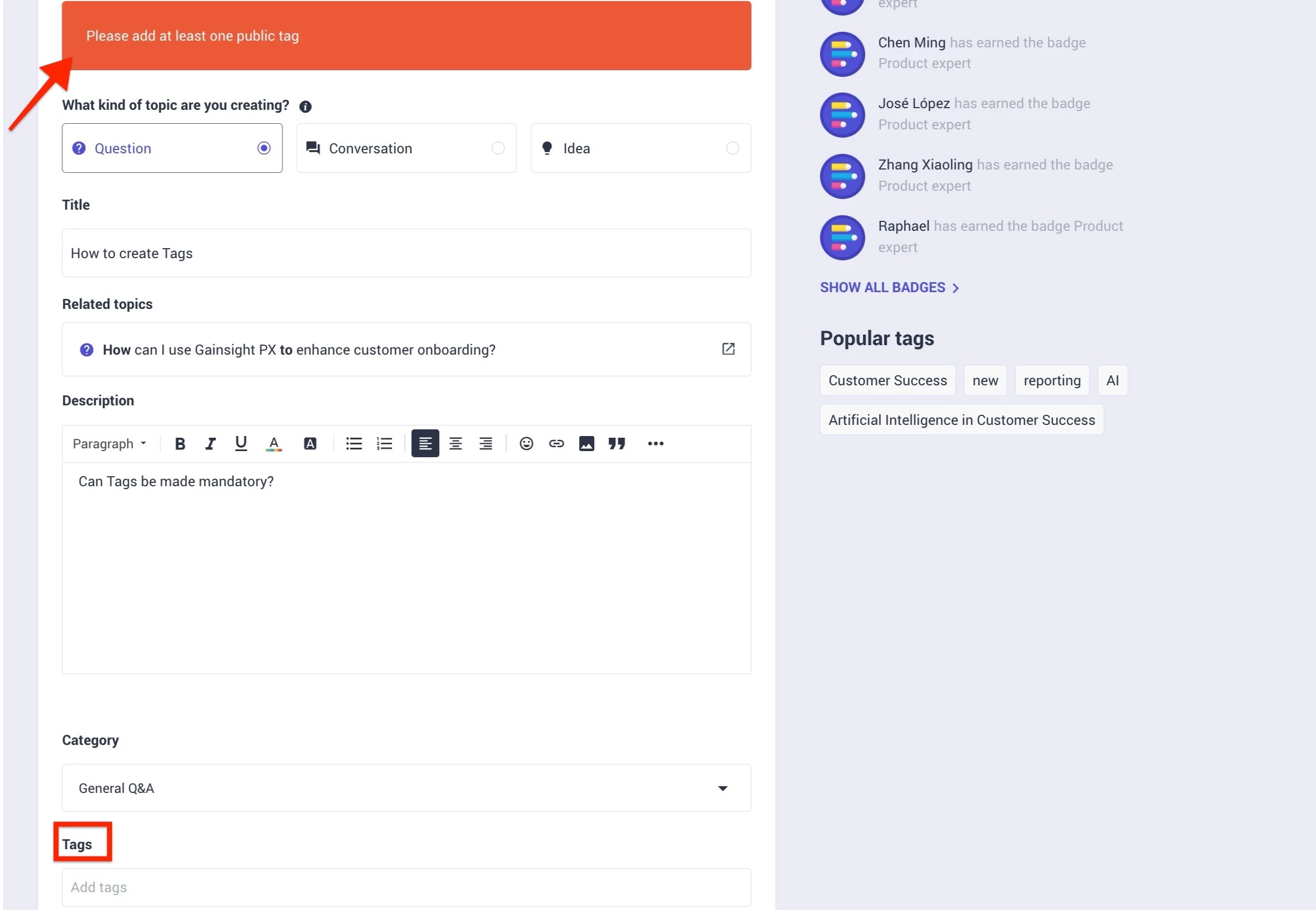
Using the Settings section, moderators can manage who can create the public tags or ensure that the public tags are mandatory when creating a topic, question, or idea in the Destination.
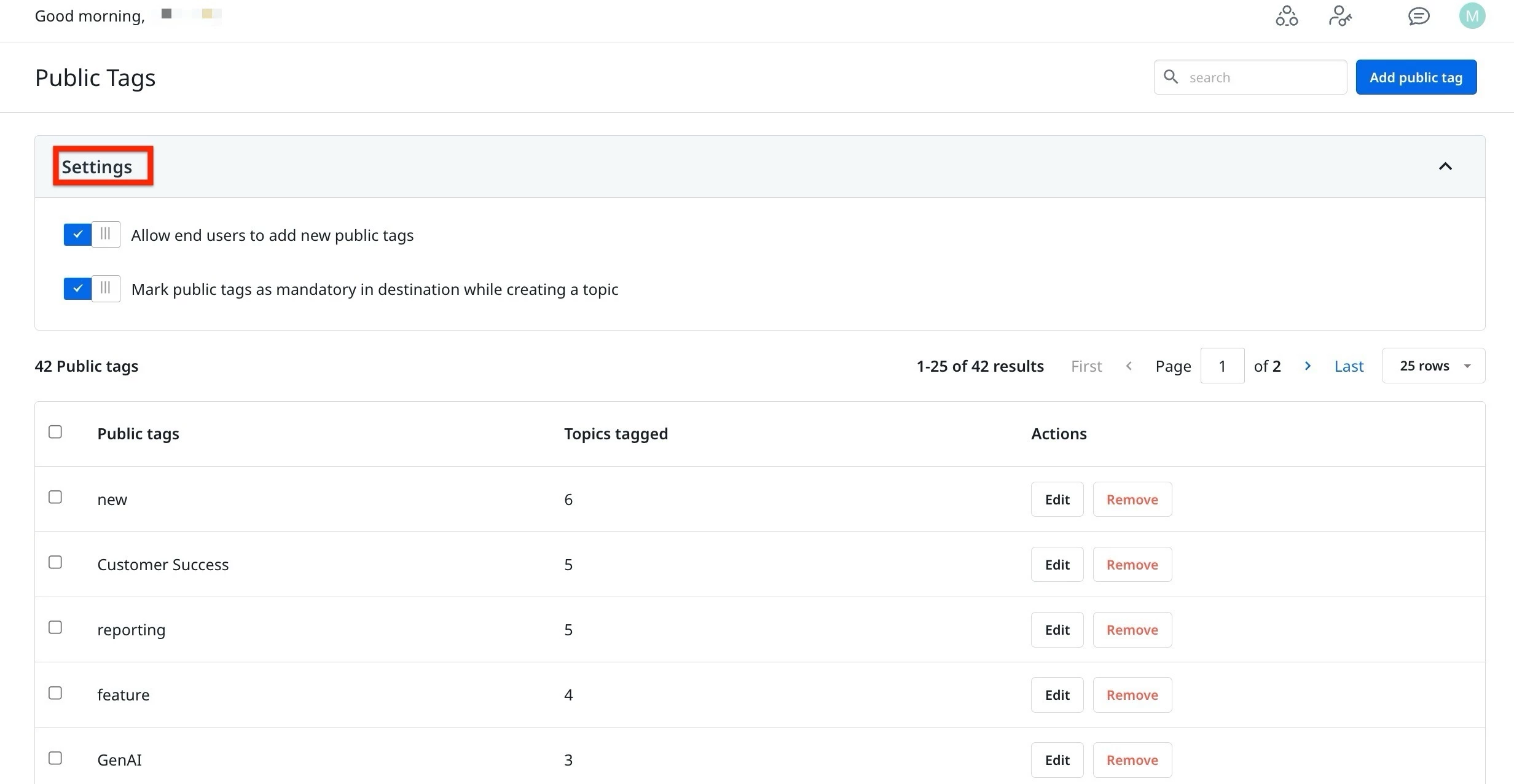
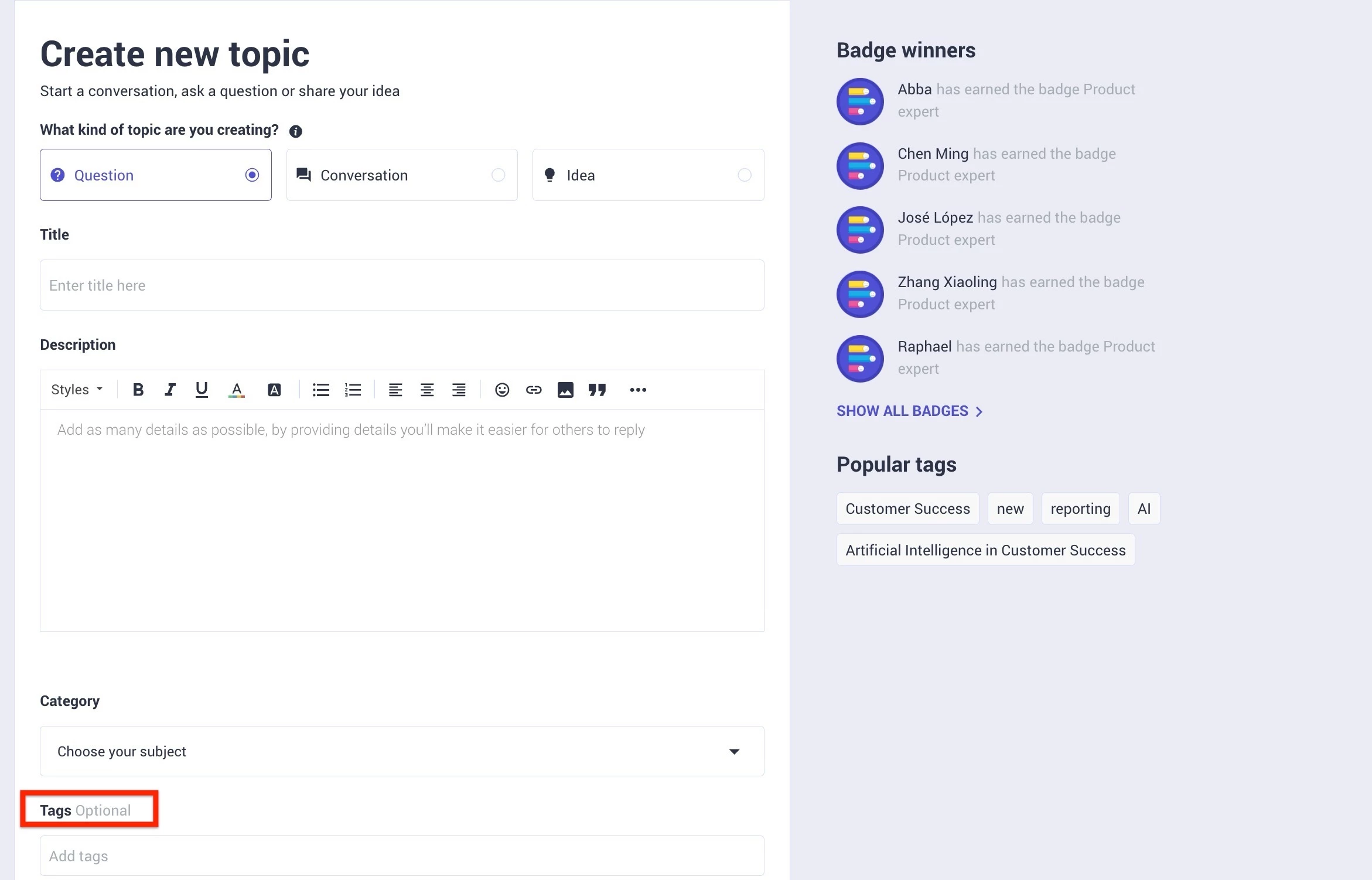
Toggle Allow end users to add new public tags, to enable end users to add or create new public tags from the destination.
Toggle Mark public tags as mandatory in destination while creating a topic, to ensure tags are compulsory to be added when creating a new topic.
Add Public Tags
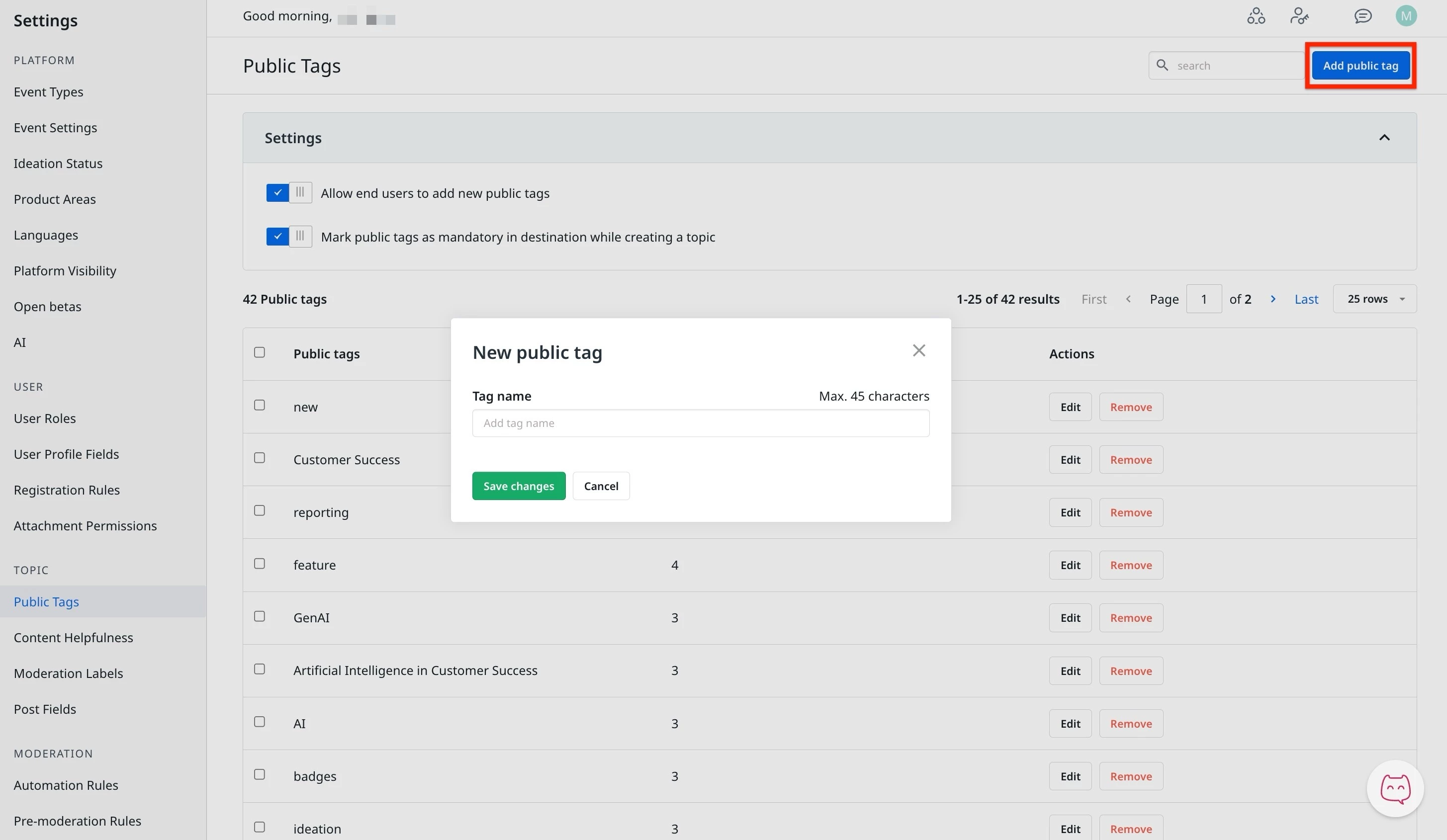
Public tags can be created from the settings page. To do this:
- Log in to Control.
- Navigate to Settings > Public Tags. The Public Tags page appears.
- Click Add Public Tag. The New Public Tag dialog appears.
- In the Tag Name text field, enter the name of the tag.
- Click Save Changes.
Rename a Public Tag
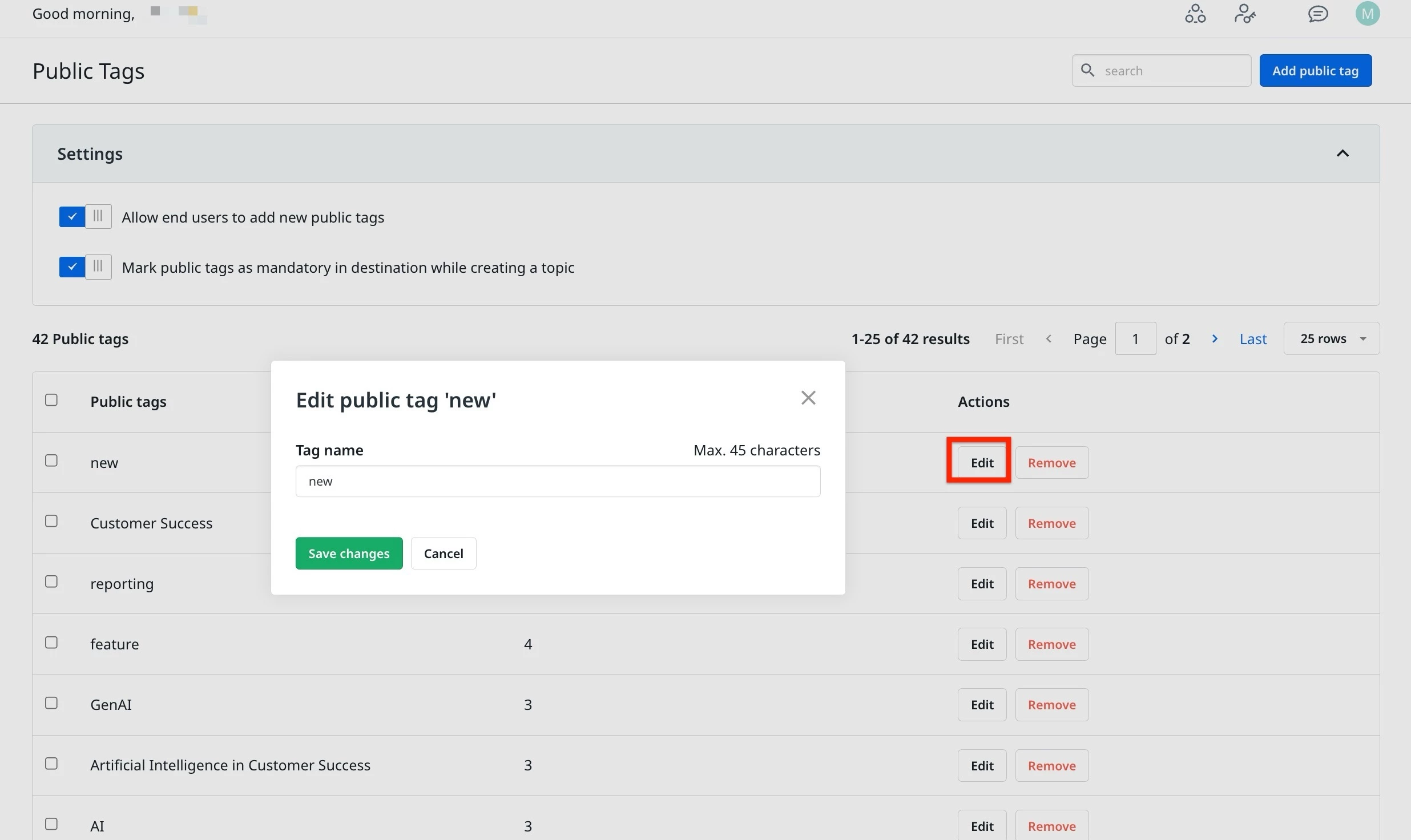
Moderators can rename an existing tag by using the edit option. To do this.
- Log in to Control.
- Navigate to Settings > Public Tags. The Public Tags page appears.
- Click Edit next to the tag. The Edit Public Tag dialog appears.
- In the Tag Name text field, change the name of the tag.
- Click Save Changes.
Delete a Public Tag
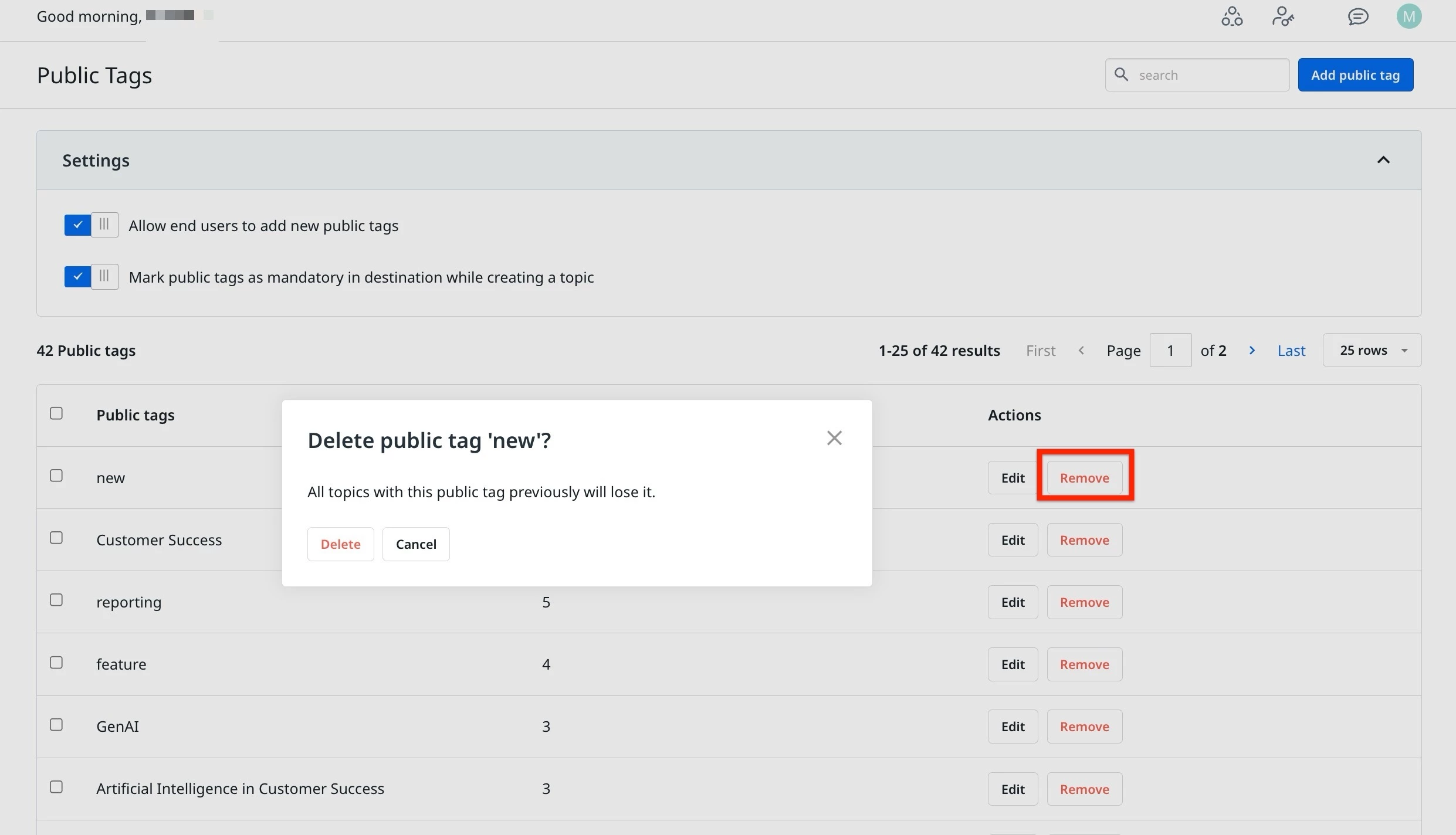
Moderators can delete an existing tag by using the edit option. To do this.
- Log in to Control.
- Navigate to Settings > Public Tags. The Public Tags page appears.
- Click Remove next to the tag. The Delete Public Tag dialog appears.
- Click Delete. The public is now deleted.
Merge Public Tags
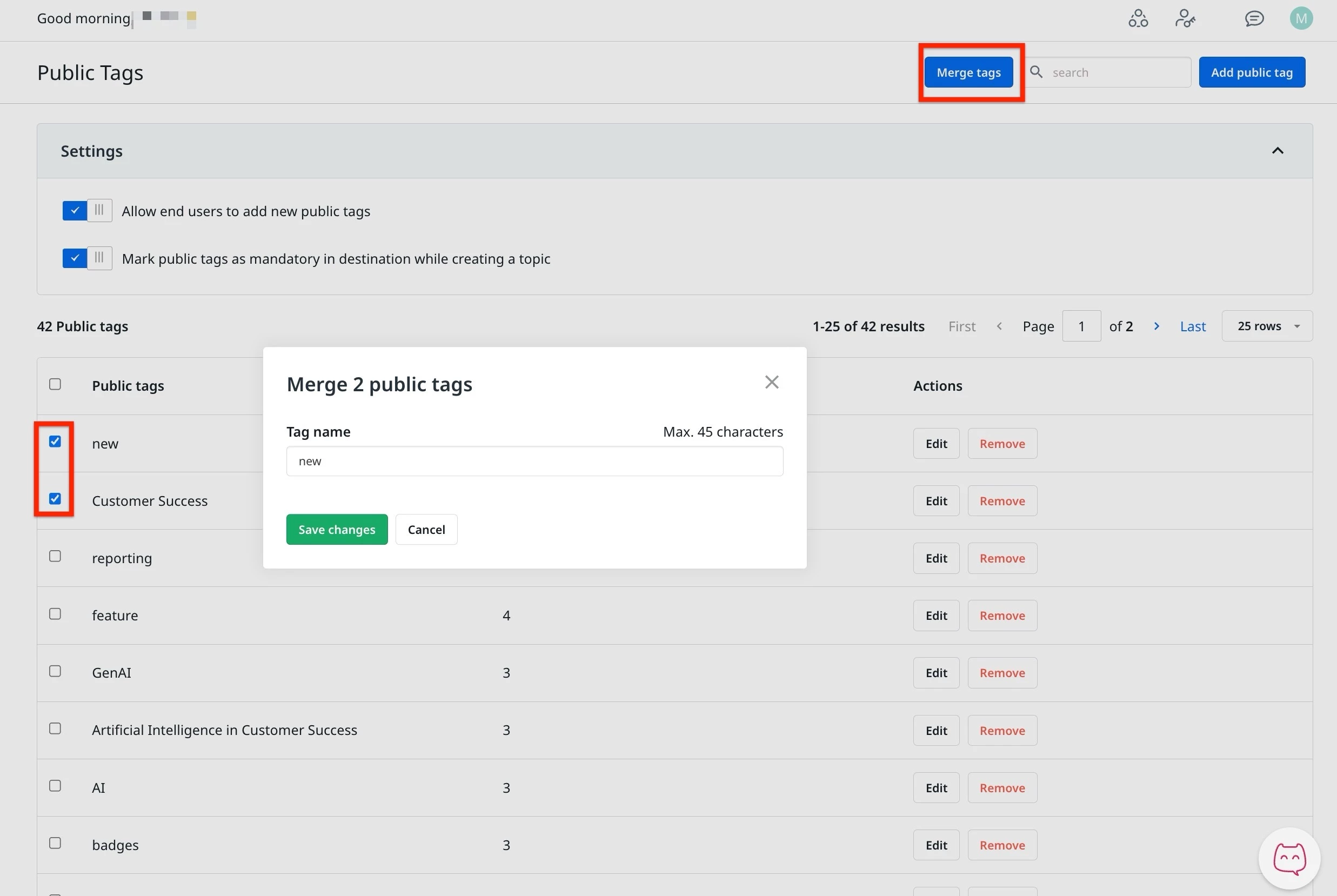
In case of duplicate tags, moderators can merge public tags to have a clean setup of tags. To do this:
- Log in to Control.
- Navigate to Settings > Public Tags. The Public Tags page appears.
- Select two or more tags to merge.
- Click Merge tags. The Merge Public Tag dialog appears.
- In the Tag name, enter the new name for the merged tags.
- Click Save Changes.