How to Moderate Messages
This article helps community managers to review and act on reported messages in Gainsight CC.
Overview
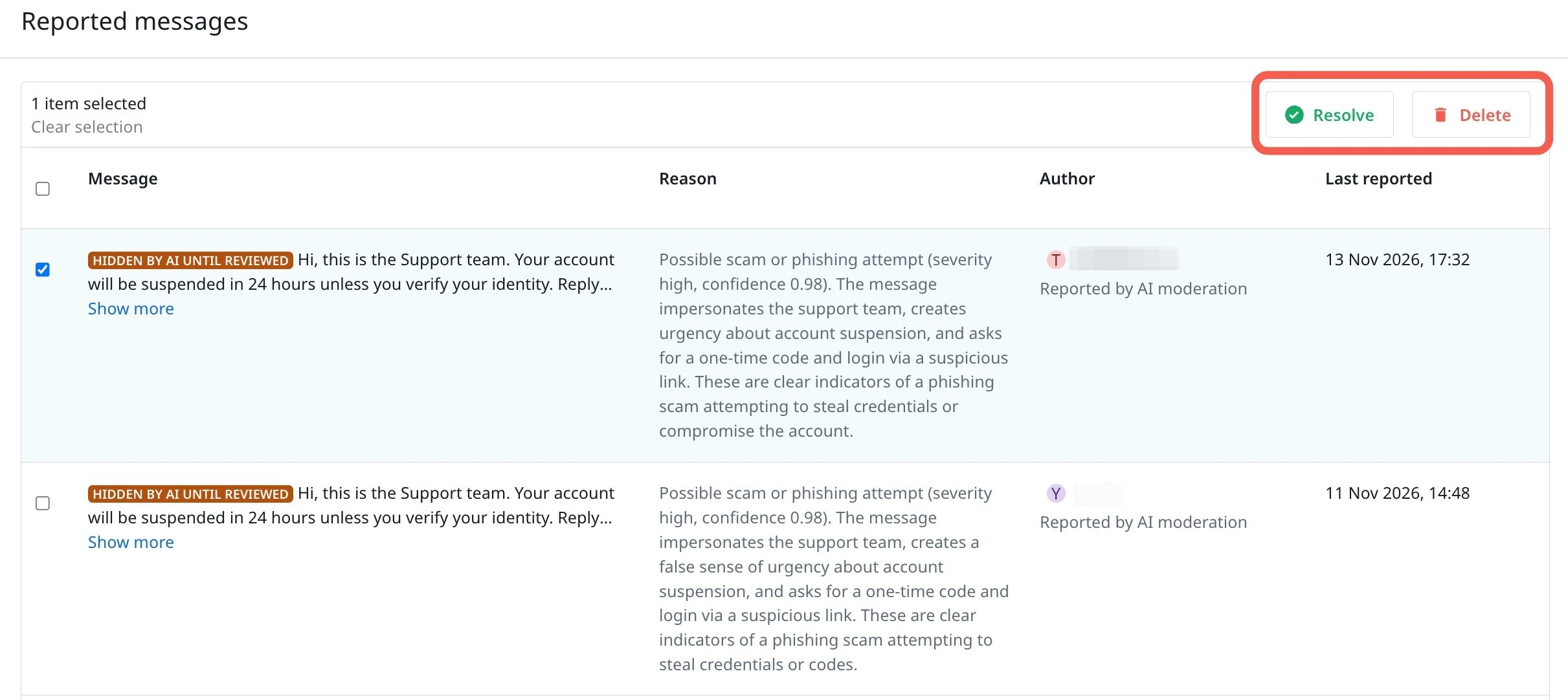
Community members can report a message from a conversation. Gainsight CC lists every reported message on the Reported messages page in Control, where you resolve or delete each message.
Note: A reported message stays visible in the conversation until you act on it.
Key Considerations
Keep the following behavior in mind when you moderate messages:
- Delete permanently removes a message from the conversation.
- The moderator view redacts personal information using rule-based detection.
How Message Reporting Works
Reporting involves the member who reports a message and the moderators who review it. The workflow follows these stages.
- A member selects Report this message in a conversation and provides a reason. A confirmation message states that the report was sent to the community management for review.
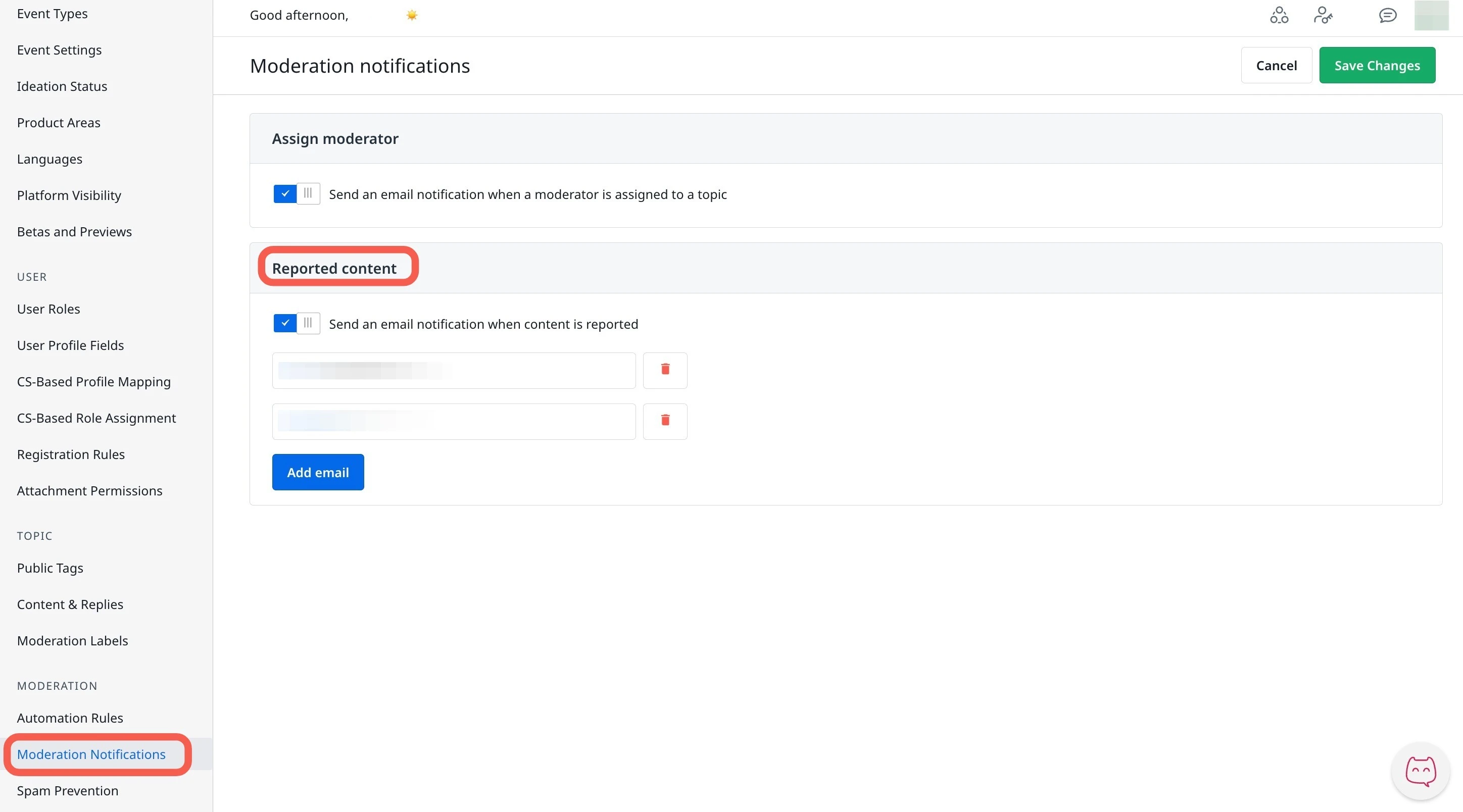
- Each email address configured in moderator notifications receives an email that shows the reporter, the reported message, and the reason.
- The message appears on the Reported messages page in Control.
- You resolve the message to keep it in the conversation, or delete it to remove it permanently.
Messages that AI moderation flags also appear on the Reported messages page. For more information about AI moderation, refer to the Moderate Messages with AI Moderation article.
Set Up Email Notifications for Reported Messages
Email notifications tell moderators when a member reports a message, so reports do not wait until someone opens Control. Complete these steps to choose who receives the emails.
- A member selects Report this message in a conversation and provides a reason. A confirmation message states that the report was sent to the community management for review.
- Each email address configured in moderator notifications receives an email that shows the reporter, the reported message, and the reason.
- The message appears on the Reported messages page in Control.
- You resolve the message to keep it in the conversation, or delete it to remove it permanently.
Every configured address receives an email when a member reports a message.
Report a Message
Community members can report a message if it does not comply with the community rules. To report a message:
- Log in to Destination.
- Click your Profile Picture
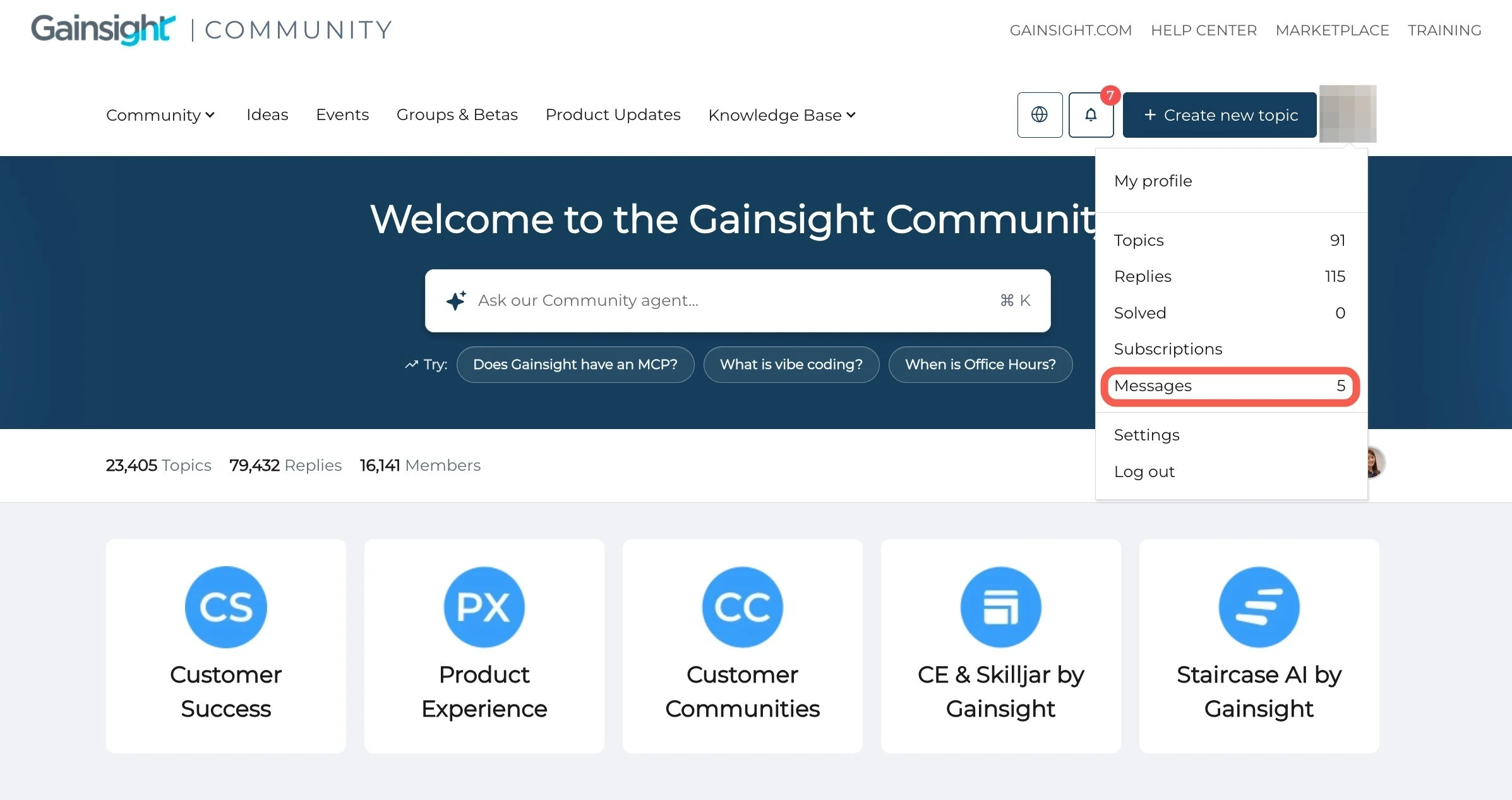
- Select Messages. The Messages page appears.
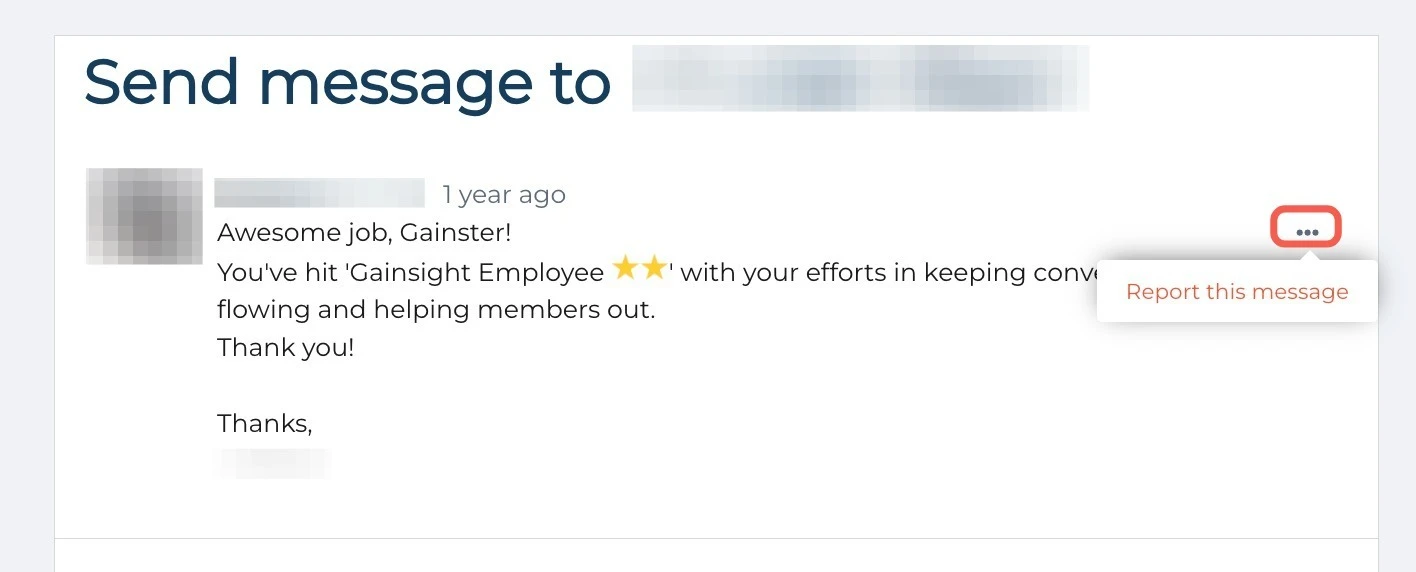
- Click Show Conversation on the message you want to report.
- Click the three horizontal dots, and select Report this message.
Review Reported Messages
The Reported messages page lists every message that members reported. Use the page to see what was reported and why before you decide what to do.
To review a reported message:
- Log in to Control.
- Navigate to Content > Messages > Reported messages.
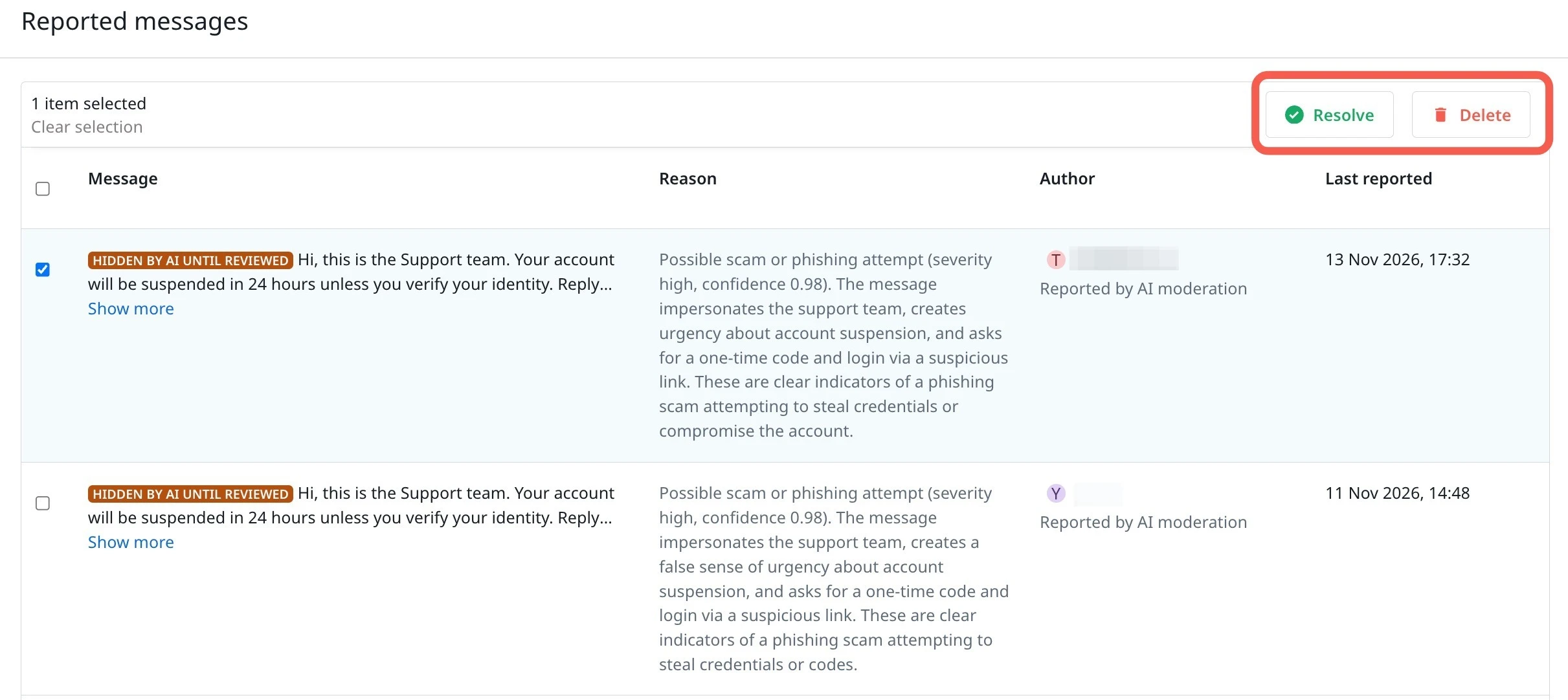
- Select a message in the list. The Resolve and Delete actions appear.
The details for the message appear, including the reason, the member who reported it, and the date and time of the report.
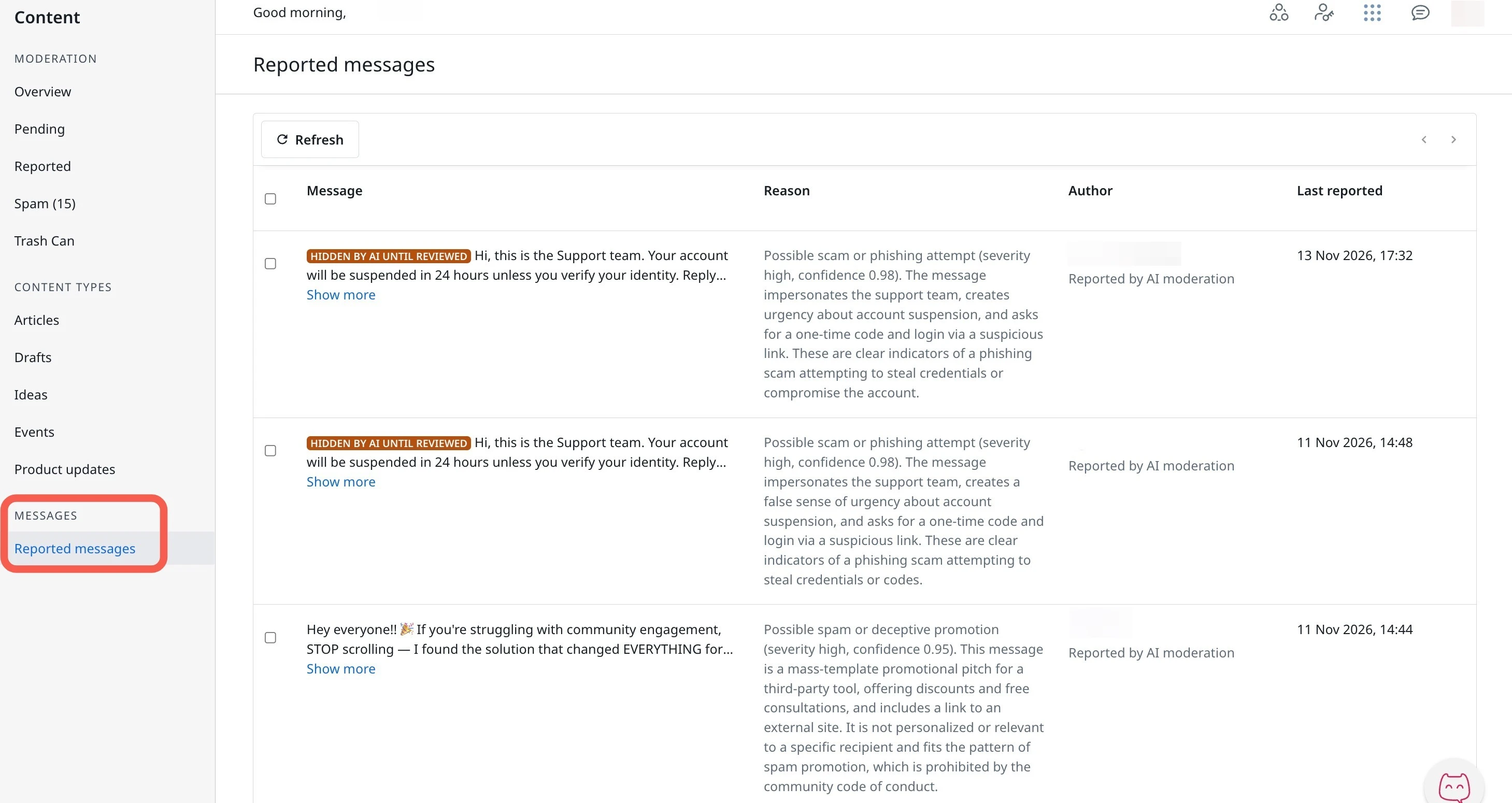
The list includes the following columns:
- Message: The content of the reported message, with personal information redacted.
- Reason: The reason the member selected when reporting, such as spam or inappropriate content.
- Author: The member who sent the reported message.
- Last reported: The date and time of the most recent report.
Resolve a Reported Message
Resolve a report when the message does not need to be removed. The message stays in the conversation.
- Log in to Control.
- Navigate to Content > Messages > Reported messages.
- Select the message.
- Click Resolve.
Delete a Reported Message
Delete a reported message when it breaks your community guidelines. The deletion is permanent, so review the message before you continue.
- Navigate to Control > Content > Messages > Reported messages.
- Select the message.
- Click Delete. The Delete reported message(s) dialog appears.
- Click Delete to successfully delete the message.