

Moderate Threaded Replies in Customer Communities
This article helps admins to enable and moderate threaded replies in Gainsight Customer Communities.
Overview
Threaded replies help community users to respond to a specific reply within a post. This creates structured levels of reply, keeping the conversations direct and consolidated. As an admin, you can enable threaded replies from Control.
The Destination view shows the community-facing thread as members see it. The Control view provides the full set of moderation tools and mirrors the destination layout, making it easier to cross-reference content while taking action.
Limitations:
- Thread depth is capped at three levels (L1, L2, L3). Replying to an L3 reply posts the response as an L2 reply with an automatic @mention.
- Trashing or marking a reply as spam applies only to that individual reply. Child replies (L2 and L3) are not removed automatically.
- The sort order for L2 and L3 replies is fixed at oldest first and cannot be changed.
- Turning off the Enable Threaded Replies toggle hides all nested replies from view. They are not deleted and become visible again when the toggle is turned back on.
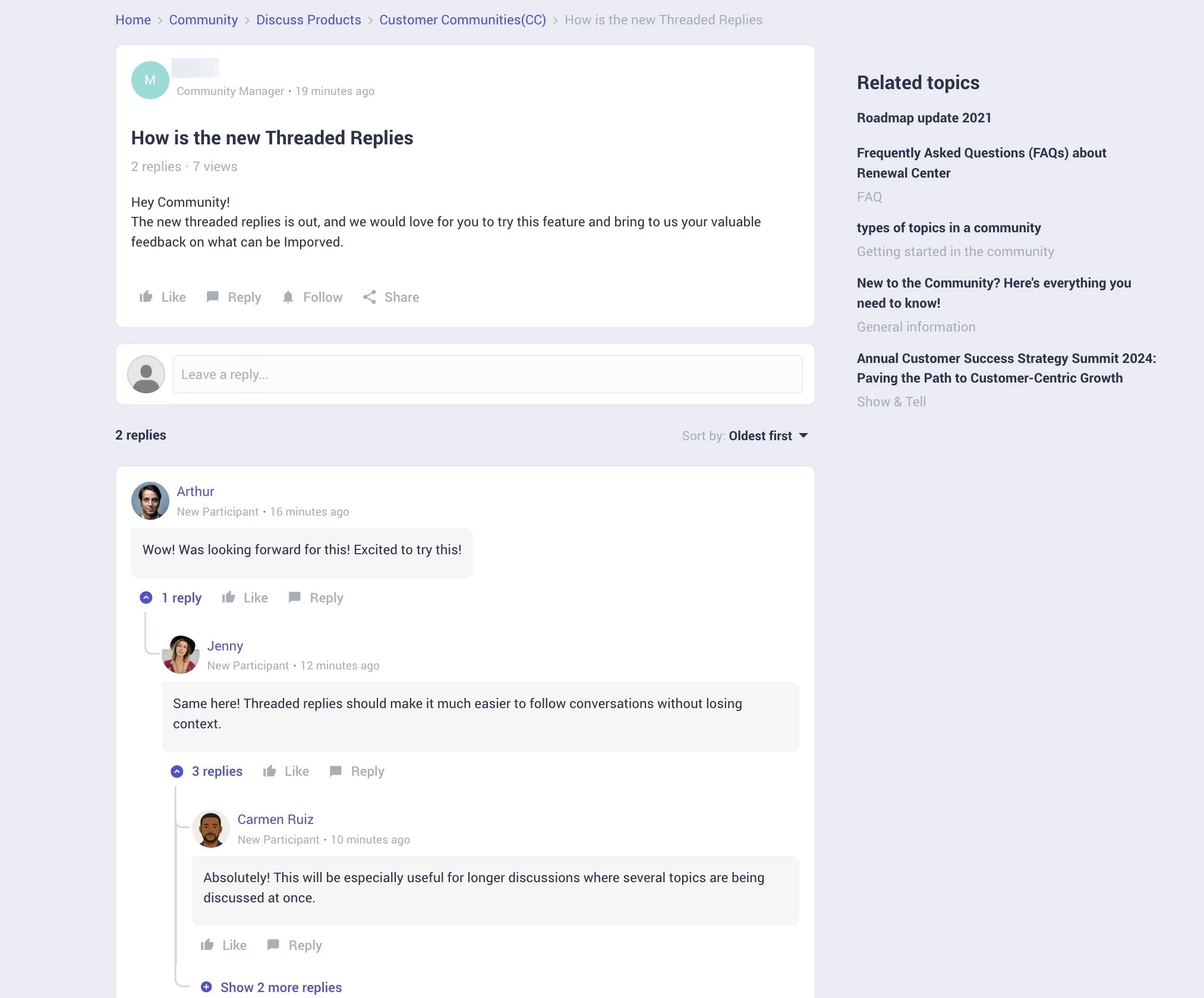
Enable Threaded Replies From Control
For communities who require a clean structure and consolidated view of replies, threaded replies can be enabled from the Control.
To enable threaded replies:
- Log into Control.
- Navigate to Settings > Content and Replies. The Content and Replies page appears.
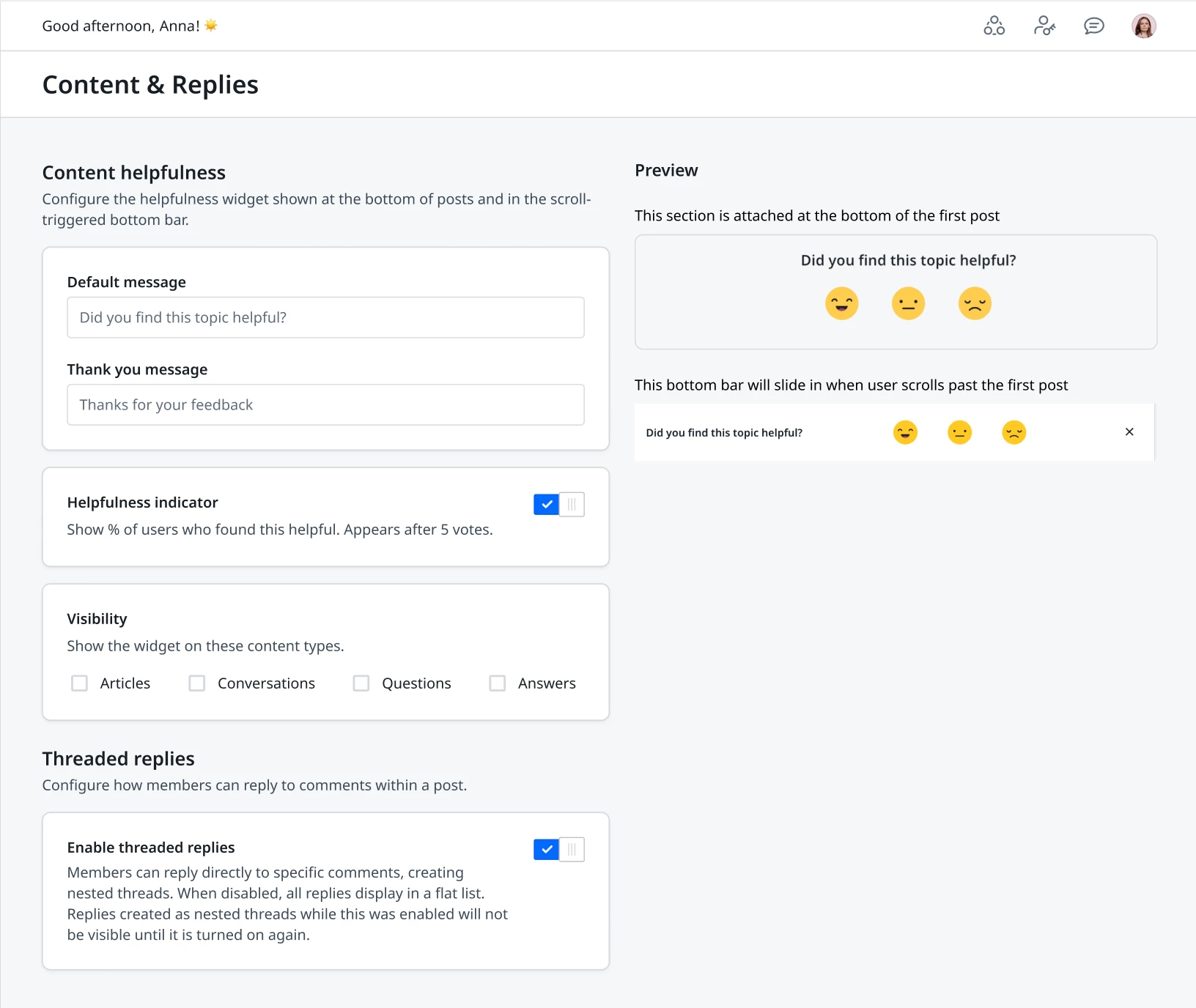
- Turn on the Enable threaded replies toggle. Threaded Replies is now active in Destination and Control.
IMPORTANT: When the threaded replies toggle is turned off, the nested replies are hidden in Destination. Replies are not deleted. Turning the toggle back on restores their visibility.
Moderate Replies in Control
The Control provides the full set of moderation tools for topic replies. The layout mirrors the destination view, so content you identify in the destination is easy to locate in Control.
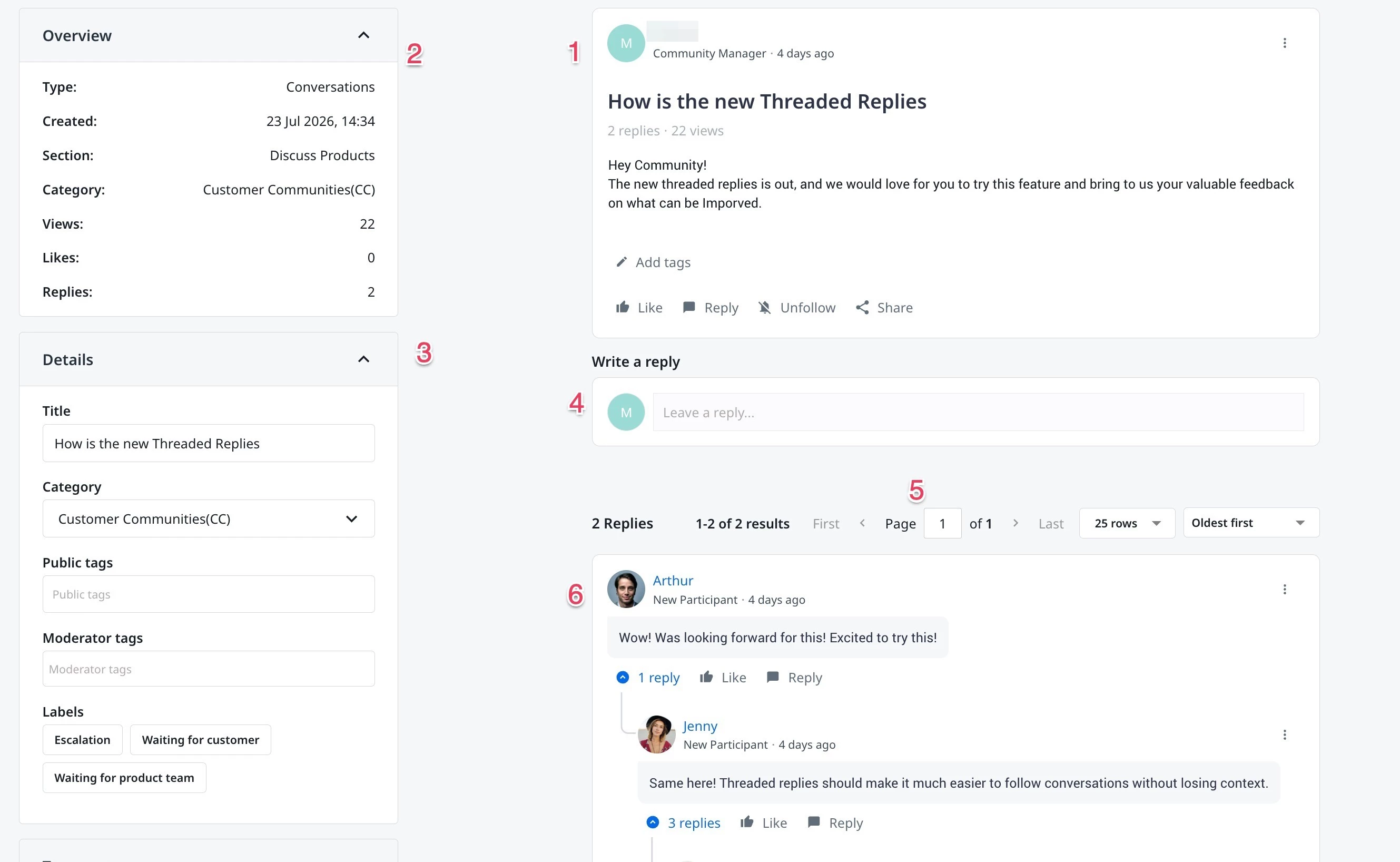
You can access any topic or a conversation from Control:
- Log in to Control.
- Navigate to Content > Overview. The Overview page appears.
- In the Search text field, enter the topic name to moderate. The Topic Moderation page appears.
The Topic Moderation page has the following sections:
- Original Topic Post: Displays the topic as posted by the community member, including the title, body text, and engagement options such as Like, Reply, and Share.
- Overview: Lists key metadata about the topic, including its type, creation date, section, category, view count, likes, and reply count.
- Details: Shows the editable properties of the topic, including the title, category, public tags, moderator tags, and labels.
- Write a reply: Provides a text field for the admin or community member to compose and submit a reply directly below the post.
- Pagination: Allows navigation across reply pages. Admins can jump to a specific page, move forward or backward, and control the number of rows displayed per page.
- Replies section: Lists all replies associated with the topic in the selected sort order. Nested replies appear indented under their parent reply, reflecting the thread structure.
Moderate a Reply
You can manage replies from the control in the Moderate Topic page. To moderate a reply:
- Click on the three-vertical dots menu.
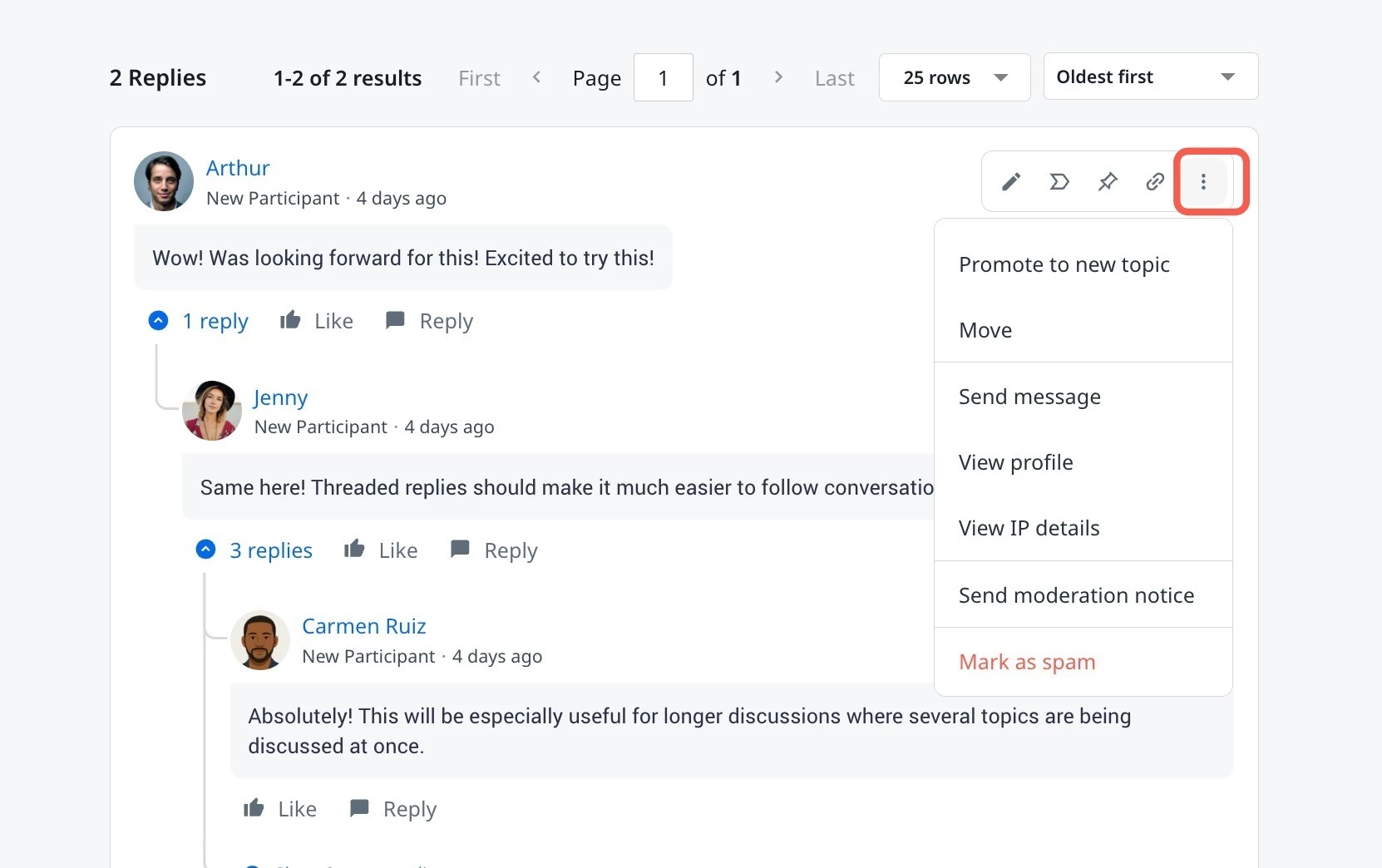
- The following options are available for moderating a reply:
- Edit: Click the pencil icon to edit a reply.
- Highlight: Click the arrow icon to highlight a reply.
- Pin: Click the Pin icon to pin a reply at the top of the list of replies.
- Link: Click the Link icon to copy the link of the reply to share.
In addition to the above actions, you can also do the following:
- Promote a reply to a new topic
- Send a message to the author of the reply
- Send a moderation notice
- Mark a reply as spam
- Move a reply to a topic
Note: When a reply is promoted to a new topic, the child replies are preserved in the new topic.
Moderate Replies in Destination
You can also moderate the replies in Destination. To do this:
- Log into Destination.
- Click the three-vertical dots menu.
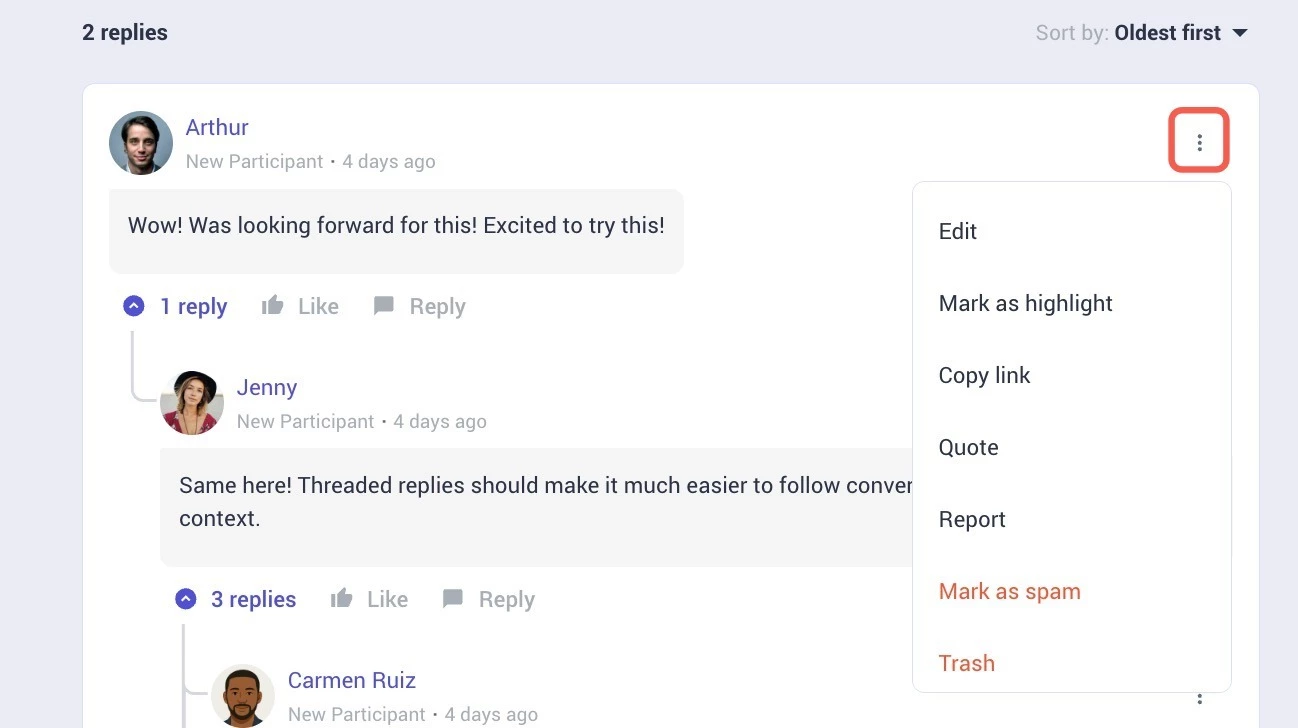
- The following options are available for moderating a reply:
- Edit: Opens the reply in edit mode.
- Mark as highlight: Highlights the reply in the thread.
- Copy link: Copies the reply URL to the clipboard.
- Quote: Inserts the reply as a quoted block in the reply editor.
- Report: Flags the reply for a community guideline violation.
- Mark as spam: Marks the reply as spam for review.
- Trash: Moves the reply to Trash.