

How to Export and Import Phrases
This article helps Admins and Community Managers export and import community phrases in bulk in Gainsight Customer Communities.
Overview
The Phrases Overview page lets you manage community phrases, the UI labels, and navigation text that appear throughout your community, across multiple languages. To update translations at scale, you can export your phrases to a CSV file, edit the translations externally, and import the updated file back into the community.
You can export phrases for a single language or download all configured languages in one zipped file. Before an import is finalized, a review step shows how many phrases will be updated, giving you the option to confirm or cancel before any changes are applied.
Export Phrases
You can export phrases for a single language or for all configured languages at once. Both options produce a CSV file you can open and edit in any spreadsheet application.
- Export Single Language
- Export All Languages
Export Phrases for a Single Language
You can export phrases for a single language from Control.
To export phrases for a single language:
- Log in to Control.
- Navigate to Customization > Phrases. The Phrases Overview page appears.
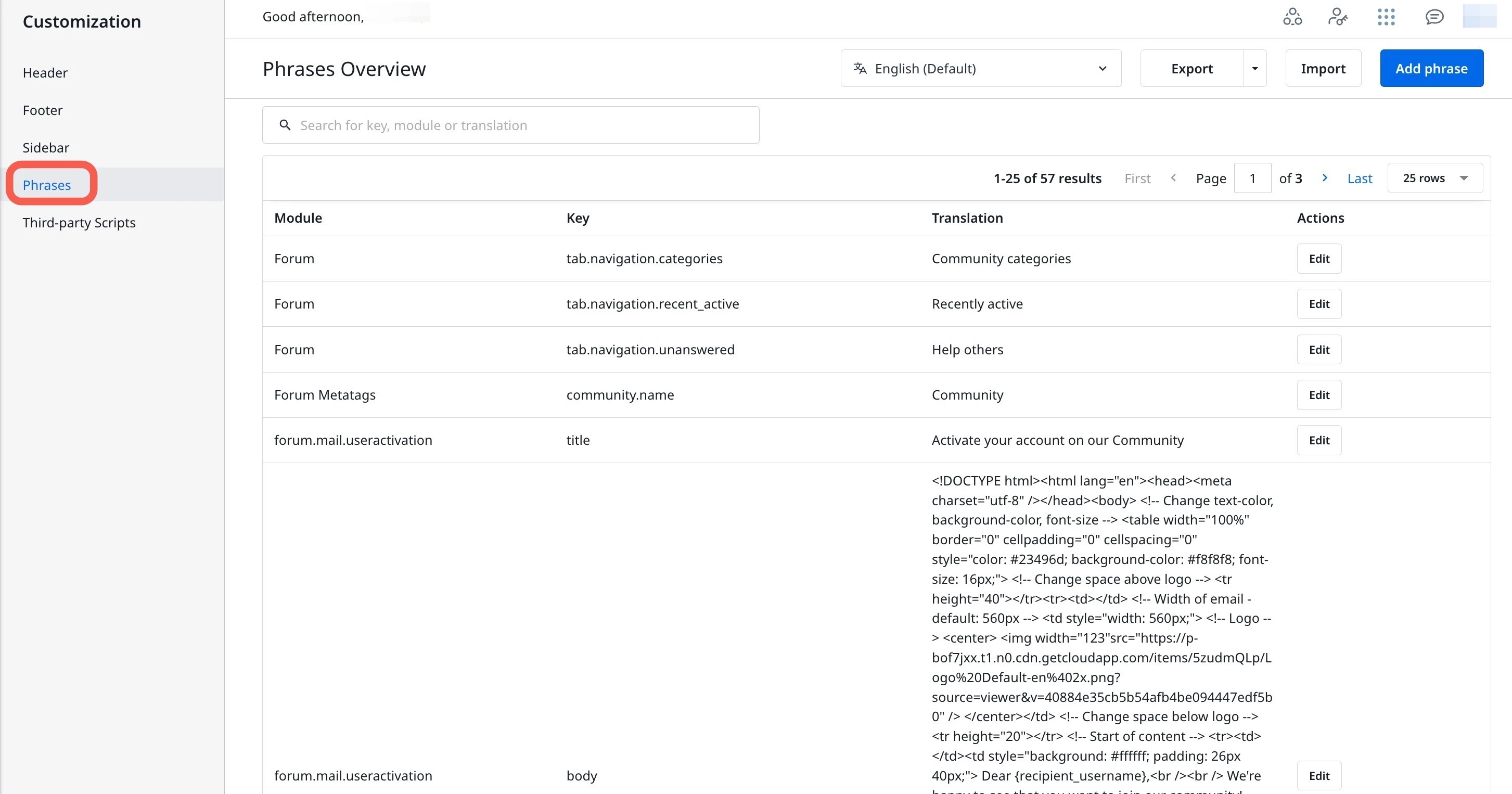
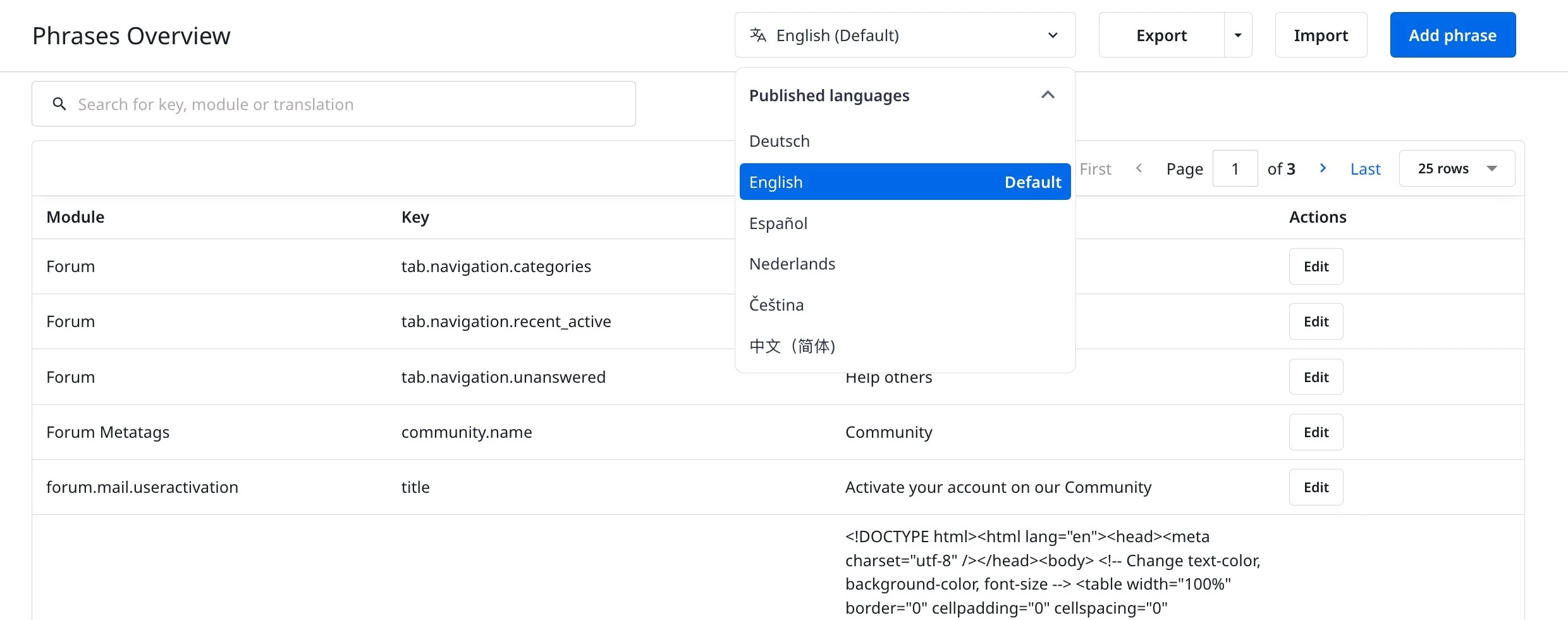
- From the Language dropdown, select the language whose phrases you need to export.
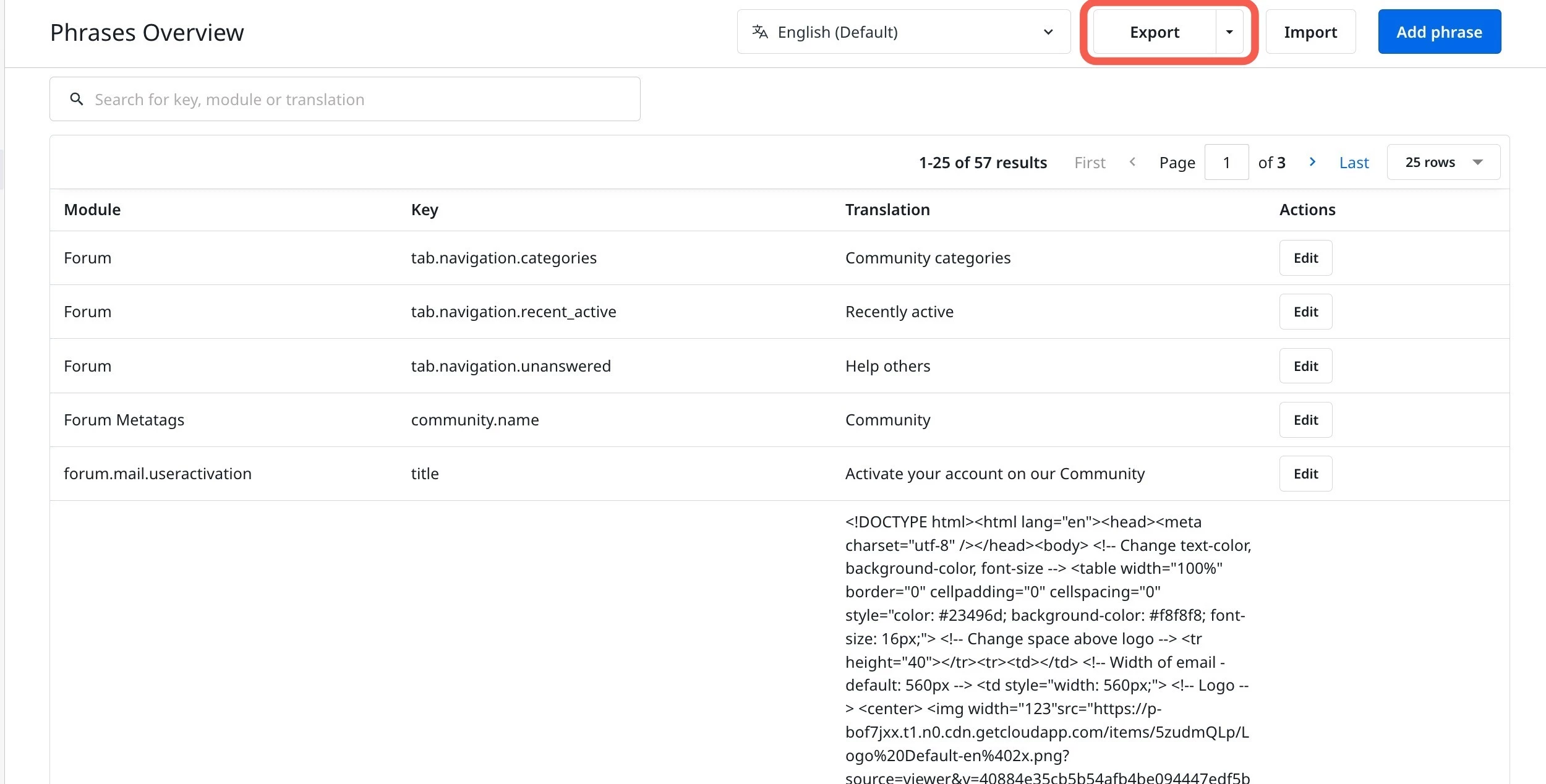
- Click Export. The phrases are downloaded as a CSV.
Export Phrases for All Languages
You can export phrases for all languages from Control.
To export phrases for a single language:
- Log in to Control.
- Navigate to Customization > Phrases. The Phrases Overview page appears.
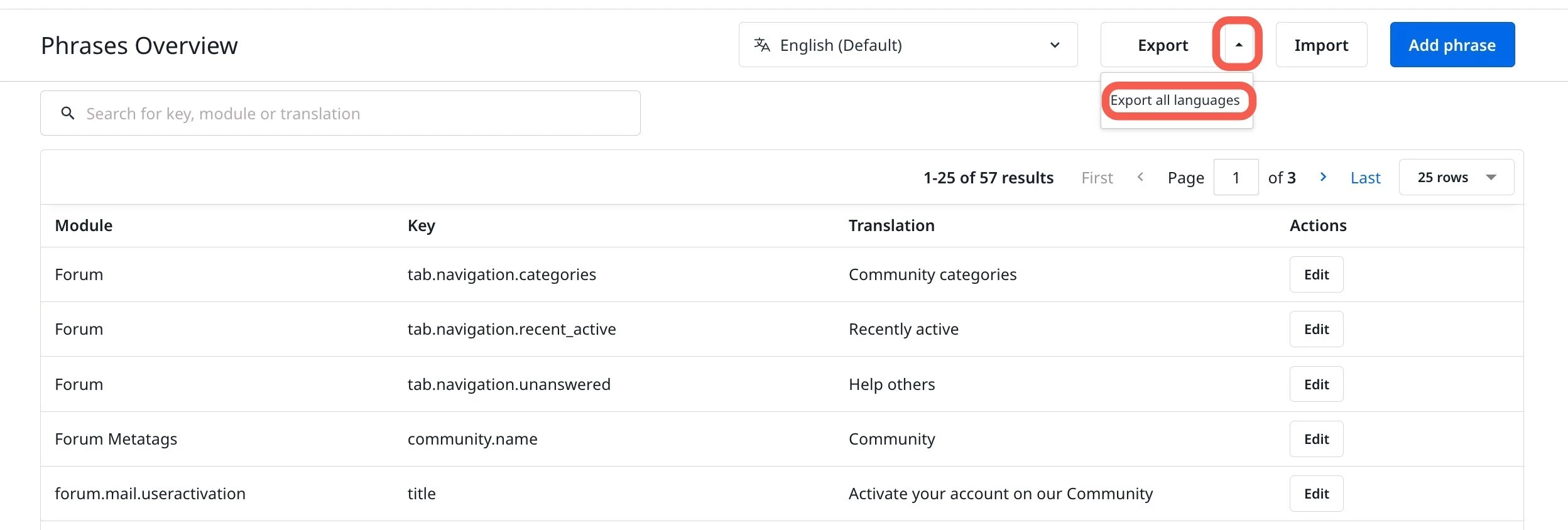
- Click the Export dropdown.
- Select Export all languages. The phrases are downloaded as a CSV.
CSV File Format
The exported CSV file contains four columns. When editing the file, only modify the phrase column. Do not change the values in the module, key, or language columns; these identify each row and are used to match phrases during import.
| Column | Description |
| module | The area of the community the phrase belongs to, such as Forum. |
| key | The unique identifier for the phrase within its module. |
| phrase | The translation text for the phrase in the specified language. Edit this column to update a translation. |
| language | The language code for the phrase, such as es_ES or nl_NL. |
Import Phrases
After editing your CSV file, import it back into the community. A review step lets you confirm the outcome before the changes are applied.
To Import Phrases:
- Log in to Control.
- Navigate to Customization > Phrases. The Phrases Overview page appears.
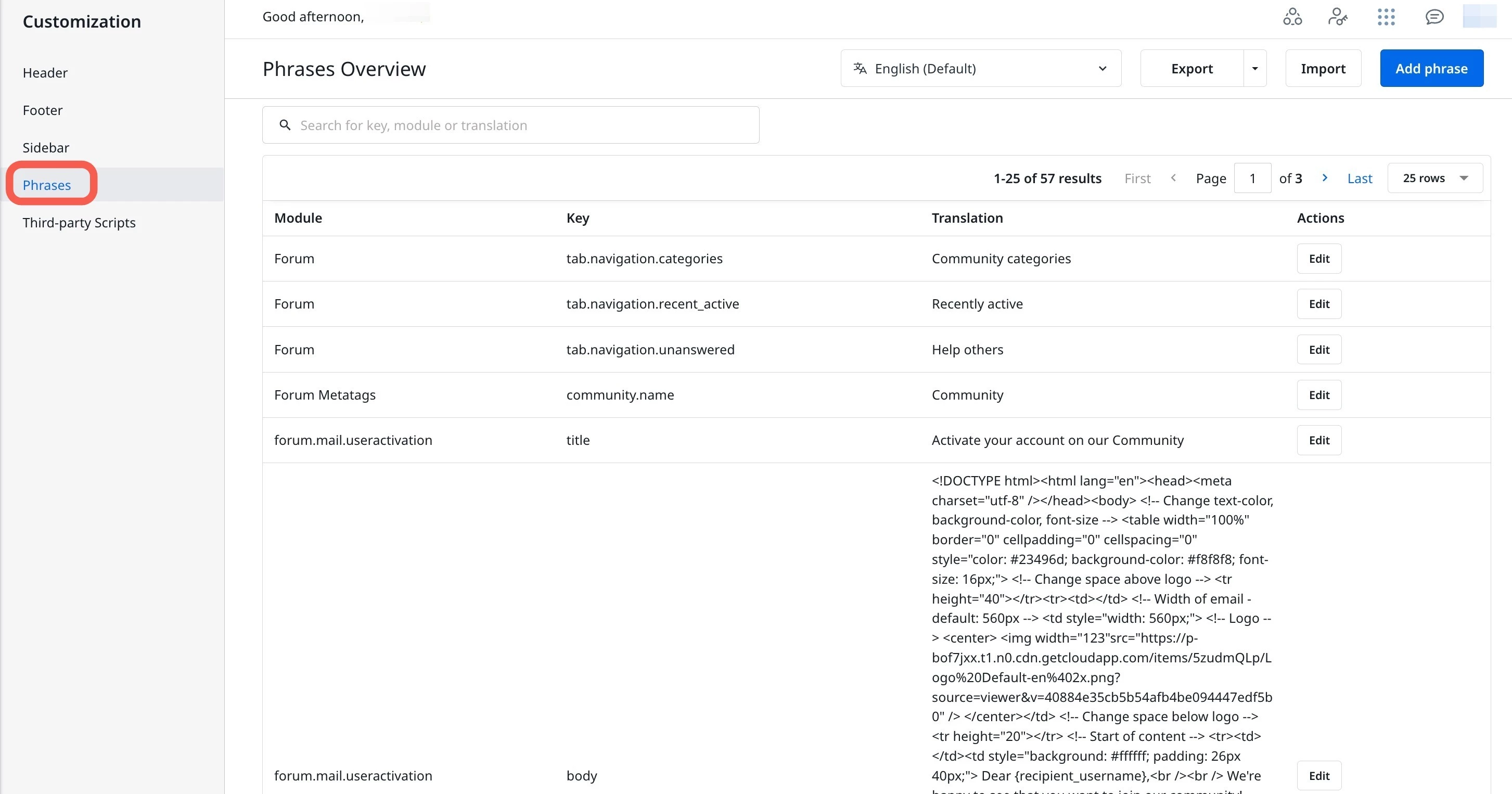
- Click Import. The Import phrases dialog appears.
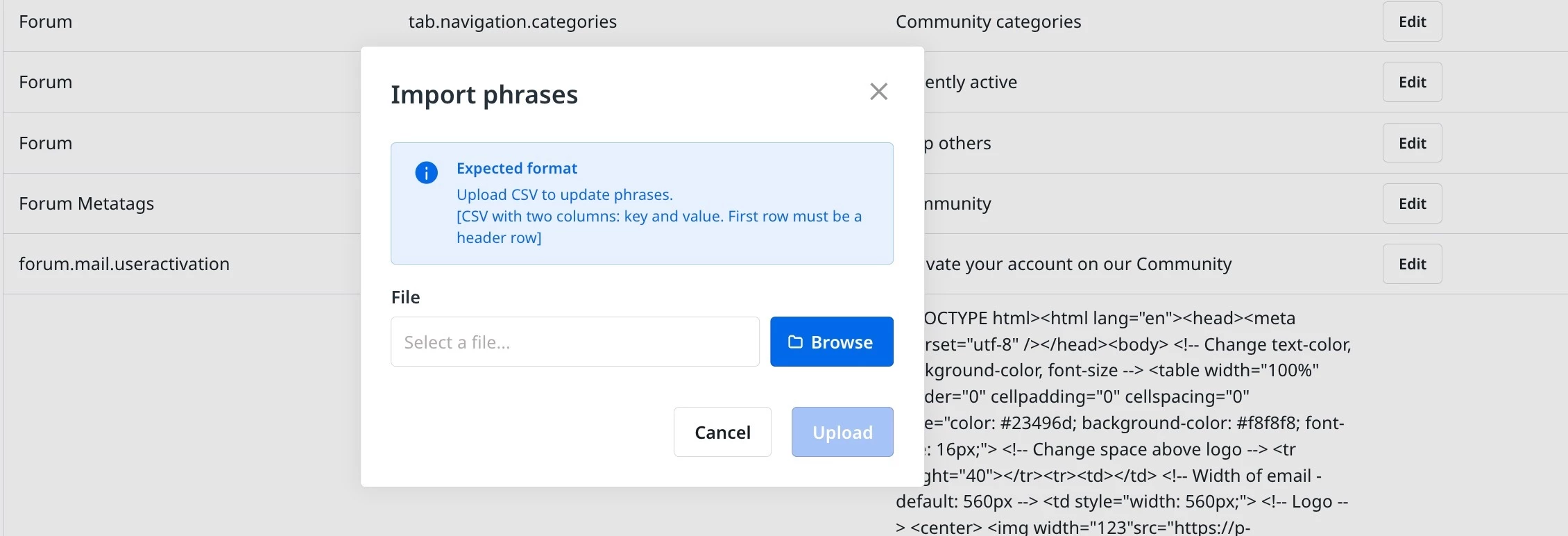
- Click Browse and select the CSV file from your local storage.
- Click Upload. The Review import dialog appears, which displays the details:
- Phrases Processed
- Phrases updated
- Phrases ignored
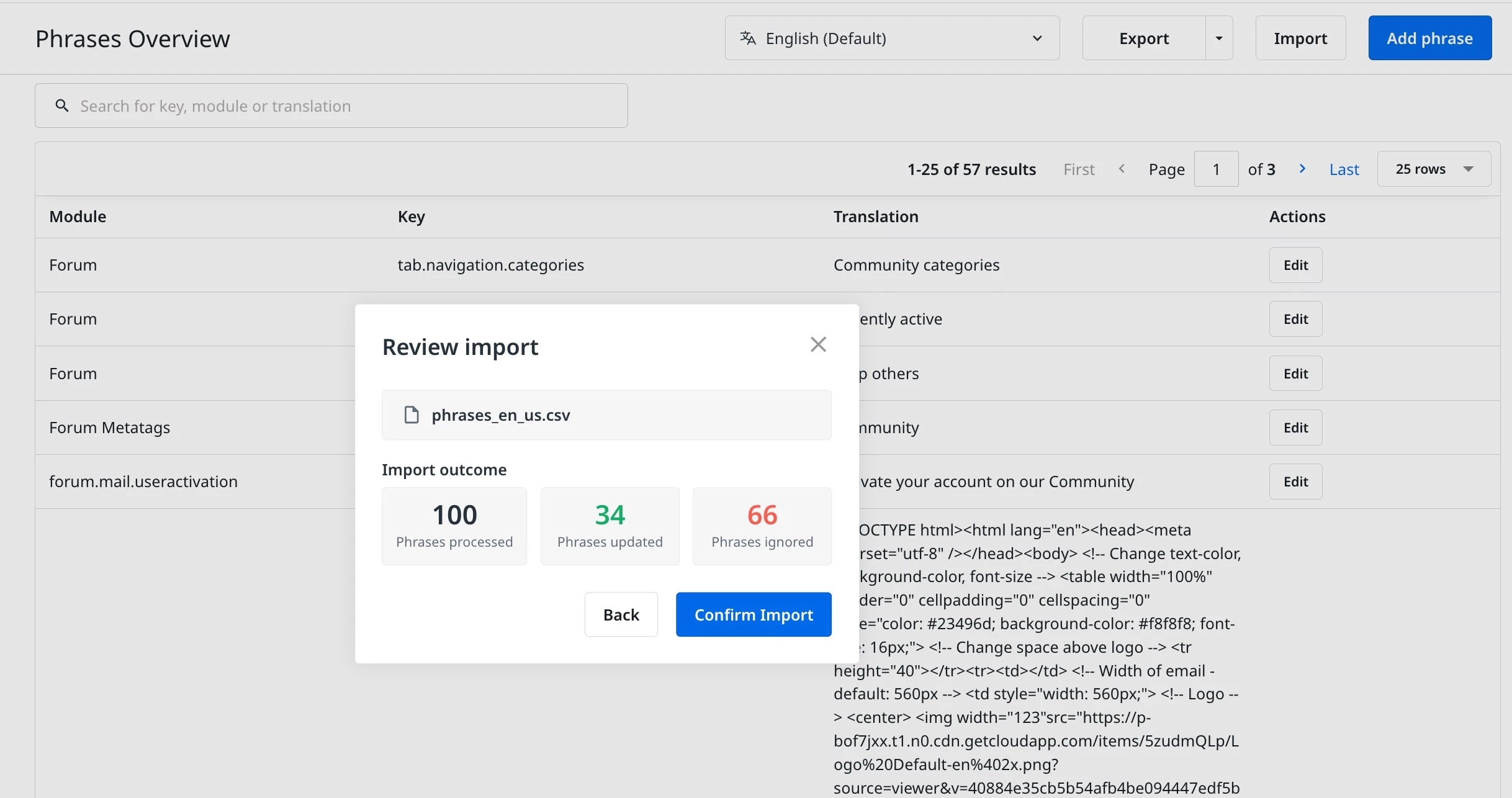
- Click Confirm Import to import the CSF file.