
Configure SEO Settings
This article helps community managers, administrators, and moderators to manage Search Engine Optimization (SEO) settings of categories in the Knowledge Base and Community platform modules.
Overview
As your community grows and starts collecting more content over time, the older content might become outdated and less relevant. Hence to maintain value, it is crucial to direct your community users to the relevant content in the community. Search Engine Optimization (SEO) settings in the Control view help you direct search engines to the relevant content in your community, bringing it to the front for your community users.
You can further hide the older content at a category level, which means that an entire category and all the topics inside the category are excluded from community search results. Additionally, it is common practice to create an Archive category to store outdated and irrelevant topics instead of deleting them.
Tip: Create an Archive category which contains outdated and irrelevant topics. Hide the Archive category from search engines and community search results.
Configure SEO Settings
To configure SEO settings for categories in Knowledge Base and Community platform modules:
- Log in to Control.
- Navigate to Platform > Knowledge Base or Community.
- Click the category name in which you want to configure SEO settings. Alternatively, from the three-dots horizontal icon, select Edit category. The Edit category screen appears.
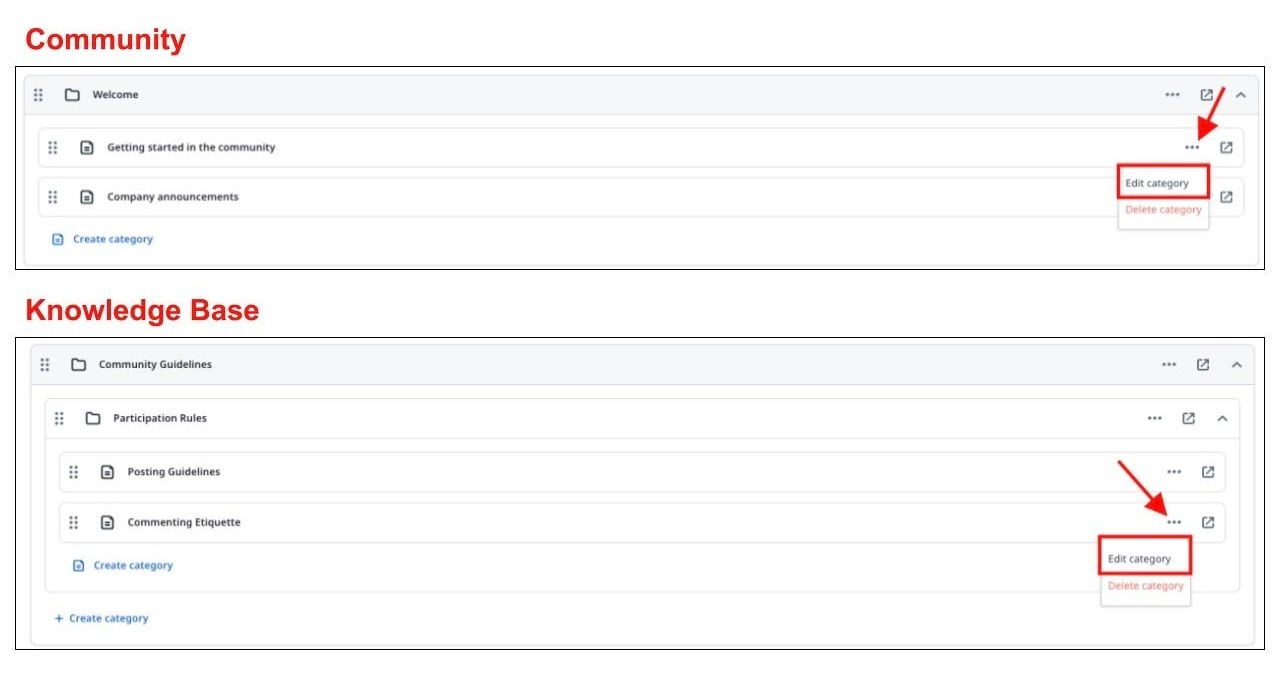
- In the SEO Settings pane, provide the following information:
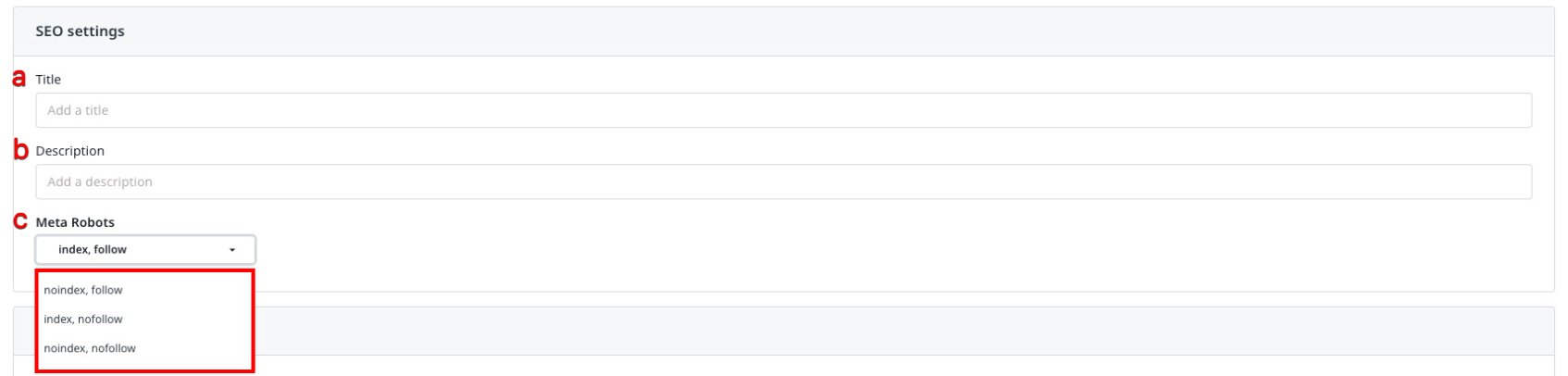
- Title: Enter the category title that should appear in the search results.
- Description: Enter the category details that should appear in the search results.
- Meta Robots: Select one of the options from the dropdown list to define how the web crawlers should operate. A web crawler is a bot that browses the internet and collects information about web pages.
- Noindex, follow: Select this option for web crawlers to crawl the category but not index and display it in search results. A web crawler is a bot that browses the internet and collects information about web pages.
- Index, follow: Select this option for web crawlers to crawl the category and index and display it in search results.
- Index, nofollow: Select this option for web crawlers to not crawl the category, but index and display it in search results.
- Noindex, nofollow: Select this option for web crawlers to not crawl and not index and display the category, hiding it from search results. When this option is selected, the category is removed from the XML Sitemap.
- Click Save changes.
Hide Category from Community Search
To hide a category from community search results:
- Log in to Control.
- Navigate to Platform > Knowledge Base or Community.
- Click the category name in which you want to configure SEO settings. Alternatively, from the three-dots horizontal icon, select Edit category. The Edit category screen appears.
- In the Settings pane, turn on the Hide category and topics from platform search toggle.

- Click Save changes.
Note 1: When you hide a category, the live-search dropdown does not return results inside this category.
Note 2: When you hide a category, the content inside the category will not be found in the curated content widget
If you have any queries or feedback, please drop an email to docs@gainsight.com or post a reply to this article.