

How To Set Up The Points-Based Leaderboard
A points-based leaderboard is a great way to identify, highlight and motivate active users. In this article, you can learn how to configure your own point values, configure the dedicated leaderboard page, and set up leaderboard widgets on the homepage for different user roles (e.g. one for your customers, another for your employees).
How to set up a points-based leaderboard
Setting up the point values & select the time zone
- Log in to Control and navigate to Gamification → Point system
- Configure the point values you want to award for each activity on the community and make sure the toggles are enabled.
- Set the timezone for your leaderboard. The weekly leaderboard will always reset at midnight (in the selected timezone) on Sunday/Monday.
- Press save changes, and you’re done!
Configure the users shown on the dedicated leaderboard page
The leaderboard page is available by default at yourcommunity.com/leaderboard. Both a weekly and all-time view are available. Up to 1000 users can be shown on both the weekly and all-time leaderboards.
You can also configure user roles to exclude from the leaderboard page.
- Log in to Control and navigate to Gamification → Point system
- Under Leaderboard page setting, select any user roles you want to exclude from the leaderboard page (both primary and custom roles are supported).
- Press save changes, and you’re done!
Add a leaderboard widget to the homepage
See this article for more information about homepage widgets.
- Go to the homepage and enable customization mode.
- Add a Container 2:1 widget. Press the + button in the sidebar panel and add the Leaderboard widget
- Choose a title, the max amount of users to show, the time ranges you want to display, and any user roles you want to exclude from the leaderboard.
- Add an empty status that will show when the leaderboard resets each week. This message will only be shown until there are > 3 users on the leaderboard. (Example below)
- Choose whether you want to show the current logged-in user’s ranking and points for this leaderboard (example below)
- Choose whether you want to show a link to the leaderboard page, and customise the text of the link. We recommend aligning the user roles you exclude from the widget and the leaderboard page, to avoid confusion.
- Press Done
- Press Publish - your leaderboard will now be visible on the homepage!
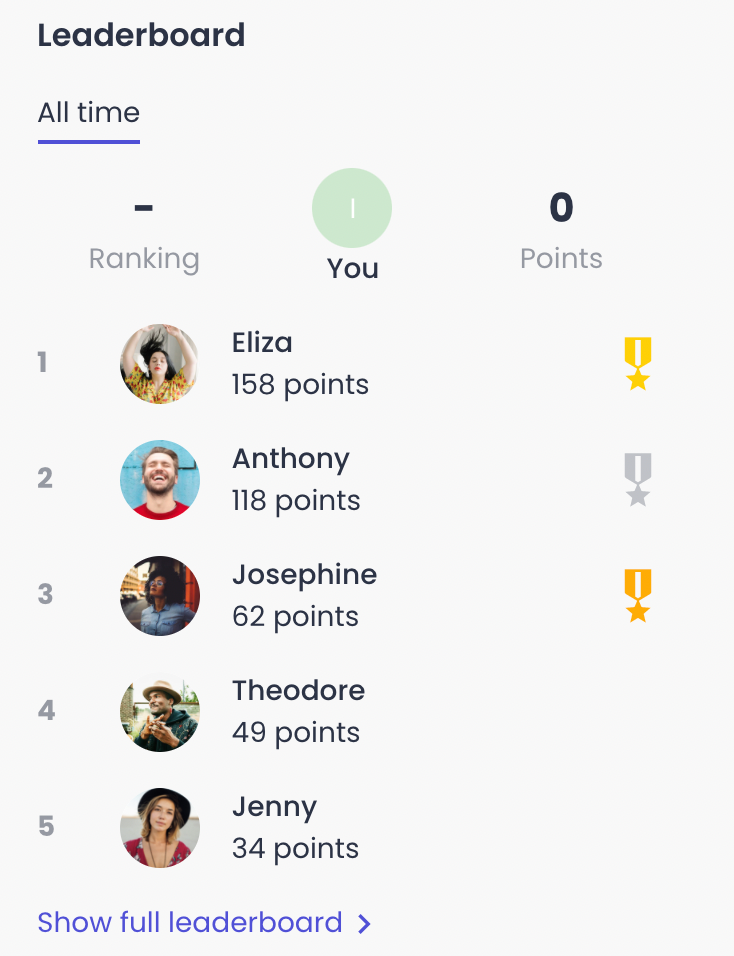
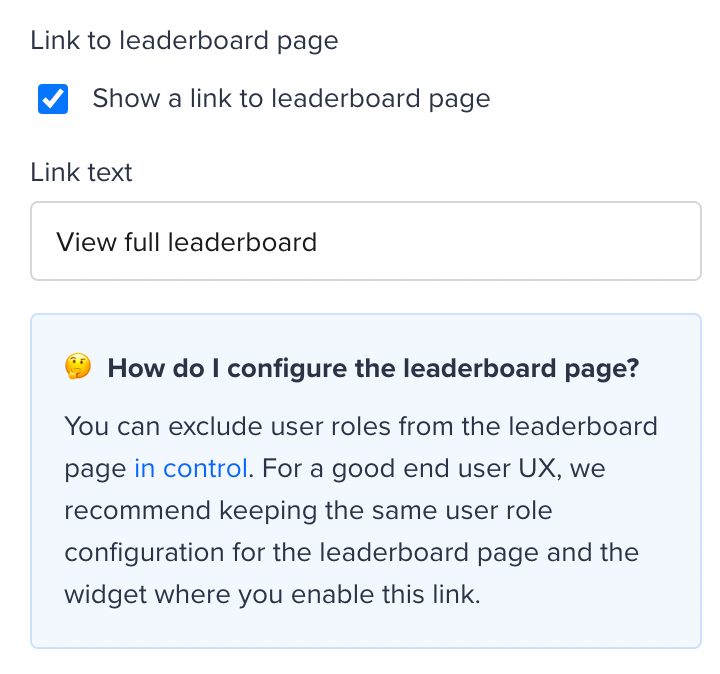
Example end result for the empty state of the leaderboard, and some starting HTML to build your own!
When there are less than three users listed on the leaderboard, the leaderboard will show something different. You can either add text or, even better, an image which you can add via HTML. Below you can find an example as well as some code to get you started.
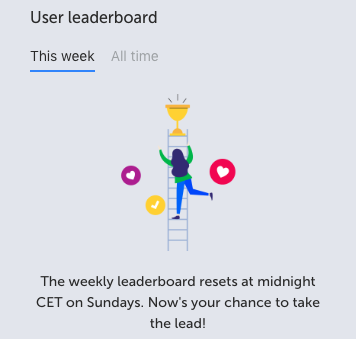
<div style="padding: 0em !important; text-align:center;"> <div><img src="https://i.ibb.co/938sZLz/leaderboard-image-inspired.png" alt="trophy" style="max-width: 100%; padding:1em 2em" /> <p>The weekly leaderboard resets at midnight CET on Sundays. Now's your chance to take the lead!</p></div></div>
FAQ
How can users earn points?
Users can earn points based on the following community activities
- Reply marked as best answer (points awarded based on when the best answer is marked, not when the reply was created)
- Reply created
- Topic created
- Like received (or idea vote received)
- Like given (or idea vote given)
What’s the time range of the weekly leaderboard?
- ‘This week’ is a fixed 7 day time period (Monday-Sunday), rather than a rolling 7 day period.
- This creates a weekly competition/race to the top
Other things that are good to keep in mind:
- If there’s a tie on points, then the user with the most recent activity is placed on top.
- We’ve taken your feedback onboard that people shouldn’t be rewarded for liking their own posts.
- It’s also possible to assign users points via the API, based on any external trigger you want!