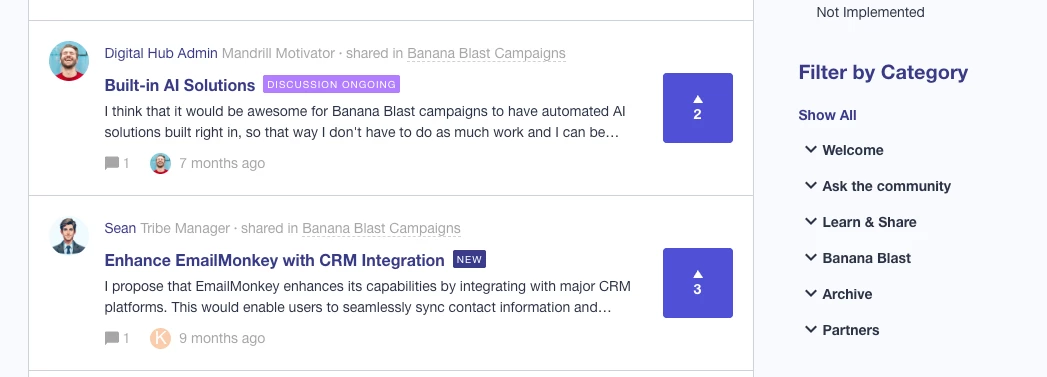

Moving Ideas and Product Updates into categories allows for a unified community experience, better content discovery, and granular, role-based access control.
Preparation & Enabling the Feature
Before turning on the feature, it is critical to build a plan for your category structure and decide which content types you want to support in each category.
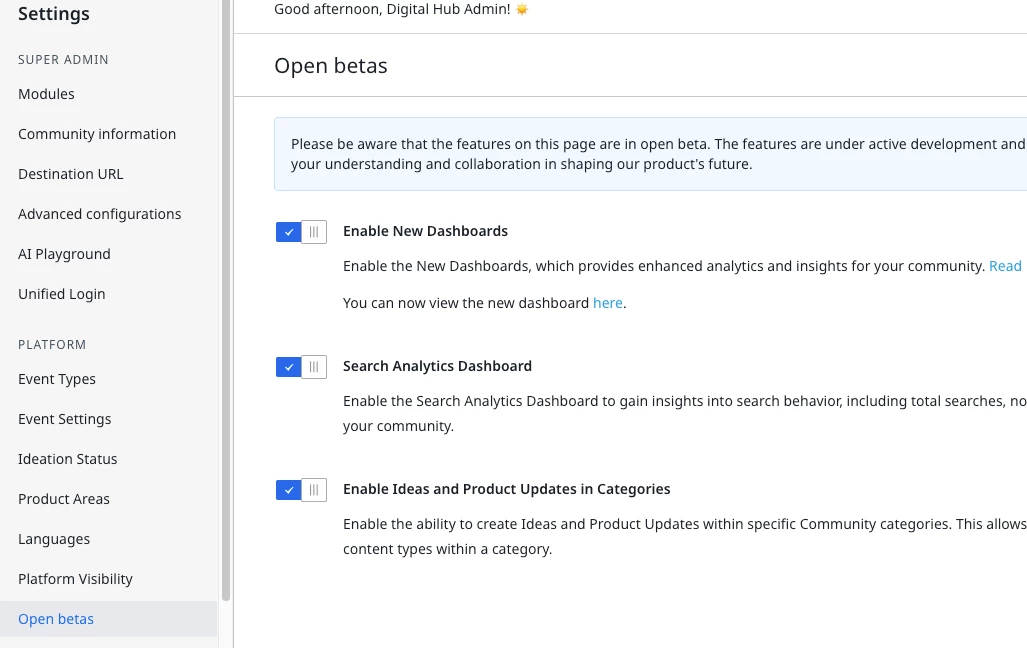
- Access Settings: Navigate to Settings > Platform > Open betas in your admin panel.
- Toggle the Feature: Locate the Ideas and Product Updates in Categories toggle and switch it to ON.
- > Note: Once enabled, users will be required to post ideas and product updates within a specific category rather than at the global module level.
Configuring Individual Categories
After the feature is enabled globally, you must specify which content types are supported within each category.
- Navigate to Community Structure: Go to the Community tab in the admin sidebar.
- Edit a Category: Select a specific category (e.g., "Product Launches") to open its details.
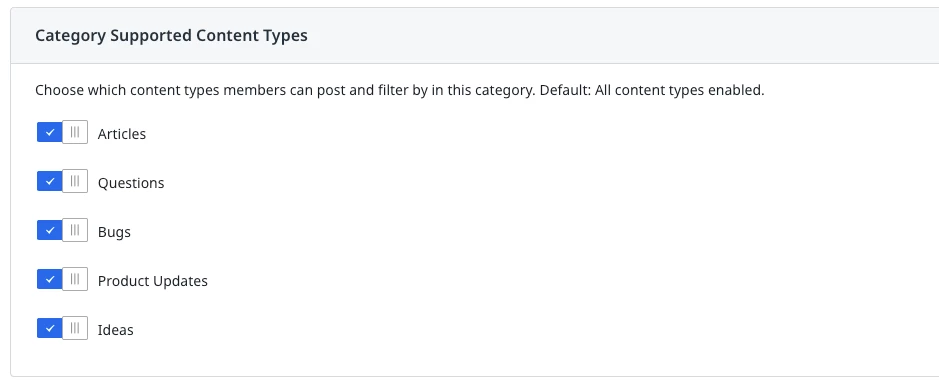
- Set Supported Content Types:
- Scroll down to the Category Supported Content Types section.
- Check the boxes for Ideas and/or Product Updates to enable them for that specific category.
- Save your changes.
- Impact on Users: If a content type (like "Ideas") is unchecked, users will not be able to select that category when posting an idea in both Control and Destination.
Bulk Moving Existing Content
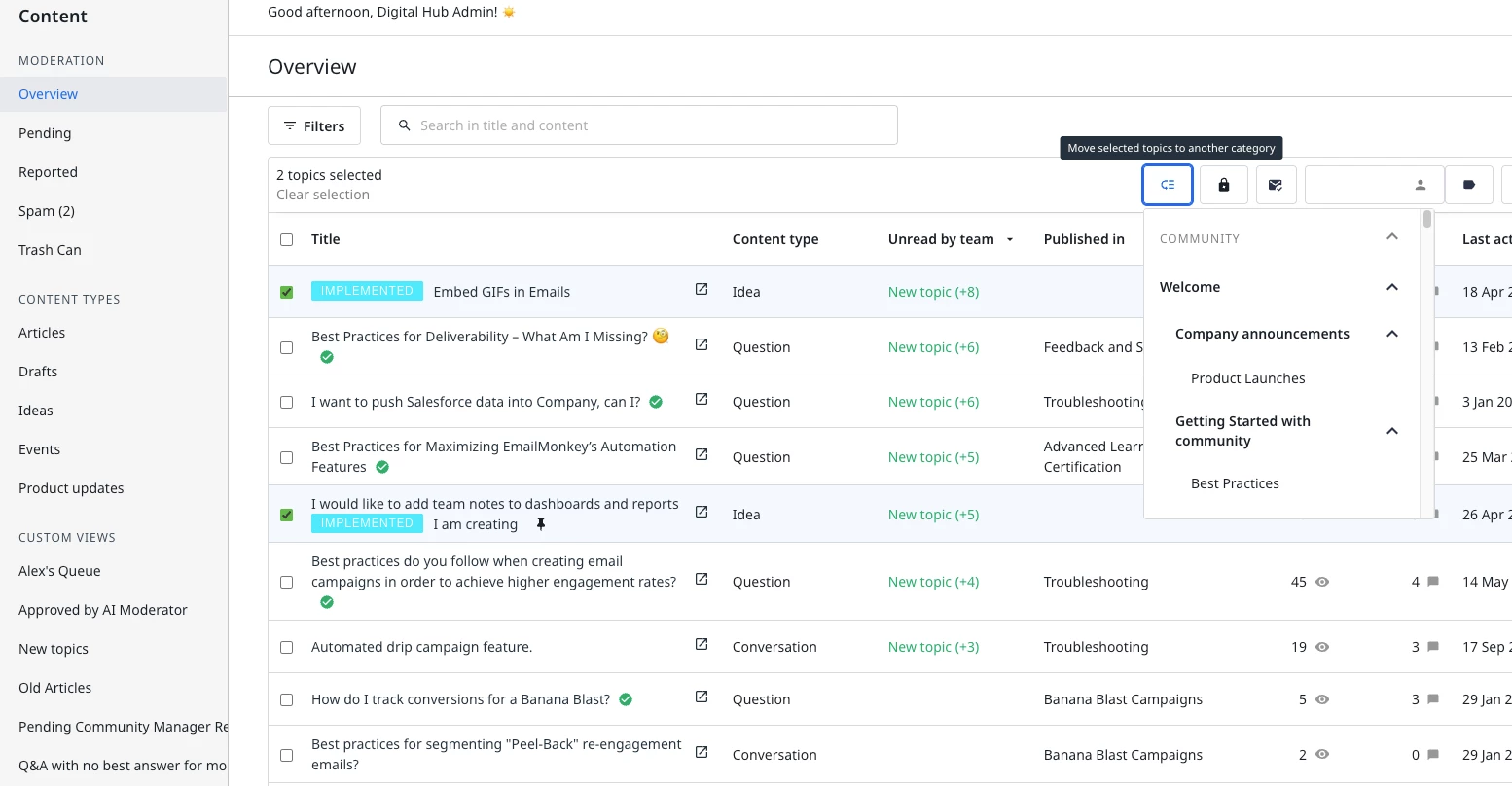
Once your new structure is finalized, you can move existing Ideas and Product Updates in bulk out of the global modules and into the appropriate categories.
- Go to Content Overview: Navigate to Content > Overview.
- Filter by Content Type: Use the filters to select Idea or Product Update.
- Select Items to Move: Check the boxes next to the posts you wish to relocate.
- Perform Bulk Move: Click the Move topics icon in the action bar.
- Select the target category from the list.
- Confirm the move by clicking Move topics.
Enhancing Discovery with Widgets
To help users find content quickly, you can optionally add a "Filter by Category" widget to your module pages.
- Access the Module Page: Go to your community's Ideas or Product Updates page and click Edit Layout.
- Add Widget:
- Click the + icon to add a new component to the sidebar.
- Search for and select the Filter by Category widget.
- Publish: Click Publish to make the widget visible to your users.
- This allows users to filter content by its specific category while still viewing the global module feed.