In general, there are two ways in which you can verify a domain in Search Console.
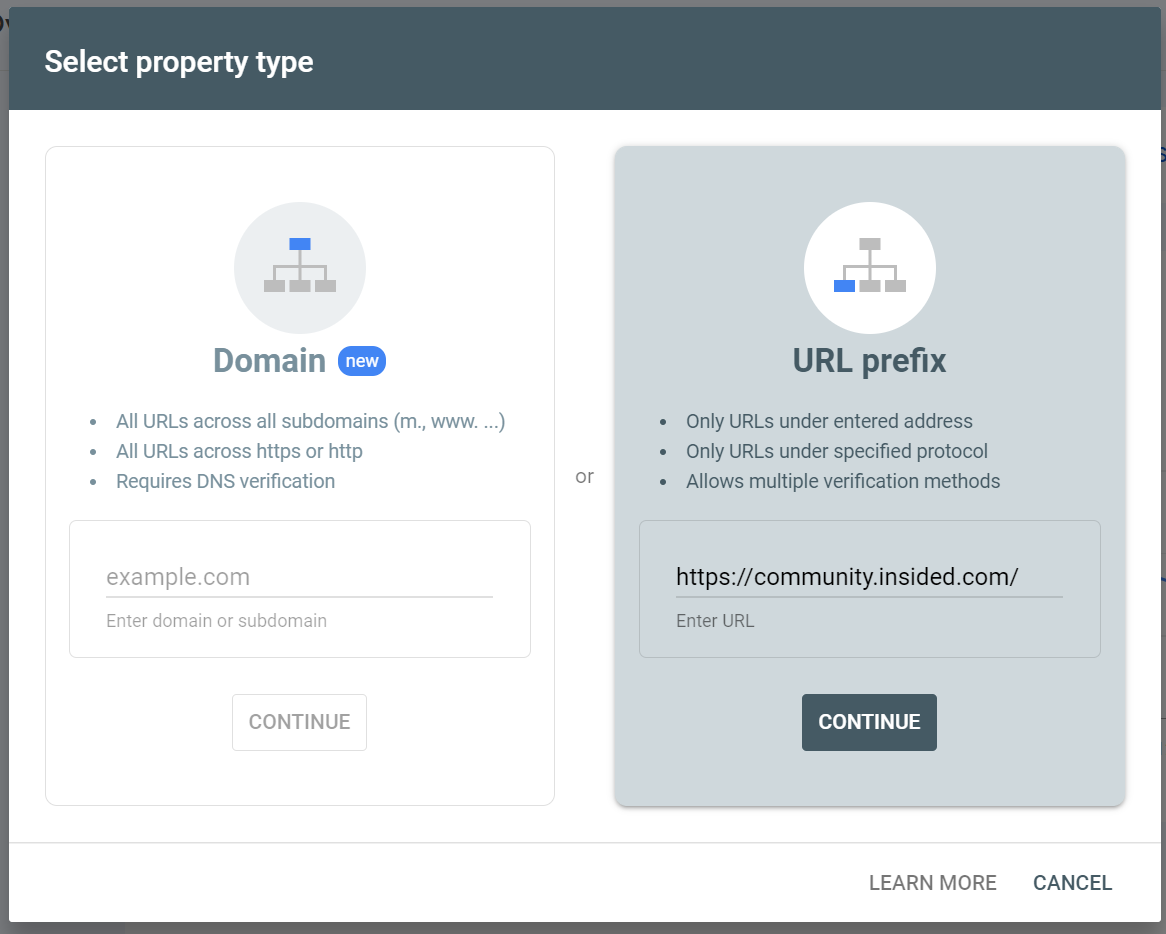
For both steps, you first have to enter the url of the domain that you want to verify (the url of your community). If it is a subdomain (e.g. of your company, like our community is a subdomain of insided.com), you can simply enter the url of your community in the right field:
Automated verification
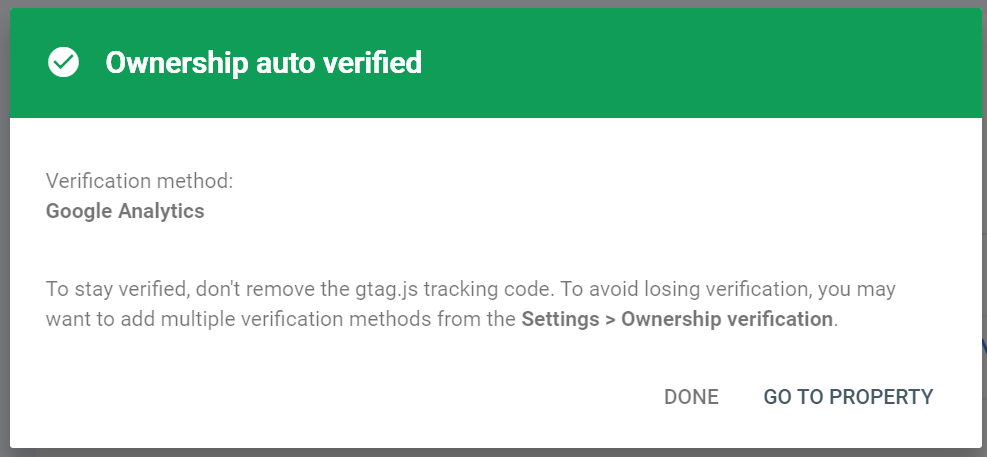
If your community already has been verified via Google Analytics (and I assume your account has access to this Google Analytics implementation), then Google will automatically verify Search Console as well:
Manual verification
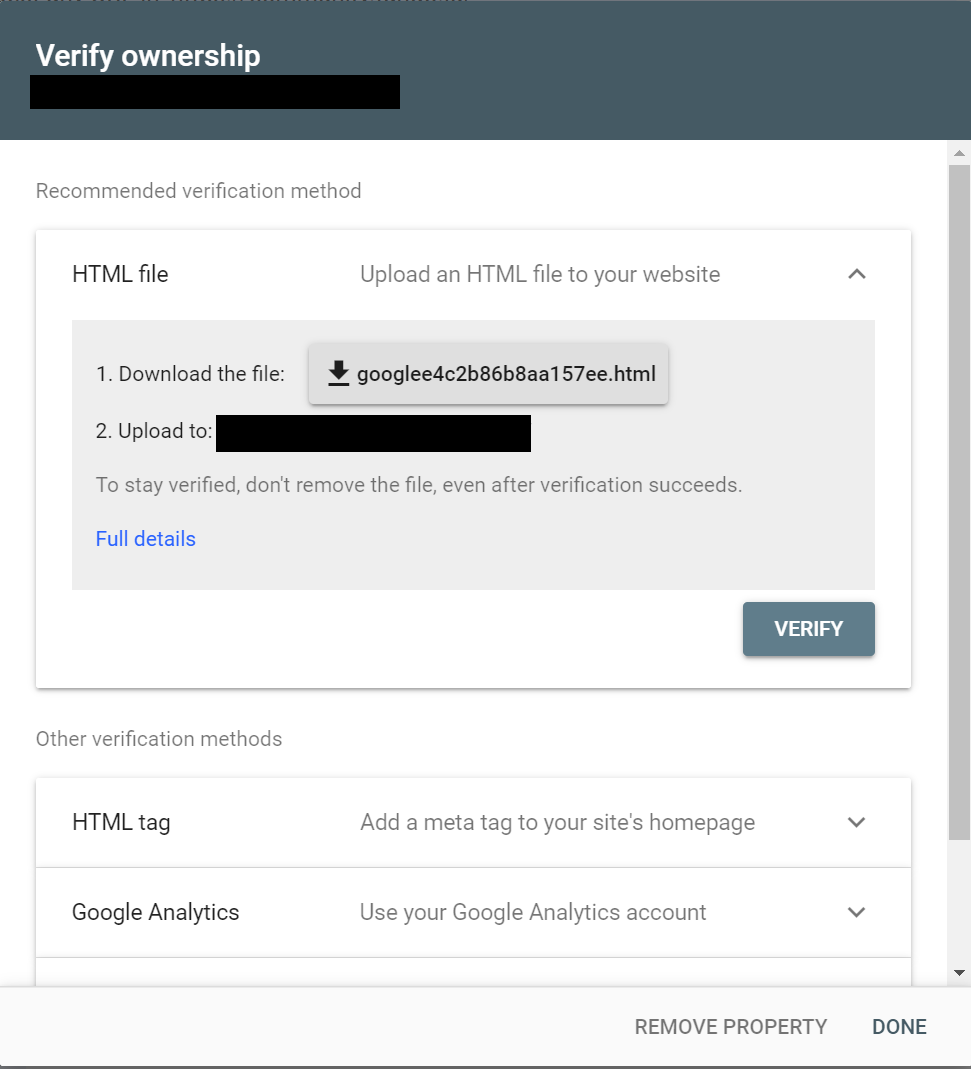
If this is not the case, then you can also easily verify manually. For this, you should be presented with this screen after attempting to verify:
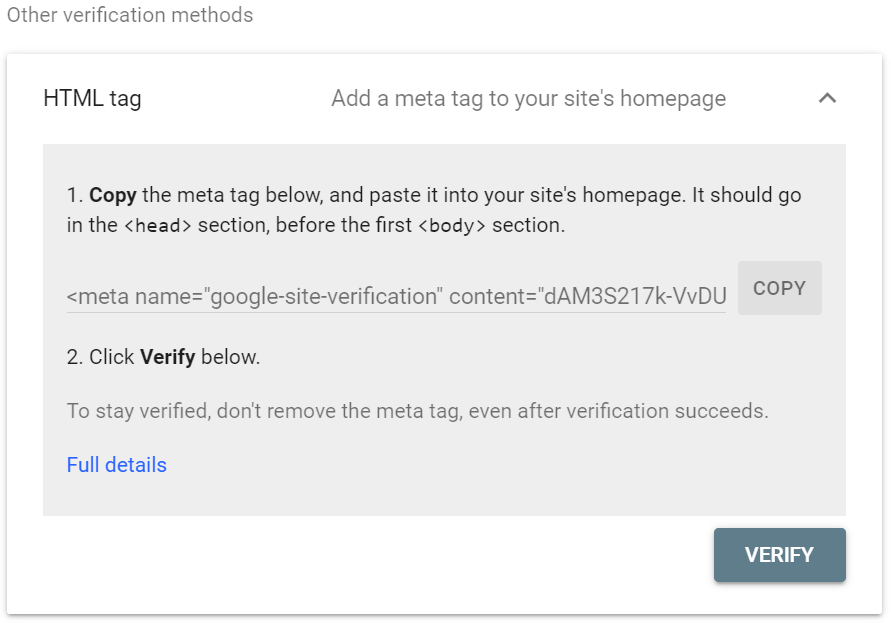
Here, simply expand the "HTML tag” option under “Other verification methods”, and then copy the code which you will see:
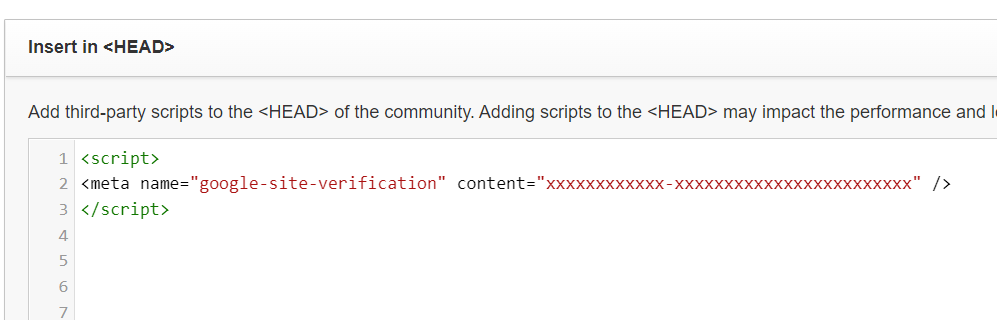
Then, head to the Control environment of your community, and go to “Customization” - "Third-Party Scripts". You want to paste this into the “Head” section:
I have manually added <script> / </script>, as I think this is required (but it might not be, I am not a developer).
Once you've saved these changes, the code will be executed on all pages, and Search Console should be able to complete the verification.
If you already have a profile on Gainsight Community, there's no need to create another one. If your email address has changed or you can't remember your login, email community@gainsight.com.
Otherwise, continue with the registration below.