

Search Analytics Dashboard
This article helps admins and community managers understand how to leverage the Search Analytics dashboard.
Overview
The Search Analytics dashboard provides admins and community managers with visibility into how users interact with search. It helps you understand search usage, evaluate search performance, and identify opportunities to improve the overall search experience.
The dashboard surfaces key search-specific metrics such as Total Users, Total Searches, Conversion Rate, Top Searches, and more. These insights enable teams to see what users are searching for, how frequently search is used, and how often searches lead to successful outcomes.
Use the Search Analytics dashboard to:
- Monitor search adoption and usage trends
- Identify popular and ineffective search queries
- Evaluate how well search is meeting user needs
- Make informed decisions to improve search content and configuration
Access Search Analytics Dashboard
The Search Analytics Dashboard is an out-of-the-box dashboard that can be viewed from the Analytics page.
To view the dashboard:
- Log in to Control.
- Navigate to Analytics > Search Analytics
Note: The dashboard data is displayed in UTC.
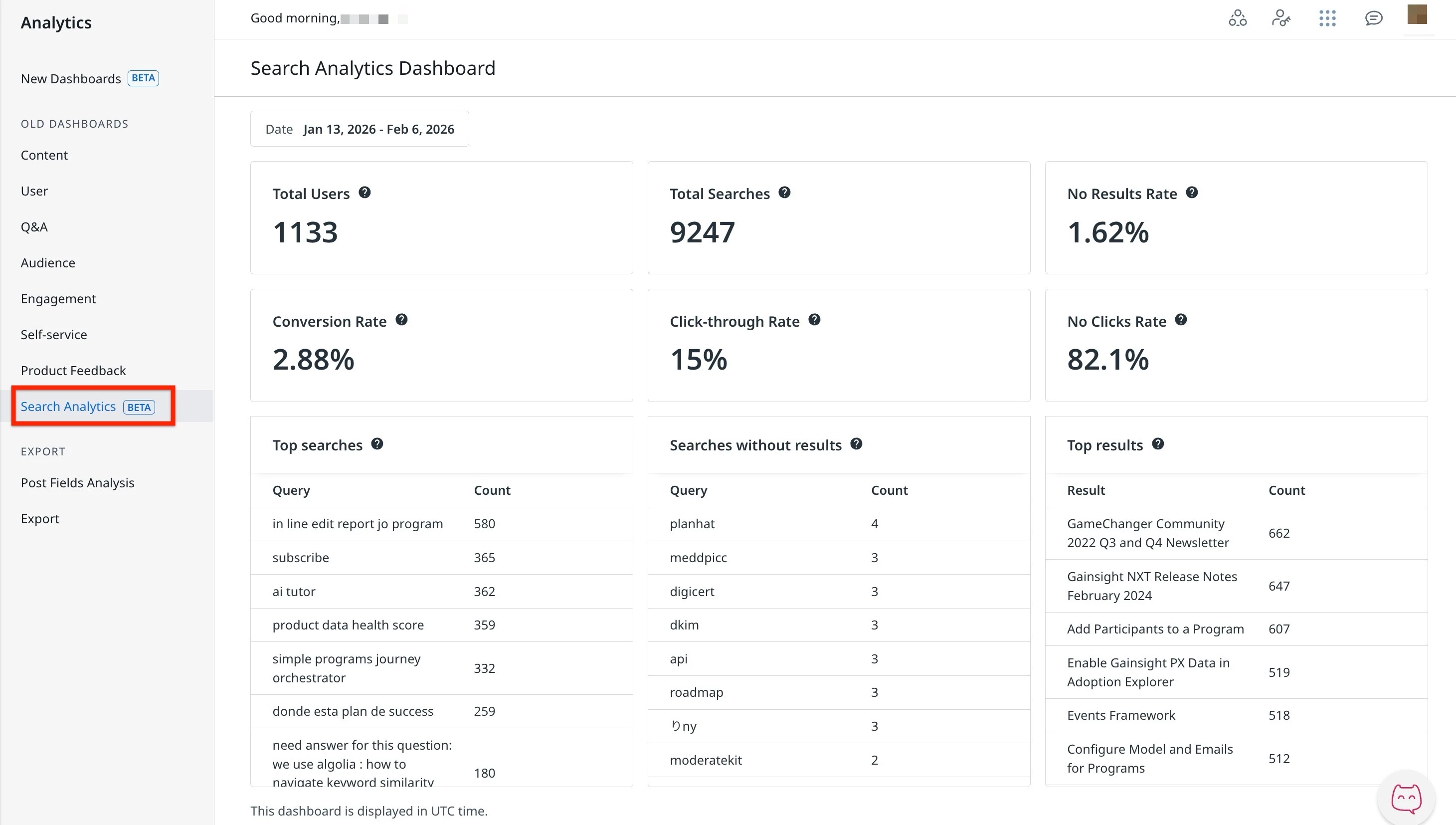
Understand the Key Performance Indicators
To effectively use the Search Analytics dashboard and accurately interpret performance insights, it is important to understand the key performance indicators (KPIs) it tracks.
The Search Analytics dashboard tracks the following list of KPIs during the selected time period:
- Total Users: The total number of unique users who performed at least one search.
- Total Searches: The total number of search queries performed.
- No Results Rate: The percentage of searches that returned zero results.
- Conversion Rate: The percentage of searches that resulted in at least one click.
- Click-through Rate: The average number of search result clicks per search query.
- No Clicks Rate: The percentage of searches that received no clicks on any search results.
- Top searches: A table that displays the most frequently searched queries, along with the number of times each query.
- Searches without results: A table that displays search queries that returned no results, along with the number of times each query was searched.
- Top results: A table that displays the most frequently surfaced search results along with the number of times they appeared.
AI Answers Analytics
- Total Summaries Generated: The total number of AI Answers that have been created.
- Impressions: The total number of times users viewed an AI Answer for at least 10 seconds or interacted with it. This metric is counted once per user per answer.
- Sources Clicked: The total number of times users clicked a link in an AI Answer, including both inline links within the generated text and links in the cited sources list.
- Continue Reading Clicked: The total number of times users clicked Continue Reading to view the full AI Answer.
- Show All Sources Clicked: The total number of times users clicked Show All Sources to expand the sources list in an AI Answer.
- Helpful Feedback: The total number of times users marked an AI Answer as helpful.
- Unhelpful Feedback: The total number of times users marked an AI Answer as not helpful.
Note:
- AI Answers must be enabled to receive AI Answers Analytics.
- The AI Answers Analytics KPIs are measured starting from April 28, 2026.
MCP Search Analytics
Tracks search activity originating from MCP Search. The following metrics are available:
- Total Users: The total number of unique users who performed at least one MCP search during the selected time period.
- Total Searches: The total number of MCP search queries performed during the selected time period.
- No Results Rate: The percentage of MCP searches that returned zero results during the selected time period.
- Top Searches: The most frequently searched queries during the selected time period.
- Searches without results: Search queries that returned no results, along with how often they were searched during the selected time period.
- Top results: The most frequently clicked search results during the selected time period.