
Sebastian
Helper ⭐️⭐️⭐️
Aug 20, 2021 10:16 AM UTC
Tutorial

Invite users to groups using invite links

What are group invite links:

Invite links are an easy way to invite users to groups.

Any end user who clicks on a group invite link will automatically become a member of the group without having to click "Join" (public groups) or "Request to join" (private groups). 

For private groups, the invite links allow the applicant to bypass community manager approval.  End users automatically become group members, once they click on the join link.


When to use group invite links:

Invite links are available for public and private groups. You should use invite links if you aim to get as many members as possible to join your groups. We do NOT recommend using invite links for groups containing sensitive information. Invite links should be used for groups that are interests, role or location based (for ex: Amsterdam group, Designers groups).


Where get to the invite link:

  1. Go on the Group detail page in Control
  2. Click "Invite members" on the top right
  3. Copy the invite link
  1. You can now share this link with anyone

Important: The link will does not expire. You can't revoke the link. 

This link is not specific to the user. Any user who has access to the link can join the group.  


How end users will use that link:

  • If the user is a registered user and is logged in

When clicking on the link they will be added directly to the group. A success message will inform them they are now a member.
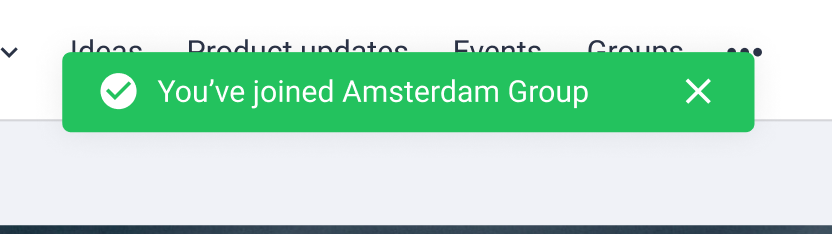
Example of Success message
  • If the user is a registered user and is NOT logged in

When clicking on the link they see the pop up indicating that they need to log in to join the group. 

Once logged in, they will be redirected to the group page.  A success message will inform them they are now a member.
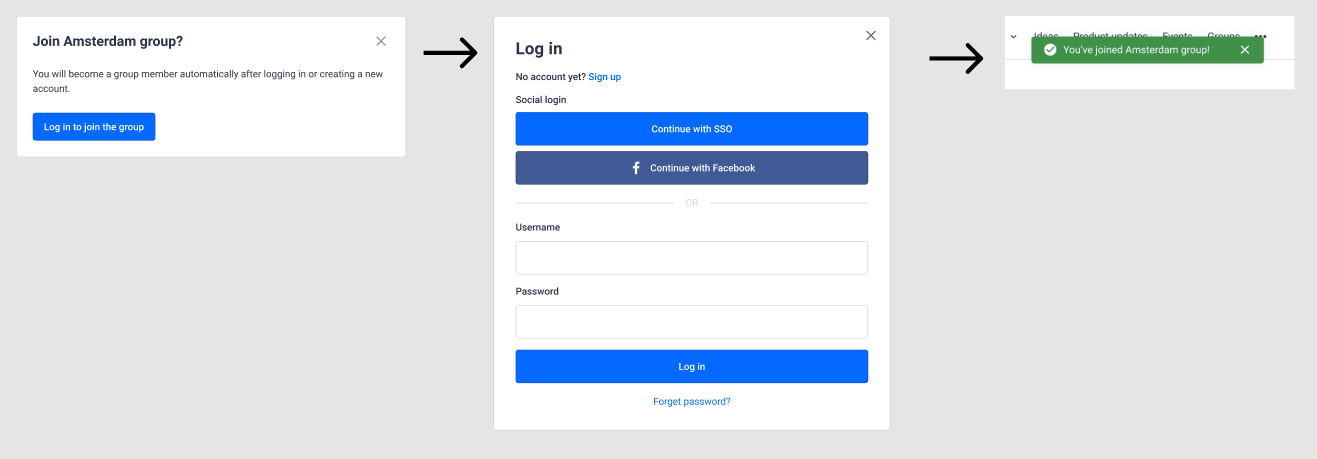
Steps when a registered user is not logged in
  • If the user is a not a registered user 

When clicking on the link they see the pop up indicating that they need to log in to join the group. If they are not registered yet, they can create an account.
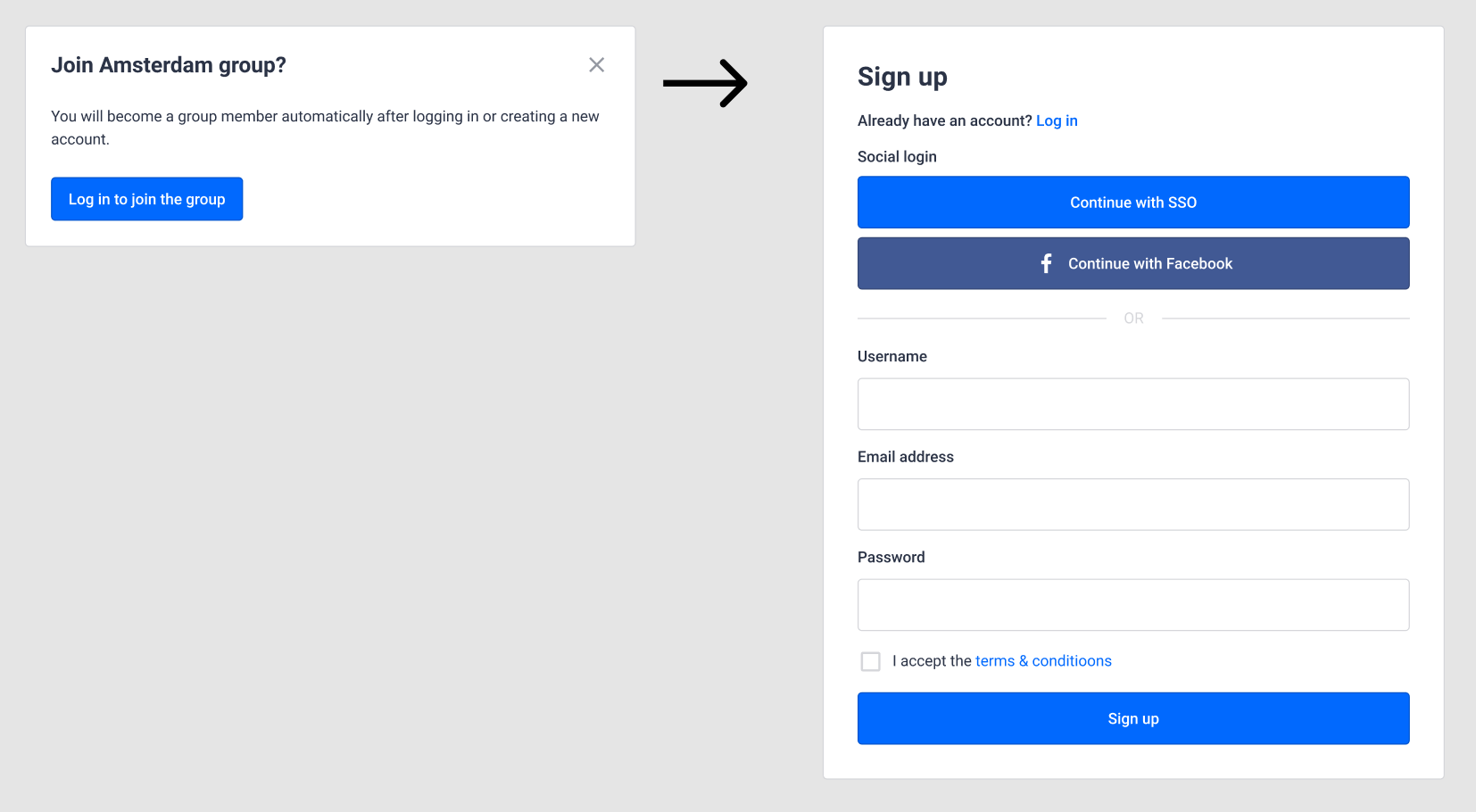
Steps when a non registered user needs create an account

Your regular registration process applies. The user will go through the regular registration flow. 

For example: If you require registration approval, that process will apply.

Once the registration flow is completed, the end user will be a member of the group. A success message will inform them they are now a member.
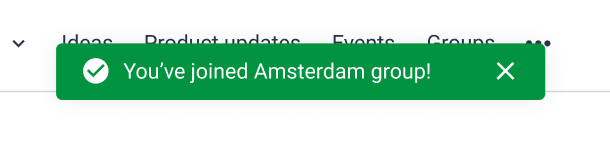
The success message will appear when the user returns to community, once their account and or email is approved


Side note for private communities:

Your regular registration process applies. The user will go through the regular registration flow. 

For example if you don't allow registration, users will not be able to create an account. Another example, if registration is possible with an unlock code, that code will be needed to create an account.

37 replies

emiller
Helper ⭐️
Nov 19, 2024 9:26 PM UTC

​@Kenneth R Do group invite links make sense for launching a private group in a closed customer community with SSO authentication?  Our current login flow requires members to access the community from within our application.  If we want to invite a mix of customers - some already registered community members and others not, would using the link give them an easier path or would it actually make it more difficult?

Translate
Kenneth R
Expert ⭐️⭐️
Nov 25, 2024 10:27 AM UTC

Hi ​@emiller - that’s tough to say without knowing your SSO flow.  What I would suggest is to test and see if your SSO flow (for both login and registration) re-directs smoothly to the original link i.e. the group.  If not, it could be a dead link and perhaps another approach might indeed be better.

Translate
Contributor ⭐️⭐️
Feb 4, 2026 5:47 PM UTC

I just sent a message through email (Hubspot) with the attached link. Once my user signed in they were given a screen that says “access denied”, how do I get around this?  


Translate
revathimenon
Gainsight Community Lead
Feb 5, 2026 8:05 AM UTC

Hi ​@hopoatem 

Just clarifying - did you send the link to a private or hidden or public group?


Translate
Where focus goes, energy flows.
Contributor ⭐️⭐️
Feb 5, 2026 2:41 PM UTC

​@revathimenon- yeah, good question - it was to a hidden group!


Translate
revathimenon
Gainsight Community Lead
Feb 6, 2026 5:17 AM UTC

Ah, then that’s the catch ​@hopoatem  - they will need to be added from the back end with their user name.

Hope it worked out for you though!

Translate
Where focus goes, energy flows.
JeyBueno
Contributor ⭐️⭐️
Feb 26, 2026 2:01 PM UTC

Hi Team,

We’ve been trying to add Japanese phrases with several module names and keys but unsuccessful to show the Japanese labels. May I know the correct Module and Key for the following labels in the phrase editor?

  • groups.invite.modal_title
  • groups.invite.modal_body
  • groups.invite.modal_confirm
  • error.forbidden.title

They appear in a modal when a not-logged-in user tries to access a hidden user group with the invitation URL.
Also regarding the error.forbidden.title, it worked in the Sandbox environment but doesn't in the Production environment.

Thanks for all your help!


Translate
