
Sebastian
Helper ⭐️⭐️⭐️
Aug 20, 2021 10:16 AM UTC
Tutorial

Invite users to groups using invite links

What are group invite links:

Invite links are an easy way to invite users to groups.

Any end user who clicks on a group invite link will automatically become a member of the group without having to click "Join" (public groups) or "Request to join" (private groups). 

For private groups, the invite links allow the applicant to bypass community manager approval.  End users automatically become group members, once they click on the join link.


When to use group invite links:

Invite links are available for public and private groups. You should use invite links if you aim to get as many members as possible to join your groups. We do NOT recommend using invite links for groups containing sensitive information. Invite links should be used for groups that are interests, role or location based (for ex: Amsterdam group, Designers groups).


Where get to the invite link:

  1. Go on the Group detail page in Control
  2. Click "Invite members" on the top right
  3. Copy the invite link
  1. You can now share this link with anyone

Important: The link will does not expire. You can't revoke the link. 

This link is not specific to the user. Any user who has access to the link can join the group.  


How end users will use that link:

  • If the user is a registered user and is logged in

When clicking on the link they will be added directly to the group. A success message will inform them they are now a member.
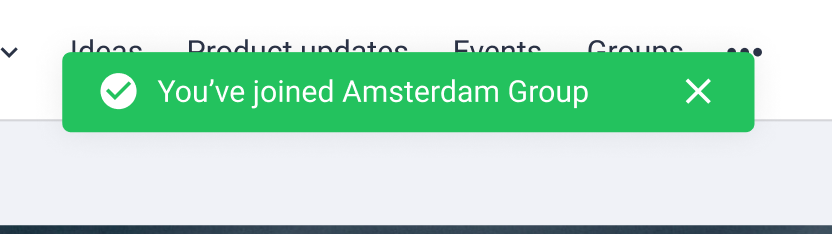
Example of Success message
  • If the user is a registered user and is NOT logged in

When clicking on the link they see the pop up indicating that they need to log in to join the group. 

Once logged in, they will be redirected to the group page.  A success message will inform them they are now a member.
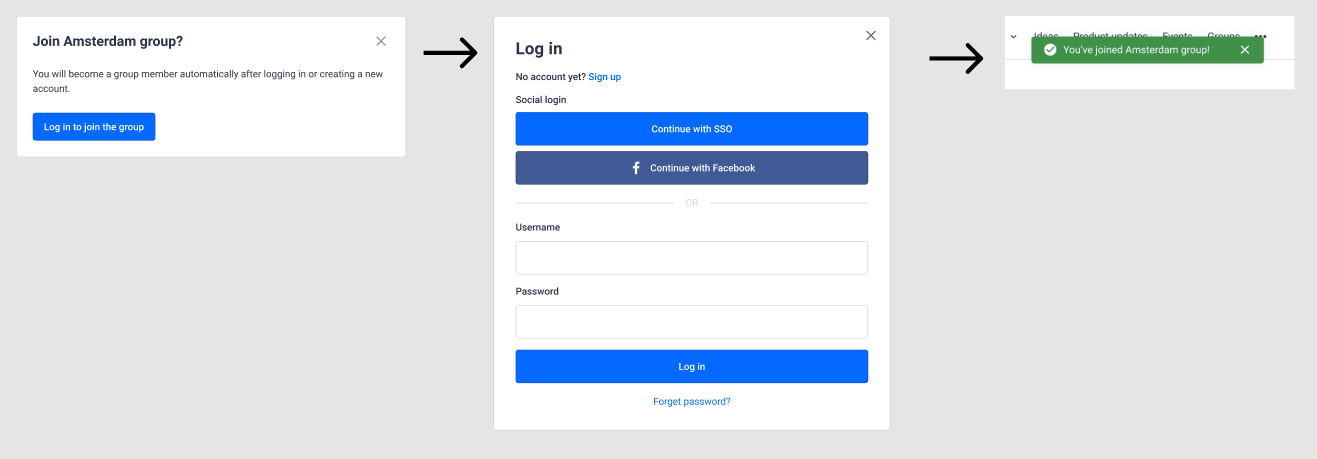
Steps when a registered user is not logged in
  • If the user is a not a registered user 

When clicking on the link they see the pop up indicating that they need to log in to join the group. If they are not registered yet, they can create an account.
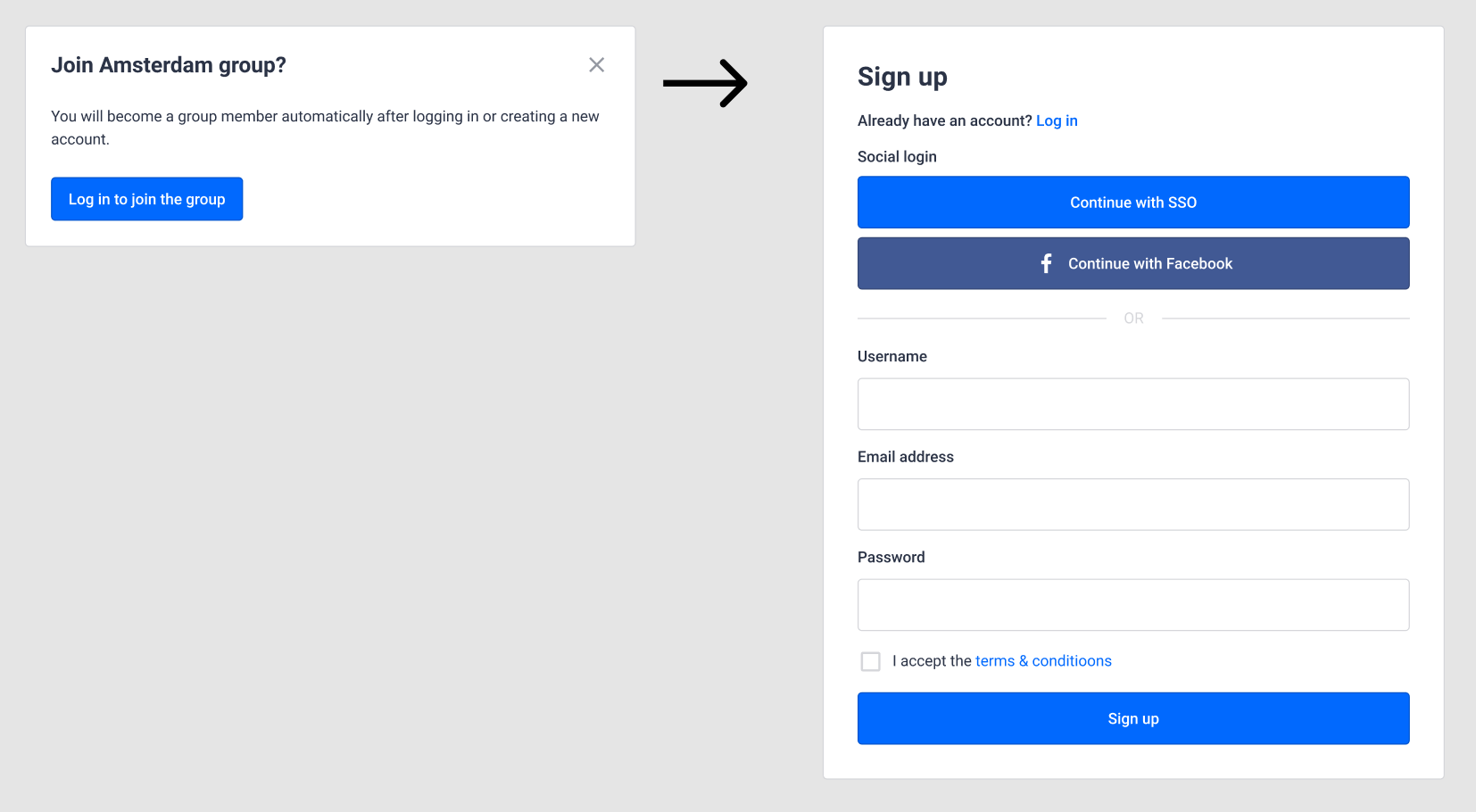
Steps when a non registered user needs create an account

Your regular registration process applies. The user will go through the regular registration flow. 

For example: If you require registration approval, that process will apply.

Once the registration flow is completed, the end user will be a member of the group. A success message will inform them they are now a member.
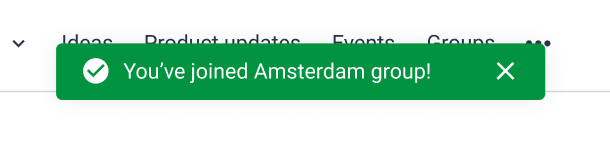
The success message will appear when the user returns to community, once their account and or email is approved


Side note for private communities:

Your regular registration process applies. The user will go through the regular registration flow. 

For example if you don't allow registration, users will not be able to create an account. Another example, if registration is possible with an unlock code, that code will be needed to create an account.

37 replies

Eva
Helper ⭐️
May 15, 2024 8:40 AM UTC

Hi @Eva - the invite links aren’t currently available for hidden groups.  Those links are designed to maximise membership in an open way, which somewhat runs counter to the principle of hidden groups.  Is it an important use case for you?


I as a user think in this way: it works in group type A and B, why doesn’t it work in group type C? (consistency in user experience).

Also, when inviting users to hidden groups (so they get an email), I first need to find out what is a person’s username in the community, then I add the relevant users to the invite (lots of double checking).
Then, as I have no information like “you have invited the following users/they are pending” I make a screenshot of the invite before sending it as...proof or reference to compare later who accepted already, and after a while (especially after the invite has expired because they had no time or forgot or went on vacation or whatever......), I check again, re-invite them….

BTW: The invite says:  This invite will expire in 30 days. Unsubscribe from invitation emails.
So, if unsers unsubscribe, will they even get invites to hidden groups...? 🤔

Maybe there will be an additional way to invite users to hidden groups? 

Translate
Kenneth R
Expert ⭐️⭐️
May 15, 2024 9:06 AM UTC

Hi @Eva I’m going to send you a PM to explore a workaround with you.

Translate
revote
VIP ⭐️⭐️⭐️⭐️⭐️
Aug 19, 2024 12:56 PM UTC

I took screenshots from opening post and I need to know how to change these phrases.


Confirmation “banner”:


Pop up window:


Translate
Kenneth R
Expert ⭐️⭐️
Aug 21, 2024 1:20 PM UTC

Hey @revote - I believe these are the ones you’re looking for:

Forum - group.joined.successfully - You've joined {g}!

Forum - groups.invite.modal_title - Join {g}
Forum - groups.invite.modal_body - You will become a group member automatically after logging in or creating a new account.
Forum - groups.invite.modal_confirm - Log in to join

Translate
revote
VIP ⭐️⭐️⭐️⭐️⭐️
Aug 21, 2024 2:35 PM UTC

Hey @revote - I believe these are the ones you’re looking for:

Forum - group.joined.successfully - You've joined {g}!

Forum - groups.invite.modal_title - Join {g}
Forum - groups.invite.modal_body - You will become a group member automatically after logging in or creating a new account.
Forum - groups.invite.modal_confirm - Log in to join

Thanks mate. I´ll test these.

Translate
revote
VIP ⭐️⭐️⭐️⭐️⭐️
Aug 23, 2024 7:45 AM UTC

Thanks @Kenneth R.

All the phrases worked nicely but this phrase:


Forum - group.joined.successfully - You've joined {g}!


Isn´t for this banner:


Or if it is, it doesnt change the copy. I tested with and without variable {g}.

Any ideas? 😊

Translate
Kenneth R
Expert ⭐️⭐️
Aug 27, 2024 11:17 AM UTC

Hey @revote - is your setup here based on invites by any chance?  If so, it might be this one:

Forum - groups.invite.joined - You have joined {g}

Translate
revote
VIP ⭐️⭐️⭐️⭐️⭐️
Aug 27, 2024 11:37 AM UTC

Hey @revote - is your setup here based on invites by any chance?  If so, it might be this one:

Forum - groups.invite.joined - You have joined {g}

Yeah, it was this phrase. Thanks 😊

Translate
Erik_
Contributor ⭐️⭐️⭐️⭐️⭐️
Nov 8, 2024 9:59 AM UTC

Hey @revote - I believe these are the ones you’re looking for:

Forum - group.joined.successfully - You've joined {g}!

Forum - groups.invite.modal_title - Join {g}
Forum - groups.invite.modal_body - You will become a group member automatically after logging in or creating a new account.
Forum - groups.invite.modal_confirm - Log in to join

 @Kenneth R, I'm editing these phrases now, and the one for the pop-up title doesn't quite do what I want. If I put {g} the title becomes

Word lid van a group

Which not only is not correct Dutch, but also doesn't tell the user which group they're about to become a member of.

If I use {group_name} as a variable, which works in other phrases and templates, I get this. Is there another variable I can use to get the group name in the title? Or is this always fixed and I should think of a more generic title.


Translate
The shortest answer is doing -George Herbert
Kenneth R
Expert ⭐️⭐️
Nov 18, 2024 1:09 PM UTC

Hi ​@Erik_ - I believe this variable simply doesn’t work here and that, indeed, the best approach here is to go with a more general title.

Translate
