

How To Ban A User
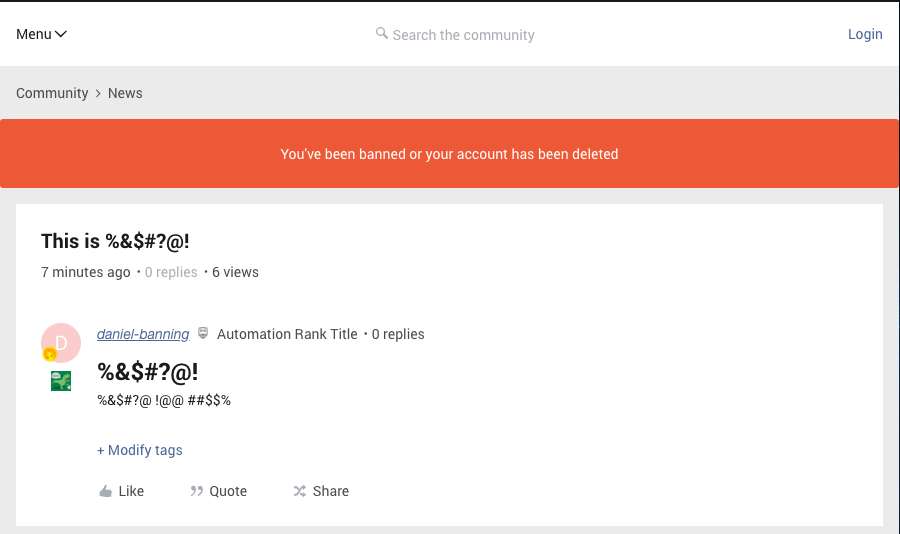
Some users can cause seriously bad vibes on your community. Maybe they’ve broken your community guidelines, or they’re being really offensive. You can choose to ban these users. If a user is banned, they’ll no longer be able to sign in to the community (and therefore won’t be able to post anything, or interact with other users). When a banned user tries to login, they see a message indicating that they’re no longer able to access the community (see below for a screenshot).
How To Ban A User
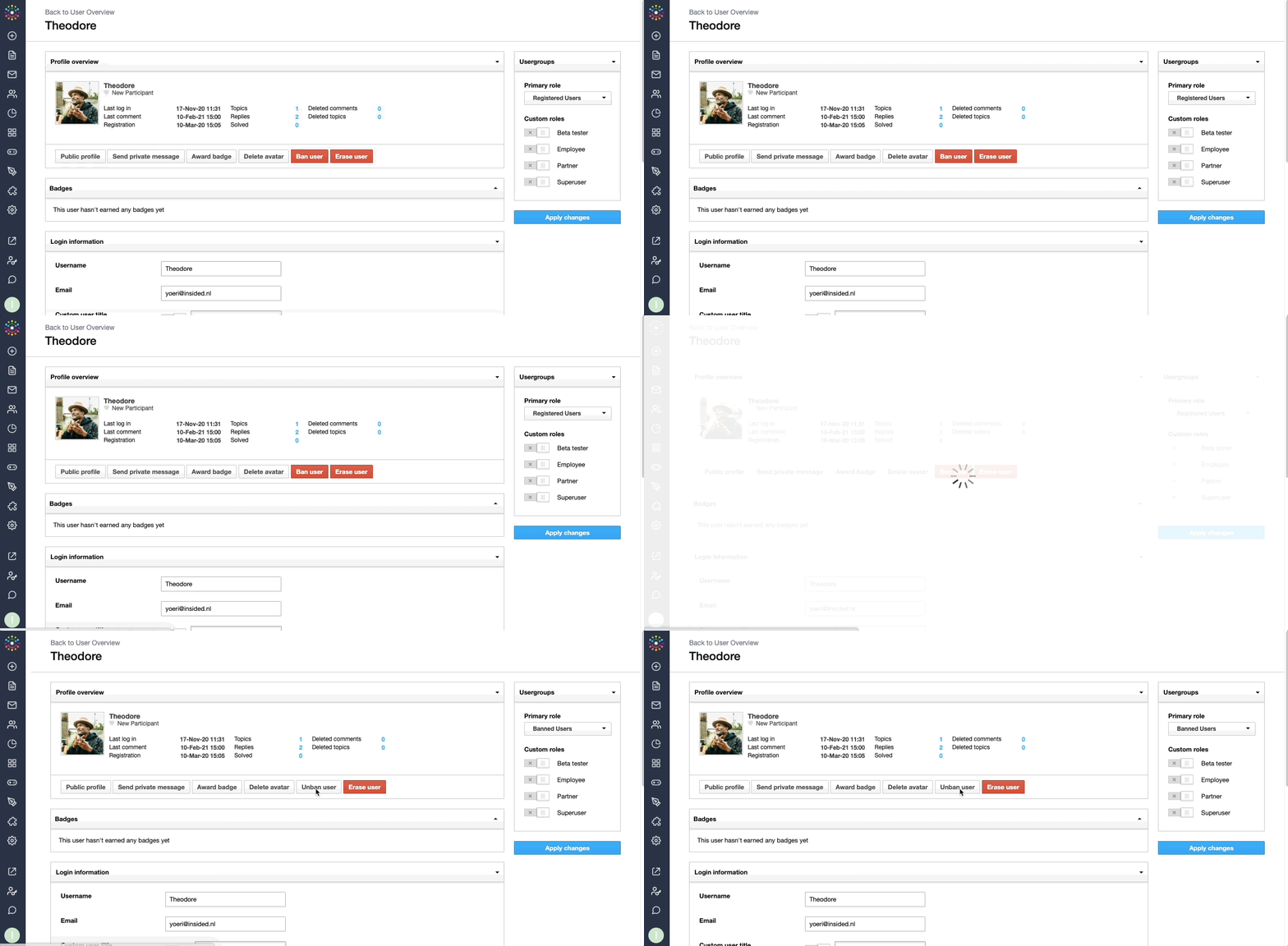
- Go to Control > User Overview > Choose a user’s profile.
- Press the bright red ‘Ban user’ button (this immediately applies a ban).
- The user is now banned and can no longer sign in to the community.
- Accidentally banned a user? No problem. Just press the ‘Unban user’ button!
Message displayed to a banned member when they try to sign in:
 Tips, Tricks, and Technical Bits
🎯 Need to find details of all banned users on your community? Use the primary role ‘Banned users’ as a filter on the user overview. As a side note: changing someone’s primary role to ‘Banned users’ has the same effect as pressing the ‘Ban user’ button. Banned users are still able to browse the community, as lurkers. In order to prevent a particularly abusive user from accessing the community, inSided can manually set up an IP block. Just send an email to ccsupport@gainsight.com, including the user's details (username or email address) and IP address (see below).
💎 You can also ban a user from the topic overview. Just click the profile element next to a user, and press the ‘Ban user’ button. When you mark one of your user’s posts as spam, you can choose to have them banned automatically or not.
How to obtain a users IP Address
In order for us to IP ban the user we will need to get the IP address from the person who’s been posting abusive content.
You can easily get this before banning the user by accessing the post/reply from Control.
Simply open the thread in Control and click the IP button. Then copy the IP address (which may be an IPv4 or IPv6) and share it with support explaining the situation.
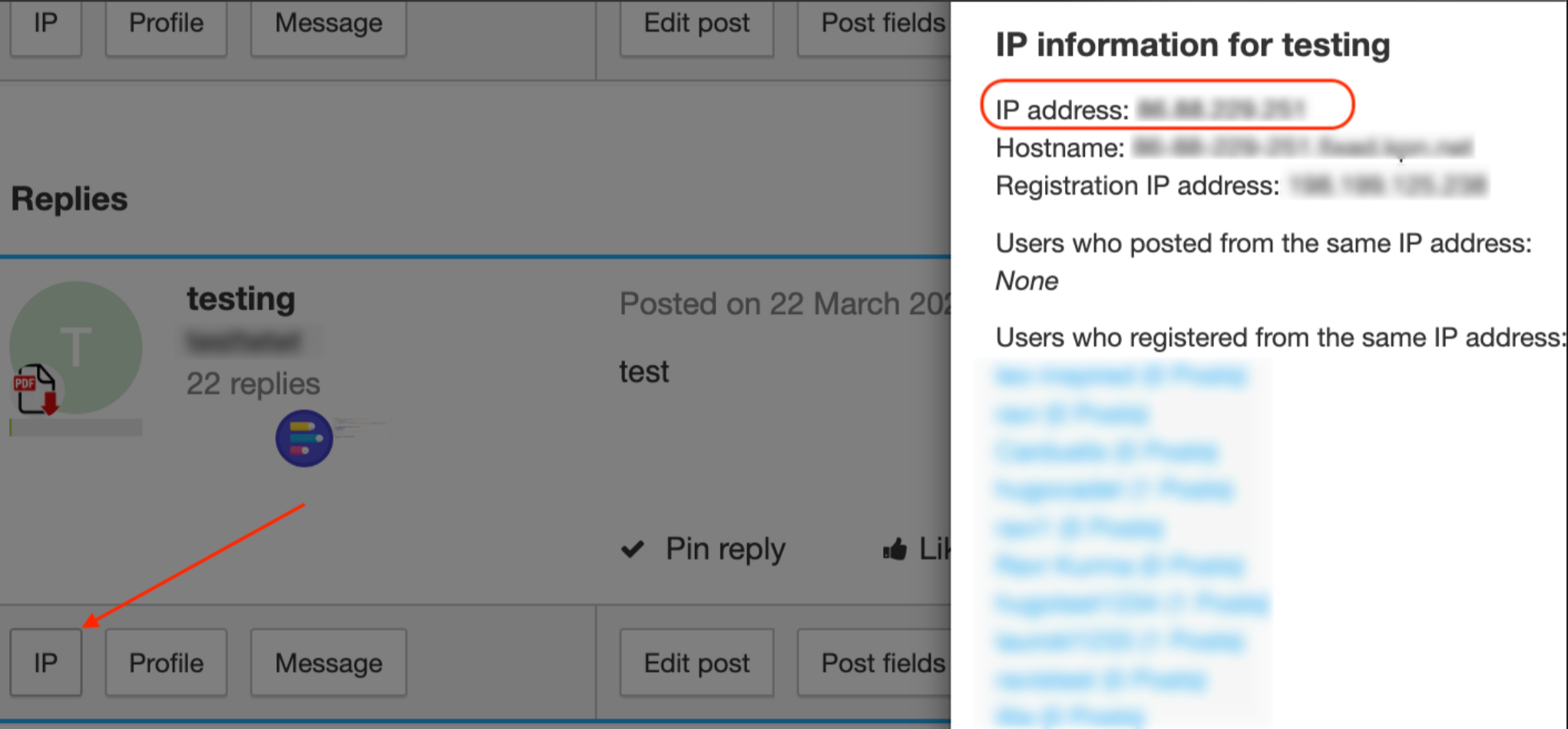
You may get a list of user who are posting/registered from the same IP address. This normally happens on company level when different users are using the same network (VPN, for example).