Frank
Product Guru
Dec 4, 2018 1:06 PM UTC

How To Configure Fonts

  • Oct 7, 2026 2:28 PM UTC
  • 25 replies
  • 2671 views
  • Translate All

Who shot the serif, or do you prefer a sans-serif typeface? Ariel, Helvetica, Georgia or Times New Roman, you can decide which font-family you want to use.


How to configure fonts

  1. Sign in to a community account with user role Community Manager or Administrator
  2. Click the Style button and select Fonts 
  3. Provide a font-family that you want to use (e.g. font-family: "Times New Roman", Times, serif;)
  4. Click Publish


How to use Google Fonts

Want to make use of Google fonts in your platform, expand the spoiler and follow the steps below

  • Go to http://fonts.google.com/
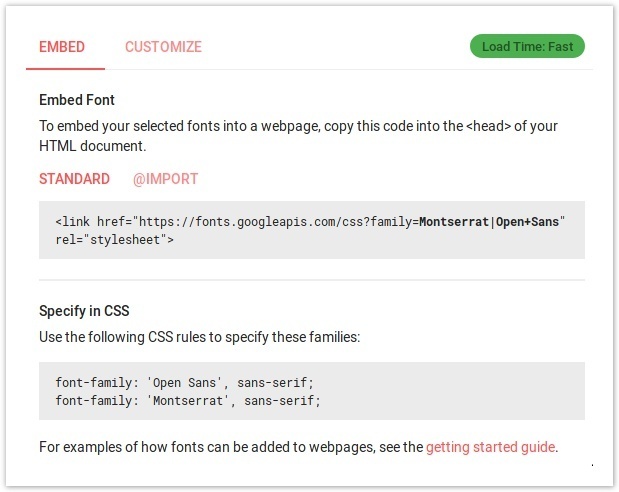
  • Select fonts to use and copy the embed code from the interface using the HTML code (Standard)
f5cd1ae9-0388-4314-8722-5a0460900ab2.jpg

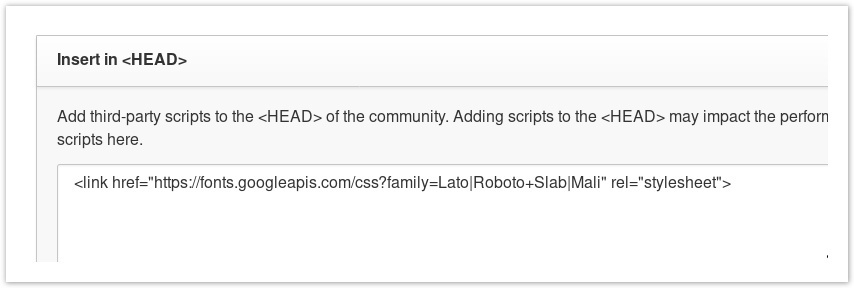
  • Go to Control → Customization → Third-party Scripts and paste the code in the <Head> section
a2d4f9c7-2aad-460c-a783-7cf00dd403ea.jpg

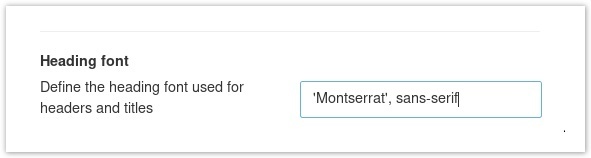
  • Go to Community → Style → Fonts
  • Change the desired fonts as instructed by google fonts (the Specify in CSS section)
db2315c8-99bb-4a68-b3d3-35399ae05b37.jpg

  • Click Publish


How to use your company custom font

Want to make use of the official fonts that match your brand guidelines? For this you’ll need to inject or link to your custom fonts via the platform, there are a couple ways of doing this.

  • Include @font-face via Custom CSS
  • Include @font-face via Third-party Script
  • @import CSS stylesheet
  • Want to ensure EVERYTHING is using the same font? Use the * (anything) selector in your CSS to apply the rule to everything 
    * {
    font-family: customfont;
    }


Include @font-face via Custom CSS

  1. Sign in to a community account with user role Community Manager or Administrator
  2. Click the Style button and select Custom CSS
  3. Include your custom font with the following code
    @font-face {
    font-family: "Custom";
    src: url("https://link-to-font.com/Custom.woff");
    }
  4. Click Publish to close Custom CSS sidebar 
  5. Open Style → Fonts
  6. Provide the font-family that you want to use (e.g. font-family: "Custom”, serif;)
  7. Click Publish


Include @font-face via Third-party Script

  1. Sign in to the control environment with user role Community Manager or Administrator
  2. Navigate to Customization → Third-party Scripts
  3. Include your custom font in the “Insert in <head>” 
    <style  type="text/css">
    @font-face {
    font-family: "Custom";
    src: url("https://link-to-font.com/Custom.woff");
    }
    </style>
  4. Press Save changes
  5. Sign in to a community account with user role Community Manager or Administrator
  6. Click the Style button and select Fonts 
  7. Provide a CSS font-family that you want to use (e.g. font-family: "Custom”, serif;)
  8. Click Publish


@import CSS stylesheet

  1. Sign in to a community account with user role Community Manager or Administrator
  2. Click the Style button and select Custom CSS
  3. Include a link to your CSS file with the following code
    <style  type="text/css">
    @import url(https://link-to-css.com/stylesheet.css);
    </style>
  4. Click Publish to close Custom CSS sidebar 
  5. Open Style → Fonts
  6. Provide the font-family that you want to use (e.g. font-family: "Custom”, serif;)
  7. Click Publish


More information on working with font-family https://www.w3schools.com/cssref/pr_font_font-family.asp

25 replies

Contributor ⭐️⭐️⭐️
Sep 30, 2020 10:08 AM UTC

Hi guys, 

I noticed in this article it is not clear or does not mention how to update the fonts (community-wide) if you are using a custom font according to our brand guidelines. Please can you explain how this can be done as we need to ensure our own custom font is used on our Community platform. 

Emil

Translate
Yoeri
Gainsight Employee ⭐️⭐️⭐️
Oct 21, 2020 2:38 PM UTC

Thanks, Emil! we have updated the article and added a section “How to use your company custom font” - let us know if you have any questions.

Translate
Group Product Manager, Customer Communities
Helper ⭐️⭐️
Mar 17, 2021 6:00 PM UTC

Hi @Frank - We are trying to import a style sheet via custom CSS with the @import method you described but are seeing an error. Can you help? We have also tried the @font-face method but it did not apply the font as expected. 


Translate
Blastoise186
Helper ⭐️⭐️⭐️
Mar 17, 2021 6:27 PM UTC

Howdy @alexandra.culler !

I think you’ve got malformed code there! Could you try this instead?

@import url("insert URL here");

Just that by itself might work a bit better!

Translate
Bug blasting absolutely everything... The Blastoise Way
Blastoise186
Helper ⭐️⭐️⭐️
Mar 17, 2021 6:31 PM UTC

So as another example, which I think works as you’d expect…

@import url(//fonts.googleapis.com/css?family=Open+Sans);

body {
font-family: 'Open Sans', sans-serif;
}

Would load up the Open Sans font from Google Fonts and set that for the body text. I hope this helps!

Translate
Bug blasting absolutely everything... The Blastoise Way
Contributor ⭐️⭐️
Mar 17, 2021 6:40 PM UTC

Hi @Blastoise186 ,

I think we are getting this error because we are using HTML tags within a CSS section:


It would make sense to have that type of tag within the <header> since it can take both HTML and CSS but unfortunately that does not work either.

This is a set of fonts that has been purchased through adobe and comes with instructions mentioning to reference the fonts from within the header and then reference the font changes accordingly via CSS:


I had copied the link above and placed it within our custom header and then updated the CSS with the text below:

.h1 .h2 .h3 .h4 .h5 .p .a {
 font-family: myriad-pro, sans-serif; 
}

Sadly, this also didn’t work. 

I had also removed the custom CSS shown above and simply typed the fonts within the fonts section and still have not seen any change in our fonts.


I also just tried the one you mentioned above:
@import url(//fonts.googleapis.com/css?family=Open+Sans);

body {

font-family: 'Open Sans', sans-serif;

}


and still no prevail.


Do you know a better way of going about this implementation?

Translate
Blastoise186
Helper ⭐️⭐️⭐️
Mar 17, 2021 6:57 PM UTC

Ahh ok. This might be fun. You can’t throw HTML into Custom CSS. Time for some hacks.


@import url(//fonts.googleapis.com/css?family=Open+Sans);

body {
font-family: 'Open Sans', sans-serif;
}

.h1 .h2 .h3 .h4 .h5 .p .a {
font-family: Open Sans, sans-serif;
}

For the Google one, or in your case…

@import url(//use.typekit.net/inserttokenhere.css);

body {
font-family: 'myriad-pro', sans-serif;
}

.h1 .h2 .h3 .h4 .h5 .p .a {
font-family: myriad-pro, sans-serif;
}

Could you try that @alexandra.culler ?

Translate
Bug blasting absolutely everything... The Blastoise Way
Helper ⭐️⭐️
Mar 17, 2021 7:00 PM UTC

@Blastoise186 - thank you very much for the super fast answer :). We were trying to use the code provided by Frank in the initial post which is why we had HTML and CSS together.

@anthony.hopkins we can give this a try! Fingers crossed :)


Translate
Blastoise186
Helper ⭐️⭐️⭐️
Mar 17, 2021 7:02 PM UTC

No worries.

It’s kinda tricky when you’ve got these weird cases like Adobe Fonts! It’s also been a while since I last messed with CSS trickery like this, so I’m trying to recall how I learnt it.

Translate
Bug blasting absolutely everything... The Blastoise Way
Blastoise186
Helper ⭐️⭐️⭐️
Mar 17, 2021 7:15 PM UTC

I’ve worked it out at last. Custom CSS isn’t required. You might want to undo everything so far, to clean it all up and go back to how it was.

@alexandra.culler Try doing the Google Fonts method Frank documented, but replace the Google Fonts references with the ones you want instead. I bet that might work a bit better!

If that still doesn’t work out, then this is a real puzzle. I can’t access any Control environments myself, so I’m limited to what’s documented.

After a LOT more fiddling though, I got this to work in a simulator as an example. This exact snippet did the trick for Google Fonts at least!

@import url(//fonts.googleapis.com/css?family=PT+Sans);

body {
font-family: 'PT Sans', sans-serif;
}

.h1 .h2 .h3 .h4 .h5 .p .a {
font-family: PT Sans, sans-serif;
}
body {
background-color: lightblue;
}

h1 {
color: white;
text-align: center;
}

p {
font-family: verdana;
font-size: 20px;
}


Translate
Bug blasting absolutely everything... The Blastoise Way