
How To Configure Fonts
Who shot the serif, or do you prefer a sans-serif typeface? Ariel, Helvetica, Georgia or Times New Roman, you can decide which font-family you want to use.
How to configure fonts
- Sign in to a community account with user role Community Manager or Administrator
- Click the Style button and select Fonts
- Provide a
font-familythat you want to use (e.g. font-family: "Times New Roman", Times, serif;) - Click Publish
How to use Google Fonts
Want to make use of Google fonts in your platform, expand the spoiler and follow the steps below
- Go to http://fonts.google.com/
- Select fonts to use and copy the embed code from the interface using the HTML code (Standard)
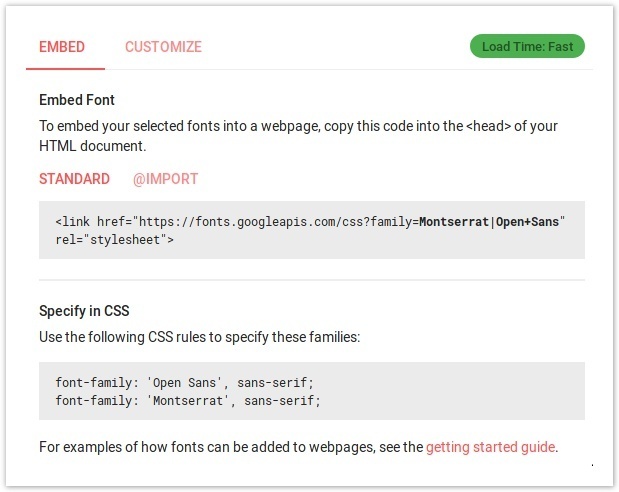
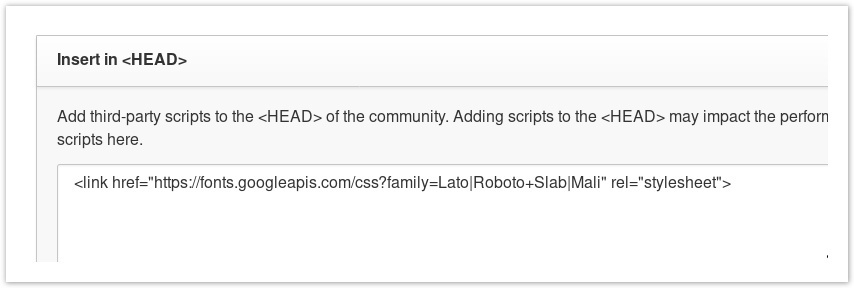
- Go to Control → Customization → Third-party Scripts and paste the code in the <Head> section
- Go to Community → Style → Fonts
- Change the desired fonts as instructed by google fonts (the Specify in CSS section)
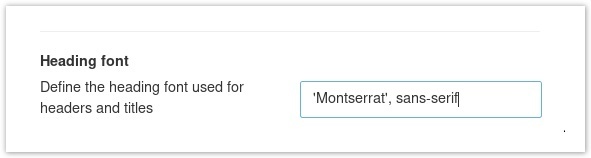
- Click Publish
How to use your company custom font
Want to make use of the official fonts that match your brand guidelines? For this you’ll need to inject or link to your custom fonts via the platform, there are a couple ways of doing this.
- Include @font-face via Custom CSS
- Include @font-face via Third-party Script
- @import CSS stylesheet
- Want to ensure EVERYTHING is using the same font? Use the * (anything) selector in your CSS to apply the rule to everything
* {
    font-family: customfont;
}
Include @font-face via Custom CSS
- Sign in to a community account with user role Community Manager or Administrator
- Click the Style button and select Custom CSS
- Include your custom font with the following code
@font-face {
  font-family: "Custom";
  src: url("https://link-to-font.com/Custom.woff");
} - Click Publish to close Custom CSS sidebar
- Open Style → Fonts
- Provide the
font-familythat you want to use (e.g. font-family: "Custom”, serif;) - Click Publish
Include @font-face via Third-party Script
- Sign in to the control environment with user role Community Manager or Administrator
- Navigate to Customization → Third-party Scripts
- Include your custom font in the “Insert in <head>”
<style  type="text/css">
@font-face {
  font-family: "Custom";
  src: url("https://link-to-font.com/Custom.woff");
}
</style> - Press Save changes
- Sign in to a community account with user role Community Manager or Administrator
- Click the Style button and select Fonts
- Provide a
CSS font-familythat you want to use (e.g. font-family: "Custom”, serif;) - Click Publish
@import CSS stylesheet
- Sign in to a community account with user role Community Manager or Administrator
- Click the Style button and select Custom CSS
- Include a link to your CSS file with the following code
<style  type="text/css">
@import url(https://link-to-css.com/stylesheet.css);
</style> - Click Publish to close Custom CSS sidebar
- Open Style → Fonts
- Provide the
font-familythat you want to use (e.g. font-family: "Custom”, serif;) - Click Publish
More information on working with font-family https://www.w3schools.com/cssref/pr_font_font-family.asp