

melissa_i_959be6
Contributor ⭐️⭐️⭐️⭐️⭐️
June 6, 2016

Unable to see all of task description

  • June 6, 2016
  • 3 replies
  • 62 views
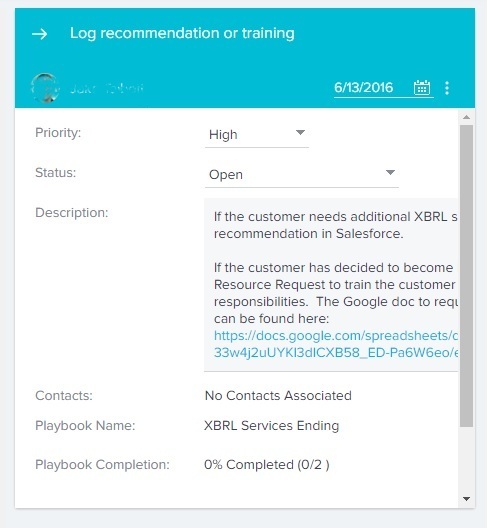
With the new UI, you can no longer see the whole description box within a playbook task.  Also, this pane seems a lot skinnier than in the old UI and it feels a little cramped. Besides fixing the bug so we can read the description, making it a little bit wider wouldn't hurt either.
    3 replies

    sidhu
    Gainsight Employee ⭐️
    Gainsight Employee ⭐️
    June 7, 2016
    Thanks for posting this Melissa. We will change the description to occupy the entire available width and also make sure it is not cut off by the scroll.

    We moved from a dynamic width of 30% for the detail view to a fixed width and that might have impacted your task width. We will bring in consistency between the task and CTA detail view width.
    dstokowski
    Gainsight Employee ⭐️⭐️
    June 22, 2016
    Spoke with another customer who suggested more width for the detail pane and less for the line on Cockpit would be better since the detail pane contains more info.  Is 30% the right number?  
    Also commented on being able to expand box for task description (used to be able to drag the box to be bigger)
    Helper ⭐️⭐️⭐️
    October 22, 2020

    Hello Everyone!

    Happy to announce that we have redesigned Cockpit, powered by Gainsight Horizon experience, as part of the v6.18 release. The enhanced Cockpit has the following new capabilities:

    • Update any CTA details directly from the Cockpit List View & Detail View pages by clicking on the field.
    • View the details of a CTA easily with Improved readability of fields, Two Column Layout, and Responsive width based on the screen size to the CTA Detail View page.
    • Tasks are displayed in a separate tab in the CTA Detail View screen, instead of an expand/collapse option in the Cockpit List View page. 
    • A new list view column is added to show the standard fields upfront. This option enables users to add any number of columns to the Cockpit List View page.
    • Reorder columns and sort on columns directly on the Cockpit List View page.
    • Filtering is much easier with a Basic and Advanced view creation experience.
    • Update/Apply filters directly from the Cockpit List View page. 
    • The color-coding of the Type, Status, and Reason columns are now based on admin colors defined.
    • The profile pictures of the users added to the User Management or My Profile page can be seen on the Cockpit page.

    This feature is implemented in only the NXT version.

    Thanks for posting!