Frank
Product Guru
March 30, 2018

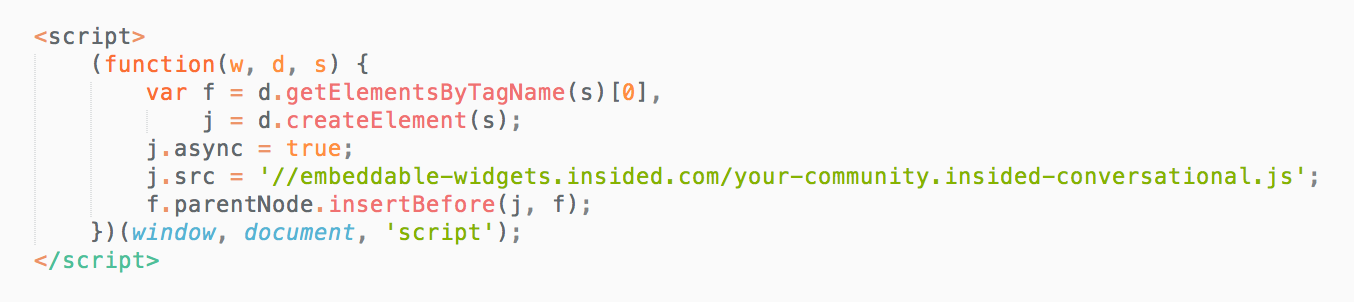
How To Install The Conversational Widget On Your Website

  • March 30, 2018
  • 15 replies
  • 1718 views

Install our conversational widget on your website to provide community-driven help to your customers, right where they need it. The conversational widget floats above the page, and can be activated by clicking a trigger. It’s quick and easy to install - you just need to enter basic information about your website in Control, then add your unique embed code to your webpages. Follow the steps below to install and activate the conversational widget.
 

1c223b17-7cbd-43ac-bc5f-433d4df4d95e.png


How To Install The Conversational Widget On Your Website


  1. Go to Control Integrations  EMBEDDABLE WIDGET Installation.
  2. Press Copy code to copy your unique embed code to your clipboard.
  3. Paste this code just before the closing body tag on all pages of your website where you want to display the widget.
  4. Go to Control Integrations  EMBEDDABLE WIDGET Setup.
  5. Add the domains of the websites you want to install the widgets on under Trusted domains, and press Save changes.
  6. The widget will immediately become active on your website.

Here's a few ways you can add the embed code to your webpages (step 3):

  • Email the embed code to your favourite web developer, along with the above instructions, and work with them to install it on the pages you want.
  • Use your CMS (Content Management System) to directly add the code to the pages you want.
  • Use Google Tag Manager to add the embed code with a Custom HTML tag.


⚠️ The embeddable widgets will only execute on domains you’ve added to ‘Your Trusted Domains’ (i.e. whitelisted domains). If you don’t add any trusted domains, then the widgets won’t be allowed to load anywhere.

💎 Before you enable the widgets on your website, remember to customize the look and feel of the conversational widget to match your brand, and set up configuration to optimise the search results of the widgets.

⚠️ The embeddable widgets only display if content is found for the current page (to avoid your users seeing a blank widget). If no automatic topic suggestions are found for a page that you want to display the widgets on, use our content configuration tool to pin some topics in the widget for that URL.

⚠️If you’re using a Content Security Policy (CSP) on your website, you may need to whitelist the source URLs used by the widgets in order to get them working. Signs that your CSP is interfering with the widgets include: the widgets don't display on the page after following the steps above, or the widgets appear, but no search results display.


Click to see the base URLs of the sources used by the widgets:


  • https://embeddable-widgets.insided.com- the endpoint used to retrieve the widgets themselves.
  • https://conversational-eu-west-1.api.insided.com - the search endpoint used by the widgets if your community is hosted in the EU.
  • https://conversational-us-west-2.api.insided.com - the search endpoint used by the widgets if your community is hosted in the US.

    15 replies

    Gabolino
    Helper ⭐️
    June 18, 2021

    Hey @daniel.boon . Quick question. 

    We don’t want the widget to appear as a label on the right hand side of the page, but rather to open up when users click on the word ‘community’. I assume that’s possible and we can have the pop up to appear only when someone clicks on a CTA, rather than a permanent element on the side. 


    let me know if the above makes sense. 

    daniel.boon
    Helper ⭐️⭐️⭐️
    June 18, 2021

    We don’t want the widget to appear as a label on the right hand side of the page, but rather to open up when users click on the word ‘community’. I assume that’s possible and we can have the pop up to appear only when someone clicks on a CTA, rather than a permanent element on the side. 

    Hey @Gabolino - one of my previous replies might be helpful here → this JavaScript enables you to open the widget programmatically (e.g. when someone clicks on a link that you’ve added to your menu). Hope this helps.

    We have a JavaScript API for the embeddable widgets. Opening the widget is not actually one of the functions we have available….but it is possible to achieve this using the following (under-the-hood) JavaScript: inSided.conversational.$store.dispatch('SLIDER_OPEN', {})


    inSided product alumnus
    Gabolino
    Helper ⭐️
    June 18, 2021

    Fab. Thanks @daniel.boon 

    revote
    VIP ⭐️⭐️⭐️⭐️⭐️
    March 14, 2022

    Are there any examples about the widget where community content is embedded to the web page? Sorry about my terms, I don`t mean this floating widget, is this something that it isnt widget at all? :)

    I am looking for the ways to embed community discussion or article to our home page. With embedding the content can be read easily, without any clicks, just by visiting the home page.

    mtangel
    Contributor ⭐️
    May 26, 2026

    Does this still work this still work? Just want to check before adding it since this was published 8 years ago