

Getting started with Customer Community Ideation
Last Updated On: February 10, 2026
Ideation is a module that allows your company and product teams to gather and co-create on qualitative insights from your community users. Community users will be able to submit ideas, vote on ideas and respond to ideas with a full-powered WYSIWYG editor.
As a Moderator or Product person, you will be able to manage these ideas from Control. This guide highlights the basics of the Ideation module.
Migrate your existing ideas to the new module
All your existing ideas, which are posted in community categories, will be migrated to the new Idea overview page. You will be able to select which idea categories you want to migrate and which one you would want to keep (e.g. internal idea categories for your employees only). Idea categories that you do not want to migrate will be set to read-only, users can view the ideas and respond to them, but are no longer able to post ideas in these categories. We will be in touch with you in the coming months to guide you through this migration.
Reach out to your Customer Success Manager to plan this migration
Organize ideas with idea statuses
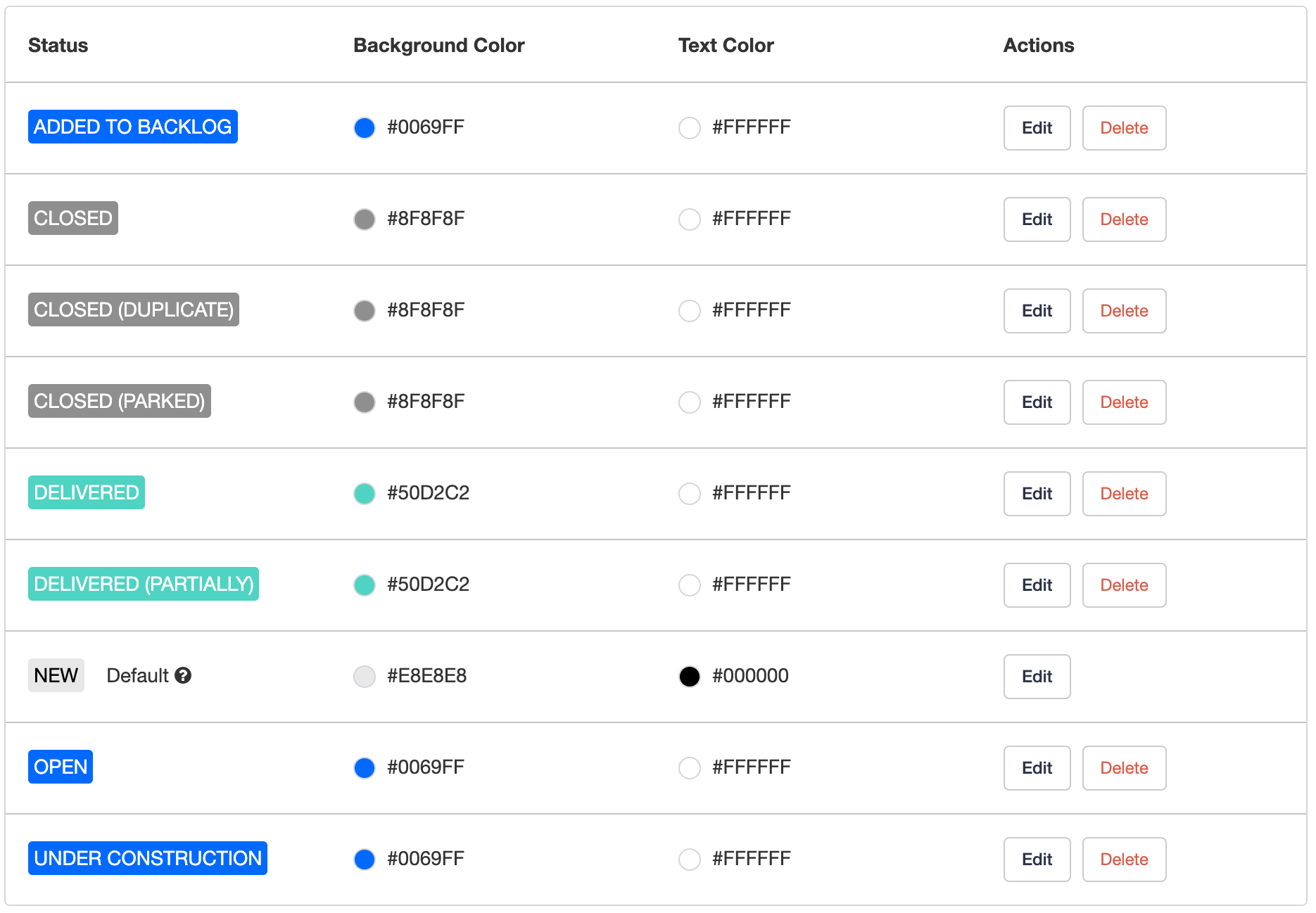
Idea statuses are used to communicate the status of an idea to your community. They are shown as a label next to the title of an idea. Users can filter on idea statuses to retrieve a list of all the topics that were 'tagged' with the same status.
Each idea will get a default status of 'New'. Configure more meaningful statuses (e.g. 'In progress', 'Not now', 'Delivered') to help your community understand what happens to the ideas they submit.
Learn how to configure idea statuses
Categorize ideas with Product Areas
[Product areas are only available for Business and Enterprise customers]
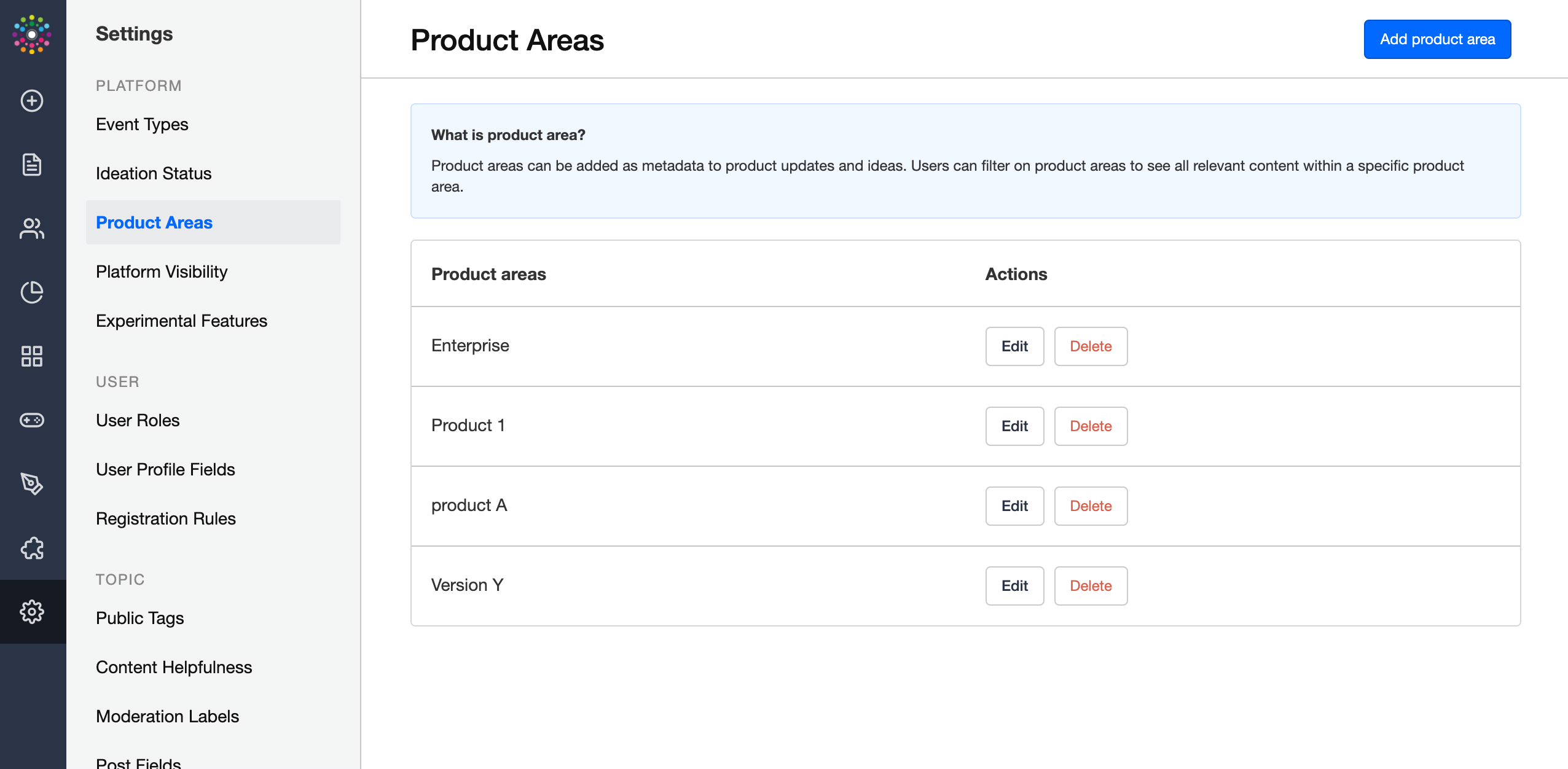
Product areas are used to communicate which product type, version, or model is discussed. Product areas behave the same as public tags and are optional to add, however, product areas can only be added to Ideas and Product update topics.
Product areas are shown as metadata near the title of the idea or product update. Users can filter on product areas to retrieve a list of all the topics that were 'tagged' with the same product area. Configure meaningful product areas (e.g. 'Product X', 'Version 1.4', 'Freemium') which are familiar for your community to tag ideas and filter on.
Learn how to configure product areas
Categorize Ideas with Categories
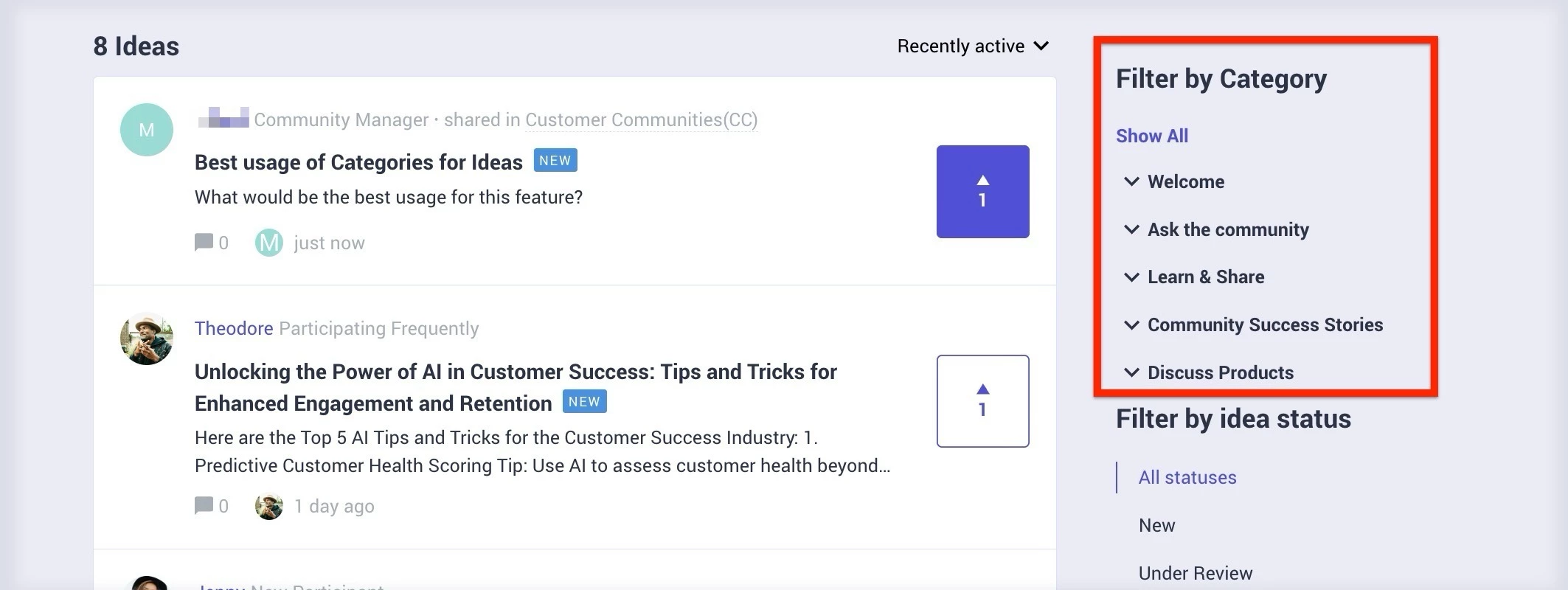
Categories organize Ideas under relevant product areas, themes, or discussion topics within the Community.
Each Idea must belong to a specific Community Category, ensuring that all submissions are grouped meaningfully and are easy to navigate.
Categories appear as metadata near the Idea title, helping users quickly understand the context of each submission. Users can filter Ideas by category to view all posts related to a particular topic.
Admins must configure clear and intuitive categories such as Product X, Integrations, or Feature Enhancements, that reflect how the community discusses and organizes Ideas.
Note: For more information, refer to Configure Community Sections article.
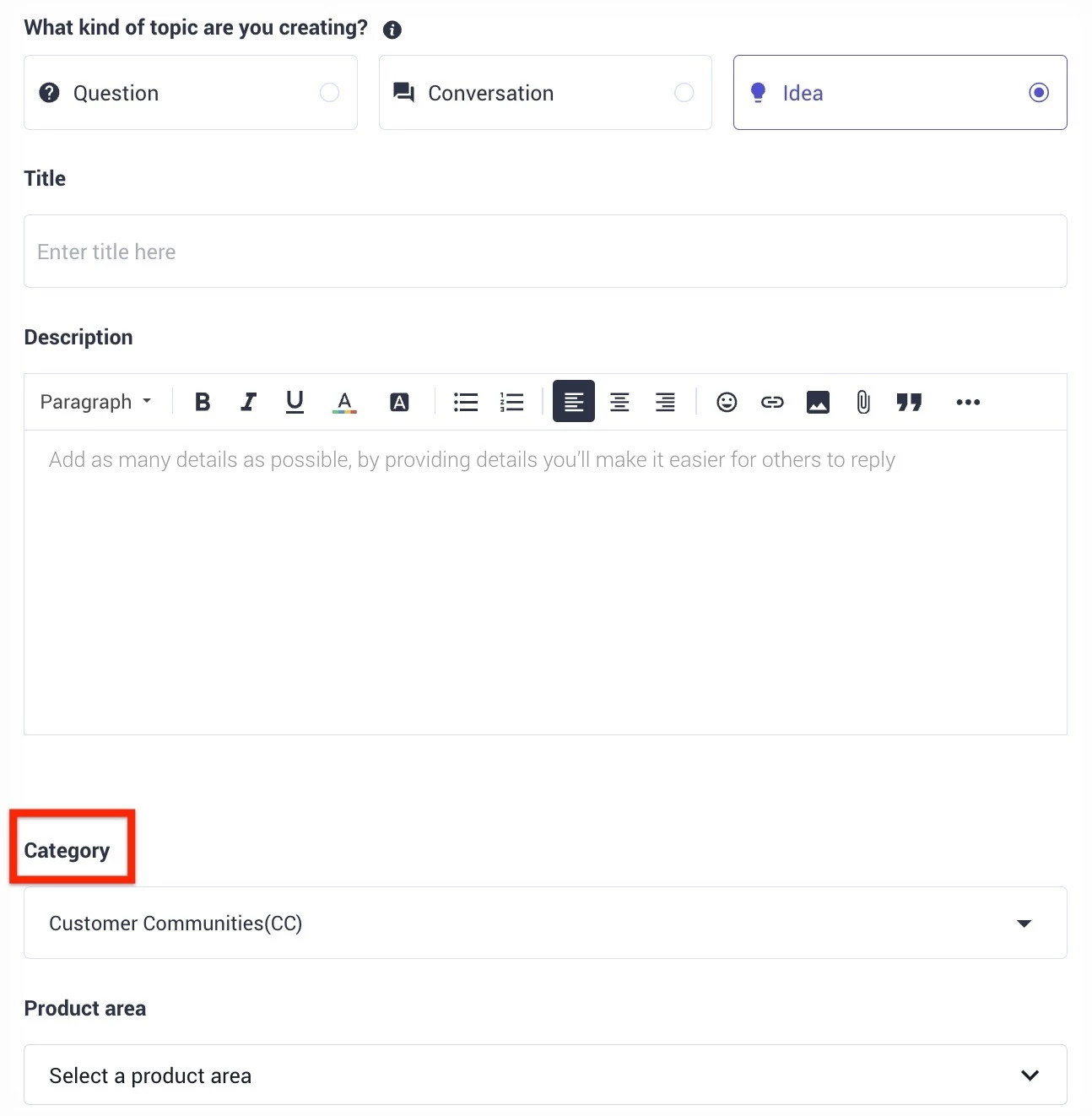
To assign ideas to a category:
- Log in to Destination.
- Click + LET’S POST IT!.
- Select Idea.
- From the Category dropdown, select the category.
- Click Create to create the idea.
A dedicated and customizable landing page for all your ideas
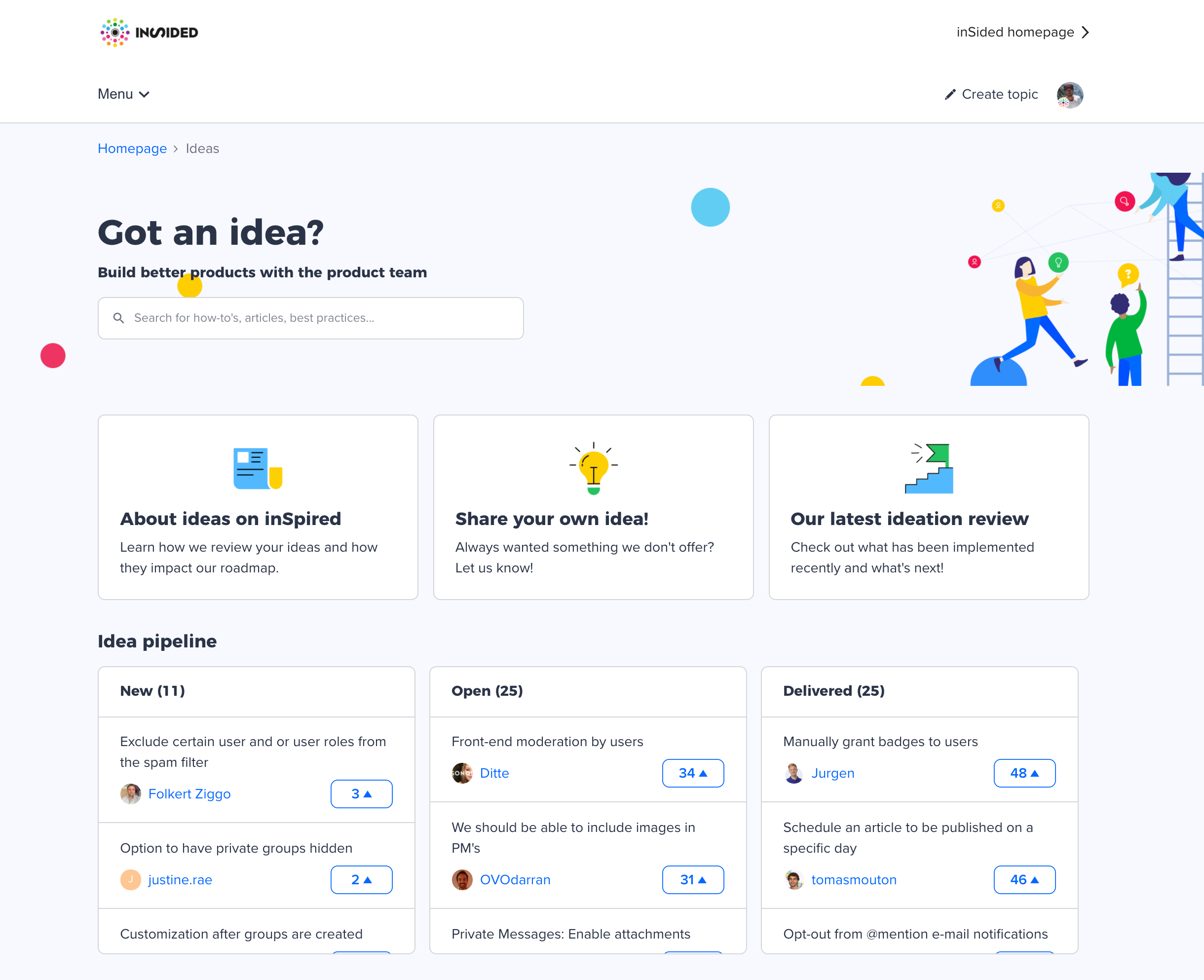
You can configure the look and feel and widgets that are displayed on the ideas landing page. When on the ideas landing page, you can click on the 'Customize' button to easily add, remove and adjust widgets to your liking. Determine which widgets you want to show, which ideas to highlight, and add any call to actions to other parts of your community. Feeling creative? Add Custom HTML widgets to bring your landing page to the next level.
Make ideas accessible for a specific set of users
Permissions allow you to configure which user roles have access to ideation. When you grant a user role access to ideation the users within this role can view, create, reply and vote for ideas. Use permissions to only grant some user segments access (e.g. beta testers, premium customers, colleagues)
Learn how to configure ideation permissions
Add Ideation to the Mega Menu
You can make add a link in the Mega Menu to redirect to the Ideas overview page.
Learn how to configure the Mega Menu
What’s next?
Now you know what ideation is about it’s time to get started. First configure idea statuses and product areas in control. Then customize your idea landing page so it suits all your needs. Finally, promote ideas and the ideas section on your homepage to get more visitors. Now you’re good to go!