

Configure CC-to-Skilljar Field Mapping
This article helps Admins configure CC-to-Skilljar field mappings as part of the Skilljar and Gainsight CC integration.
Overview
The Skilljar Field Mapping lets Admins control which community profile fields are sent to Skilljar.
When the Skilljar and CC unified login integration is enabled, CC becomes the identity provider for Skilljar. All user data must pass through CC before it reaches Skilljar.
This means any profile attribute you want Skilljar to receive, such as a user's role, region, or product subscription, must first exist in CC and then be mapped from CC to Skilljar using this feature.
Prerequisites
Before you configure Skilljar field mappings, make sure the Skilljar and Gainsight CC integration is enabled for your community.
For more information on integrating, refer to the Skilljar + Gainsight CC Integration article.
Map Skilljar Fields
To send community profile data to Skilljar, you add field mappings in the Skilljar Field Mapping configuration page.
Each mapping defines which CC field to send and which Skilljar field it should populate.
Note: Skilljar fields are populated automatically. When you set up a mapping, the dropdown pulls available fields from your Skilljar instance in real time.
To map CC fields to Skilljar:
- Log in to Control.
- Navigate to Integrations > Field Mapping. The Skilljar Field Mapping page appears.
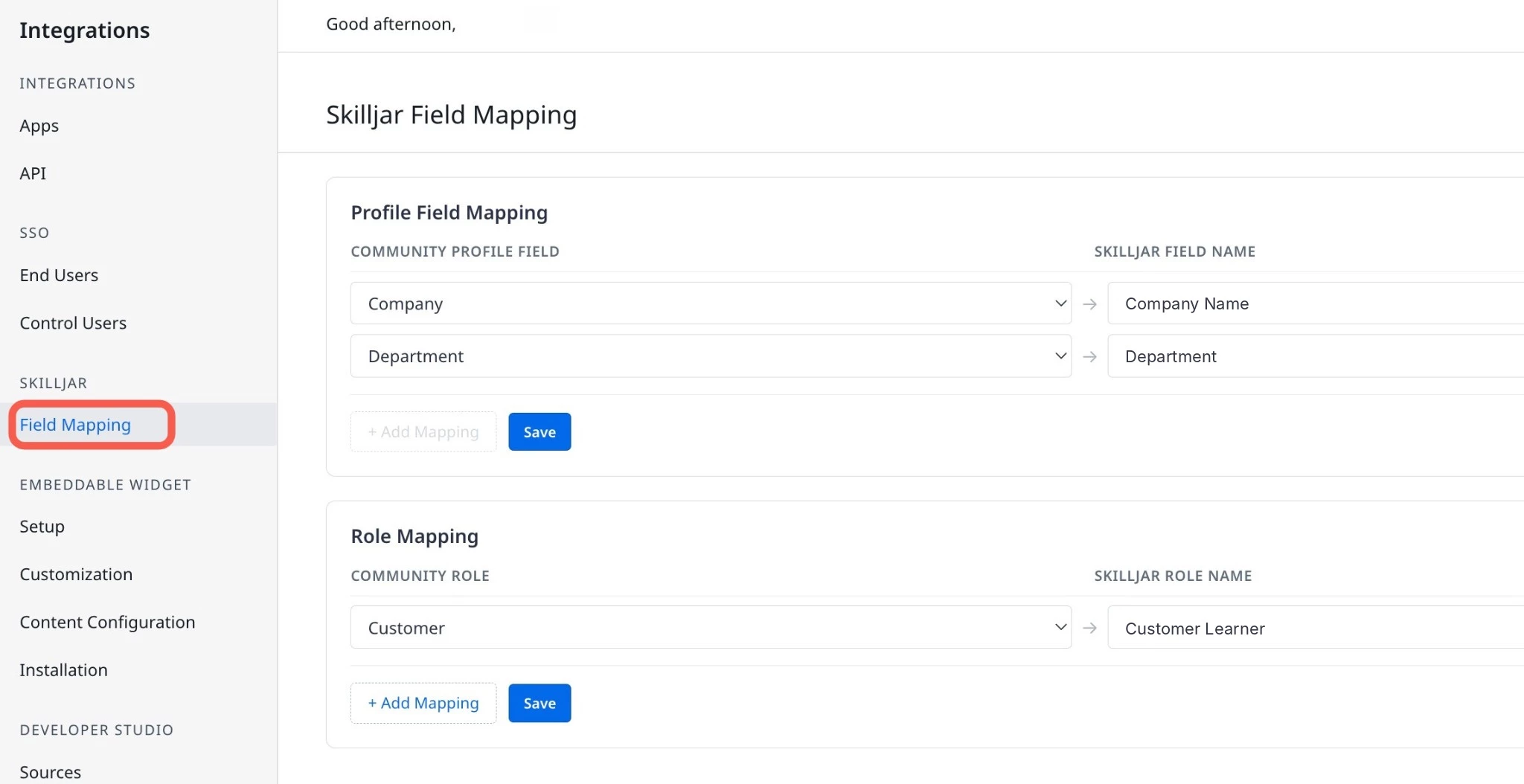
The Skilljar Field Mapping has the following two sections:
- Profile Field Mapping: Helps to map user profile fields in CC to Skilljar.
- Role Mapping: Helps to map use roles in CC to Skilljar.
To map Profile Field:
- From the Community Profile Field dropdown, select the user profiles in CC.
- From the Skilljar Field Name dropdown, select the appropriate Skilljar field.
- Click Save.
To map Role Field:
- From the Community Role dropdown, select the user role in CC.
- From the Skilljar Role Name dropdown, select the appropriate Skilljar field.
- Click Save.