

Set Up Gainsight CC MCP
This article helps Admins and Community Managers set up and configure Gainsight Community MCP AI assistants such as Claude, ChatGPT, Microsoft Copilot Studio, and Gemini CLI.
Overview
Gainsight Community MCP is a connector that lets you interact with your community data through AI assistants such as Claude, ChatGPT, Microsoft Copilot Studio, and Gemini CLI. Model Context Protocol (MCP) is a standardized way for AI assistants to connect to external tools and data sources. Once connected, you can ask questions in natural language and get answers drawn directly from your community.
Gainsight Community MCP follows the standard MCP specification with OAuth 2.1 authentication and streamable HTTP transport, so MCP-compliant clients can connect. Claude, ChatGPT, Microsoft Copilot Studio, and Gemini are already supported, and many more clients can connect after Gainsight enables their redirect URIs. For details, refer to the Limitations section.
Setting up the Gainsight Community MCP involves two parts:
- Admin Setup: An admin enables Community MCP for the community from Control. This is a one-time configuration step.
- User Connection: Each user connects from their AI client, such as Claude, using their community credentials. The tools available to each user depend on their community role and permissions.
The scope of tools available depends on your community role. When you connect, the connector authenticates you against your community and displays only the tools that match your role. The tools are organized across three areas:
- Search Tools: Find community content such as posts, topics, and discussions.
- Analytics Tools: Query community performance metrics and dashboard KPIs.
- Admin Tools: Review moderation queues, recognition data, user information, and community structure.
For more information on AI Tools, refer to the Use CC MCP Write Tools article.
The AI assistant selects the appropriate tools based on the prompts. Since the available tools depend on the community role assigned to each user, reviewing tool access helps determine what types of questions to ask and what data to expect.
- Search to find content
- Analytics to understand trends
- Admin to see what needs your attention.
Prerequisites
Before you begin, ensure the following requirements are met:
- You must have an admin, Community Manager, or a Moderator role in your Gainsight Customer Community to enable the Community MCP server in Control.
- The community must have at least one authentication method configured (SAML, OIDC, OAuth2, Google SSO, or local username and password).
- Users who will connect must have an active account in the community with a valid role assignment.
- Users must have access to an AI client that supports MCP connectors, such as Claude, ChatGPT, Microsoft Copilot Studio, or Gemini CLI. Client-specific prerequisites, such as plan requirements, are listed in each client section.
- If your organization restricts outbound network traffic, ensure that your AI client can reach the Gainsight Community MCP server at https://mcp.insided.com/mcp. Refer to your AI client's documentation for the current IP range list.
Limitations
The following limitations apply to the Gainsight Community MCP:
- Admin tools are read-only. You cannot modify community data through the MCP connector.
- After you turn on or turn off the Community MCP toggle, it may take some time for the change to take effect.
- You can connect only one community at a time.
- The Gemini web app (gemini.google.com) does not support custom MCP connectors. Use Gemini CLI to connect Gemini.
- Microsoft 365 Copilot chat does not accept an MCP server URL directly. Add Gainsight Community MCP as a tool on a Copilot Studio agent instead.
- Gainsight Community MCP accepts connections only from a fixed allowlist of OAuth redirect URIs. Gainsight maintains this allowlist, so you do not configure it. Claude, ChatGPT, Microsoft Copilot Studio, and Gemini are already on the list. If you connect from another client, such as Glean or Cursor, the first connection attempt fails because the redirect URI of the client is not yet on the list. Gainsight adds the URI after the failed attempt, and later connections from that client succeed. Contact Gainsight Support to have the redirect URI enabled for your organization.
Enable MCP in Customer Community
Admins must turn on the Community MCP Server toggle in Control before users can connect from their AI clients. This is a one-time setup step.
To enable Community MCP:
- Log in to Control.
- Navigate to AI > AI Settings. The AI Settings page appears.
- Scroll down to Features and turn on the Community MCP toggle.
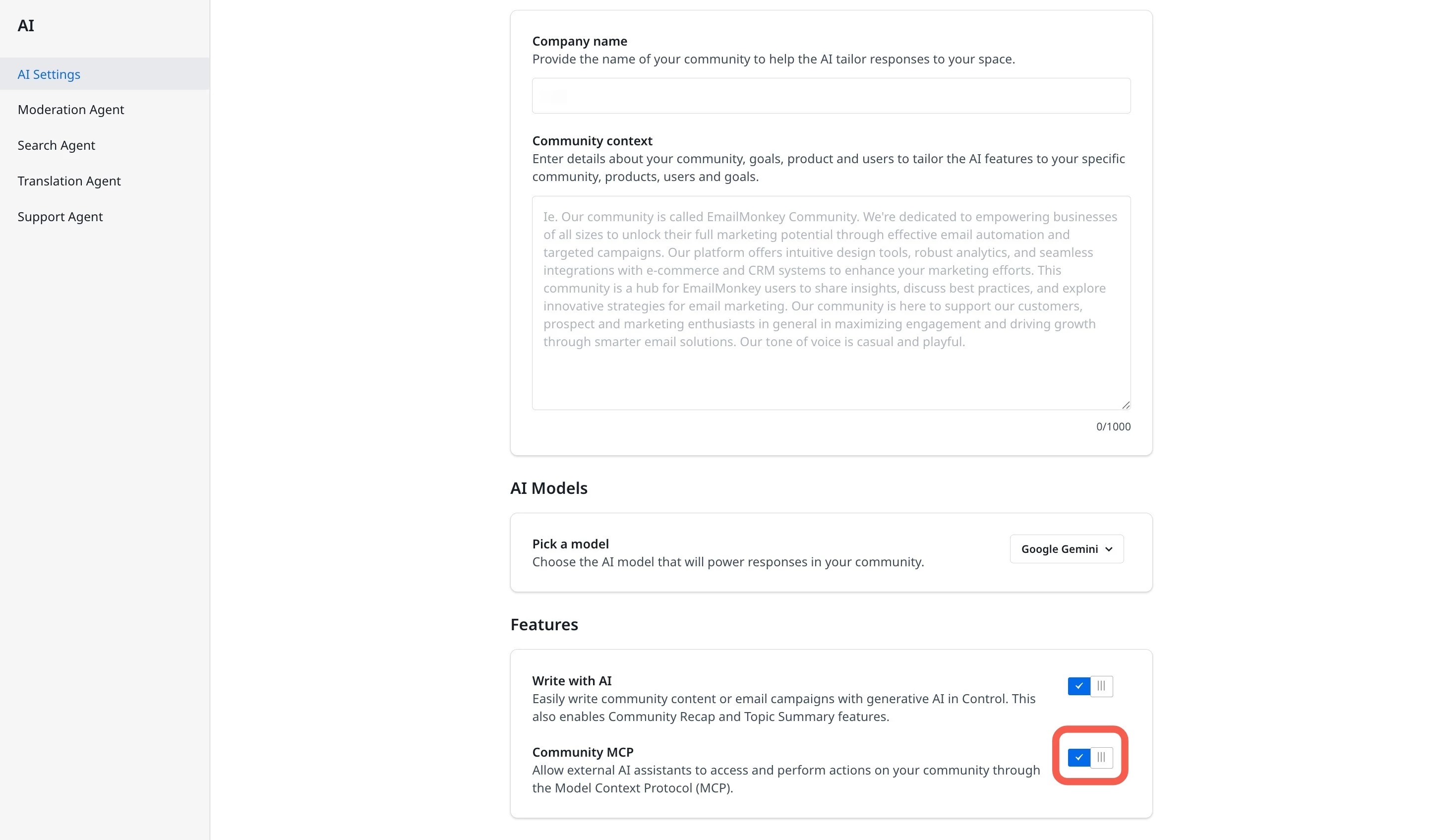
Note: After you turn on the toggle, it may take some time for the change to take effect.
Configure Gainsight Community MCP in Claude
Once Community MCP is enabled in control, admins need to set up the configuration in AI Assistant.
The connector uses dynamic client registration with PKCE, so no OAuth client credentials, authorization URLs, or callback allowlists are required at any point.
The following steps describe the connection flow for Claude. To configure Gainsight Community MCP in Claude:
- Log in to Claude.
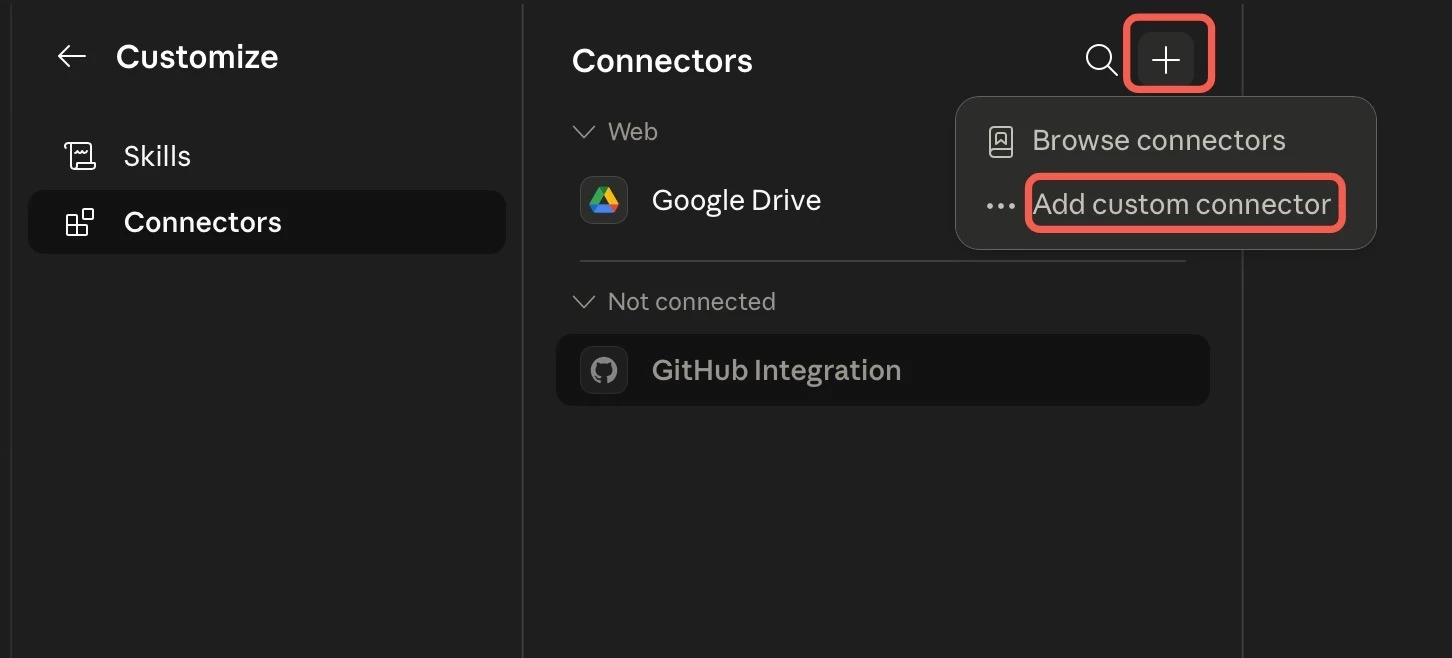
- Navigate to Customize > Connectors. The Connectors page appears.
- Click the Plus icon.
- Select Add Custom Connector. The Add Custom Connector dialog appears.
- In the Name textfield, enter the name to identify the connector. For example Gainsight Community MCP.
-
In the Remote MCP URL textfield, enter the MCP URL
https://mcp.insided.com/mcp
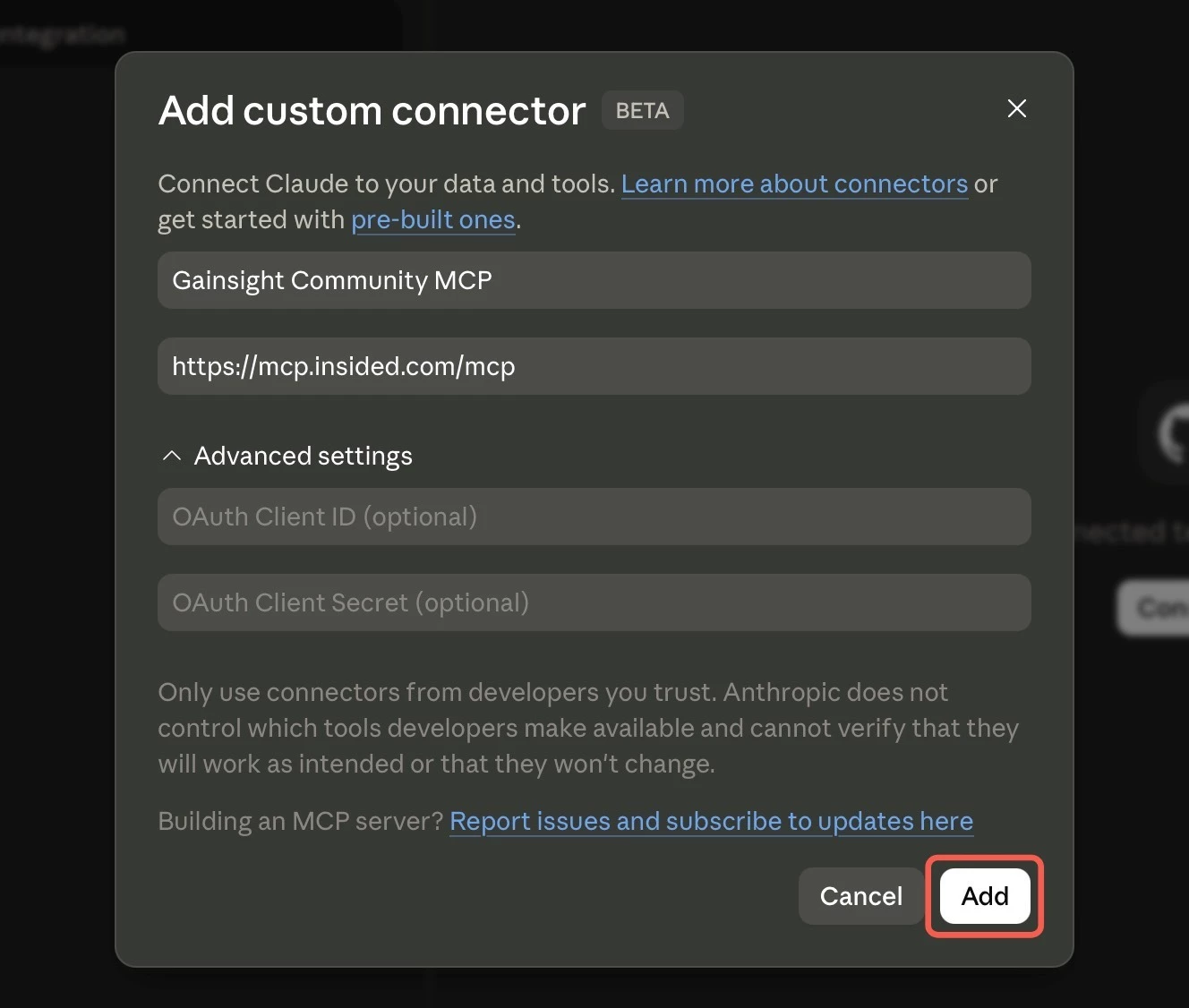
Note: No OAuth client credentials are required.
- Click Add. The MCP connector is now added in Claude.
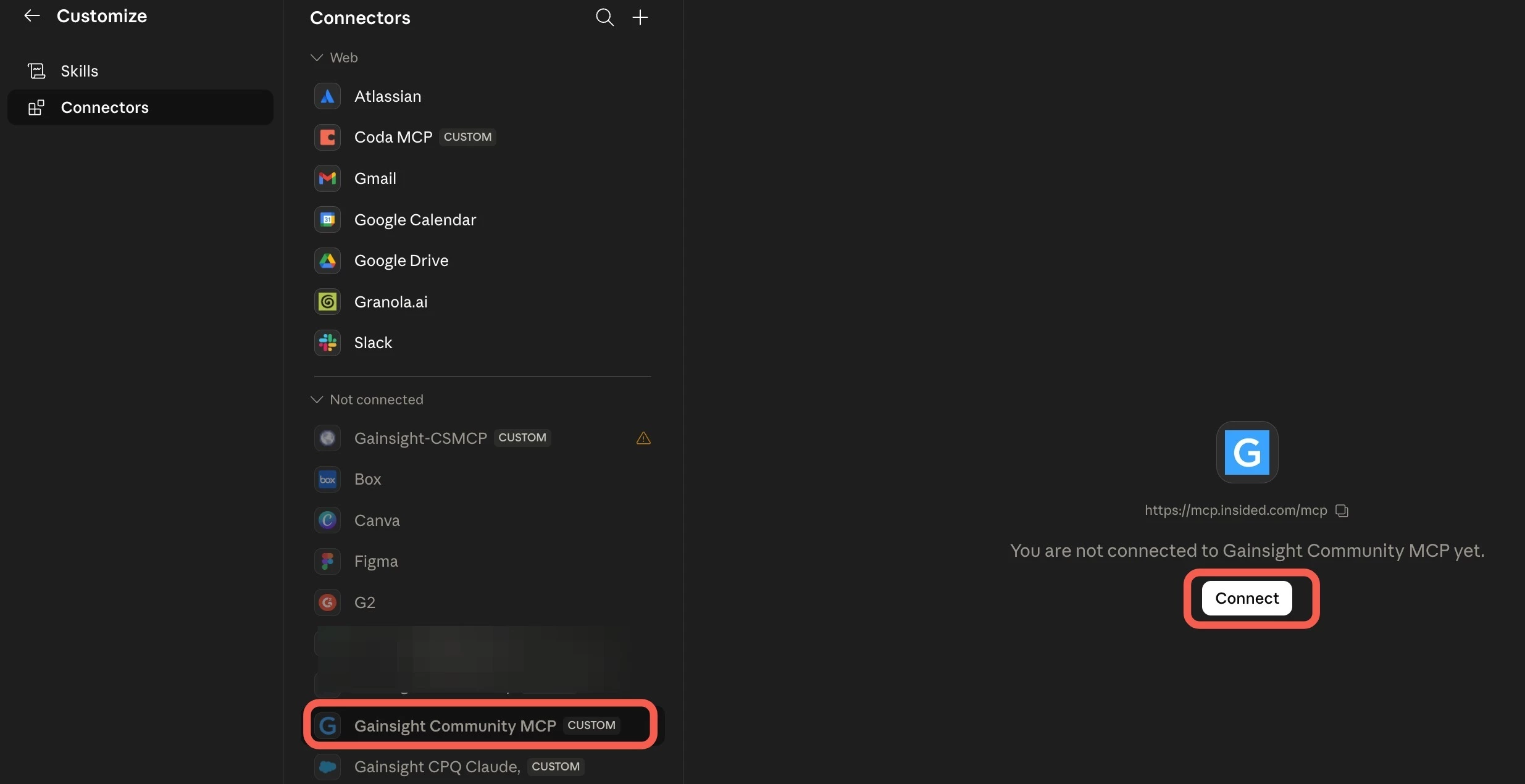
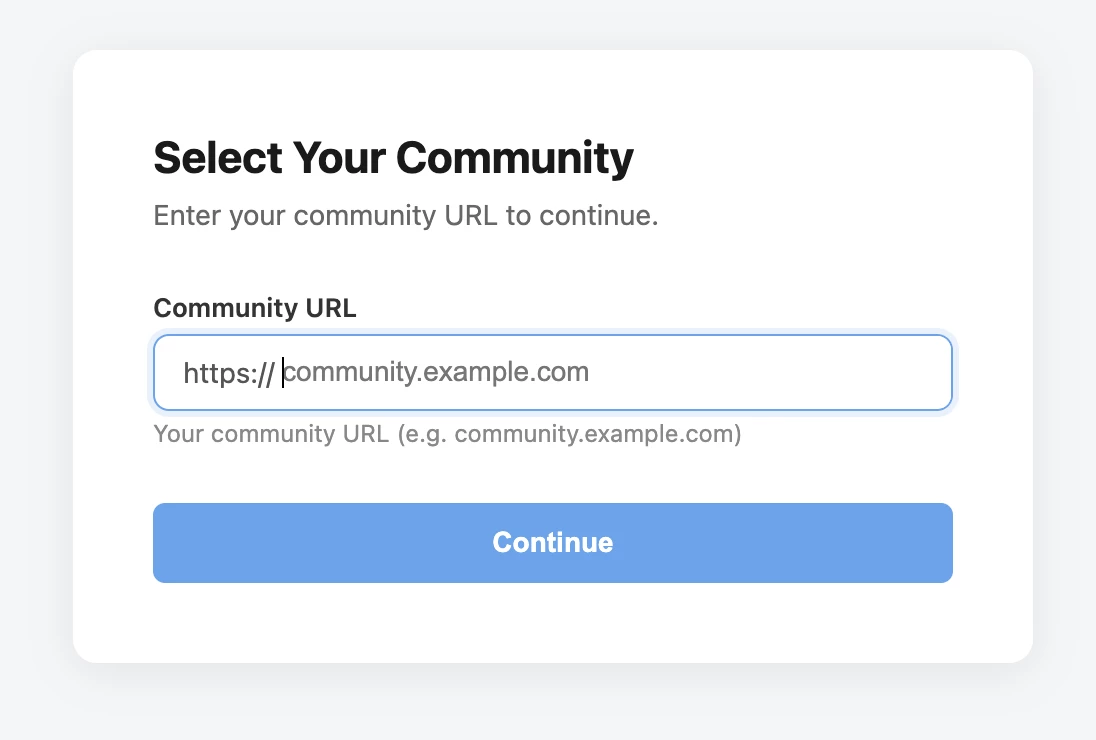
- Click Connect. The Select Your Community page appears.
-
In the Community URL textfield, enter your valid community URL. For example, if your community URL is
https://community.acme.com, entercommunity.acme.com
- Click Continue. The community Login page appears.
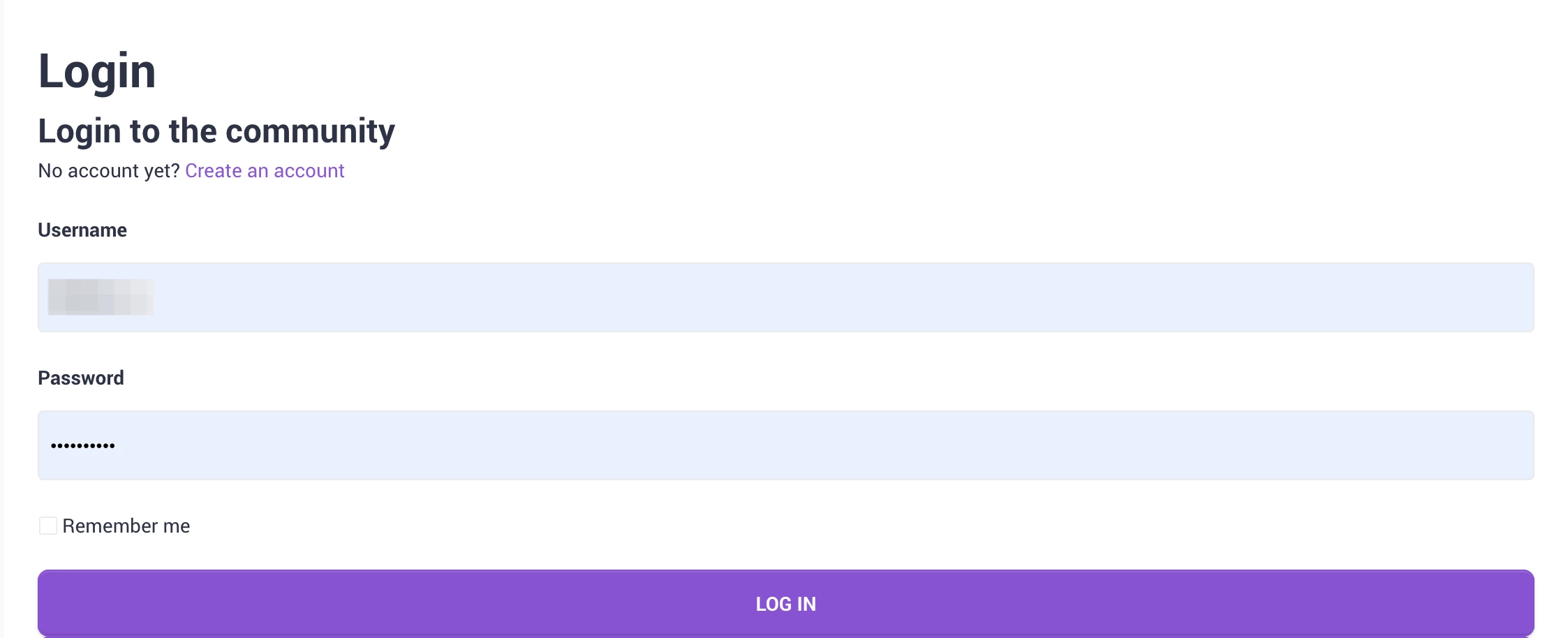
- Enter the following details:
- Username: Enter a valid user name.
- Password: Enter your community password.
- Click LOG IN. The Authorize Application dialog appears.
- Click Approve. The Login is successful.
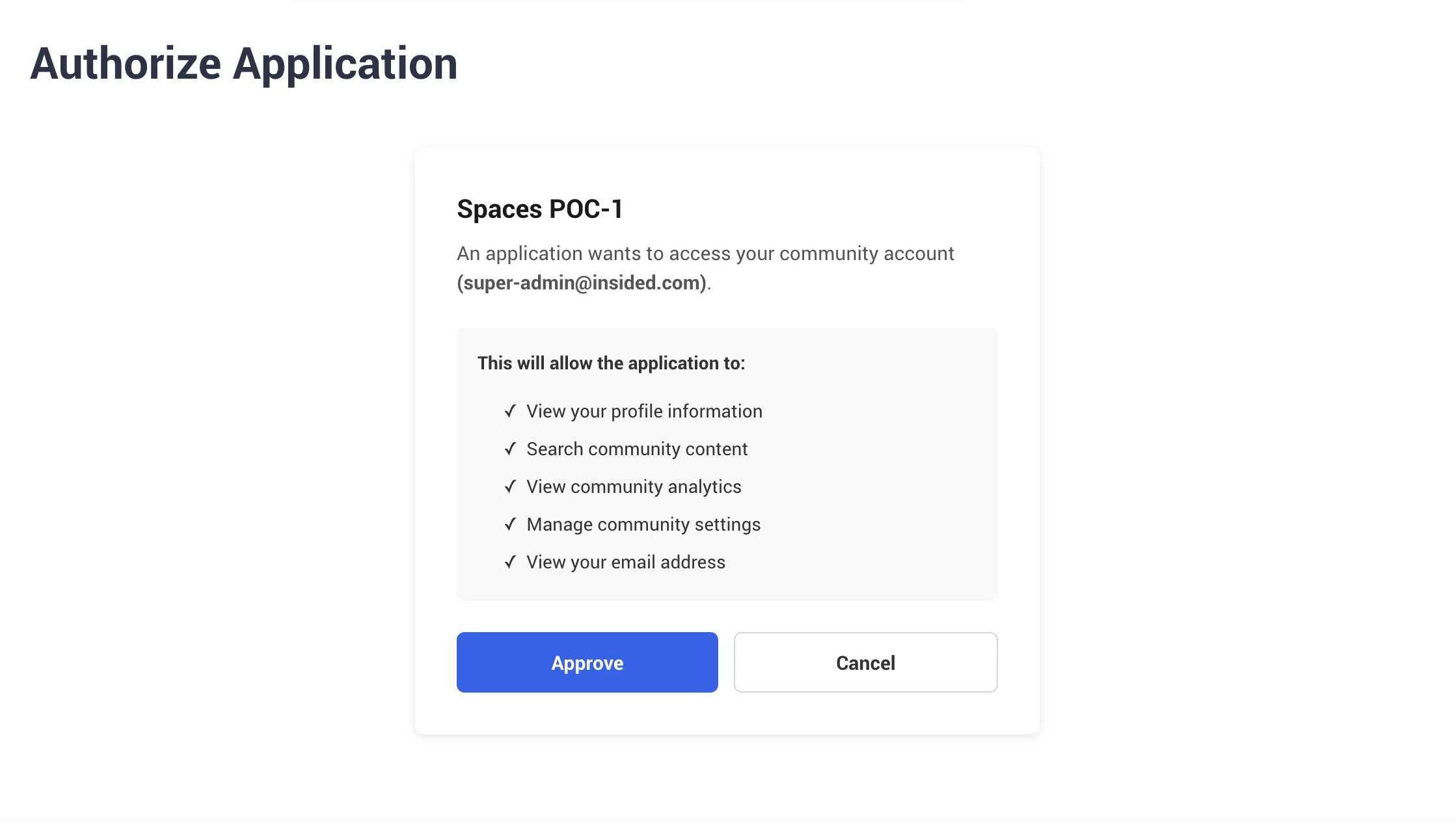
The permissions displayed depend on your role in the community.
The following table describes the permissions displayed for each role level:
| Role | Permissions Displayed |
| All users | View your profile information, Search community content, View your email address |
| Admins and Community Managers | All user permissions, plus: View community analytics |
| Admins | All user permissions, plus: View community analytics, Manage community settings |
| Moderators | All user permissions, Manage Community settings |
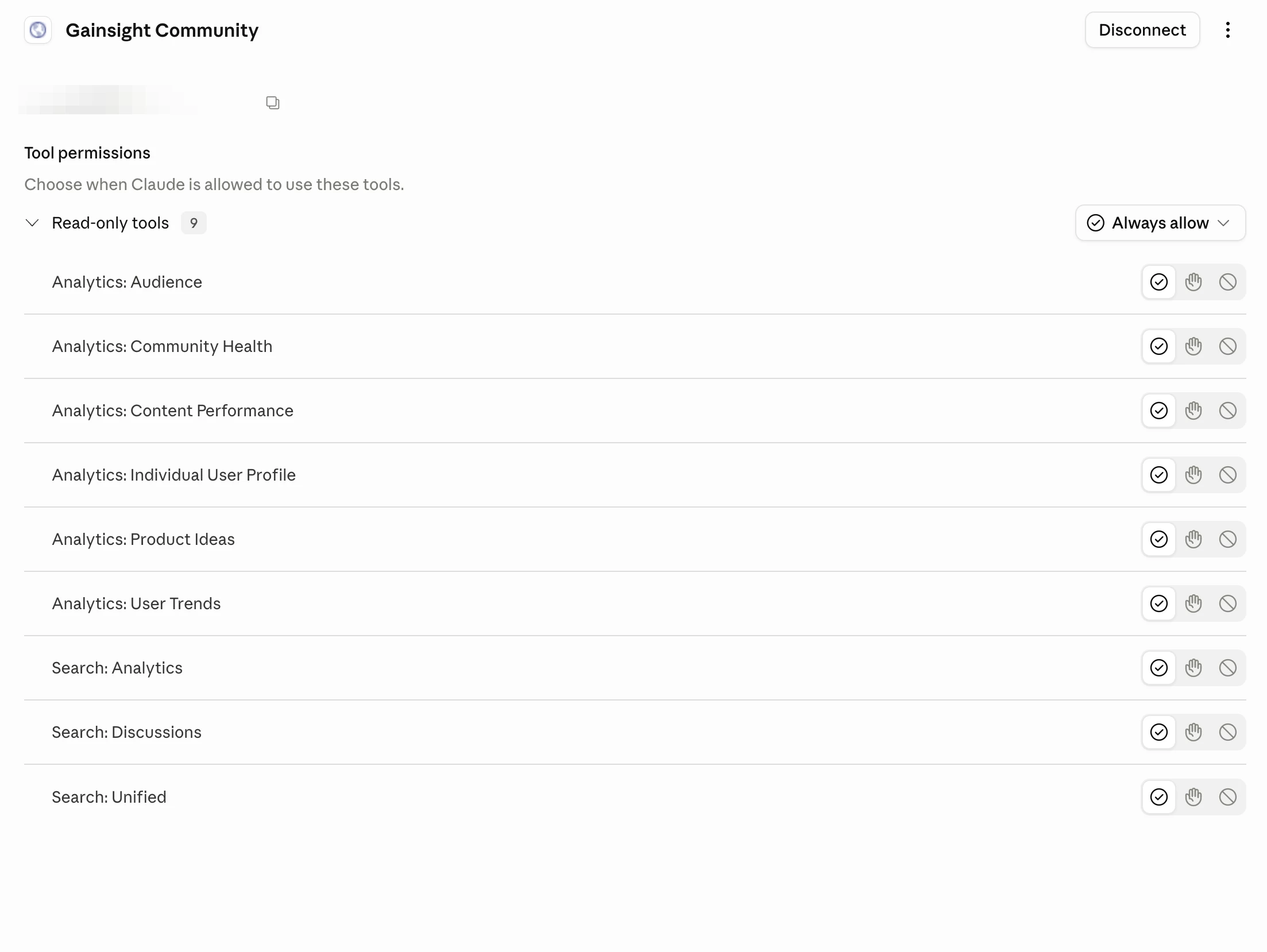
You are redirected back to Claude. The connector now shows as connected with a list of available tools based on your role.
Configure Gainsight Customer Communities MCP in ChatGPT
You can configure Gainsight CC MCP using ChatGPT Plugins. To install using plugins:
- Go to https://chatgpt.com/plugins
- Search for Gainsight Customer Communities (or) click here
- Click Install plugin.
Configure Gainsight Community Custom MCP Server in ChatGPT
ChatGPT connects to remote MCP servers as apps in Developer mode. Once connected, ChatGPT can call Gainsight Community MCP as a live data source and return answers drawn from your community.
Prerequisites
Before you begin, ensure the following requirements are met:
- ChatGPT Admin access: A ChatGPT admin must have the ability to create apps in ChatGPT.
- Developer Mode Enabled: Developer mode must be turned on in ChatGPT settings for the Create app option to appear.
- Community MCP turned on: Community MCP must be turned on in Control. For more information , refer to the Enable MCP in Customer Community section.
Create the MCP Plugin in ChatGPT
Creating the plugin registers the Gainsight Community MCP server in ChatGPT.
To create the MCP plugin in ChatGPT:
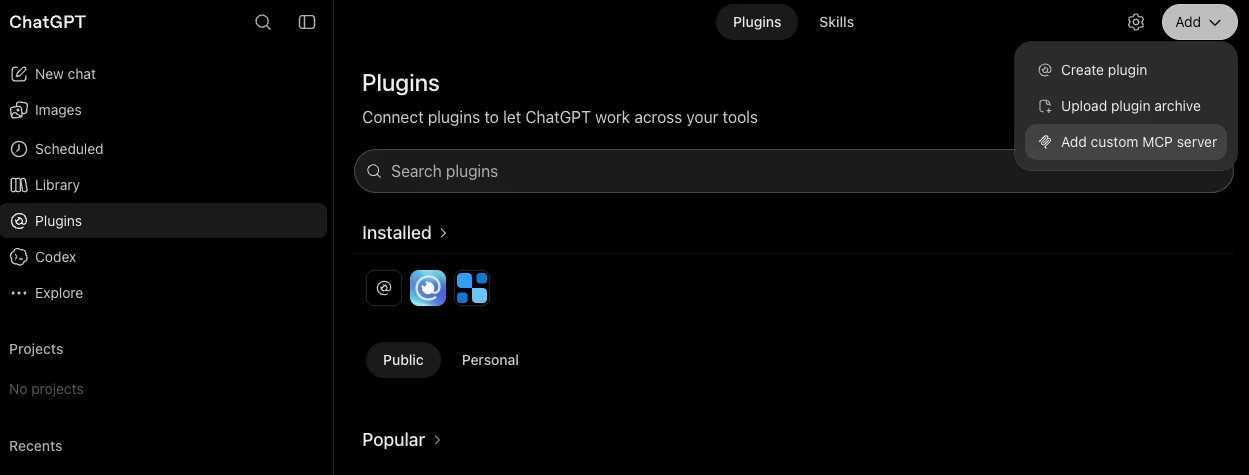
- Go to https://chatgpt.com/plugins
- From the Add dropdown, click Add Custom MCP Server.
- Enter the following details
- (Optional) Upload an Icon for the MCP.
- In the Name text field, enter the name of the app. For example, Gainsight Community.
- (Optional) In the Description text field, describe the app.
- In the MCP Server URL field, enter https://mcp.insided.com/mcp.
- From the Authentication dropdown list, select OAuth.
Note: No OAuth client credentials or callback URLs are required. ChatGPT registers itself through dynamic client registration.
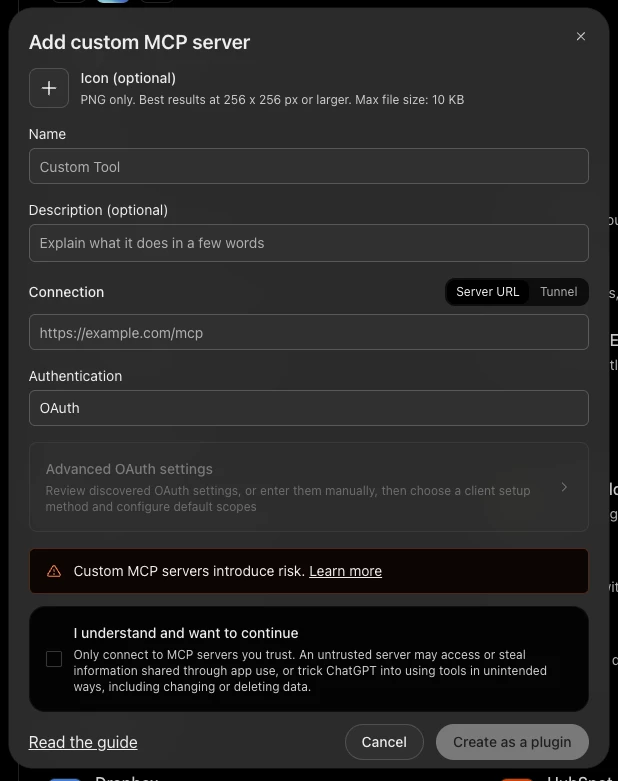
- Select the I understand and want to continue checkbox.
- Click Create as plugin. The new plugin is created and appears in your Plugins list.
Connect and Authenticate
After the plugin is created, each user connects to it with their own community credentials.
To connect and authenticate:
- Navigate to ChatGPT > Plugins.
- Select the newly created plugin by your admin. For example, Gainsight Community.
- Click Connect. The Select Your Community page appears.
- In the Community URL field, enter your valid community URL. For example, if your community URL is https://community.acme.com, enter community.acme.com.
- Click Continue. The community Login page appears.
- Enter your community Username and Password.
- Click LOG IN. The Authorize Application dialog box appears.
Note: If your community uses SSO, complete the sign-in for your organization instead of entering a username and password. - Click Approve. You are redirected to ChatGPT with a confirmation message.
After successful authentication, the MCP connection appears as active in ChatGPT.
Try MCP in chat
After you successfully connect your community to the MCP, test it in the chat.
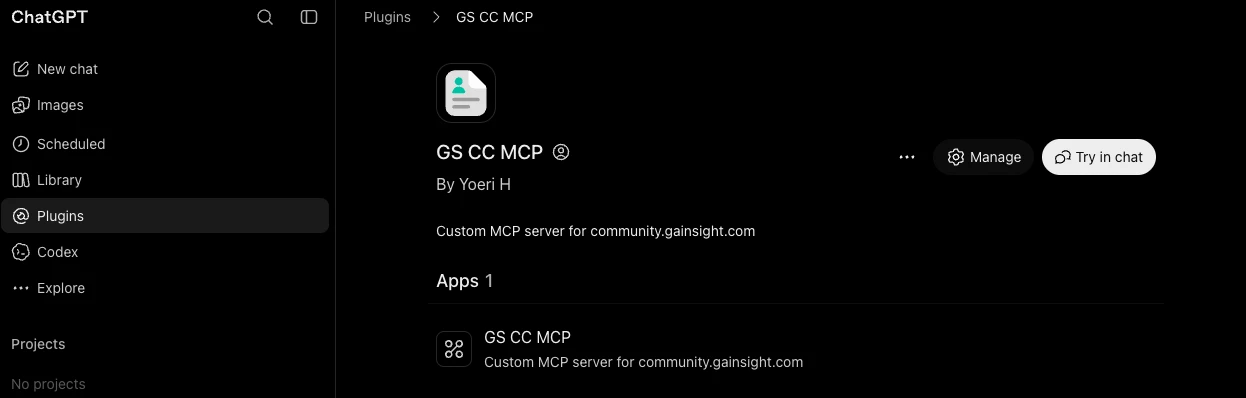
- Navigate to ChatGPT > Plugins.
- Select your MCP plugin.
- Click Try in chat.
Configure Gainsight Community MCP in Microsoft Copilot Studio
Copilot Studio reaches MCP servers through Copilot Studio. You add the server as an MCP tool on an agent, and users then interact with that agent. Microsoft 365 Copilot chat does not accept an MCP server URL directly.
Prerequisites
Before you begin, ensure the following requirements are met:
- Microsoft Copilot Studio access: You must have permissions to create or edit agents in Microsoft Copilot Studio.
- An existing Copilot agent: The MCP tool is added to an agent within Copilot Studio.
- Community MCP turned on: Community MCP must be turned on in Control. For more information, refer to the Enable MCP in Customer Community section.
Create an MCP Tool in Copilot
In Copilot Studio, you create the MCP tool for an agent:
- Navigate to Copilot Studio.
- Select an existing Copilot agent and click Tools. The Tools page appears.
- Click + Add a tool.
- Select MCP. The Model Context Protocol window appears.
- Enter the following details:
- Server name: Enter a display name for the MCP app. For example, Gainsight Community.
- Server description: Enter a brief description of what the app does.
- Server URL: Enter the endpoint URL for the server: https://mcp.insided.com/mcp.
- From Authentication, select the OAuth 2.0 option.
- From Type, select the Dynamic discovery option.
Note: Dynamic discovery requires no client ID, client secret, authorization URL, token URL, or callback URL. Copilot Studio discovers the endpoints and registers itself.
- Click Create, followed by Next. The Add tool dialog box appears.
Connect and Authenticate
After you create the tool, connect it to your community and add it to the agent:
- Select Create a new connection.
- Complete the community sign-in flow. On the Select Your Community page, enter your community URL. For example, if your community URL is https://community.acme.com, enter community.acme.com.
- Click Continue. Sign in with your community credentials.
- Click Approve in the Authorize Application dialog box.
- Click Add to agent.
The server appears on the Tools page of the agent. Open it to review the tools that the server exposes and to turn individual tools on or off.
Note
- Copilot Studio supports the Streamable transport only, which is what the Gainsight Community MCP server uses. SSE is not supported.
- MCP access in Copilot Studio runs through Power Platform connectors. If a data loss prevention (DLP) policy governs Power Platform connectors in your tenant, it also governs this server and its tools.
- Each user of the agent signs in with their own community credentials, so the tools available through the agent reflect the community role of that user.
Configure Gainsight Community MCP in Gemini CLI
Gemini CLI connects to Gainsight Community MCP over HTTP transport with OAuth. The Gemini web app (gemini.google.com) does not support custom MCP connectors, so these instructions apply to Gemini CLI only.
Prerequisites
Before you begin, ensure the following requirements are met:
- Gemini CLI is installed. For more information, refer to the Gemini CLI Repository on GitHub.
- Node.js is installed.
Note: Gemini CLI completes the OAuth flow on a localhost callback, so headless environments such as CI runners and browserless containers cannot complete sign-in.
Register the Server
Admins can register the server either by adding it through the command line or setting up the server manually.
Add the Server Using the Command Line
The command line is the fastest way to register the server. Run the following command:
gemini mcp add --transport http --scope user gainsight-community https://mcp.insided.com/mcp
Add the Server Manually
If you prefer to edit the configuration file, add the server manually.
To add the server manually:
- Open the Gemini CLI settings file using the following commands:
- MacOS and Linux:
~/.gemini/settings.json - Windows:
%USERPROFILE%\.gemini\settings.json
- MacOS and Linux:
- Add the following entry:
{
  "mcpServers": {
    "gainsight-community": {
      "httpUrl": "https://mcp.insided.com/mcp"
    }
  }
} - If other MCP servers are already configured, insert the gainsight-community entry into the existing mcpServers object instead of replacing it.
- Save the file and restart Gemini CLI.
Authenticate and Verify the Connection
After you add the server, sign in with your community credentials and confirm that the connection works.
To authenticate and verify the connection:
- In the terminal, start a session by running gemini.
- Run /mcp auth gainsight-community. A browser window opens.
- Complete the community sign-in flow in the browser window. On the Select Your Community page, enter your community URL. For example, if your community URL is https://community.acme.com, enter community.acme.com.
- Click Continue. Sign in with your community credentials.
- Click Approve in the Authorize Application dialog box.
Note: Gemini CLI stores the tokens in ~/.gemini/mcp-oauth-tokens.json and refreshes them automatically. If the tokens expire, run the same command again.
- Run gemini mcp list to confirm that the server is registered, or run /mcp inside the session to see the connection state and the available tools.
Note: Gemini CLI can prompt you to approve tool calls as part of its security model.
Tools Available in Gainsight Community MCP
The Gainsight Community MCP provides a set of tools organized across three areas:
- Admin
- Search
- Analytics
The tools available to you depend on your community role and the scopes granted during the connection flow.
The following table summarizes the scopes and tools available for each role:
| Role | Scopes Granted | Tools Visible |
| Admins | mcp:search, mcp:analytics, mcp:admin | All search, analytics, and admin tools |
| Community Manager | mcp:search, mcp:analytics, mcp:admin | All search, analytics, and admin tools |
| Moderator | mcp:search, mcp:admin | Search and admin tools |
| Registered user, Super-user | mcp:search | Search tools only |
Admin Tool
The Admin Tool gives community admins a conversational way to review community state. It includes four read-only tools that surface information without modifying any community data.
The following table describes each Admin tool and the types of queries it supports:
| Tool | What You Can Ask |
| Moderation Overview | Surface the moderation queue state, including trashed content and content with moderation labels. |
| Recognition Overview | Read leaderboards (all-time and weekly), available badges, an individual user's leaderboard position, and points history. |
| User Overview | Look up users by ID or field (email, username) and view their current role assignments. |
| Community Structure | Navigate the category tree, view content per category, and check visible topic counts. |
The following scenario demonstrates how the Admin tools work together in a single conversation:
- Prompt: What needs my attention today, and who should I celebrate this week?
Result: The Moderation Overview surfaces content that has been trashed and content with active moderation labels, and the Recognition Overview returns this week's top point earners so you can recognize them publicly.
Search Tool
The Search Tool allows you to query community posts, topics, and indexed content through the MCP connector. The AI assistant retrieves this data and uses its own capabilities to generate insights such as sentiment analysis across discussions, activity dashboards, member engagement breakdowns, and classification of search results by type.
Example prompts:
- What were the most discussed topics this month?
- Run a sentiment analysis on posts from the last 30 days.
- Classify recent search results by type (questions, complaints, feature requests).
- What were the most recent topics in the community?
Analytics Tool
The Analytics Tool allows admins and Community Managers to query community analytics data conversationally through the AI assistant. Previously, reviewing community KPIs required navigating to individual dashboards and manually comparing metrics across time periods.
The following table describes the insight areas available through the Analytics Tool:
| Insight Area | What You Can Learn |
| Community Health | Overall community performance with period-over-period comparison across users, content, traffic, Q&A, and gamification. |
| User Insights | Individual user profiles and activity details. |
| User Trends | Registration trends, leaderboards, role breakdowns, active and churned user lists, and subscription activity. |
| Content Performance | Topic and reply analytics, Q&A metrics, response times, helpfulness ratings, and content gaps such as unanswered questions. |
| Audience Traffic | Pageview trends, visitor segments (contributors, reactors, viewers), and breakdowns by section or content type. |
| Product Ideas | Idea pipeline status, top-voted ideas, and delivered ideas. |
Example prompts:
- How is the community performing this quarter compared to last quarter?
- How many new users joined in the last 30 days?
- Which categories have the most unanswered questions?
- Who are the top contributors this month?
Note: The AI assistant retrieves data that matches the KPIs visible in your community dashboards. The accuracy of the results depends on the quality and completeness of the data in your community.