

Content Dashboard
This article helps admins understand the KPI widgets and reports under the Content dashboard.
Overview
The Community Content dashboard is a powerful analytics tool that provides deep insights into user-generated content and engagement within the community. Leveraging a comprehensive set of Key Performance Indicators (KPIs) and flexible filters, it helps community managers to monitor Posts, topics, and replies created, Likes received, Popular topics, and categories created over time.
Through these metrics, the dashboard offers a clear view of community activity and member engagement. Additional indicators, such as likes received and positive content helpfulness votes, help gauge sentiment and highlight the value of shared content. Growth trends, including percentage increases in core metrics over time, reveal shifts in engagement and help track the health of the community.
The dashboard also identifies popular topics, categories, and groups, allowing community managers to pinpoint areas of high interest and strategically focus resources where engagement is strongest.
Global Filters
To support targeted analysis, the dashboard provides the following global filters:
- Author Primary User Role: Assesses contributions based on primary user role. It applies to the most recent role update. If the author's user role has changed over time, only the last or current role is taken into account.
- Author custom User Role: Assesses contributions based on custom user roles. It applies to the most recent role update. If the author's user role has changed over time, only the last or current role is taken into account.
- Content Type: Filter content based on specific types of content: questions, discussions, ideas, articles, and product updates. It applies to the most recent content type update. If the content type has changed over time, only the last or current content type is considered.
- Published In: Highlights engagement by category showing where interaction is most active. It applies to the most recent category update. If the content has been moved between categories over time, only the last or current category is considered.
- Date Filter: Enables time-based analysis by considering creation dates (for discussions and ideas), publication dates (for articles and updates), and event timestamps (for likes and votes).
- Group Filter: Focuses on content that is shared within groups, for example, Beta Groups. It applies to the most recent group update. If the content has been moved between groups over time, only the last or current group is considered.
By combining these filters with KPI data, the Content dashboard empowers teams to make informed, data-driven decisions, ultimately enhancing engagement, improving content strategy, and cultivating a dynamic and thriving community environment.
Access and Manage the Content Dashboard
The Content dashboard is an out-of-the-box (OOB) dashboard that can be viewed from the Analytics page.
To view the dashboard:
- Log in to Control.
- Navigate to Analytics > New Dashboards.
- From the dropdown list, select Content Dashboard. The Content dashboard appears.
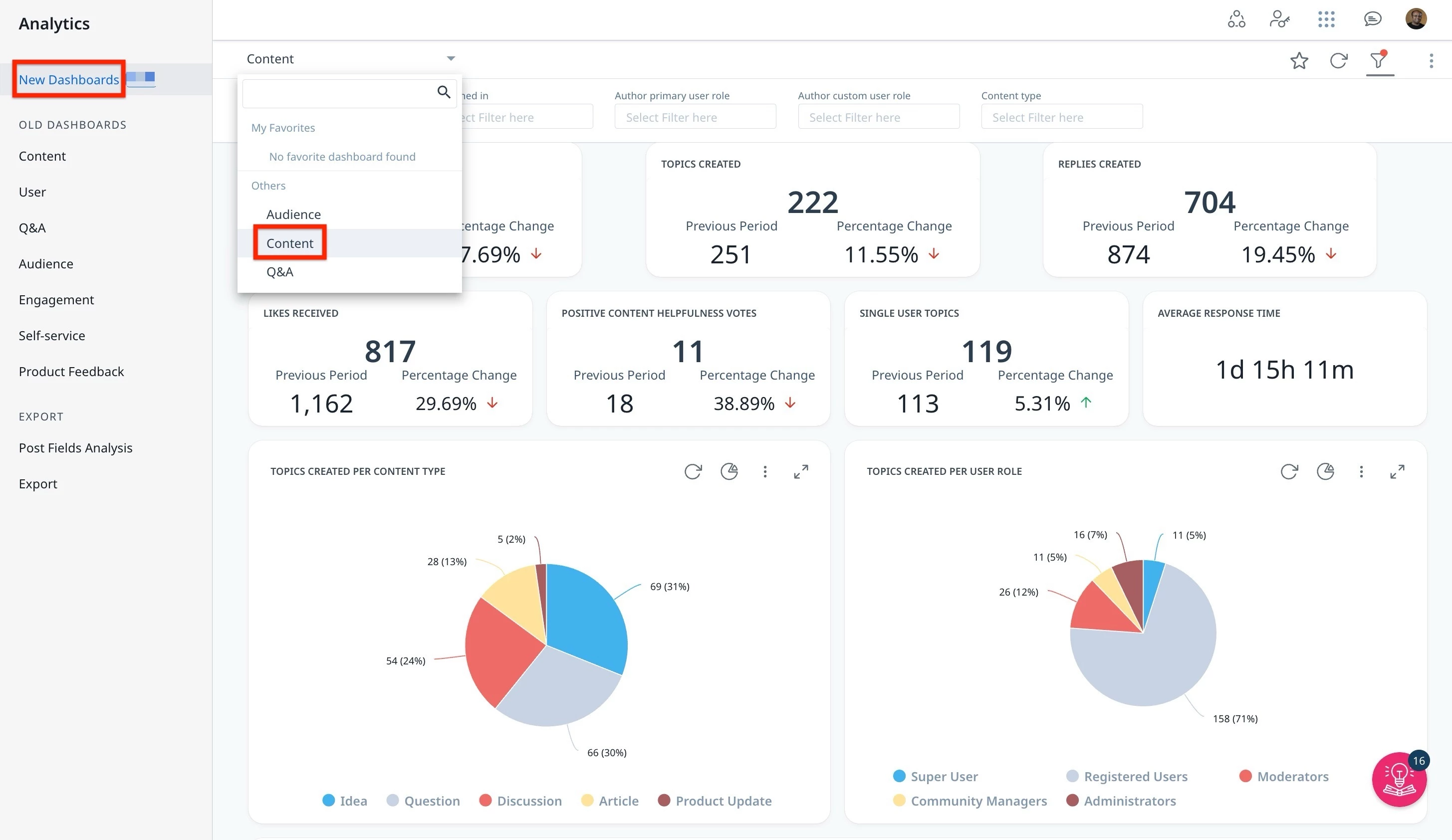
Admins can interact and customize the dashboard using features such as global and individual filters and report visualization options.
Note: The dashboard data is displayed in UTC.
For more information on how to customize Dashboards, Widgets, and Reports, refer to the Customize New Dashboards article.
Understand the Key Performance Indicators
To effectively use the Content dashboard and accurately interpret performance insights, it is important first to understand the key performance indicators it tracks. The KPIs in the Content dashboard help track posts, replies, response time, popular categories, content helpfulness votes, and more.
% Period to Period Change and Previous Period
Users are equipped to understand performance shifts through the % Period to Period Change and Previous Period metric, which provides a clear comparison over matching timeframes.
% Period to Period Change
This metric shows how a Key Performance Indicator has increased or decreased over time. It compares two time periods of the same length to give a fair and clear view of performance changes. For example, if you select the last 15 days, it compares them to the 15 days right before that.
Previous Period
The previous period is always the same number of days as the period you choose. If you select April (30 days), the system looks at the 30 days just before April, not the full month of March. This helps make sure the comparison is even and accurate.
KPI Descriptions
The following table describes each KPI and report, along with any specific exclusions or filters. Global Filters apply to all reports and KPIs, except for the exceptions described for a given KPI.
Common Exclusions
The following exclusions apply consistently across KPIs described in the content dashboard metrics:
- Spam, Trashed, and Deleted Content
- Excludes spam, trashed, and deleted topics and replies.
- Excludes replies within spam, trashed, and deleted topics.
- Excludes likes received in spam, trashed, and deleted topics and replies.
- Excludes votes given to spam, trashed, and deleted topics.
- Converted and Promoted Content
- Excludes, from topic metrics, topics converted to replies.
- Excludes, from replies metrics, replies promoted to new topics.
| KPIs | Description | Filters Exceptions and Note |
|---|---|---|
| Post Created | The number of topics and replies posted in the community within the chosen timeframe. | |
| Topics Created | The number of topics posted in the community within the chosen timeframe. | |
| Replies Created | The number of replies posted within the chosen timeframe, regardless of when the topic was created. | |
| Posts Created drill-down | The counts of topics and replies created, now with a drill-down separating Topic and Reply contributions. | Click the chart to see drill-down details. Use '+' to add or remove columns in the drill-down view. |
| Likes Received | The number of likes received on topics or replies during the selected range, regardless of the original creation dates of those topics or replies | |
| Helpfulness Votes | Shows the community-wide split of helpfulness votes across Helpful, Not Helpful, and Neutral, with the percentage share of each. | Click the chart to see drill-down details. Use '+' to add or remove columns in the drill-down view. |
| Positive Content Helpfulness Votes | The count of positive votes for content helpfulness assigned to topics within the chosen timeframe, irrespective of when the topic was initially created. | |
| Single User Topics | The number of topics in the selected time for which only one user contributed content. Replies from the topic starter do not count. | This KPI tracks topics created in a specific timeframe that have no replies. Note: This count decreases if an old thread finally receives a reply. Because the topic is no longer "unanswered," it is removed from the single-user total for the month it was originally created. |
| Single User Topics drill down | The count of topics created by a single user, as widget with a drill-down to those topics. | Click the chart to see drill-down details. Use '+' to add or remove columns in the drill-down view. |
| Average Response Time | The average amount of time between the creation of a topic and its first reply. Replies from topic starters do not count. | Calculated based on the Topic Creation Date, this metric averages the time to reply for all topics started in your selected timeframe. Note: If an old topic gets a reply today, the delay is added back to its original creation month. This can retroactively increase historical averages and cause numbers to shift. Click the chart to see drill-down details. Use '+' to add or remove columns in the drill-down view. |
| Total Topics Views | Displays the total number of topic views in the selected period, distributed across the topics shown in the Popular Topics table. | Click the chart to see drill-down details. Use '+' to add or remove columns in the drill-down view. |
| Topics views - per content type | A bubble chart breaking down total topic views by content type (e.g., Article, Question, Idea, Discussion/Conversation, Product Update). | Click the chart to see drill-down details. Use '+' to add or remove columns in the drill-down view. |
| Top 10 Categories Views | A bubble chart showing the ten categories with the most topic views in the selected period. | Click the chart to see drill-down details. Use '+' to add or remove columns in the drill-down view. |
| Top 10 Groups Views | A bubble chart showing the ten groups with the most topic views in the selected period. | Click the chart to see drill-down details. Use '+' to add or remove columns in the drill-down view. |
| Topics created per content type | The percentage of topics created in the selected time is broken down by the content type of the topic. | Click the chart to see drill-down details. Use '+' to add or remove columns in the drill-down view. |
| Topics created per user role | The percentage of topics created in the selected time is broken down by the primary role of the author of the topic | Click the chart to see drill-down details. Use '+' to add or remove columns in the drill-down view. |
| Popular Topics | The most popular topics, sorted by the number of views, replies, likes, or content helpfulness score. Users can choose to sort the list based on their preferred criteria, allowing for easy identification of trending topics aligned with user interests and engagement levels. | Filter Exception: The Date filter applies to when the topic was viewed, posted, liked, replied or voted, rather than the creation dates of questions, ideas, and conversations, or the publication dates of articles and product updates. Note:
|
| Popular Categories | The most popular categories are sorted by the number of posts, topic replies, and likes. Users can choose to sort the list based on their preferred criteria, allowing for easy identification of trending topics aligned with user interests and engagement levels. | Filter Exception:
Note: If a user unlikes a post, the original like is discounted for this metric. |
| Popular Groups | The most popular groups are sorted by the number of views, posts, topic replies, and likes. Users can choose to sort the list based on their preferred criteria, allowing for easy identification of trending groups aligned with user interests and engagement levels. | Filter Exception:
Note: If a user unlikes a post, the original like is discounted for this metric. |
Note: If you want to calculate these KPIs using data from the CC Data Lake, refer to the Content Dashboard KPIs – Query Reference for CC Data Lake article.