

Gainsight CS Q1 Release: Customer Context, Where and When You Need It
Most CS teams already have the data they need, but it rarely lives in one place or shows up when it matters. Instead, it’s spread across emails, meetings, and notes—and pulling it together takes more time than it should.
That’s why our Q1 release is focused on making that easier. Moving forward, more of that context shows up automatically, easier to access in the moment, and it’s even easier to turn into action.
Here’s what’s new:
Gainsight MCP: Bring Customer Context Into AI Workflows
Your team is likely already using LLMs to brainstorm, summarize, and write faster, and increasingly to prepare for calls, triage their books, and draft Success Plans. But until now, Gainsight data sat outside of that flow, meaning outputs lacked critical customer context, and getting it required copying data, switching tabs, and losing momentum.
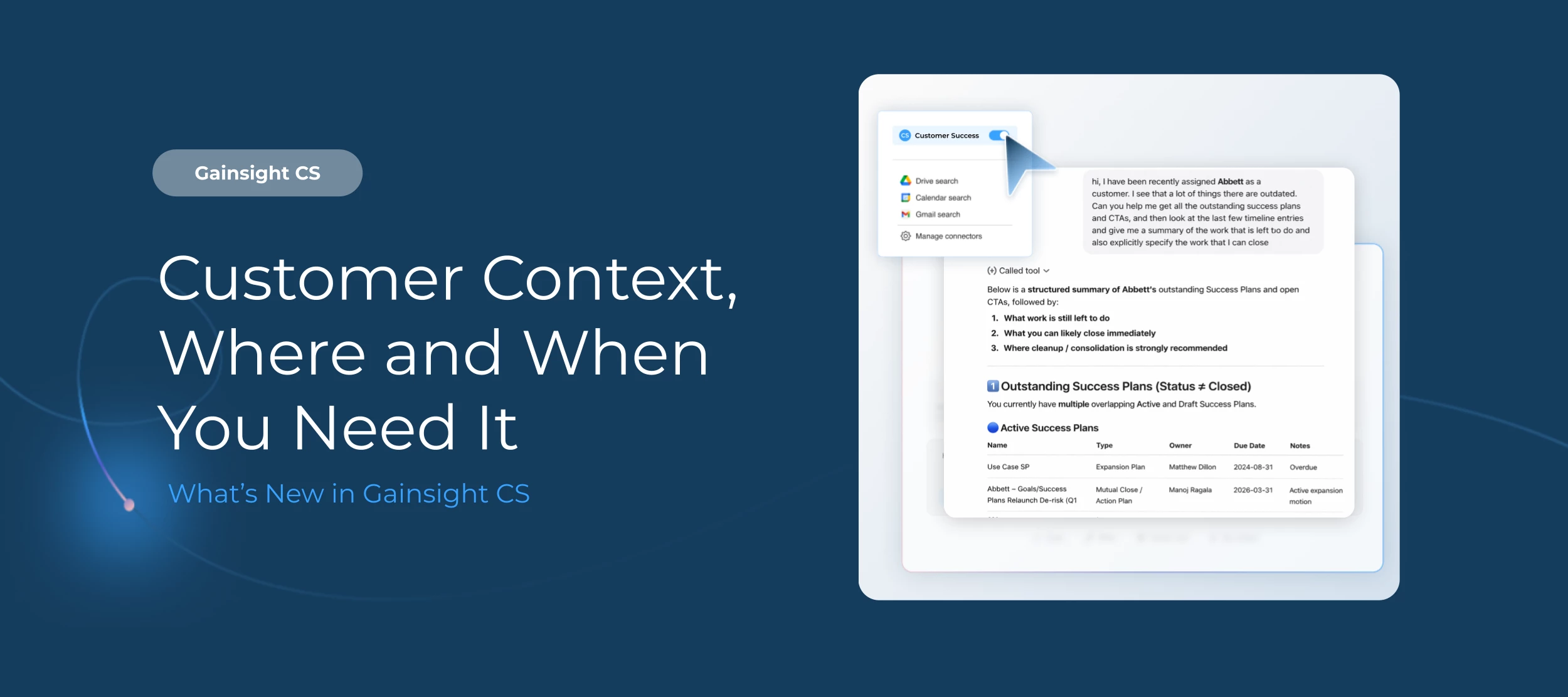
With Gainsight MCP, external LLMs like ChatGPT and Claude can now connect directly to your Gainsight instance. Teams can pull account context, review Timeline activity, check health scores, and take action, like updating CTAs or Success Plans, without ever leaving their AI workflow.
Not sure where to start? Use our ready-to-use prompts for common workflows like weekly portfolio reviews, renewal prep, and QBR briefings. To learn more, refer to the Gainsight CS MCP Server Integration article.
Connect Gainsight CS MCP to your LLM, explore real account data, and take action like creating CTAs and Success Plans through our free guided course. Take the course today!
Timeline: Capture the Full Customer Conversation, Automatically
This release brings several updates that make Timeline meaningfully more complete without adding work for your team.
- Auto Email Capture: Automatically log emails to Timeline the moment they're sent or received, including participants, timestamps, and full conversation threads, so there's no need for plugins, checkboxes, or manual entry. Related messages are even grouped together.*
- To and From Fields: Admins also get new To and From fields for email activities, giving teams clearer visibility into who communicated with whom, which is especially useful for multi-threaded relationships.
The result: A more complete customer record without anyone having to build it manually.
*Need-to-know details on Auto Email Capture:
- Auto Email Capture is powered by Staircase technology. If you're using just CS, no additional purchase is required.
- You cannot connect only emails. To enable Auto Email Capture, you must select the Email + Meetings connection option.
- If you enable Auto Email Capture for a user group, don't also use Gainsight Assist, BCC email tags, or external Timeline APIs for those same users, as combining methods can create duplicate or overwritten Timeline activities.
- Upon enabling Auto Email Capture, a historical sync of 30 days will be triggered.
For more information, refer to the Admin Guide, User Guide, or FAQs.
Timeline: Relationship Person Support
You can now search and select Relationship Persons as external attendees in Timeline activities, helping you identify the right participants more accurately and view relevant context directly within the search experience.
- Support for Relationship Persons in Search: External attendee search now includes both Company Person and Relationship Person records in Timeline activity, with search results grouped into three sections based on the attendee type: Company Person, Relationship Person, or User
- Context Based Display Order: Section order is based on the activity’s primary context. If Company is the primary context, Company Person results appear first followed by the Relationship Person results.
- Conditional Section Display: Sections are displayed only when relevant search results are found. For example, the Relationship Person section appears only if matching results are available.
- Attendee Context on Hover: Hovering over attendee details now indicates whether the participant is a Company Person or a Relationship Person.
For more information on relationship person search, refer to the Log Activities to Timeline article.
Journey Orchestrator: More Ways to Edit Live Programs
You launch a JO program, it's running smoothly, and then someone asks for a change. Until now, that usually meant cloning the entire program just to tweak one step, for example. With the refreshed Program Editor, you can now add a new step exactly where you need it, update existing steps like delay timing or Evaluate logic, and skip steps instead of deleting them.
This release also introduces multiple participant syncs per day, allowing you to schedule syncs at defined intervals so time-sensitive programs like onboarding and risk response reflect the latest data instead of waiting for the next daily run.
For more information, refer to the Edit an Advanced Program article.
Copilot: Surface All Customers Insights into Copilot
Copilot now pulls together Timeline activity and Staircase insights into a single response, so if you're trying to understand what's happening in an account, you can ask one question and see both what's been logged in Gainsight and what Staircase has picked up from emails, meetings, and support interactions.
We’ve also added the ability to download report data as Excel files directly from Copilot, so when you get a tabular answer you can export it immediately for offline analysis or sharing.
Pro Tip: Copilot is only as good as the data behind it. If you haven't reviewed your Key Definitions recently, go to Administration > Copilot > Key Definitions and make sure they reflect your organization's actual terminology, especially for concepts like ARR, customer segments, or risk.
For more information, refer to the Copilot Overview article.
Spaces: Keep Customer Goals Visible and Collaborative
Customer Goals can now be shared in Spaces, bringing goal tracking into the same place where teams and customers already collaborate. Everyone can see progress, update values, and discuss next steps without switching tools, while admins stay in control of which goals are shared and what external participants can access.
AI Cheat Sheet: Show Only What Your Team Needs
Admins can now customize AI Cheat Sheet in C360 and R360 by renaming sections, reordering them, or turning them off entirely, so teams see the specific signals they care about instead of scanning through everything on the page.
Pro Tip: Ask your CSMs which Cheat Sheet sections they actually use before configuring; you might find that two or three sections drive 90% of the value, and turning off the rest makes the widget significantly more useful at a glance.
For more information on how to customize the widget, refer to the AI Cheat Sheet Overview article.
Want to learn more? Check out the full release note, head over to the Gainsight Community, or dive into our recent release webinar (that included live demos!).