

Configure Multiple SSO Methods of the Same Protocol
This article helps admins configure more than one sign-in method of the same protocol type in Gainsight Customer Communities.
Overview
Admins in Gainsight Customer Communities can configure more than one single sign-on (SSO) method of the same protocol type.
For example, an enterprise customer can set up two separate OpenID Connect connections, one for employees and one for customers, even though both methods use the same protocol.
Each protocol type on the End Users SSO page supports up to two configured methods. This allows admins to create distinct sign-in paths for different audiences, such as customers, partners, and employees, all managed self-service in Gainsight CC.
Key Benefits
- Support distinct sign-in paths for different audiences, all managed self-service in Gainsight CC.
- Configure each method with its own name and configuration, prepare beforehand, enable once ready.
- Review, at a glance, which methods are active for end users, since the End Users SSO page lists only configured methods.
How It Works
Each authentication type, such as SAML 2, OpenID Connect, OAuth 2.0, Token, or Google Sign-In, allows a maximum of two configured methods per community. Once a protocol reaches this limit, the Add a sign-in method dialog box marks that protocol as LIMIT REACHED, and you cannot select it again until an existing method of that type is removed.
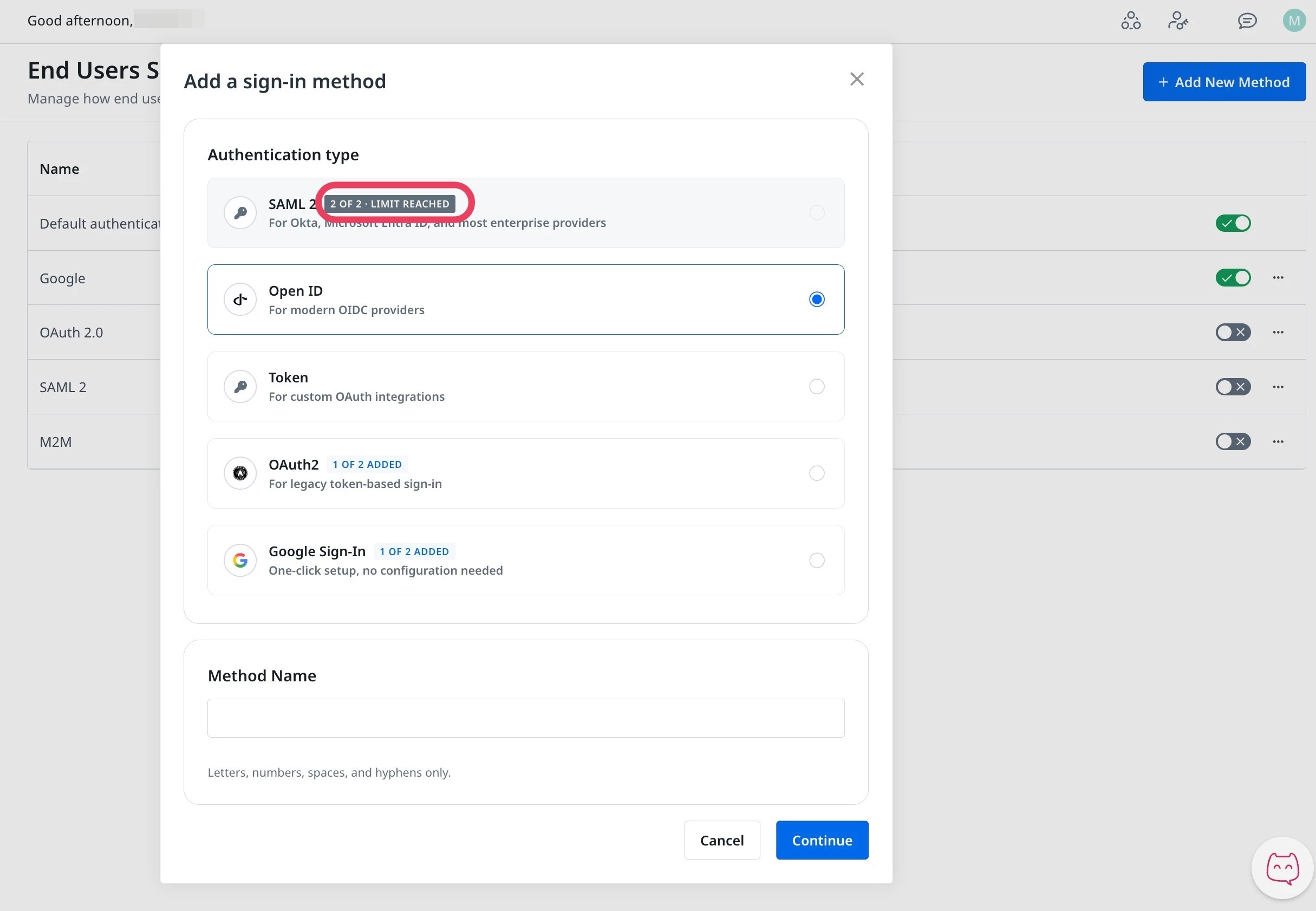
Every configured method receives its own set of Connection URLs, a Return URL, a Login URL, and a Metadata URL. Because each method has a distinct set of URLs, admins register a separate callback address with each identity provider, even when two methods share the same protocol.
The Default authentication method, which uses email, username, and password, is separate from the protocol-based methods and does not count toward the two-method limit.
Prerequisites
- A community account with the Administrator permission is required to configure SSO methods.
- Access to the identity provider's admin console is required to register the Connection URLs and retrieve credentials, such as the Client ID, Client Secret, or public key.
Create an End User SSO
You can create the end user SSO from Control. To create the connection:
- Log in to Control.
- Navigate to Integrations > End Users SSO. The End Users SSO page appears.
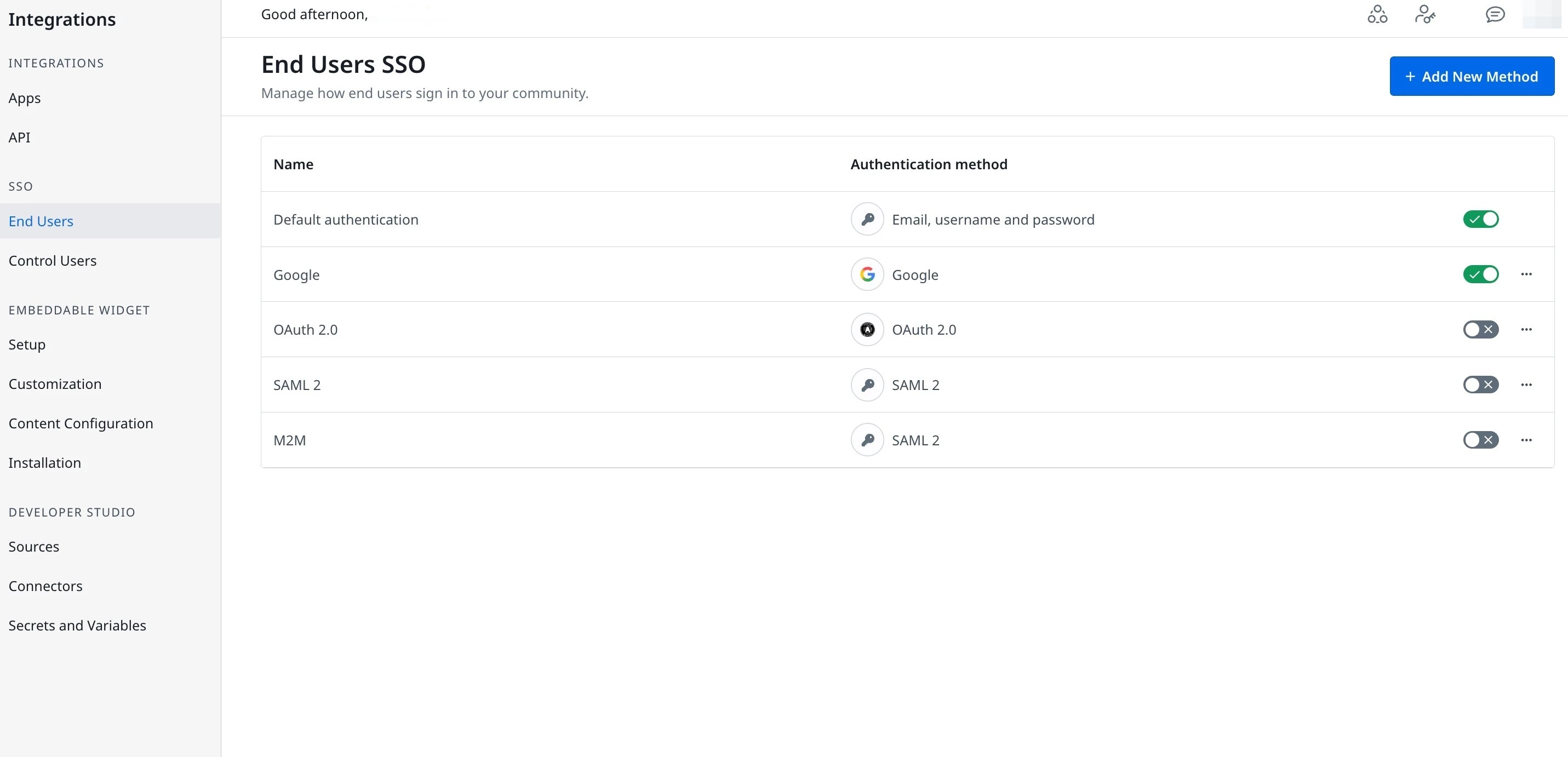
- Click + Add New Method to add an end user SSO. The Add a sign-in method dialog appears.
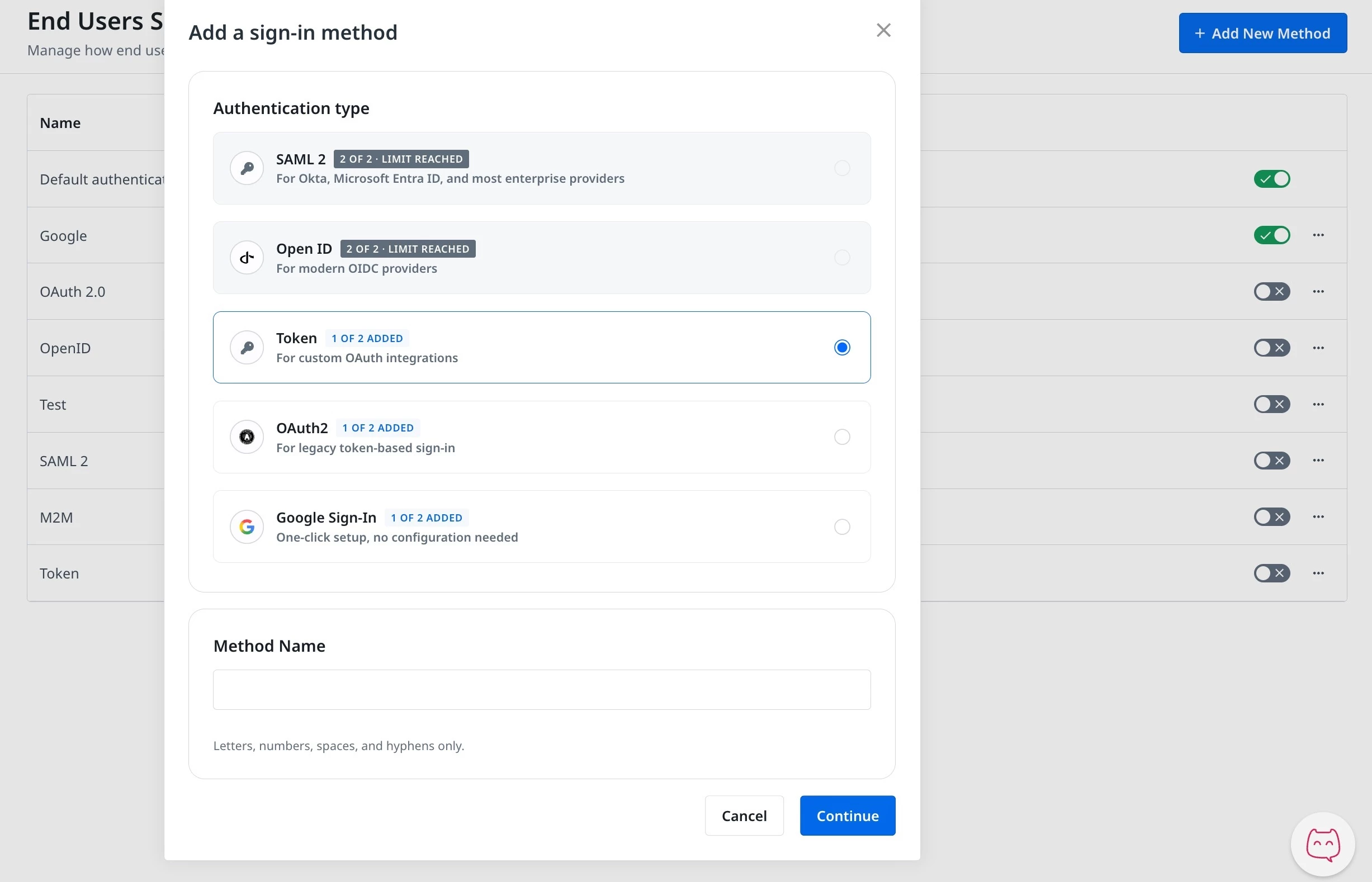
- Select an Authentication type from the list.
- In the Method Name textfield, enter the name of the connection
- Click Continue.
For detailed information on how to configure each of the Authentication type, refer to the following articles:
- OpenID Connect SSO setup guide
- OAuth 2.0 SSO setup guide
- Google SSO setup guide
- Token SSO setup guide
- SAML 2.0 SSO setup guide
Add a Second Method of the Same Protocol
You can add a new authentication method from the same page that lists existing methods.
- Log in to Control.
- Navigate to Integrations > End Users. The End Users SSO page appears, showing every method currently configured for the community.
- Click + Add New Method. The Add a sign-in method dialog box appears.
- Select an Authentication type. A protocol that already has one method configured shows an 1 of 2 ADDED badge, and a protocol at the two-method limit shows 2 of 2 LIMIT REACHED and cannot be selected.
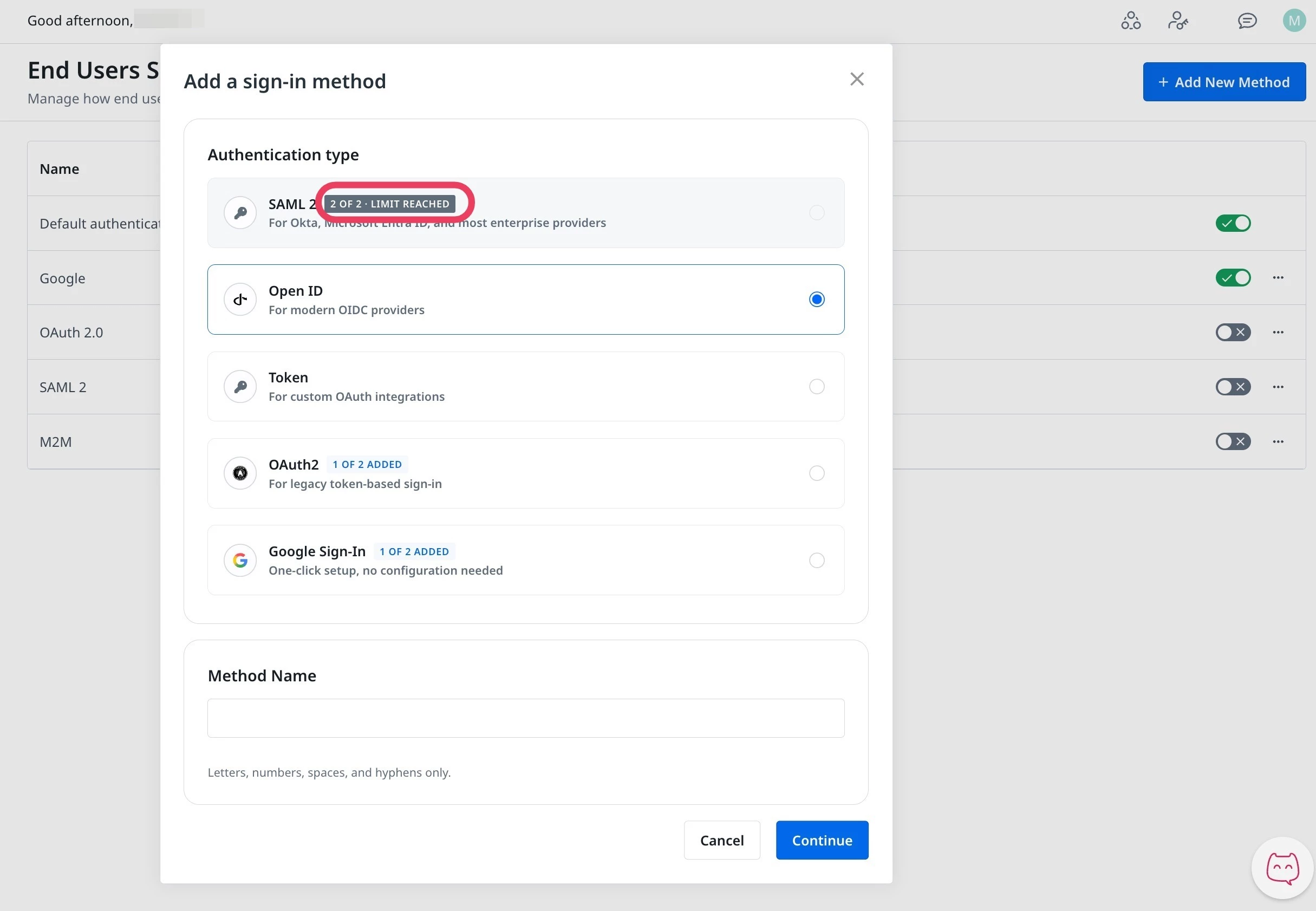
- Complete the configuration for the selected authentication type.
- Click Save method to save the second connection.