

Configure User Profile Field Mapping
This article helps admins map Gainsight Customer Success (CS) object attributes to Gainsight Customer Community (CC) user profile fields, and configure automatic data synchronization between the two products.
Overview
CS-Based Profile Mapping in Gainsight CC enables admins to define attribute mappings between Gainsight CS standard objects and CC user profile fields. Once you save mappings, a synchronization job on the CS side runs every four hours and populates the mapped CC fields with the corresponding CS attribute values.
You can map attributes from Gainsight CS objects across System, Standard, and Custom categories. After synchronization, the synced data is available in Gainsight CC for personalization, segmentation, and targeted engagement.
Example Business Use Case
Once Gainsight CS attributes are synced to Gainsight CC user profile fields, community managers and admins can use the enriched data across the community platform. Common use cases include:
- Personalize Onboarding Experiences: Use synced attributes such as customer tier, product edition, or lifecycle stage to display tailored welcome messages, recommended content, or getting-started guides.
- Segment Users for Targeted Content: Use synced fields such as job title, geography, or account tier to build user segments for personalized community content or announcements.
- Target Communications by Customer Attributes: Use synced attributes such as role, region, or subscription level to deliver relevant announcements, banners, or notifications to specific user groups.
- Control Content Visibility and Entitlements: Use a synced product edition or subscription tier value to show or hide premium community content or features based on the customer's profile.
Prerequisites
Before you configure User Profile Field Mapping, ensure that the following requirements are met:
- One-click Connection between CC and CS: Navigate to the Connectors page in Gainsight CS and verify that the CC instance is connected. Without this connection, the User Field Mapping menu option does not appear in Gainsight CC.
For more information on CC and CS integration, refer to the Customer Communities and Gainsight Integration - Admin Guide article. - CC User Profile Fields Configured: Add the user profile fields that you want to populate before you configure mappings. Navigate to the profile field settings in Gainsight CC and add the required fields.
For more information on profile fields, refer to How to Configure User Profile Fields article.Note: The default visibility of existing or newly added User Profile Fields is Public. Change the visibility to Private or Hidden as per your community guidelines.
For more information on standard objects, refer to the Gainsight Standard Objects article
Limitations
Review the following limitations before configuring field mappings in Gainsight CC:
- Data synchronization occurs on a four-hourly cycle by default. Select Sync all to refresh every mapping immediately. On-demand synchronization for a single mapping is not available.
- An object is available for mapping only if it is linked to the community user, either directly as a Person, Company, or Company Person object, or through a lookup to one of them, and includes a last-modified field, ModifiedDate or GsModifiedDate. Objects that do not meet both conditions appear in the list but cannot be selected, with an explanation shown in the interface.
- Supported field types for mapping: Text, Number, Date, Date & Time, True/False, Email, Currency, and Percentage.
- If a mapped CS attribute does not contain a value (null), the corresponding CC profile field retains its last synced value.
Configure User Profile Field Mapping
To map user profile fields, ensure that the connection between Gainsight CS and CC is established.
Once established, to map the fields in CC:
- Log in to Control.
- Navigate to Settings > CS-Based Profile Mapping. The CS-Based Profile Mapping page appears.
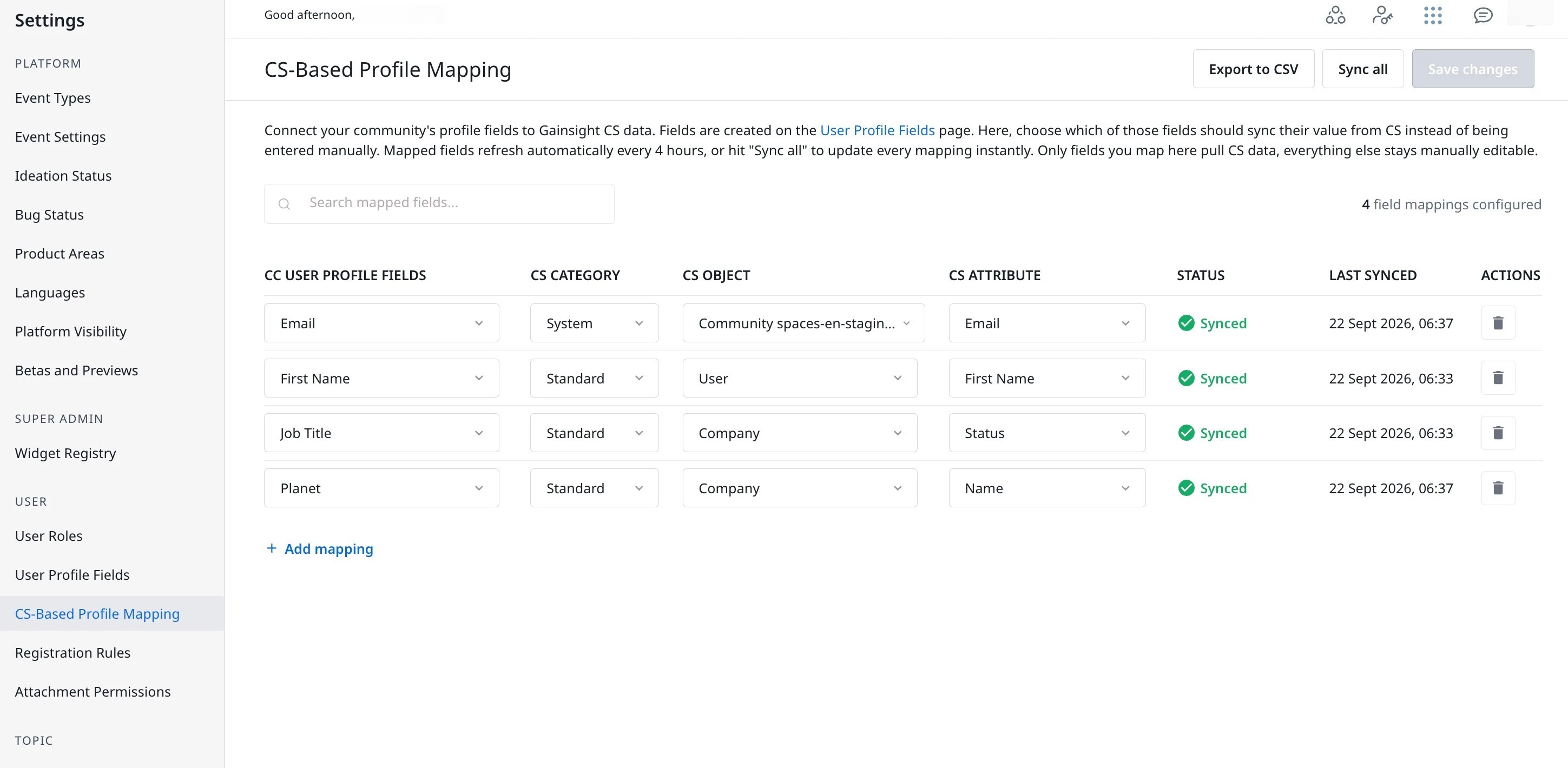
- Click +Add mapping.
- From the CS USER PROFILE FIELDS dropdown, select the CC profile field.
- From the CS CATEGORY dropdown, select the either System, Standard, or Custom.
- From the CC OBJECT dropdown, select the corresponding CS object to be mapped.
- From the CS ATTRIBUTE dropdown, select the corresponding CS attribute to be mapped.
- Click Save Changes. The mappings are saved
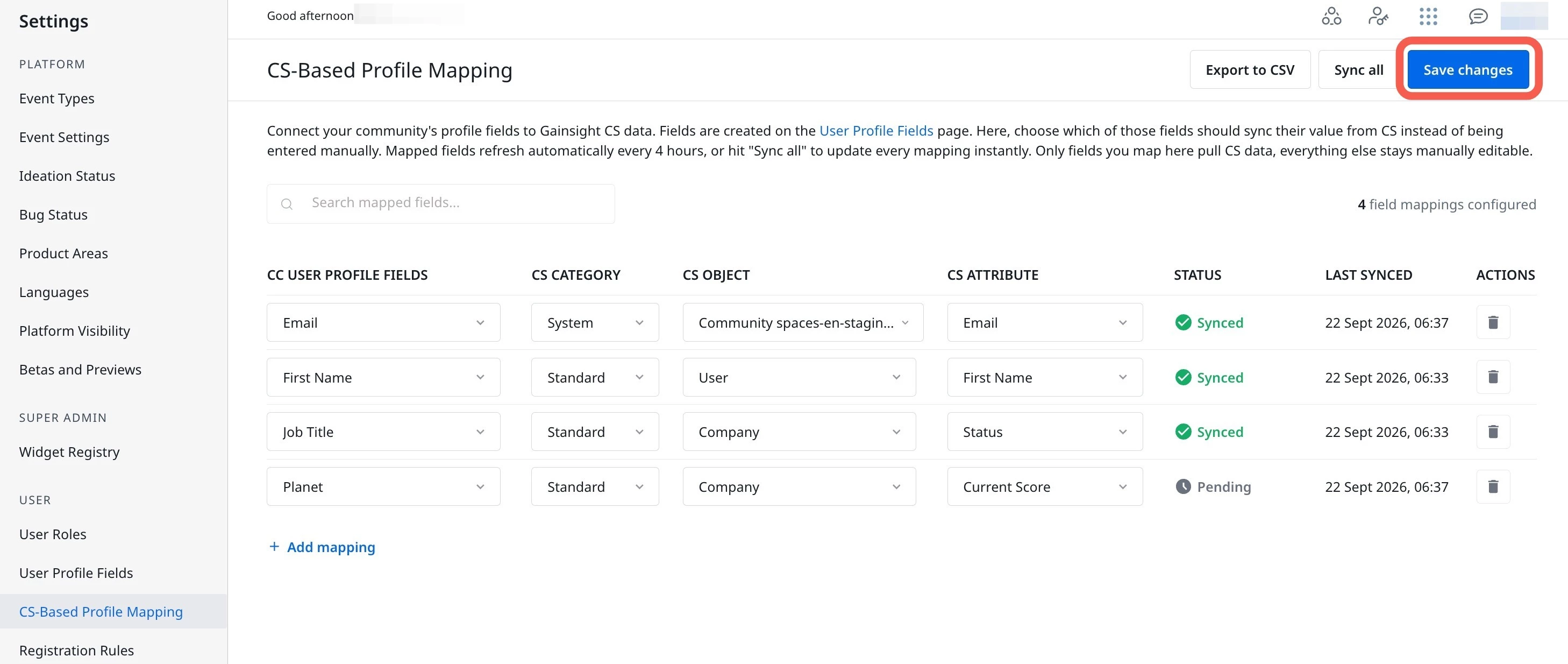
Note: Data synchronization occurs on a four-hourly cycle. After you save the mappings, the attribute values are updated in the next scheduled cycle.
The User Profile Field Mapping page in Gainsight CC displays a color-coded status indicator for each mapping. The following table describes the possible statuses:
| Status | Color | Description |
| Synced | Green | The most recent sync completed without errors. Data is syncing from Gainsight CS to Gainsight CC. |
| Partially Sync | Yellow | The sync completed, but not all user profile fields were updated. Export the synced data to review which fields were updated. |
| Pending | Gray | The sync has not yet completed. This status appears when a mapping is newly created or when the next sync cycle has not started. |
| Sync Failed | Red | The sync encountered errors. Check the Gainsight CS Connectors Activity page for details. |
Note: Refresh the page to view the latest sync status.
Delete Field Mappings
You can delete the user profile field mappings as required. To delete the mappings:
- Navigate to Settings > User Profile Fields Mappings. The User Profile Fields Mapping page appears.
- Click the Delete icon next to the mapping you want to remove. The Remove field mapping window appears
- Click Remove. The mapping is removed.
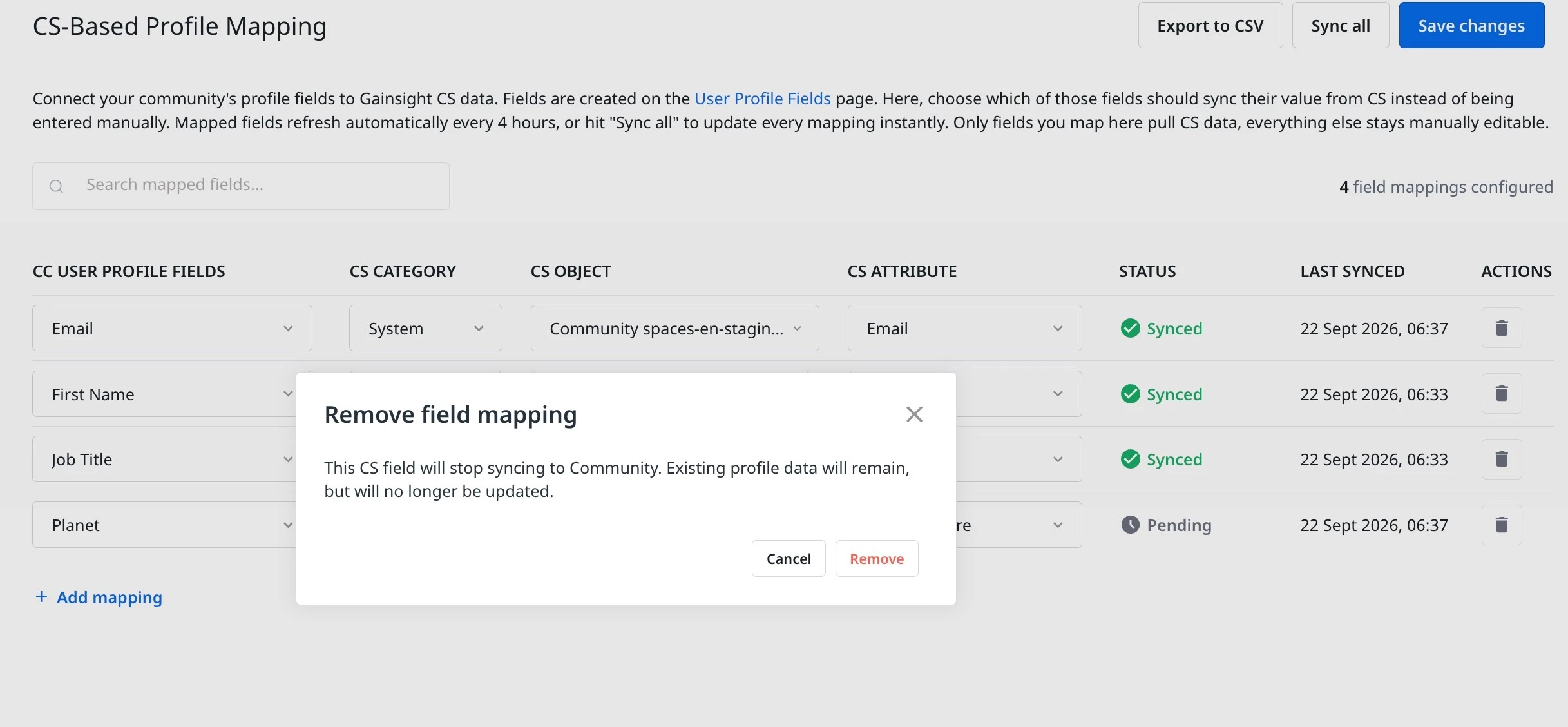
Note: The existing profile data remains in the community after you remove the field mapping.
Export Synced Data
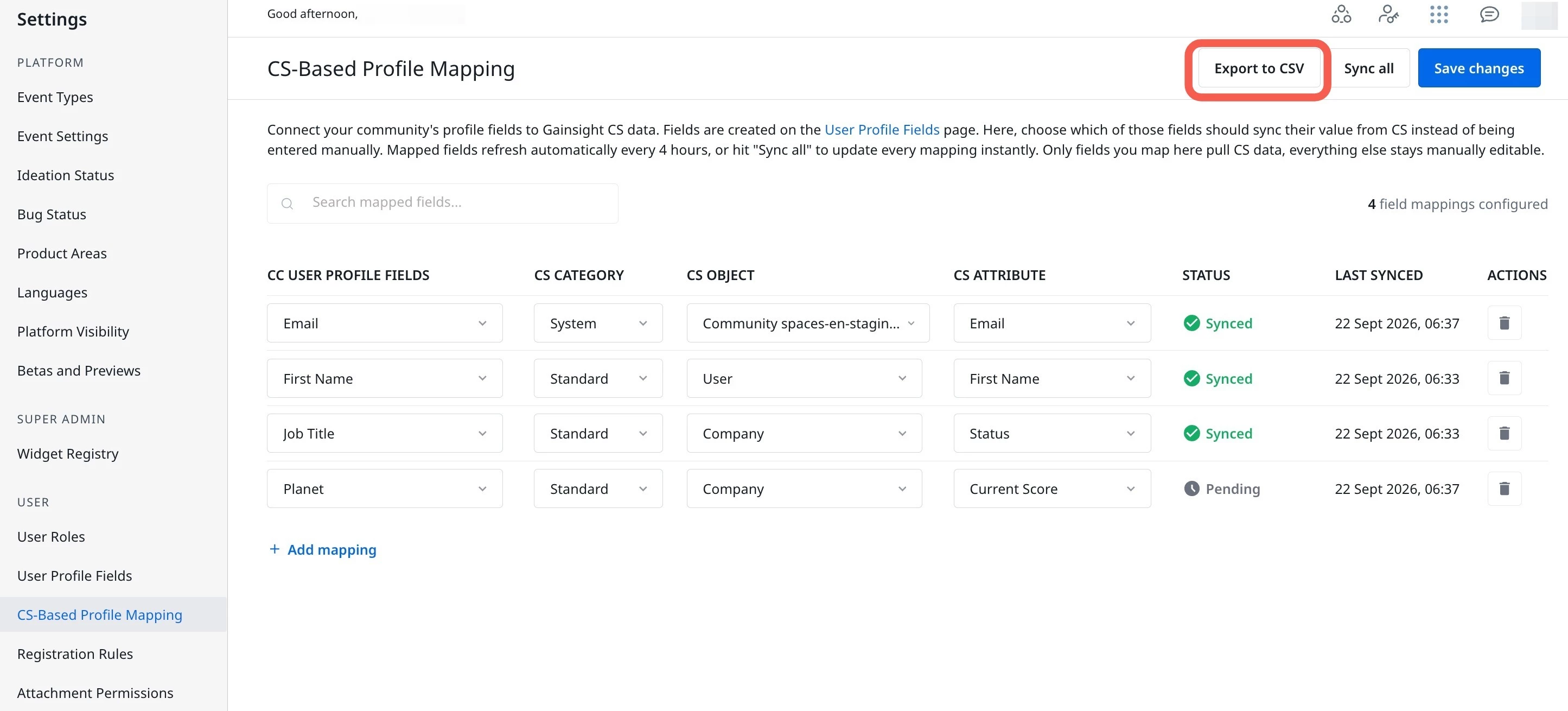
You can view which field data has synced by downloading a CSV file. To download the data.
- Navigate to Settings > User Profile Fields Mappings. The User Profile Fields Mapping page appears.
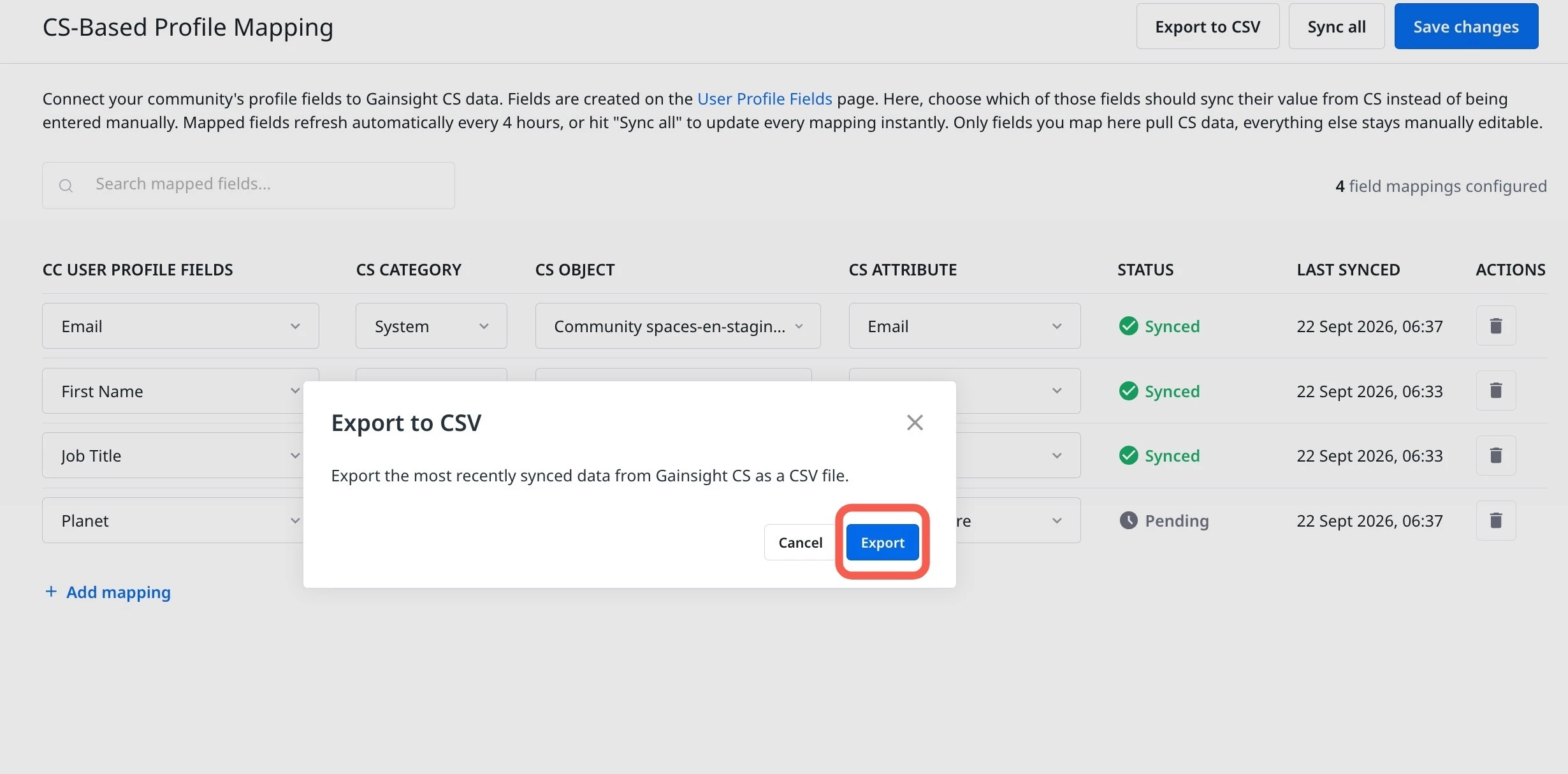
- Click Export to CSV. The Export to CSV window appears.
- Click Export. The synced data is downloaded.
The CSV file contains the following fields:
- User ID: Unique identifier of the community user.
- User Name: Name of the community user.
- CC User Profile Field: The profile field name in the community.
- Value: The value of the CC User Profile Field for the user.
- Status:
- Updated: The user profile field was updated successfully.
- Profile_field_not_exists: The specified user profile field does not exist in the community.
- User_not_found: The specified user ID does not exist in the community.
- Unexpected_error: A server error or other unexpected error occurred.
When synchronization begins, a Gainsight CS job CC User Profile Update is created on the Connectors Activity page. This job provides details of the mapped fields.
For more information on how to view job activity details, refer to the Activity Page article.