


mdfahd
Gainsight Employee ⭐️⭐️
September 10, 2025

How to Use the Moderation AI Agent

  • September 10, 2025
  • 44 replies
  • 1505 views

 This article helps moderators understand how to use Gainsight’s AI Moderation.


Overview


Community moderators are responsible for ensuring that user-generated content aligns with established guidelines and maintains a respectful, trustworthy environment. However, manually reviewing high volumes of content can be time-consuming, delay content publishing, and introduce inconsistencies in moderation.

Using the AI Moderation from the Pre-Moderation Rules in the community settings, moderators can streamline this process. The Moderation AI Agent uses powerful AI models to evaluate content in real time, helping moderation teams screen posts faster and more consistently.


Why AI Moderation?


Moderation AI Agent helps enforce your community’s code of conduct by:

  • Automatically detecting potentially inappropriate or harmful content.
  • Flagging submissions for manual review or blocking them automatically based on risk level.
  • Complementing existing tools such as Keyword Blocker and Spam Prevention.

Moderation AI Agent can reduce the manual workload of your moderators, improve consistency, and accelerate content verification, while continuing to provide a safe and high-quality experience for all community members.


How Does AI Moderation Work?


Moderation AI Agent classifies posts and replies into Approved, Pending, or Trash, applying informative reasoning and descriptive moderator tags for human intervention, filtering, and review.

It provides a fully automated moderation by immediately processing all User-Generated Content (UGC) through OpenAI's Moderation API, ensuring initial compliance. Post-clearance, the AI Moderation further validates content against detailed checks for adherence to community guidelines, absence of NSFW content, PII protection, and spam detection.


Community Code of Conduct


The code of conduct provides guidelines for the Moderation AI Agent and sets clear guardrails for moderation. This ensures that AI-powered moderation aligns with the unique needs of your community.

You can reuse your existing public-facing community rules, code of conduct, or equivalent guidelines. In addition, you may include internal training documents that community managers use during onboarding. The Moderation AI Agent evaluates content against your code of conduct to make the initial decision about what is acceptable within your community.

Note: The Community Code of Conduct can be up to 5,000 characters in length.
 

Moderation Status


Moderation AI Agent scores content on a scale of 0.0 - 1.0 and currently has three possible outcomes:

Status

Confidence Score

Description

Approved

0.0 - 0.4

Content is considered safe and appropriate. Content is approved, published, and visible in the community

Pending

0.4 - 0.7

Requires manual review; borderline or uncertain content. Content is held in the Pending status, is not published, and is not visible in the community.

Trash

0.7 - 1.0

Content violates community or Gainsight moderation guidelines. Content that is Trashed or Trashed and Reported is not published and is not visible in the community.


Moderator Tags


Moderation AI Agent adds tags to each topic or reply that it reviews, to share insights on sorting, filters, and other analytics based on all content moderated.


Category

Tags

Positive Case

  • Meets code of conduct
  • SFW
  • No PII
  • No Spam
  • Approved

Pending Case

  • Pending code of conduct
  • Pending NSFW
  • Pending PII
  • Pending Spam
  • Pending

Negative Case

  • Does not meet the code of conduct
  • NSFW
  • Contains PII
  • Contains Spam
  • Trash

Other Cases

  • Flagged by OpenAI
  • AI Moderator
  • To be reviewed by the community manager


Configure AI Moderation


Moderators can configure Moderation AI Agent in addition to Keyword Blockers and Moderator Approval to ensure that the AI evaluates the content before it is published in the community.

To configure AI Moderation:

  1. Log in to Control.
  2. Navigate to AI > Moderation AI Agent
  3. Turn on the Use AI Moderation toggle.
    Note: When AI Moderation is enabled, an AI moderator user is created. Gainsight recommends not deleting this user.
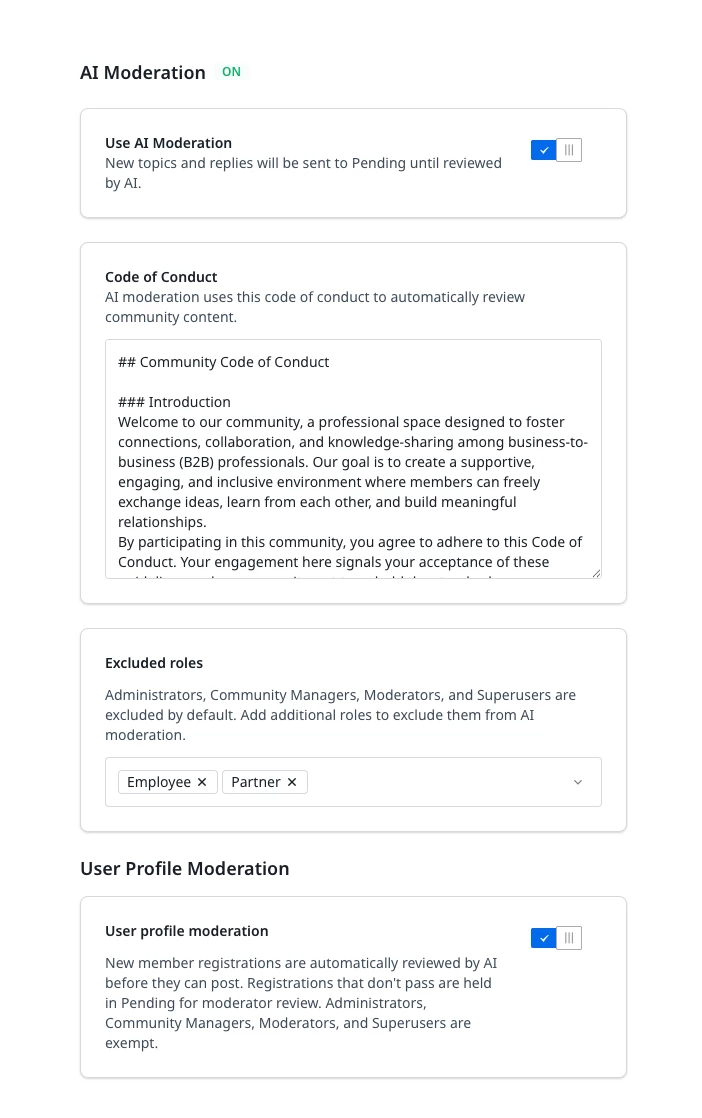
     

  4. In the Code of Conduct, enter your community guidelines.
  5. (Optional) In addition to Administrator, Community Manager, Moderator, and Superuser, you can add additional roles whose content can be excluded from AI Moderation

  6. (Optional) Enable User profile moderation to review New member registrations. Registrations that don't pass are held in Pending for moderator review. Administrators, Community Managers, Moderators, and Superusers are exempt.

  7. Click Save changes.

Content Moderation Widget


Once Moderation AI Agent is configured, any Topics or Replies that do not meet your community’s guidelines are automatically tagged with Moderator Tags. These posts are then moved to Trash and Reported.


You can review this content in the Content Moderation widget on the Control Home page.
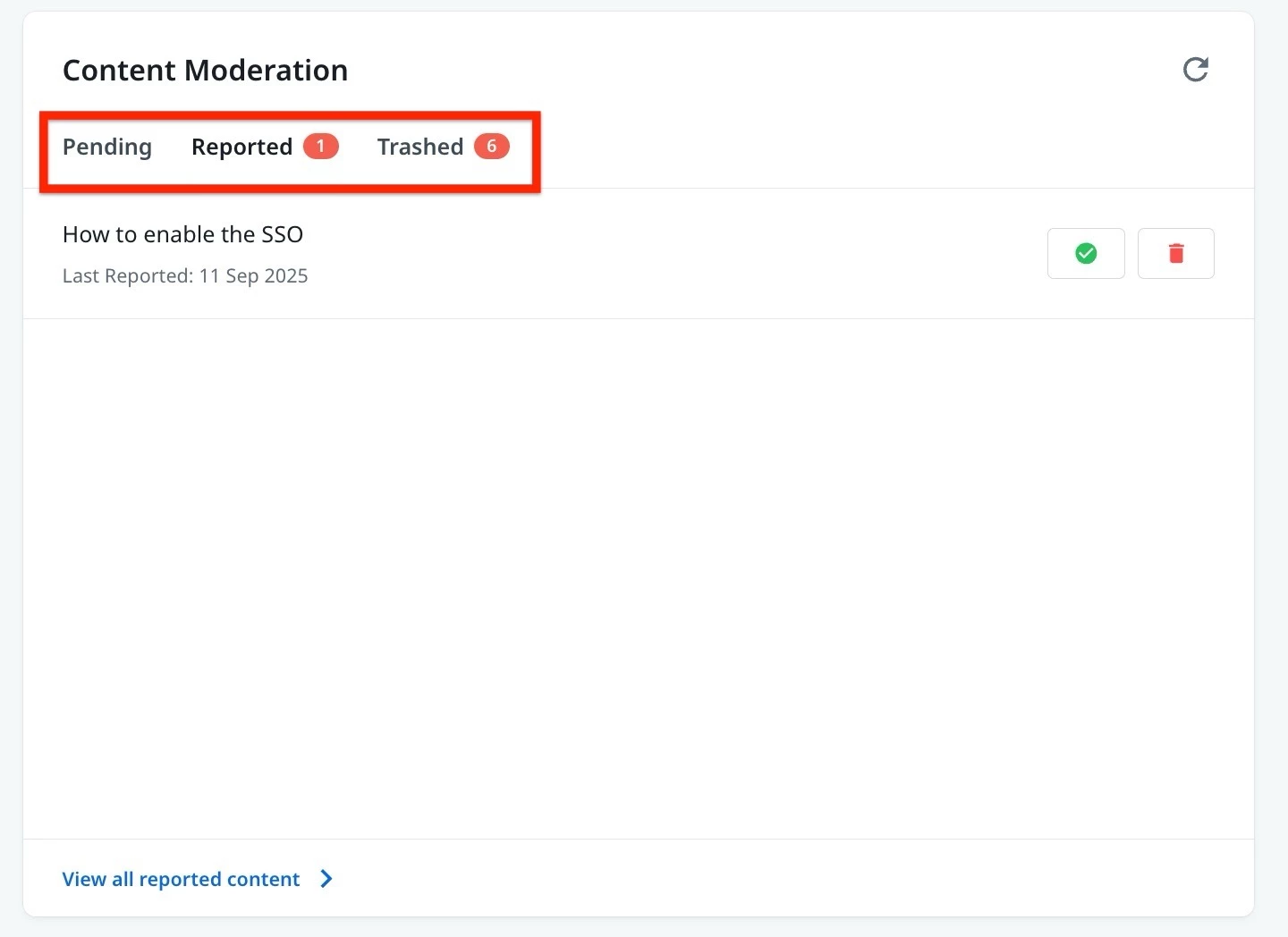
For more information on how to add this widget, refer to the Overview of Control Home article.

    44 replies

    mdfahd
    mdfahdAuthor
    Gainsight Employee ⭐️⭐️
    September 18, 2025

    Hey Community!!
    We have recently updated the article with information on Content Moderation Widget!

    Mohammed Fahd - Sr. Technical Writer
    revote
    VIP ⭐️⭐️⭐️⭐️⭐️
    October 1, 2025

    Thanks a lot for this new feature! I have to start using it ASAP 😀

    At this point, I have a few questions:

    1. When we write the Code of Conduct for the AI, what kind of tone should we use, and who should we address in the text? Is it the AI, the community member, or does it not really matter?

    2. About the tags — what does “SFW” mean?

    3. The Moderation AI works with topics (opening posts) and replies. If the AI thinks that a member’s reply to a topic is suspicious and marks it as “Pending” (for example) because there are no moderation tags in the reply, how can we know why that decision was made?

    mdfahd
    mdfahdAuthor
    Gainsight Employee ⭐️⭐️
    October 3, 2025

    Hi ​@revote,

    Thank you for reaching out to us with your query. Tagging the PM ​@Graeme Rycyk for more inputs on these, Thank you.

    Mohammed Fahd - Sr. Technical Writer
    Graeme Rycyk
    Gainsight Employee ⭐️
    Gainsight Director of Product
    October 6, 2025

    Thanks a lot for this new feature! I have to start using it ASAP 😀

    At this point, I have a few questions:

    1. When we write the Code of Conduct for the AI, what kind of tone should we use, and who should we address in the text? Is it the AI, the community member, or does it not really matter?

    2. About the tags — what does “SFW” mean?

    3. The Moderation AI works with topics (opening posts) and replies. If the AI thinks that a member’s reply to a topic is suspicious and marks it as “Pending” (for example) because there are no moderation tags in the reply, how can we know why that decision was made?

    Hey ​@revote,

    My name is Graeme and I am the Product Manager for the Moderation AI Agent. First, thanks for your questions here.

    1. Your Code of Conduct can be written like you were posting your community rules to your community but it can also be written like training or onboarding documentation for a new member of the community team. The ideas is it operates the same way as your human community moderators would moderate on your community.

    2. SFW stands for "safe for work," which means that the content is appropriate and is often used to indicate that something is suitable to view in a professional or public setting.

    3. The Moderation Agent uses Moderation Tags to give your community team a fast and easy way to understand what moderation decisions have been made and why. Further to this when a post is Trashed and Reported a more detailed explanation of the reported reason is also included.

    If you have any other questions, please feel free to reach out.

    All the best,

    Graeme

    Director of Product | AI & Search
    revote
    VIP ⭐️⭐️⭐️⭐️⭐️
    October 6, 2025

    3. The Moderation Agent uses Moderation Tags to give your community team a fast and easy way to understand what moderation decisions have been made and why. Further to this when a post is Trashed and Reported a more detailed explanation of the reported reason is also included.

    Where these tags can be seen? Is there a new field in the Control? Currently, moderation tags appear in the opening post.

    Graeme Rycyk
    Gainsight Employee ⭐️
    Gainsight Director of Product
    October 6, 2025

    Hey ​@revote,

    The Tags that the Moderation Agent adds are visible in the “Moderator Tags” section of the Moderate Topic page in Control.

    Home > Content > Overview > [Topic]

    See this example here:

    If you need anything please let me know.

    Cheers,

    Graeme


    Director of Product | AI & Search
    revote
    VIP ⭐️⭐️⭐️⭐️⭐️
    October 6, 2025

    Maybe I dont how to ask, but your example looks like tags from to opening post.

    Will there be same kind of field next to each and every comment?

    Graeme Rycyk
    Gainsight Employee ⭐️
    Gainsight Director of Product
    October 6, 2025

    Hey ​@revote,

    Yes they do look like the Public Tags, but Moderator Tags are only visible inside Control, if you go to the moderation view of a topic you will see a input field labeled Moderator Tags, like in the close up screenshot in my earlier post or see a full screen annotated image below. I hope that helps clear this up.


    If you need anything please don’t hesitate to ask.

    Cheers,

    Graeme

    Director of Product | AI & Search
    revote
    VIP ⭐️⭐️⭐️⭐️⭐️
    October 6, 2025

    Thanks, but you are still not answering my question. I dont know how to ask differently 😃

    Graeme Rycyk
    Gainsight Employee ⭐️
    Gainsight Director of Product
    October 6, 2025

    Hi ​@revote,

    Sorry about that. I think I understand the crossed wires here, by comments, I think you are referring to Replies, I took “comments” more broadly and thought you were referring to all posts.

    So Moderator Tags are not applied to Replies, only Topics. However, we will be extending and improving functionality here to give more context on the status of Replies, I cannot give a firm date on this yet.

    Note: When a Reply is Trashed there will be added context in the “Report” feature to elaborate on the reason the reply was Trashed.

    I hope this clears up things.

    Cheers,

    Graeme

    Director of Product | AI & Search